# How to send a personalized in-app message
In Pushwoosh, you can send highly personalized in-app messages.
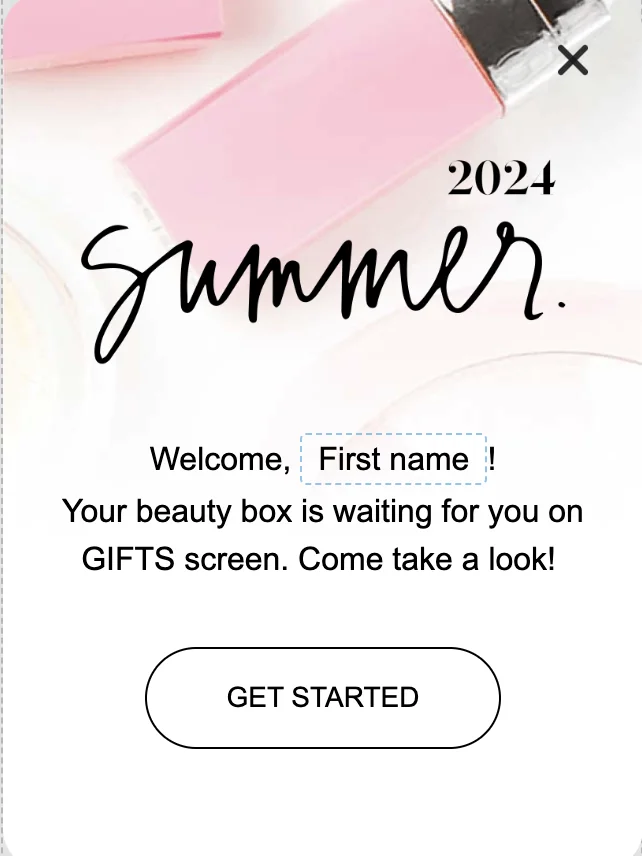
To create a personalized in-app message, use personalization tags for user attributes, known as [Dynamic Content](/product/personalization/dynamic-content). For example, the tag ‘first name’ will place a user attribute [Laura] into your in-app message:
All the personalization tags available for your in-app messages are created and stored in the **Audience > Tags** section. [Follow the guide](/product/audience-data-and-segmentation/user-data-tags/tags) to create new personalization tags.
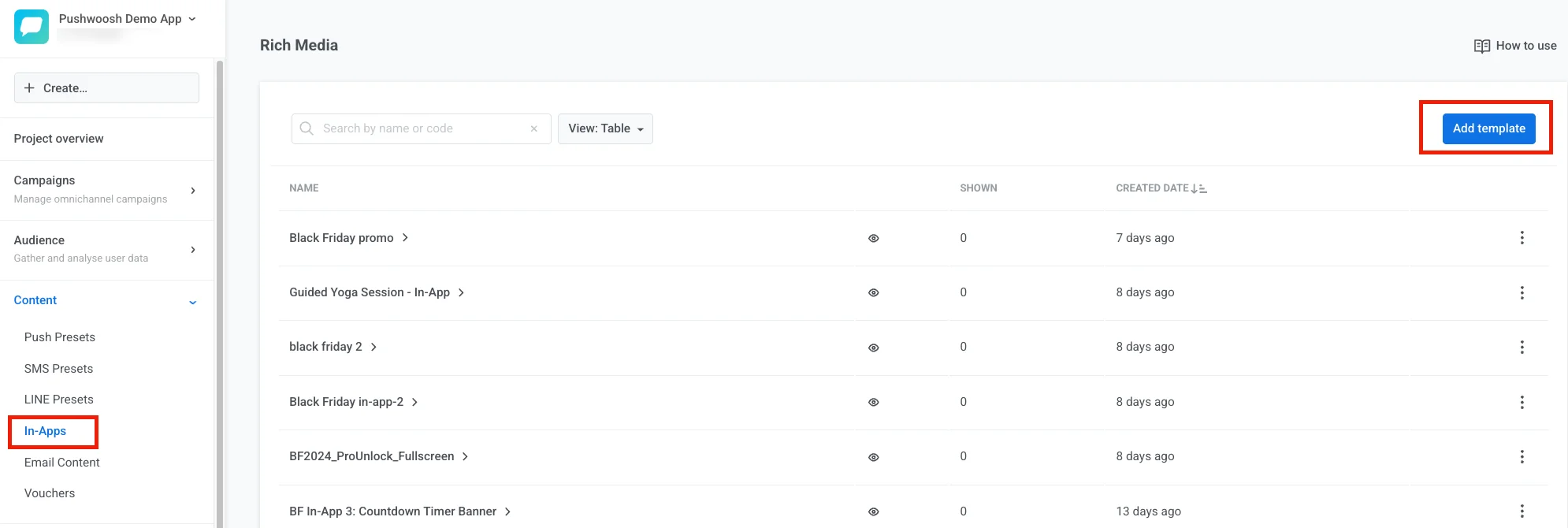
In your Pushwoosh account, open **Content > In-Apps > Add template**.
You can add a personalization tag when creating an in-app banner in [the no-code editor](/product/content/in-apps/no-code-in-app-editor/create-rich-media-in-the-built-in-editor/) or customizing our pre-built in-app templates.
> **Note**: You can also import your pre-designed in-apps via ZIP import. In this case, you can use [Liquid syntax](/product/personalization/liquid-templates) in the HTML layout.
## In-app personalization example
Let’s add personalization to an in-app message by customizing one of our in-app templates.
Choose any pre-built in-app template from the library. You can add new blocks to the in-app or edit its copy, images, and buttons.
To add a personalization tag, click on the place in the block where you want personalization. In the pop-up menu, click **Merge Tags** and choose a tag to be personalized. You can personalize the in-app copy and button text.
Click **Save** to apply changes.
[Read more on how to create in-app messages.](/product/content/in-apps)
 All the personalization tags available for your in-app messages are created and stored in the **Audience > Tags** section. [Follow the guide](/product/audience-data-and-segmentation/user-data-tags/tags) to create new personalization tags.
In your Pushwoosh account, open **Content > In-Apps > Add template**.
All the personalization tags available for your in-app messages are created and stored in the **Audience > Tags** section. [Follow the guide](/product/audience-data-and-segmentation/user-data-tags/tags) to create new personalization tags.
In your Pushwoosh account, open **Content > In-Apps > Add template**.
 You can add a personalization tag when creating an in-app banner in [the no-code editor](/product/content/in-apps/no-code-in-app-editor/create-rich-media-in-the-built-in-editor/) or customizing our pre-built in-app templates.
> **Note**: You can also import your pre-designed in-apps via ZIP import. In this case, you can use [Liquid syntax](/product/personalization/liquid-templates) in the HTML layout.
## In-app personalization example
Let’s add personalization to an in-app message by customizing one of our in-app templates.
Choose any pre-built in-app template from the library. You can add new blocks to the in-app or edit its copy, images, and buttons.
To add a personalization tag, click on the place in the block where you want personalization. In the pop-up menu, click **Merge Tags** and choose a tag to be personalized. You can personalize the in-app copy and button text.
Click **Save** to apply changes.
[Read more on how to create in-app messages.](/product/content/in-apps)
You can add a personalization tag when creating an in-app banner in [the no-code editor](/product/content/in-apps/no-code-in-app-editor/create-rich-media-in-the-built-in-editor/) or customizing our pre-built in-app templates.
> **Note**: You can also import your pre-designed in-apps via ZIP import. In this case, you can use [Liquid syntax](/product/personalization/liquid-templates) in the HTML layout.
## In-app personalization example
Let’s add personalization to an in-app message by customizing one of our in-app templates.
Choose any pre-built in-app template from the library. You can add new blocks to the in-app or edit its copy, images, and buttons.
To add a personalization tag, click on the place in the block where you want personalization. In the pop-up menu, click **Merge Tags** and choose a tag to be personalized. You can personalize the in-app copy and button text.
Click **Save** to apply changes.
[Read more on how to create in-app messages.](/product/content/in-apps)