# How to send an email with products from your catalog
Use this guide to send an email campaign that promotes products from your Pushwoosh [Product Catalog](/product/content/product-catalog/). Example: a "Weekly New Arrivals" email for an electronics category. Send a one-time version with a few hand-picked products, or a recurring version that a Customer Journey sends every Monday with the newest electronics in the catalog that week.
## Before you begin
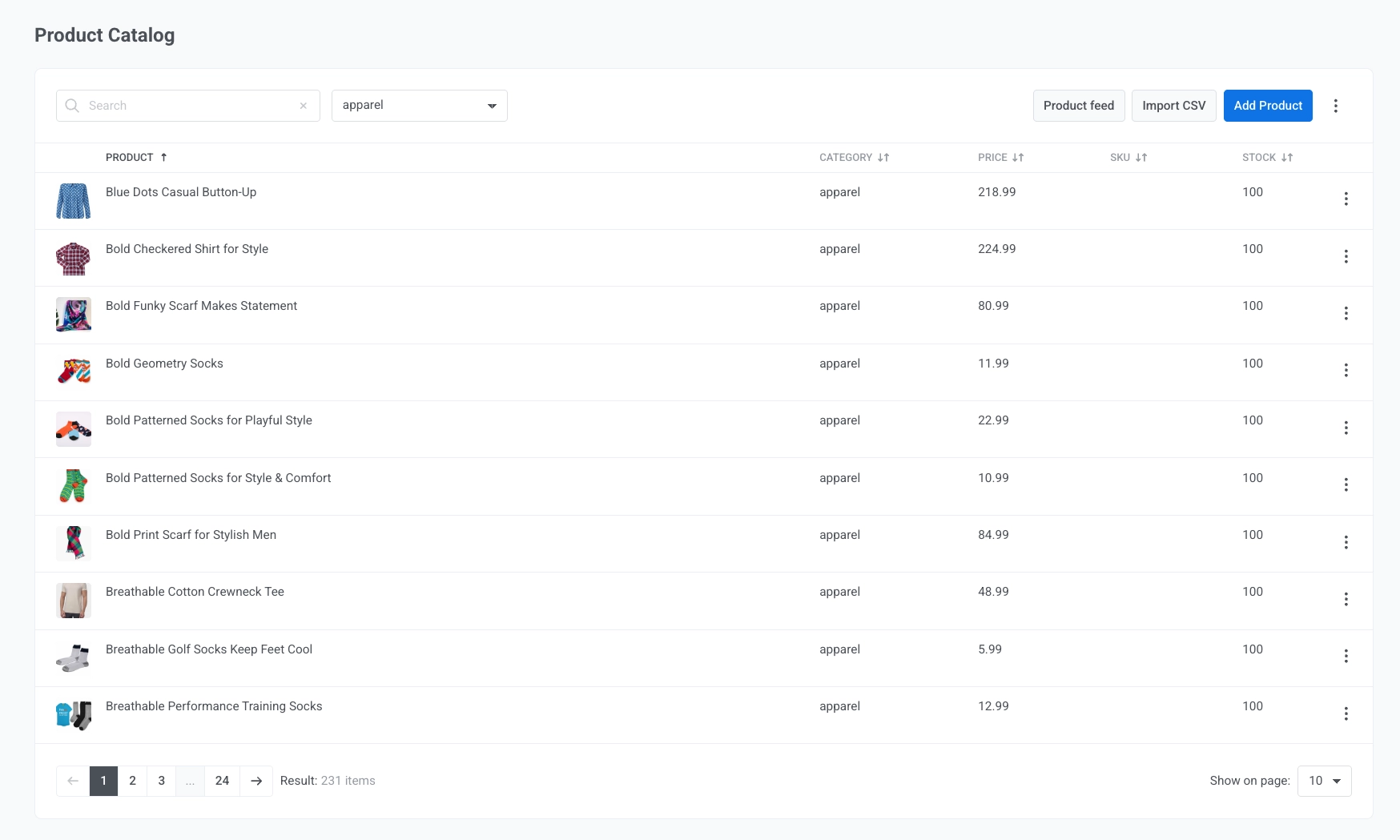
Make sure your account's catalog has products in it. Go to **Content → Product Catalog** and connect a feed, import a CSV, or add products by hand. [Learn how to populate your catalog](/product/content/product-catalog/#ways-to-populate-your-catalog).
## Build the email
1. Go to **Content → Email Content** and create an email in the [Drag & drop editor](/product/content/email-content/drag-and-drop-email-editor/create-email-content-with-drag-and-drop-editor/). Name it something like "Weekly New Arrivals Electronics".
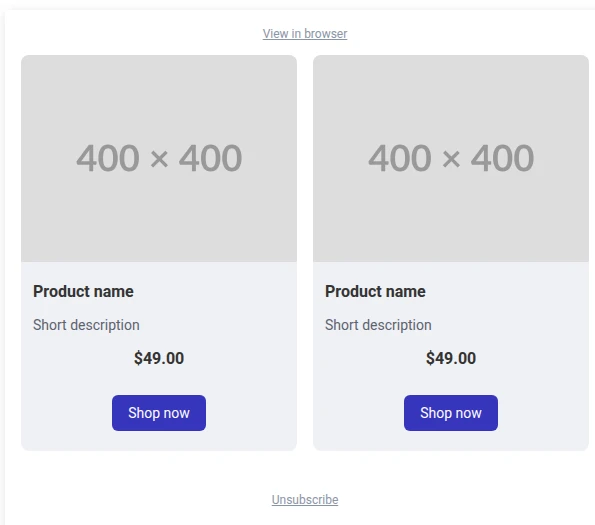
2. Drag a **Products** block onto the canvas.
3. In the block's settings panel, under **Source**, select [**Manual**](#pick-specific-products) to hand-pick a fixed set of products, or [**Catalog rule**](#pull-products-with-a-catalog-rule) to have Pushwoosh select products from the catalog at send time.
### Pick specific products
Use **Manual** when you want full control over exactly which products appear. For example, a one-time email highlighting four specific new electronics items.
1. Select **Manual** under **Source**.
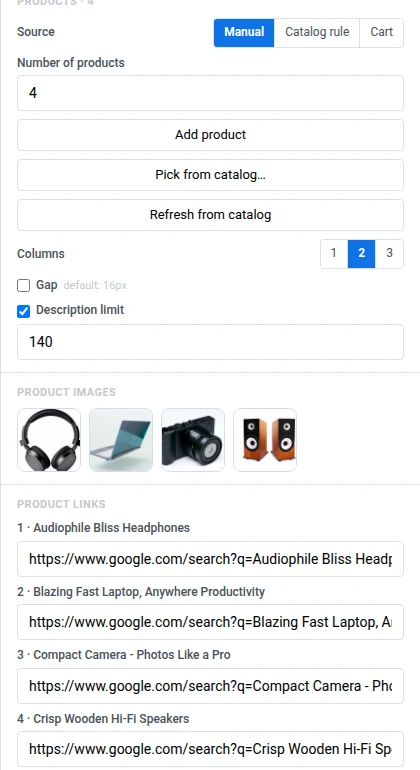
2. Set **Number of products** to the number of cards to show (1-24). For this example, use 4.
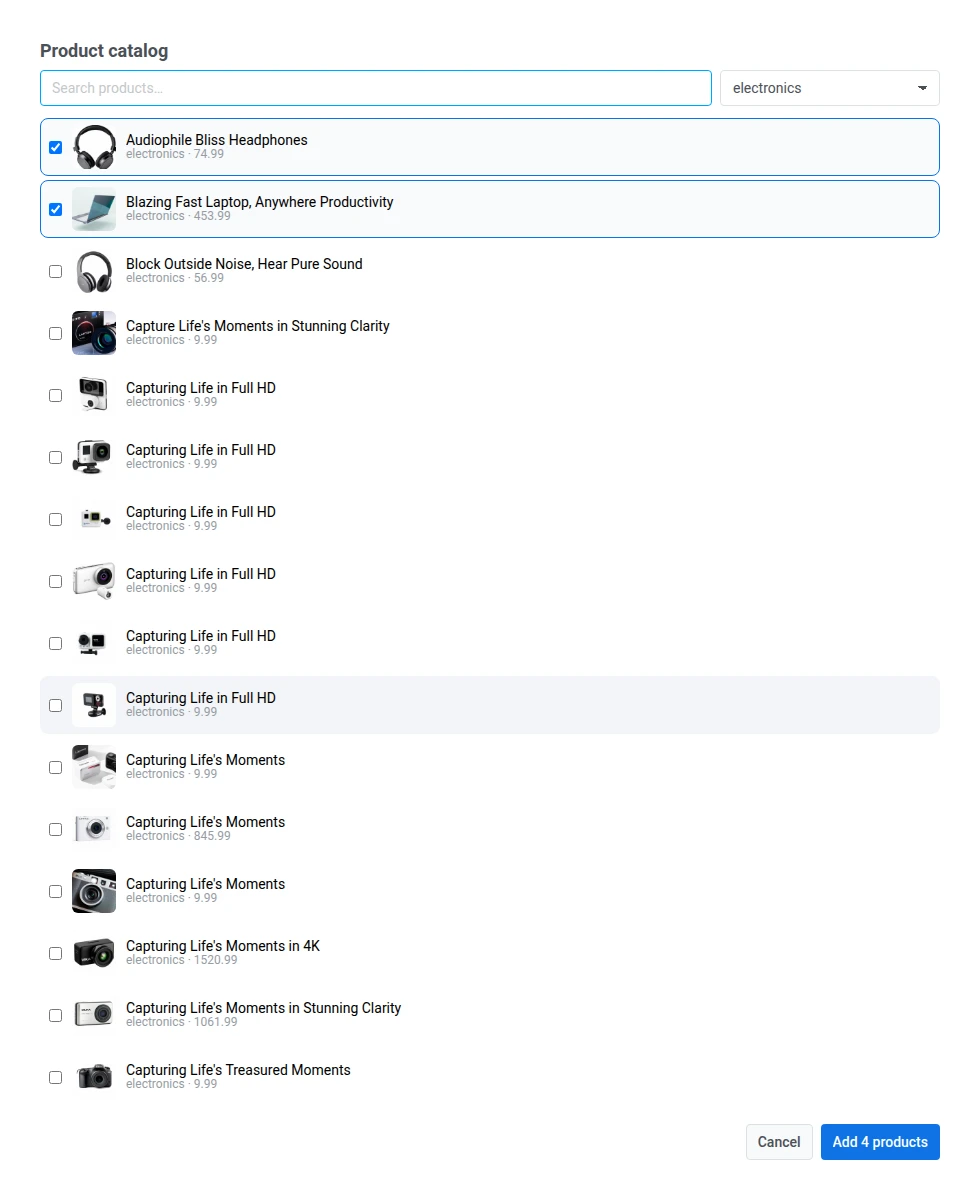
3. Click **Pick from catalog…**, filter to the **electronics** category, and check the products to feature.
4. To replace a product's picture, click its thumbnail under **Product images**.
5. Products picked from the catalog carry over their real product page URL under **Product links** automatically. If you add a product manually instead of picking it from the catalog, its link starts blank. Fill it in yourself.
6. Style the grid and card template as needed. See [Style the grid](/product/content/email-content/drag-and-drop-email-editor/blocks/#style-the-grid).
### Pull products with a catalog rule
Use **Catalog rule** when the picks should stay current automatically. For example, a recurring "Weekly New Arrivals" send that should always show whatever is newest in electronics, without you editing the email each week.
1. Select **Catalog rule** under **Source**.
2. Set **Category** to **electronics** (or **All categories**).
3. Choose a **Sort** order: **Newest first** for a new-arrivals email, or **Price: low to high**, **Price: high to low**, **Title A-Z**.
4. Set **Number of products** (1-12). For this example, use 4.
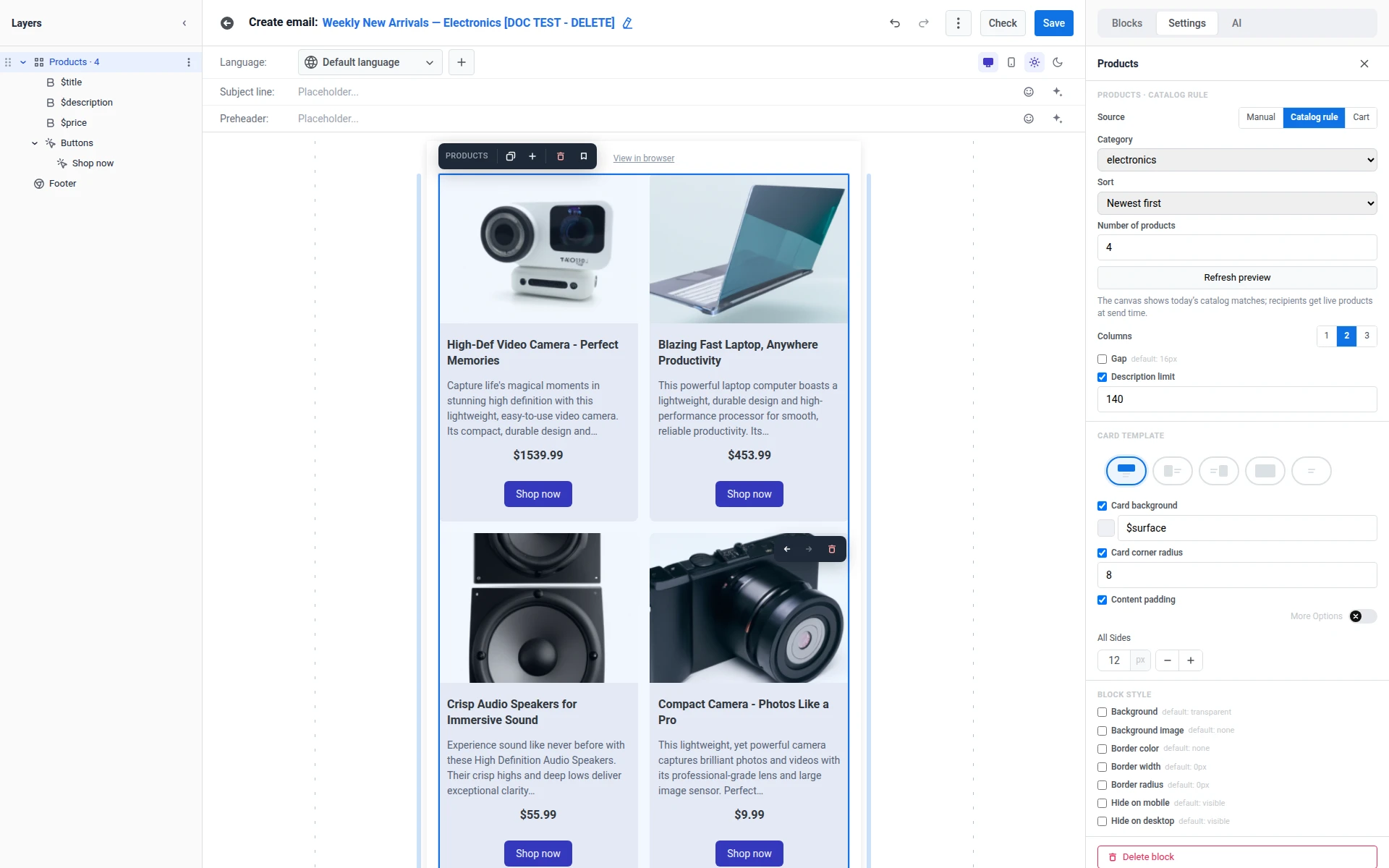
5. Click **Refresh preview** to recalculate the canvas preview against the catalog.
6. Style the grid and card template as needed. See [Style the grid](/product/content/email-content/drag-and-drop-email-editor/blocks/#style-the-grid).
The canvas shows today's catalog matches. Recipients get live products at send time.
See the [Products block reference](/product/content/email-content/drag-and-drop-email-editor/blocks/#products) for details about sorting, product images, links, and sale prices.
### Finish building the email
Finish the rest of the email, including the subject line, other content blocks, and footer. [Learn more](/product/content/email-content/drag-and-drop-email-editor/create-email-content-with-drag-and-drop-editor/).
## Send the email
After you save the email content, choose how to send it. A **Manual** email works well for a one-time send. A **Catalog rule** email works well in a recurring Journey that keeps sending an up-to-date "Weekly New Arrivals" email on a schedule. This guide builds one of each below. If you only need one approach, build just that version instead of both.
### One-time email
Use a one-time email for a single promotion, such as the hand-picked electronics highlight built above. Select the email content you created, choose a segment or your full audience, then send immediately or schedule it for later. See [Send one-time emails](/product/messaging-channels/emails/sending-emails/send-one-time-emails/).
### Customer Journey
For a recurring or triggered send, add the **Catalog rule** email to a Customer Journey. This keeps the product selection current at send time without touching the email content again.
1. Go to **Campaigns → Customer Journey Builder → Create campaign → Email**.
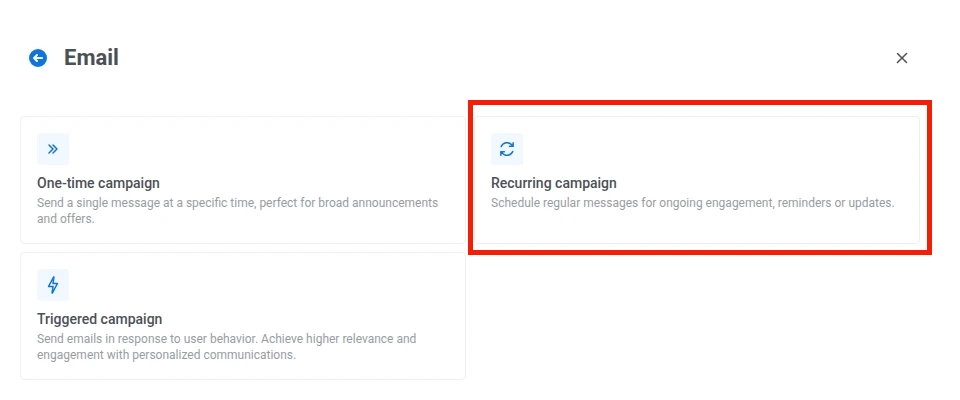
2. Select **Recurring campaign** for a schedule, such as the weekly send, or **Triggered campaign** for an event from your backend, such as a back-in-stock event.
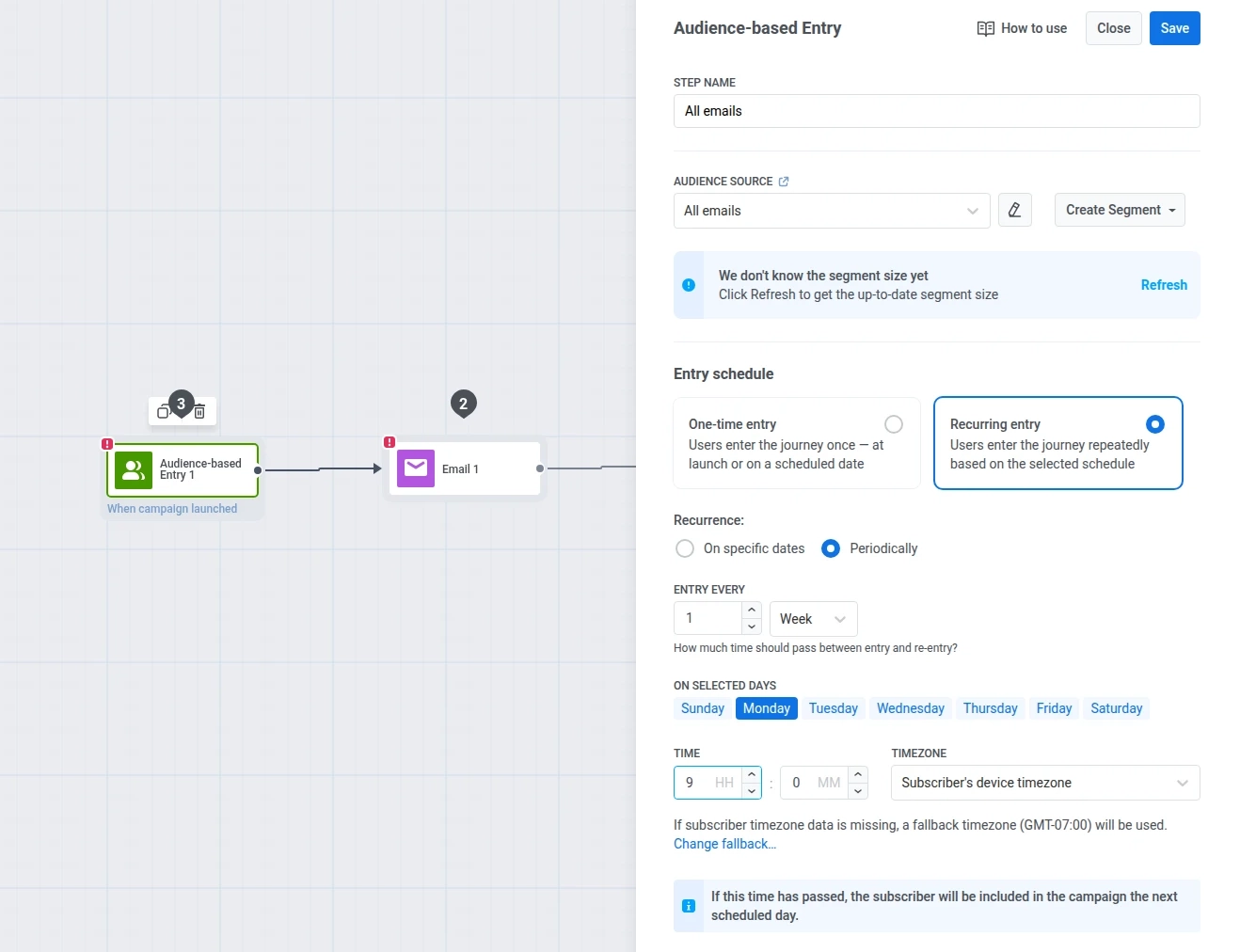
3. Configure the [Audience-based Entry](/product/customer-journey/journey-elements/entry-elements/audience-based-entry/) element:
* **Audience Source:** select a segment, such as **All emails**.
* **Entry schedule:** select **Recurring entry → Periodically**.
* **ENTRY EVERY:** set to **1 Week**.
* **ON SELECTED DAYS:** check **Monday**.
* **Time:** set to **09:00**.
* **Timezone:** leave as **Subscriber's device timezone**. For subscribers without device timezone data, Pushwoosh falls back to the **Fallback timezone** set next to it. By default that is the timezone your browser was in when you configured the entry. Double-check it matches what you want.
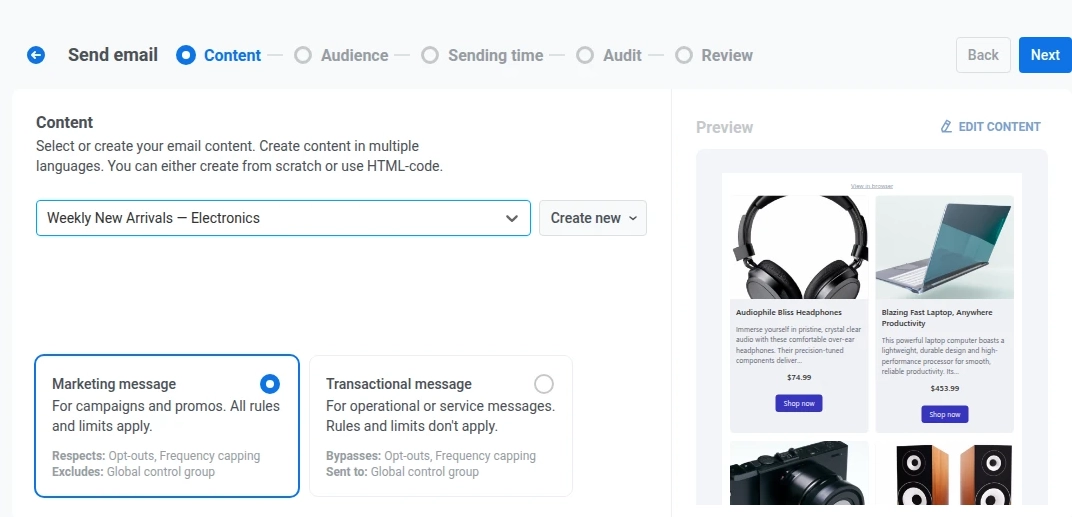
4. Open the **Email** step and select the **Weekly New Arrivals Electronics** email you built above as its content.
5. Finish configuring the remaining Journey settings and elements as needed. See the [Customer Journey overview](/product/customer-journey/pushwoosh-journey-overview/).
6. Click **Launch campaign** to activate the Journey.
Every Monday, the entry element re-enrolls the audience and the **Catalog rule** block pulls whatever electronics products currently match. You do not need to reopen the content each week. With **Manual**, refresh the block when the catalog changes.
Track opens, clicks, and conversions on the [Journey statistics](/product/statistics-and-analytics/journey-statistics/) page, or in [Email statistics](/product/statistics-and-analytics/messaging-statistics/email-statistics/) for the one-time send.
 3. In the block's settings panel, under **Source**, select [**Manual**](#pick-specific-products) to hand-pick a fixed set of products, or [**Catalog rule**](#pull-products-with-a-catalog-rule) to have Pushwoosh select products from the catalog at send time.
### Pick specific products
Use **Manual** when you want full control over exactly which products appear. For example, a one-time email highlighting four specific new electronics items.
1. Select **Manual** under **Source**.
2. Set **Number of products** to the number of cards to show (1-24). For this example, use 4.
3. Click **Pick from catalog…**, filter to the **electronics** category, and check the products to feature.
3. In the block's settings panel, under **Source**, select [**Manual**](#pick-specific-products) to hand-pick a fixed set of products, or [**Catalog rule**](#pull-products-with-a-catalog-rule) to have Pushwoosh select products from the catalog at send time.
### Pick specific products
Use **Manual** when you want full control over exactly which products appear. For example, a one-time email highlighting four specific new electronics items.
1. Select **Manual** under **Source**.
2. Set **Number of products** to the number of cards to show (1-24). For this example, use 4.
3. Click **Pick from catalog…**, filter to the **electronics** category, and check the products to feature.
 4. To replace a product's picture, click its thumbnail under **Product images**.
5. Products picked from the catalog carry over their real product page URL under **Product links** automatically. If you add a product manually instead of picking it from the catalog, its link starts blank. Fill it in yourself.
4. To replace a product's picture, click its thumbnail under **Product images**.
5. Products picked from the catalog carry over their real product page URL under **Product links** automatically. If you add a product manually instead of picking it from the catalog, its link starts blank. Fill it in yourself.
 6. Style the grid and card template as needed. See [Style the grid](/product/content/email-content/drag-and-drop-email-editor/blocks/#style-the-grid).
### Pull products with a catalog rule
Use **Catalog rule** when the picks should stay current automatically. For example, a recurring "Weekly New Arrivals" send that should always show whatever is newest in electronics, without you editing the email each week.
1. Select **Catalog rule** under **Source**.
2. Set **Category** to **electronics** (or **All categories**).
3. Choose a **Sort** order: **Newest first** for a new-arrivals email, or **Price: low to high**, **Price: high to low**, **Title A-Z**.
4. Set **Number of products** (1-12). For this example, use 4.

5. Click **Refresh preview** to recalculate the canvas preview against the catalog.
6. Style the grid and card template as needed. See [Style the grid](/product/content/email-content/drag-and-drop-email-editor/blocks/#style-the-grid).
The canvas shows today's catalog matches. Recipients get live products at send time.
See the [Products block reference](/product/content/email-content/drag-and-drop-email-editor/blocks/#products) for details about sorting, product images, links, and sale prices.
### Finish building the email
Finish the rest of the email, including the subject line, other content blocks, and footer. [Learn more](/product/content/email-content/drag-and-drop-email-editor/create-email-content-with-drag-and-drop-editor/).
## Send the email
After you save the email content, choose how to send it. A **Manual** email works well for a one-time send. A **Catalog rule** email works well in a recurring Journey that keeps sending an up-to-date "Weekly New Arrivals" email on a schedule. This guide builds one of each below. If you only need one approach, build just that version instead of both.
### One-time email
Use a one-time email for a single promotion, such as the hand-picked electronics highlight built above. Select the email content you created, choose a segment or your full audience, then send immediately or schedule it for later. See [Send one-time emails](/product/messaging-channels/emails/sending-emails/send-one-time-emails/).
6. Style the grid and card template as needed. See [Style the grid](/product/content/email-content/drag-and-drop-email-editor/blocks/#style-the-grid).
### Pull products with a catalog rule
Use **Catalog rule** when the picks should stay current automatically. For example, a recurring "Weekly New Arrivals" send that should always show whatever is newest in electronics, without you editing the email each week.
1. Select **Catalog rule** under **Source**.
2. Set **Category** to **electronics** (or **All categories**).
3. Choose a **Sort** order: **Newest first** for a new-arrivals email, or **Price: low to high**, **Price: high to low**, **Title A-Z**.
4. Set **Number of products** (1-12). For this example, use 4.

5. Click **Refresh preview** to recalculate the canvas preview against the catalog.
6. Style the grid and card template as needed. See [Style the grid](/product/content/email-content/drag-and-drop-email-editor/blocks/#style-the-grid).
The canvas shows today's catalog matches. Recipients get live products at send time.
See the [Products block reference](/product/content/email-content/drag-and-drop-email-editor/blocks/#products) for details about sorting, product images, links, and sale prices.
### Finish building the email
Finish the rest of the email, including the subject line, other content blocks, and footer. [Learn more](/product/content/email-content/drag-and-drop-email-editor/create-email-content-with-drag-and-drop-editor/).
## Send the email
After you save the email content, choose how to send it. A **Manual** email works well for a one-time send. A **Catalog rule** email works well in a recurring Journey that keeps sending an up-to-date "Weekly New Arrivals" email on a schedule. This guide builds one of each below. If you only need one approach, build just that version instead of both.
### One-time email
Use a one-time email for a single promotion, such as the hand-picked electronics highlight built above. Select the email content you created, choose a segment or your full audience, then send immediately or schedule it for later. See [Send one-time emails](/product/messaging-channels/emails/sending-emails/send-one-time-emails/).
 ### Customer Journey
For a recurring or triggered send, add the **Catalog rule** email to a Customer Journey. This keeps the product selection current at send time without touching the email content again.
1. Go to **Campaigns → Customer Journey Builder → Create campaign → Email**.

2. Select **Recurring campaign** for a schedule, such as the weekly send, or **Triggered campaign** for an event from your backend, such as a back-in-stock event.
3. Configure the [Audience-based Entry](/product/customer-journey/journey-elements/entry-elements/audience-based-entry/) element:
* **Audience Source:** select a segment, such as **All emails**.
* **Entry schedule:** select **Recurring entry → Periodically**.
* **ENTRY EVERY:** set to **1 Week**.
* **ON SELECTED DAYS:** check **Monday**.
* **Time:** set to **09:00**.
* **Timezone:** leave as **Subscriber's device timezone**. For subscribers without device timezone data, Pushwoosh falls back to the **Fallback timezone** set next to it. By default that is the timezone your browser was in when you configured the entry. Double-check it matches what you want.

4. Open the **Email** step and select the **Weekly New Arrivals Electronics** email you built above as its content.
5. Finish configuring the remaining Journey settings and elements as needed. See the [Customer Journey overview](/product/customer-journey/pushwoosh-journey-overview/).
6. Click **Launch campaign** to activate the Journey.
### Customer Journey
For a recurring or triggered send, add the **Catalog rule** email to a Customer Journey. This keeps the product selection current at send time without touching the email content again.
1. Go to **Campaigns → Customer Journey Builder → Create campaign → Email**.

2. Select **Recurring campaign** for a schedule, such as the weekly send, or **Triggered campaign** for an event from your backend, such as a back-in-stock event.
3. Configure the [Audience-based Entry](/product/customer-journey/journey-elements/entry-elements/audience-based-entry/) element:
* **Audience Source:** select a segment, such as **All emails**.
* **Entry schedule:** select **Recurring entry → Periodically**.
* **ENTRY EVERY:** set to **1 Week**.
* **ON SELECTED DAYS:** check **Monday**.
* **Time:** set to **09:00**.
* **Timezone:** leave as **Subscriber's device timezone**. For subscribers without device timezone data, Pushwoosh falls back to the **Fallback timezone** set next to it. By default that is the timezone your browser was in when you configured the entry. Double-check it matches what you want.

4. Open the **Email** step and select the **Weekly New Arrivals Electronics** email you built above as its content.
5. Finish configuring the remaining Journey settings and elements as needed. See the [Customer Journey overview](/product/customer-journey/pushwoosh-journey-overview/).
6. Click **Launch campaign** to activate the Journey.
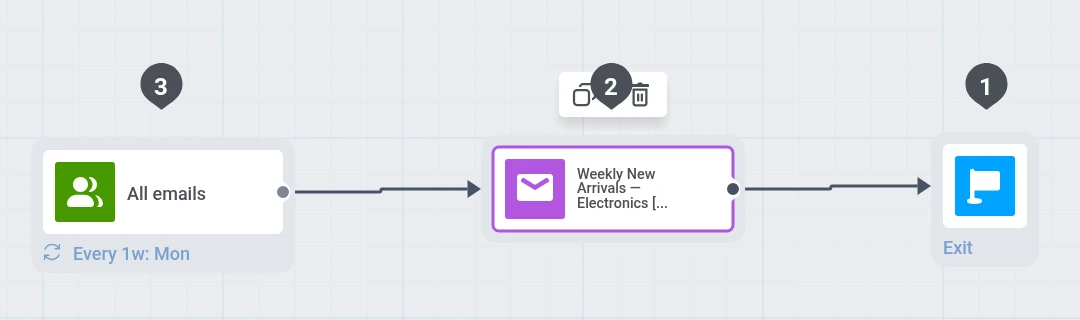 Every Monday, the entry element re-enrolls the audience and the **Catalog rule** block pulls whatever electronics products currently match. You do not need to reopen the content each week. With **Manual**, refresh the block when the catalog changes.
Track opens, clicks, and conversions on the [Journey statistics](/product/statistics-and-analytics/journey-statistics/) page, or in [Email statistics](/product/statistics-and-analytics/messaging-statistics/email-statistics/) for the one-time send.
Every Monday, the entry element re-enrolls the audience and the **Catalog rule** block pulls whatever electronics products currently match. You do not need to reopen the content each week. With **Manual**, refresh the block when the catalog changes.
Track opens, clicks, and conversions on the [Journey statistics](/product/statistics-and-analytics/journey-statistics/) page, or in [Email statistics](/product/statistics-and-analytics/messaging-statistics/email-statistics/) for the one-time send.