# Viber platform configuration
Pushwoosh enables you to send Viber messages to users as part of your omnichannel campaigns. Connect your Viber account to Pushwoosh to use Viber in Customer Journey.
## Prerequisites
Before configuring Viber, ensure the following requirements are met:
* **Pushwoosh account:** A project where you want to enable Viber.
* **Auth token:** Your Rakuten Viber authentication token required to connect Viber to Pushwoosh. [Learn more](https://developers.viber.com/docs/api/rest-bot-api/).
## Set up the Viber configuration
To set up the Viber configuration, follow these steps:
1. Navigate to **Settings → Configure platforms**. Scroll down the list of platforms to find **Viber** and click **Connect**.
 2. In the **Viber notifications** dialog, enter your **AUTH TOKEN** from Rakuten Viber.
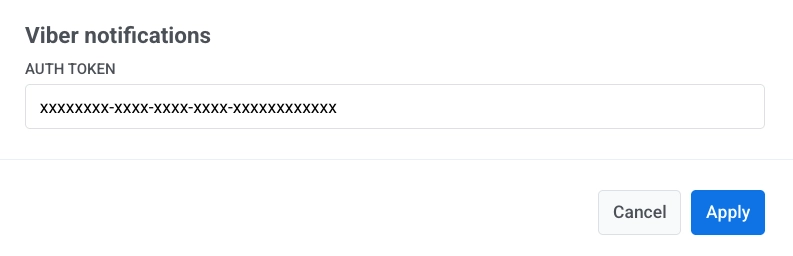 3. Click **Apply** to save your configuration. To discard changes, click **Cancel**.
## What's next
After setup, you can send Viber messages in Customer Journeys.
3. Click **Apply** to save your configuration. To discard changes, click **Cancel**.
## What's next
After setup, you can send Viber messages in Customer Journeys.