# Telegram platform configuration
Connect your Telegram bot to Pushwoosh to run Telegram as part of your omnichannel journeys from one place and track delivery results in Journey analytics.
## Prerequisites
Before configuring Telegram, ensure the following requirements are met:
* **Telegram account:** Use an active Telegram account that can access [@BotFather](https://t.me/BotFather).
* **Telegram bot:** Create a Telegram bot in BotFather.
## Copy your Telegram bot API token
To get an API token for an existing bot:
1. In Telegram, open **@BotFather**.
2. Send `/mybots` and select your bot.
3. Tap **API Token** and copy the token.
If you do not have a bot, create one in **@BotFather** by following [the official Telegram guide](https://core.telegram.org/bots/features#botfather).
## Set up the Telegram configuration in Pushwoosh
To set up the Telegram configuration, follow these steps:
1. Navigate to **Settings > Configure platforms** and open **Telegram**.
2. If you already have a bot, click **Add token**. If not, click **Create a bot**.
When you click **Create a bot**, Pushwoosh opens instructions for creating the bot in Telegram via **@BotFather**. Complete bot creation in Telegram, then return to Pushwoosh and connect the bot token.
3. In the **Connect Telegram bot** dialog, enter the **API token** you copied from BotFather. [Learn how to get the token](#copy-your-telegram-bot-api-token).
4. Click **Check token** to verify the token.
5. Click **Connect** to save. To discard changes, click **Cancel**.
## Manage Telegram bot tokens
### Add a new token
1. In **Telegram** settings, click **Add token**.
2. In the **Connect Telegram bot** dialog, enter the new **API token**.
3. Click **Check token**.
4. Click **Connect**.
### Delete a token
1. Click the **three-dot menu** next to the bot token.
2. Click **Delete**.
Deleting a token pauses all active Telegram journeys.
## Send Telegram messages
After setup, you can send Telegram messages in **Customer Journey Builder**.
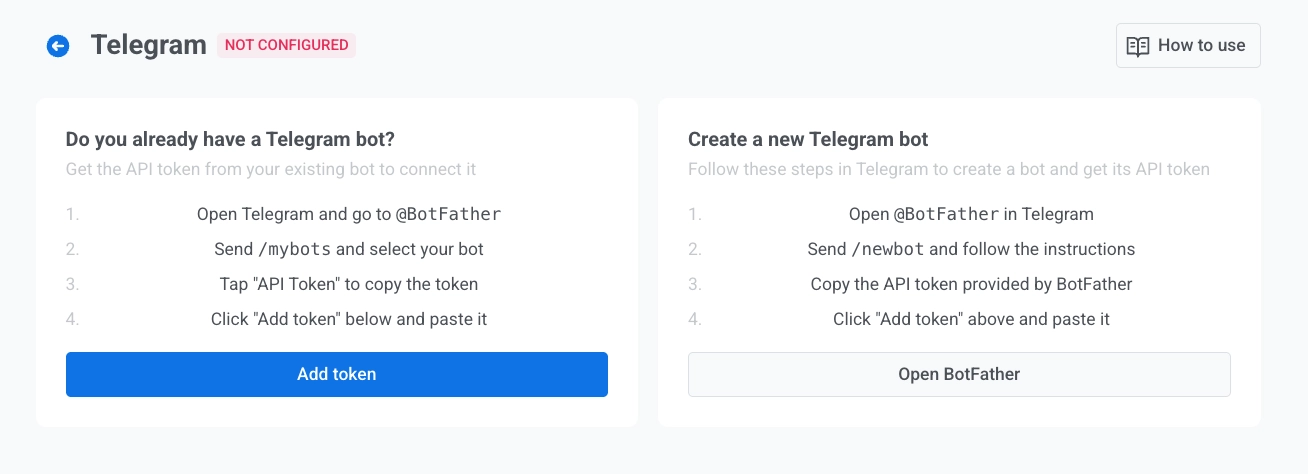 3. In the **Connect Telegram bot** dialog, enter the **API token** you copied from BotFather. [Learn how to get the token](#copy-your-telegram-bot-api-token).
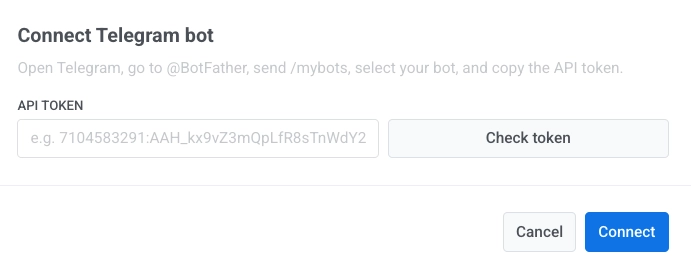 4. Click **Check token** to verify the token.
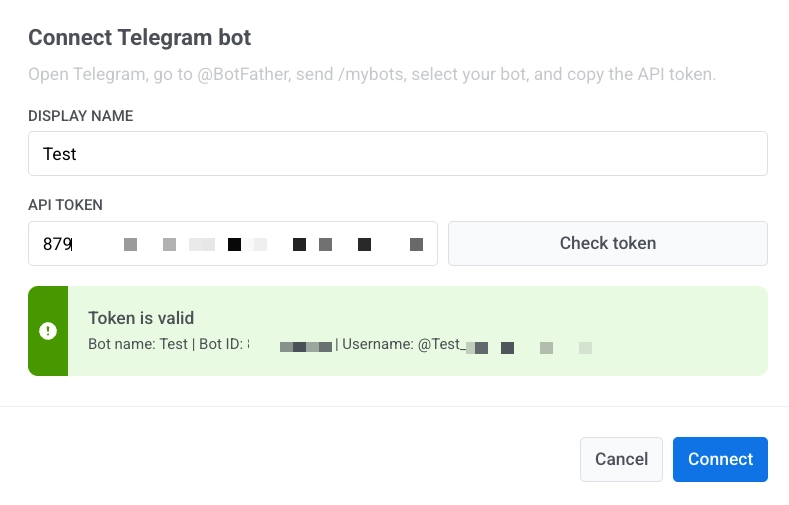 5. Click **Connect** to save. To discard changes, click **Cancel**.
## Manage Telegram bot tokens
### Add a new token
1. In **Telegram** settings, click **Add token**.
2. In the **Connect Telegram bot** dialog, enter the new **API token**.
3. Click **Check token**.
4. Click **Connect**.
### Delete a token
1. Click the **three-dot menu** next to the bot token.
2. Click **Delete**.
Deleting a token pauses all active Telegram journeys.
## Send Telegram messages
After setup, you can send Telegram messages in **Customer Journey Builder**.
5. Click **Connect** to save. To discard changes, click **Cancel**.
## Manage Telegram bot tokens
### Add a new token
1. In **Telegram** settings, click **Add token**.
2. In the **Connect Telegram bot** dialog, enter the new **API token**.
3. Click **Check token**.
4. Click **Connect**.
### Delete a token
1. Click the **three-dot menu** next to the bot token.
2. Click **Delete**.
Deleting a token pauses all active Telegram journeys.
## Send Telegram messages
After setup, you can send Telegram messages in **Customer Journey Builder**.