# SMS platform configuration
Pushwoosh enables you to send SMS messages to users by connecting your own SMS provider. Once configured, you can send [SMS](/product/messaging-channels/sms) in one-time campaigns and Customer Journeys.
## Prerequisites
Before configuring SMS, ensure the following requirements are met:
* **Pushwoosh project**: A project where you want to enable the SMS channel.
* **SMS provider account**: An account with one of the [supported SMS providers](#supported-sms-providers).
* **Provider credentials**: The credentials required by your provider, such as account identifiers, API keys, a sender ID, or a phone number.
## Setting up the SMS configuration
To set up the SMS configuration, follow these steps:
1. Go to **Settings → Configure Platforms**, select **SMS**, and click **Connect**.
2. Choose your **SMS provider** from the list of [supported SMS providers](#supported-sms-providers).
3. Enter the provider credentials. The required fields depend on the provider you select, such as account identifiers, API keys, a sender ID, or a phone number.
4. Click **Save** to activate the channel.
## Supported SMS providers
Pushwoosh supports the following SMS providers:
* [Twilio](https://www.twilio.com/)
* [Amazon SNS](https://aws.amazon.com/sns/)
* [SMSGlobal](https://www.smsglobal.com/)
* [SMSAla](https://smsala.com/)
* [CapitoleMobile](https://www.capitolemobile.com/)
* [Mobipace](https://www.mobipace.com/)
* [SMSCenter](https://smscentre.com/)
* [SMSTraffic](https://www.smstraffic.ru/)
* [TextMe.co.il](https://textme.co.il/)
* [AbleMobile](https://ablemobile.com/)
* [MStat](https://campaign.omni-messaging.com/)
To get your credentials, refer to your SMS provider's documentation. Provider availability may depend on your account and region.
## Provider webhooks
After you save credentials in **Configure Platforms**, check whether your SMS provider needs webhook setup. Some providers configure callbacks automatically, others require URLs in the provider dashboard, and some do not support webhooks at all.
## What's next
After setup, you can send SMS in one-time campaigns and Customer Journeys.
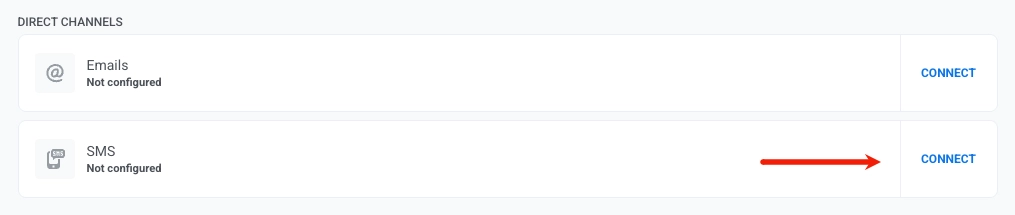 2. Choose your **SMS provider** from the list of [supported SMS providers](#supported-sms-providers).
3. Enter the provider credentials. The required fields depend on the provider you select, such as account identifiers, API keys, a sender ID, or a phone number.
2. Choose your **SMS provider** from the list of [supported SMS providers](#supported-sms-providers).
3. Enter the provider credentials. The required fields depend on the provider you select, such as account identifiers, API keys, a sender ID, or a phone number.
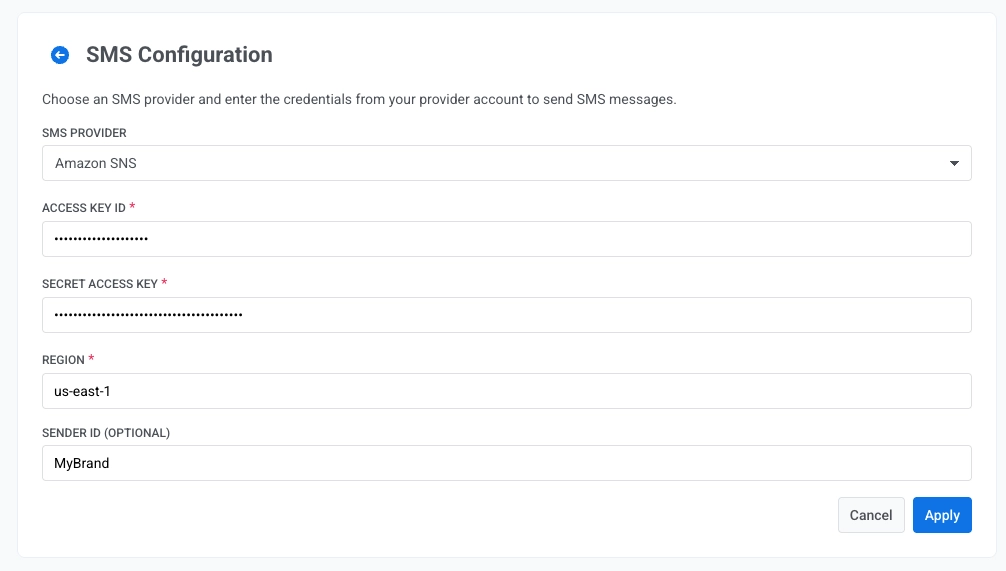 4. Click **Save** to activate the channel.
## Supported SMS providers
Pushwoosh supports the following SMS providers:
* [Twilio](https://www.twilio.com/)
* [Amazon SNS](https://aws.amazon.com/sns/)
* [SMSGlobal](https://www.smsglobal.com/)
* [SMSAla](https://smsala.com/)
* [CapitoleMobile](https://www.capitolemobile.com/)
* [Mobipace](https://www.mobipace.com/)
* [SMSCenter](https://smscentre.com/)
* [SMSTraffic](https://www.smstraffic.ru/)
* [TextMe.co.il](https://textme.co.il/)
* [AbleMobile](https://ablemobile.com/)
* [MStat](https://campaign.omni-messaging.com/)
To get your credentials, refer to your SMS provider's documentation. Provider availability may depend on your account and region.
## Provider webhooks
After you save credentials in **Configure Platforms**, check whether your SMS provider needs webhook setup. Some providers configure callbacks automatically, others require URLs in the provider dashboard, and some do not support webhooks at all.
4. Click **Save** to activate the channel.
## Supported SMS providers
Pushwoosh supports the following SMS providers:
* [Twilio](https://www.twilio.com/)
* [Amazon SNS](https://aws.amazon.com/sns/)
* [SMSGlobal](https://www.smsglobal.com/)
* [SMSAla](https://smsala.com/)
* [CapitoleMobile](https://www.capitolemobile.com/)
* [Mobipace](https://www.mobipace.com/)
* [SMSCenter](https://smscentre.com/)
* [SMSTraffic](https://www.smstraffic.ru/)
* [TextMe.co.il](https://textme.co.il/)
* [AbleMobile](https://ablemobile.com/)
* [MStat](https://campaign.omni-messaging.com/)
To get your credentials, refer to your SMS provider's documentation. Provider availability may depend on your account and region.
## Provider webhooks
After you save credentials in **Configure Platforms**, check whether your SMS provider needs webhook setup. Some providers configure callbacks automatically, others require URLs in the provider dashboard, and some do not support webhooks at all.