# Journey history and versions
When you edit a running journey, you need to know what changed and what happens to people already inside it. In Pushwoosh, open the journey's **History** for both:
* **Change log:** what changed and who changed it
* **Versions:** people already in the journey stay on the old path when an edit shouldn't apply to them, while new users get the update
## Open journey history
1. Open **Campaigns**.
2. Open the journey you want to check.
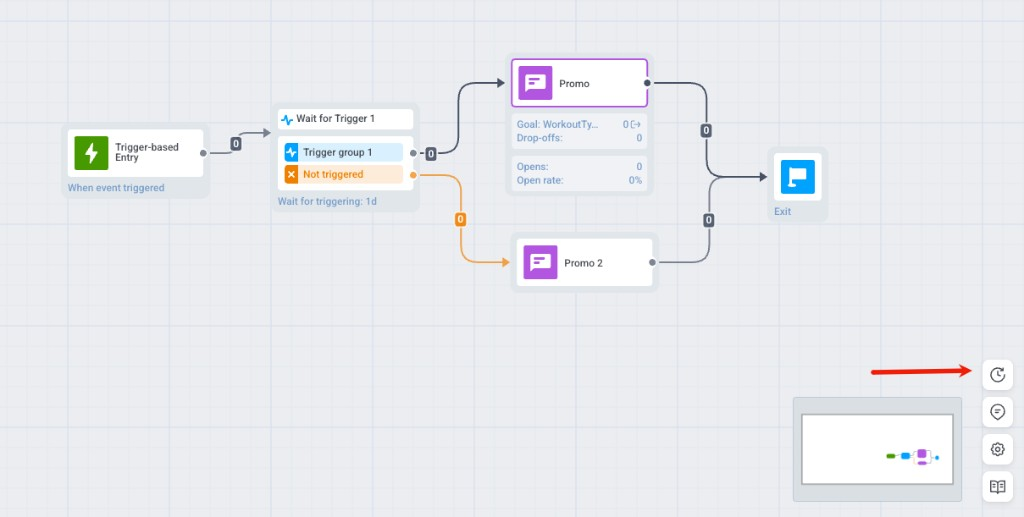
3. On the canvas, click the clock icon at the bottom-right to open the **History** drawer.
## Journey versions
### What is a journey version
A journey version is a snapshot of the campaign, created the moment you resume it. If people are already in a paused journey and your edit can't apply to their run, Pushwoosh locks that run in place as its own version when you click **Resume campaign**, and creates a new version for the edit. The version isn't created while you're editing. See [Why Pushwoosh creates a new version](#why-pushwoosh-creates-a-new-version) for which edits do this.
Both versions stay linked to the same campaign. They appear as one entry in the [campaigns list](/product/customer-journey/journeys-list/), but each has its own status, its own users, and its own history. To check which version a specific person went through, use **Find user path** in the canvas toolbar and search by User ID, HWID, email, phone, or token. If the journey has more than one version, the result names the version their path belongs to.
Journey versioning must be enabled for your account. If it isn't:
* The drawer opens straight to the change log. There's no tab switcher, and no **Versions** tab.
* When you resume a paused journey, your edit applies on the same run. No version is created, and the version dialogs below do not appear.
Contact [Pushwoosh Support](https://help.pushwoosh.com/hc/en-us/requests/new) if you need versioning enabled or you're unsure whether your account has it.
#### Why Pushwoosh creates a new version
A structural edit to a paused journey, such as changing the canvas, the audience, or a branching condition, would redirect users already mid-journey if applied to the version they're in. Versioning prevents that: the edit becomes a new version that only new users enter, while everyone already inside keeps going through the version they originally entered.
Not every edit requires a new version. A wording change to a message, for example, can stay on the current one. What happens when you click **Resume campaign** depends on what you changed. See [What happens when you resume a paused journey](#what-happens-when-you-resume-a-paused-journey).
### View versions
In the **History** drawer, select the **Versions** tab.
Each version card shows:
* A **Version N** badge and a status (**Active**, **Paused**, or **Inactive**)
* **Open for entries** or **Closed for entries**, and how many users are still going through it
* The date it was activated and who activated it
What **Open** and **Closed** mean:
* **Open for entries:** new users can still enter this version.
* **Closed for entries:** new users can't enter it. A version closes when a newer version launches, or when you stop it. People already inside keep going through it.
Click a card to open that version's canvas.
When the journey has two or more versions, use the version selector in the top bar to switch between them.
### What happens when you resume a paused journey
Editing a paused journey doesn't create a new version by itself. What happens next depends on what you changed when you click **Resume campaign**. The edit lists below are examples, not an exhaustive catalog of every field. You don't need to check your edit against them. Click **Resume campaign** and see which dialog opens, if any. That tells you which case you're in.
#### No edits, or only moving an element or a note
For example: no changes since the pause, or only moving an element on the canvas or editing a note.
Click **Resume campaign**. The journey resumes on the same version, and no new version is saved.
#### Edits that can't apply to the current version
Some edits can't apply to people already on the current version. Pushwoosh saves them as a new version instead. For example:
* Canvas structure (elements, connections, element type)
* Who enters or how (audience, trigger, entry rules)
* Path, timing waits, goals, or campaign entry limit
* Application on a message element, message type / unsubscribed policy, or webhook setup
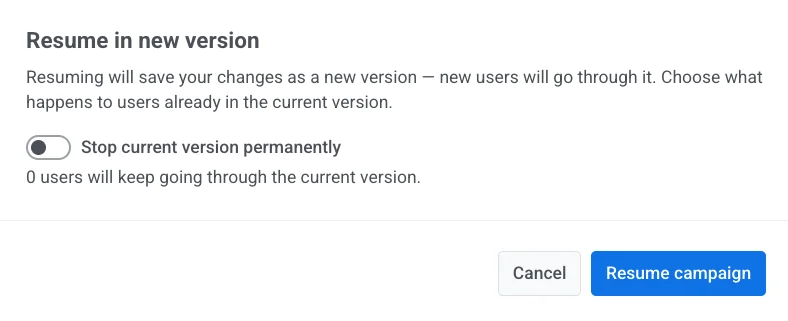
1. Click **Resume campaign**.
2. Choose what happens to people still on the current version. Set **Stop current version permanently**:
* **Off** (default): they keep going through the current version.
* **On:** they stop receiving messages from that version right away.
3. Click **Resume campaign** to save the new version.
New users enter the new version. Users already in the journey stay on the version they entered, unless you stopped that version in step 2.
#### Edits where you choose new version or current
Some edits don't force a new version:
* **Message content:** preset, text, subject line, or personalization
* Frequency capping, send rate, or optimal send time
* Journey title or Silence period time windows
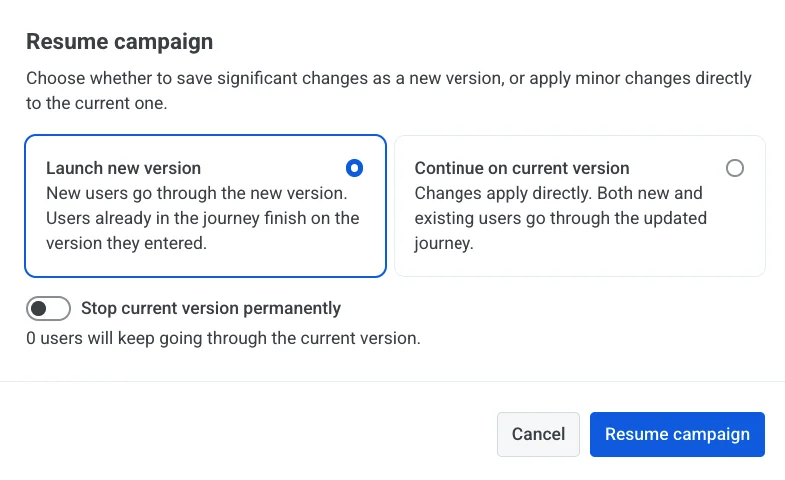
1. Click **Resume campaign**.
2. Choose how to apply the edits:
* **Launch new version:** new users get the updated journey. People already inside finish on the version they entered.
* **Continue on current version** (default): everyone (new and existing) goes through the updated journey on the same version. No new version is saved.
3. If you picked **Launch new version**, set **Stop current version permanently** the same way as in [Edits that can't apply to the current version](#edits-that-cant-apply-to-the-current-version).
4. Click **Resume campaign** to confirm.
If the journey uses [Audience-based entry](/product/customer-journey/journey-elements/entry-elements/audience-based-entry/), either resume path can show additional audience options, the same ones covered in [Resume options for Audience-based entry](/product/customer-journey/journey-editing/#resume-options-for-audience-based-entry): which entry points are new-only or scheduled when launching a new version, or whether to re-enter each audience source when continuing on the current version.
### Stop a version
1. Open the [Versions tab](#view-versions).
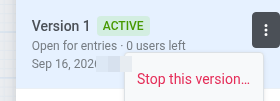
2. Click the three-dot menu on a version's card.
3. Select **Stop this version…**.
If the campaign becomes **Inactive** after you stop a version, restore it with **Restore** in the campaigns list or **Restore to edit** on the canvas. See [Restore](/product/customer-journey/journey-settings/#restore).
## Change log
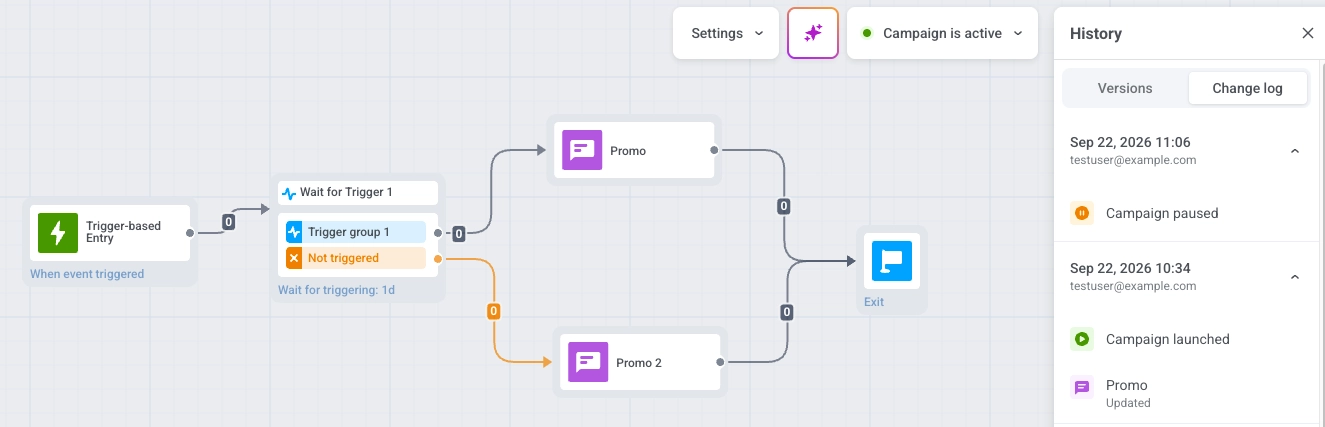
Use the **Change log** when you need to see what changed in the journey, when it changed, and who changed it. For example, check an update or find who edited a step. It is not a separate run of the campaign. Many edits appear here without creating a new version.
In the **History** drawer, select the **Change log** tab.
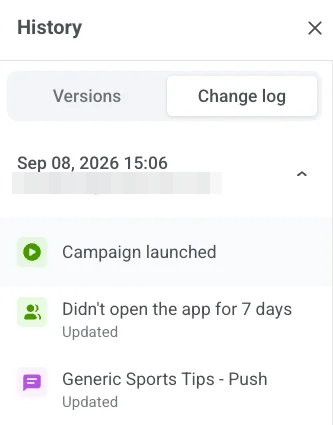
Each entry shows when the update happened, who made it, and what was modified (for example, campaign launch or entry conditions). Expand an entry to see the changes on an individual journey element.
 ## Journey versions
### What is a journey version
A journey version is a snapshot of the campaign, created the moment you resume it. If people are already in a paused journey and your edit can't apply to their run, Pushwoosh locks that run in place as its own version when you click **Resume campaign**, and creates a new version for the edit. The version isn't created while you're editing. See [Why Pushwoosh creates a new version](#why-pushwoosh-creates-a-new-version) for which edits do this.
Both versions stay linked to the same campaign. They appear as one entry in the [campaigns list](/product/customer-journey/journeys-list/), but each has its own status, its own users, and its own history. To check which version a specific person went through, use **Find user path** in the canvas toolbar and search by User ID, HWID, email, phone, or token. If the journey has more than one version, the result names the version their path belongs to.
Journey versioning must be enabled for your account. If it isn't:
* The drawer opens straight to the change log. There's no tab switcher, and no **Versions** tab.
* When you resume a paused journey, your edit applies on the same run. No version is created, and the version dialogs below do not appear.
Contact [Pushwoosh Support](https://help.pushwoosh.com/hc/en-us/requests/new) if you need versioning enabled or you're unsure whether your account has it.
#### Why Pushwoosh creates a new version
A structural edit to a paused journey, such as changing the canvas, the audience, or a branching condition, would redirect users already mid-journey if applied to the version they're in. Versioning prevents that: the edit becomes a new version that only new users enter, while everyone already inside keeps going through the version they originally entered.
Not every edit requires a new version. A wording change to a message, for example, can stay on the current one. What happens when you click **Resume campaign** depends on what you changed. See [What happens when you resume a paused journey](#what-happens-when-you-resume-a-paused-journey).
### View versions
In the **History** drawer, select the **Versions** tab.
## Journey versions
### What is a journey version
A journey version is a snapshot of the campaign, created the moment you resume it. If people are already in a paused journey and your edit can't apply to their run, Pushwoosh locks that run in place as its own version when you click **Resume campaign**, and creates a new version for the edit. The version isn't created while you're editing. See [Why Pushwoosh creates a new version](#why-pushwoosh-creates-a-new-version) for which edits do this.
Both versions stay linked to the same campaign. They appear as one entry in the [campaigns list](/product/customer-journey/journeys-list/), but each has its own status, its own users, and its own history. To check which version a specific person went through, use **Find user path** in the canvas toolbar and search by User ID, HWID, email, phone, or token. If the journey has more than one version, the result names the version their path belongs to.
Journey versioning must be enabled for your account. If it isn't:
* The drawer opens straight to the change log. There's no tab switcher, and no **Versions** tab.
* When you resume a paused journey, your edit applies on the same run. No version is created, and the version dialogs below do not appear.
Contact [Pushwoosh Support](https://help.pushwoosh.com/hc/en-us/requests/new) if you need versioning enabled or you're unsure whether your account has it.
#### Why Pushwoosh creates a new version
A structural edit to a paused journey, such as changing the canvas, the audience, or a branching condition, would redirect users already mid-journey if applied to the version they're in. Versioning prevents that: the edit becomes a new version that only new users enter, while everyone already inside keeps going through the version they originally entered.
Not every edit requires a new version. A wording change to a message, for example, can stay on the current one. What happens when you click **Resume campaign** depends on what you changed. See [What happens when you resume a paused journey](#what-happens-when-you-resume-a-paused-journey).
### View versions
In the **History** drawer, select the **Versions** tab.
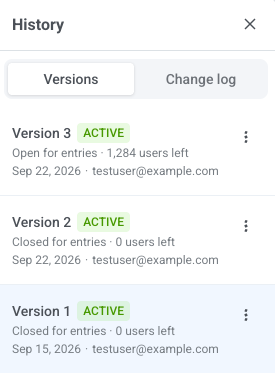 Each version card shows:
* A **Version N** badge and a status (**Active**, **Paused**, or **Inactive**)
* **Open for entries** or **Closed for entries**, and how many users are still going through it
* The date it was activated and who activated it
What **Open** and **Closed** mean:
* **Open for entries:** new users can still enter this version.
* **Closed for entries:** new users can't enter it. A version closes when a newer version launches, or when you stop it. People already inside keep going through it.
Click a card to open that version's canvas.
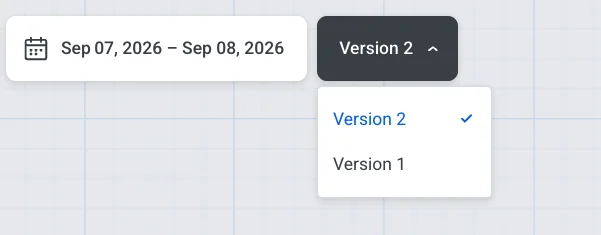
When the journey has two or more versions, use the version selector in the top bar to switch between them.
Each version card shows:
* A **Version N** badge and a status (**Active**, **Paused**, or **Inactive**)
* **Open for entries** or **Closed for entries**, and how many users are still going through it
* The date it was activated and who activated it
What **Open** and **Closed** mean:
* **Open for entries:** new users can still enter this version.
* **Closed for entries:** new users can't enter it. A version closes when a newer version launches, or when you stop it. People already inside keep going through it.
Click a card to open that version's canvas.
When the journey has two or more versions, use the version selector in the top bar to switch between them.
 ### What happens when you resume a paused journey
Editing a paused journey doesn't create a new version by itself. What happens next depends on what you changed when you click **Resume campaign**. The edit lists below are examples, not an exhaustive catalog of every field. You don't need to check your edit against them. Click **Resume campaign** and see which dialog opens, if any. That tells you which case you're in.
#### No edits, or only moving an element or a note
For example: no changes since the pause, or only moving an element on the canvas or editing a note.
Click **Resume campaign**. The journey resumes on the same version, and no new version is saved.
#### Edits that can't apply to the current version
Some edits can't apply to people already on the current version. Pushwoosh saves them as a new version instead. For example:
* Canvas structure (elements, connections, element type)
* Who enters or how (audience, trigger, entry rules)
* Path, timing waits, goals, or campaign entry limit
* Application on a message element, message type / unsubscribed policy, or webhook setup
1. Click **Resume campaign**.
2. Choose what happens to people still on the current version. Set **Stop current version permanently**:
* **Off** (default): they keep going through the current version.
* **On:** they stop receiving messages from that version right away.
### What happens when you resume a paused journey
Editing a paused journey doesn't create a new version by itself. What happens next depends on what you changed when you click **Resume campaign**. The edit lists below are examples, not an exhaustive catalog of every field. You don't need to check your edit against them. Click **Resume campaign** and see which dialog opens, if any. That tells you which case you're in.
#### No edits, or only moving an element or a note
For example: no changes since the pause, or only moving an element on the canvas or editing a note.
Click **Resume campaign**. The journey resumes on the same version, and no new version is saved.
#### Edits that can't apply to the current version
Some edits can't apply to people already on the current version. Pushwoosh saves them as a new version instead. For example:
* Canvas structure (elements, connections, element type)
* Who enters or how (audience, trigger, entry rules)
* Path, timing waits, goals, or campaign entry limit
* Application on a message element, message type / unsubscribed policy, or webhook setup
1. Click **Resume campaign**.
2. Choose what happens to people still on the current version. Set **Stop current version permanently**:
* **Off** (default): they keep going through the current version.
* **On:** they stop receiving messages from that version right away.
 3. Click **Resume campaign** to save the new version.
New users enter the new version. Users already in the journey stay on the version they entered, unless you stopped that version in step 2.
#### Edits where you choose new version or current
Some edits don't force a new version:
* **Message content:** preset, text, subject line, or personalization
* Frequency capping, send rate, or optimal send time
* Journey title or Silence period time windows
1. Click **Resume campaign**.
2. Choose how to apply the edits:
* **Launch new version:** new users get the updated journey. People already inside finish on the version they entered.
* **Continue on current version** (default): everyone (new and existing) goes through the updated journey on the same version. No new version is saved.
3. Click **Resume campaign** to save the new version.
New users enter the new version. Users already in the journey stay on the version they entered, unless you stopped that version in step 2.
#### Edits where you choose new version or current
Some edits don't force a new version:
* **Message content:** preset, text, subject line, or personalization
* Frequency capping, send rate, or optimal send time
* Journey title or Silence period time windows
1. Click **Resume campaign**.
2. Choose how to apply the edits:
* **Launch new version:** new users get the updated journey. People already inside finish on the version they entered.
* **Continue on current version** (default): everyone (new and existing) goes through the updated journey on the same version. No new version is saved.
 3. If you picked **Launch new version**, set **Stop current version permanently** the same way as in [Edits that can't apply to the current version](#edits-that-cant-apply-to-the-current-version).
4. Click **Resume campaign** to confirm.
If the journey uses [Audience-based entry](/product/customer-journey/journey-elements/entry-elements/audience-based-entry/), either resume path can show additional audience options, the same ones covered in [Resume options for Audience-based entry](/product/customer-journey/journey-editing/#resume-options-for-audience-based-entry): which entry points are new-only or scheduled when launching a new version, or whether to re-enter each audience source when continuing on the current version.
### Stop a version
1. Open the [Versions tab](#view-versions).
2. Click the three-dot menu on a version's card.
3. Select **Stop this version…**.
3. If you picked **Launch new version**, set **Stop current version permanently** the same way as in [Edits that can't apply to the current version](#edits-that-cant-apply-to-the-current-version).
4. Click **Resume campaign** to confirm.
If the journey uses [Audience-based entry](/product/customer-journey/journey-elements/entry-elements/audience-based-entry/), either resume path can show additional audience options, the same ones covered in [Resume options for Audience-based entry](/product/customer-journey/journey-editing/#resume-options-for-audience-based-entry): which entry points are new-only or scheduled when launching a new version, or whether to re-enter each audience source when continuing on the current version.
### Stop a version
1. Open the [Versions tab](#view-versions).
2. Click the three-dot menu on a version's card.
3. Select **Stop this version…**.
 If the campaign becomes **Inactive** after you stop a version, restore it with **Restore** in the campaigns list or **Restore to edit** on the canvas. See [Restore](/product/customer-journey/journey-settings/#restore).
## Change log
Use the **Change log** when you need to see what changed in the journey, when it changed, and who changed it. For example, check an update or find who edited a step. It is not a separate run of the campaign. Many edits appear here without creating a new version.
In the **History** drawer, select the **Change log** tab.
If the campaign becomes **Inactive** after you stop a version, restore it with **Restore** in the campaigns list or **Restore to edit** on the canvas. See [Restore](/product/customer-journey/journey-settings/#restore).
## Change log
Use the **Change log** when you need to see what changed in the journey, when it changed, and who changed it. For example, check an update or find who edited a step. It is not a separate run of the campaign. Many edits appear here without creating a new version.
In the **History** drawer, select the **Change log** tab.
 Each entry shows when the update happened, who made it, and what was modified (for example, campaign launch or entry conditions). Expand an entry to see the changes on an individual journey element.