# Getting started with Journey elements
Customer journeys in Pushwoosh are built using modular journey elements. These represent entry points, communication channels, and flow controls that define how users move through your journey.
## Working with Journey elements
###### Adding elements to a journey
To add an element to your journey, either drag it from the left panel to the canvas, or click **Connect this** on an existing element and choose the next step from the list.
###### Deleting an element
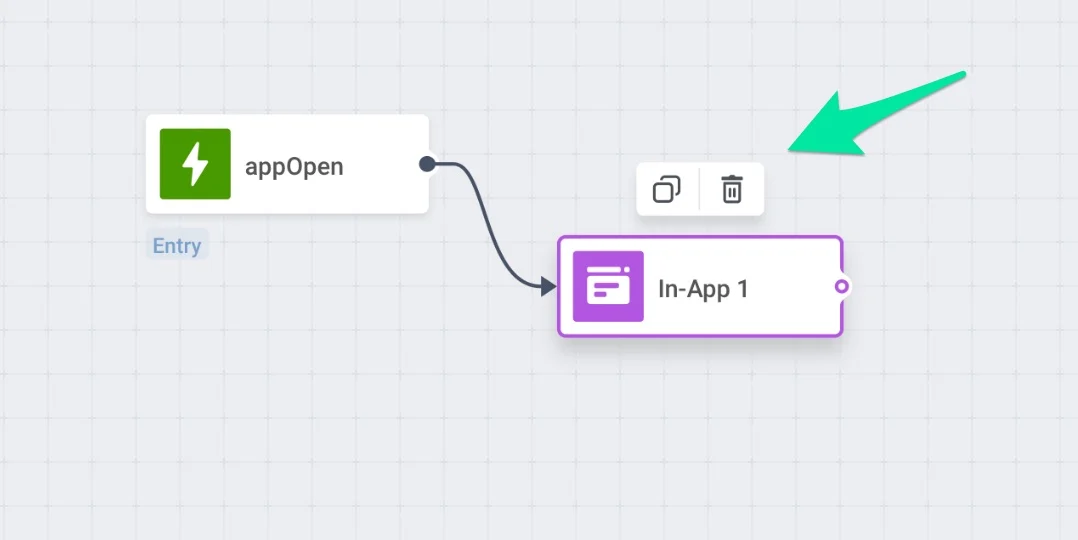
To **delete** an element, click it once and press the **Bin icon** on the top.
 ###### Editing an element
To **edit** an element, click it twice and fill in the fields of the pop-up window that appeared.
## Journey elements
### Entry
#### Trigger-based entry
Start a journey when a user triggers a specific event, such as a purchase or registration.
#### Audience-based entry
Launch a journey for a pre-defined segment of users.
#### API-based entry
Initiate a journey by sending a request to the Pushwoosh API when an external business event occurs.
### Channels
#### Push
Send personalized push notifications at the right moment in the journey, with support for vouchers, inbox storage, timing optimization, and frequency capping.
#### Multi-Armed Bandit
Automatically send the best-performing push variant in journeys using real-time open rates, without manual A/B testing.
#### Email
Send personalized email messages as part of your customer journey. You can test subject lines, include voucher codes, enable BCC, set frequency limits, and split the journey based on whether the email is opened.
#### In-app
Trigger in-app messages to engage users with personalized content displayed when they open the app.
#### SMS
Deliver timely SMS messages using customizable presets or personalized text to drive immediate user engagement.
#### WhatsApp
Send tailored WhatsApp messages using approved Meta templates or custom text to deliver relevant content and improve conversion rates.
#### Telegram
Send text-only Telegram messages after users start your bot, with personalization, vouchers, and delivery statistics.
#### LINE
Engage users with targeted LINE messages. Choose from formatted presets or plain content, add vouchers, and optimize flow based on delivery success.
#### Kakao
Send approved Kakao messages using Kakao templates with dynamic variables and optional vouchers.
#### Data to app
Deliver silent pushes or JSON payloads to trigger in-app behavior, personalize content, or test new features dynamically.
#### Webhook
Send data or trigger actions in third-party systems via HTTP requests.
### Flow controls
#### Condition split
Split a journey based on user segments or tag values.
#### Wait for trigger
Pause the journey until the user triggers specified events or attributes.
#### A/B/n split
Split the journey to test message variants and optimize based on performance.
#### Reachability check
Check if a user can be reached via a channel and direct the journey accordingly.
#### Time delay
Pause users before the next step based on fixed intervals, specific times, dates, or tag/event values.
#### Update user profile
Assign or update user tags manually or dynamically based on journey events.
#### Audience sync
Sync users from a journey step to Meta audiences for ad targeting or suppression.
#### Webhook
Send data or trigger actions in third-party systems via HTTP requests.
#### Exit from journey
Mark the endpoint of a user journey to conclude all logic and messaging.
## Canvas hotkeys
To ease your journey configuration, use the hotkeys allowing instant managing journey's parts with no clicks:
* Select a journey element and copy-paste it with **Ctrl+C/Ctrl+V** (Cmd+C/Cmd+V).
* Select several journey elements by holding Shift/Cmd and copy-paste the whole selection with **Ctrl+C/Ctrl+V**.
* Copy and paste elements between journeys (do not switch tabs while copying).
* Delete journey elements from the canvas by pressing your system **Delete** hotkey.
###### Editing an element
To **edit** an element, click it twice and fill in the fields of the pop-up window that appeared.
## Journey elements
### Entry
#### Trigger-based entry
Start a journey when a user triggers a specific event, such as a purchase or registration.
#### Audience-based entry
Launch a journey for a pre-defined segment of users.
#### API-based entry
Initiate a journey by sending a request to the Pushwoosh API when an external business event occurs.
### Channels
#### Push
Send personalized push notifications at the right moment in the journey, with support for vouchers, inbox storage, timing optimization, and frequency capping.
#### Multi-Armed Bandit
Automatically send the best-performing push variant in journeys using real-time open rates, without manual A/B testing.
#### Email
Send personalized email messages as part of your customer journey. You can test subject lines, include voucher codes, enable BCC, set frequency limits, and split the journey based on whether the email is opened.
#### In-app
Trigger in-app messages to engage users with personalized content displayed when they open the app.
#### SMS
Deliver timely SMS messages using customizable presets or personalized text to drive immediate user engagement.
#### WhatsApp
Send tailored WhatsApp messages using approved Meta templates or custom text to deliver relevant content and improve conversion rates.
#### Telegram
Send text-only Telegram messages after users start your bot, with personalization, vouchers, and delivery statistics.
#### LINE
Engage users with targeted LINE messages. Choose from formatted presets or plain content, add vouchers, and optimize flow based on delivery success.
#### Kakao
Send approved Kakao messages using Kakao templates with dynamic variables and optional vouchers.
#### Data to app
Deliver silent pushes or JSON payloads to trigger in-app behavior, personalize content, or test new features dynamically.
#### Webhook
Send data or trigger actions in third-party systems via HTTP requests.
### Flow controls
#### Condition split
Split a journey based on user segments or tag values.
#### Wait for trigger
Pause the journey until the user triggers specified events or attributes.
#### A/B/n split
Split the journey to test message variants and optimize based on performance.
#### Reachability check
Check if a user can be reached via a channel and direct the journey accordingly.
#### Time delay
Pause users before the next step based on fixed intervals, specific times, dates, or tag/event values.
#### Update user profile
Assign or update user tags manually or dynamically based on journey events.
#### Audience sync
Sync users from a journey step to Meta audiences for ad targeting or suppression.
#### Webhook
Send data or trigger actions in third-party systems via HTTP requests.
#### Exit from journey
Mark the endpoint of a user journey to conclude all logic and messaging.
## Canvas hotkeys
To ease your journey configuration, use the hotkeys allowing instant managing journey's parts with no clicks:
* Select a journey element and copy-paste it with **Ctrl+C/Ctrl+V** (Cmd+C/Cmd+V).
* Select several journey elements by holding Shift/Cmd and copy-paste the whole selection with **Ctrl+C/Ctrl+V**.
* Copy and paste elements between journeys (do not switch tabs while copying).
* Delete journey elements from the canvas by pressing your system **Delete** hotkey.