# Audience-based entry
**Audience-based entry** launches a journey for a pre-built segment of your app's users. A segment includes subscribers who meet specific conditions.
> For more information on Audience segments, refer to the [Segments guide](/product/audience-data-and-segmentation/segmentation/).
To set up the Audience-based entry, drag the Audience-based entry element onto the canvas and select an Audience Source (i.e., a pre-built segment of app subscribers).
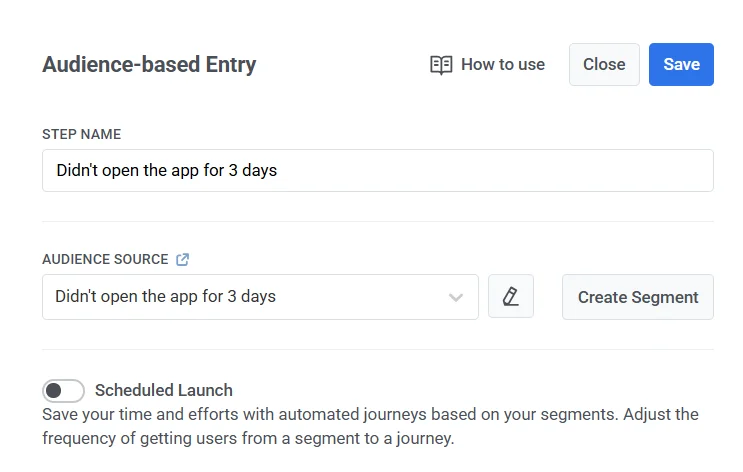
You can manage segments directly from this element:
* To edit the selected segment, click the **Edit** icon next to the **Audience Source** dropdown.
* To create a new segment, click **Create Segment**.
You can also upload a CSV file to create a segment and then start a journey for it. [Learn more](/product/audience-data-and-segmentation/segmentation/create-segments/by-import)
Once the journey is activated, all users from the selected segment enter the journey.
## Entry schedule
**Entry schedule** defines how users enter the journey.
In the element configuration, choose between two entry types:
* **One-time entry:** users enter the journey once – at launch or on a scheduled date.
* **Recurring entry:** users enter the journey repeatedly based on the selected schedule.
### One-time entry
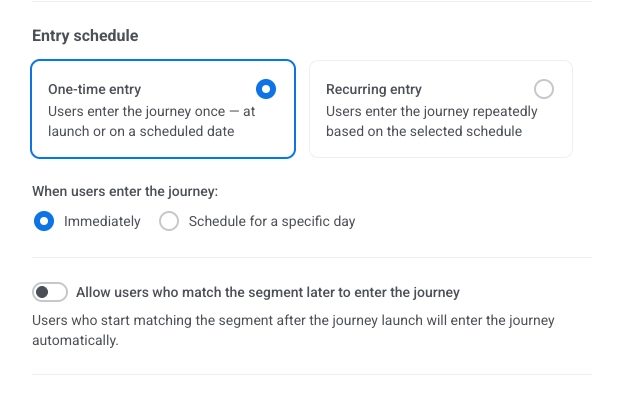
When **One-time entry** is selected, choose when users enter the journey:
* **Immediately:** users enter as soon as the journey is activated.
* **Schedule for a specific day:** users enter on the date and time you set.
#### Immediately
Users enter the journey as soon as it is activated.
#### Schedule for a specific day
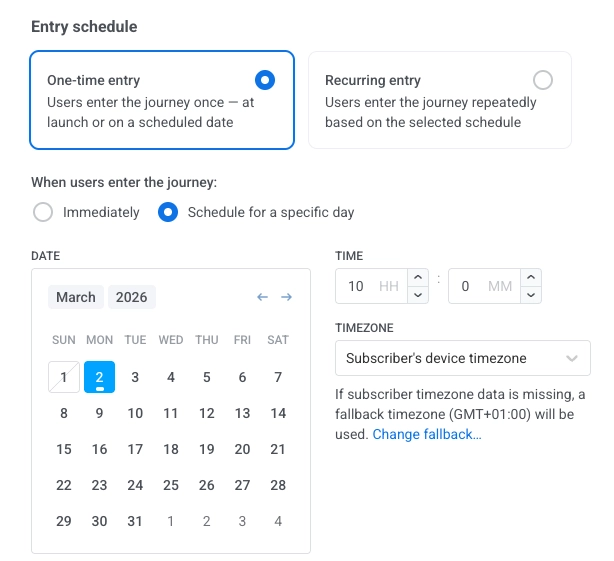
If you choose **Schedule for a specific day**, set the date, time, and timezone.
##### Timezone options
* **Subscriber's device timezone (default):** entry uses each subscriber's device timezone. If timezone is missing, a fallback (e.g. GMT+01:00) is used. Click **Change fallback** to change it.
* **Specific timezone:** pick a timezone from the dropdown for a fixed entry time.
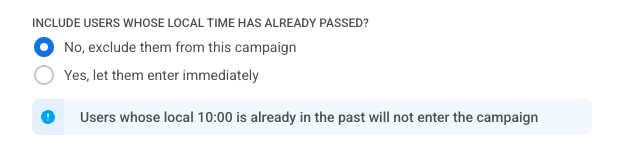
##### Choose what happens when a user's scheduled time has already passed
Choose what happens when a user's scheduled entry time (in their local timezone) has already passed:
* **No, exclude them from this journey:** the user will not enter the journey.
* **Yes, let them enter immediately:** the user enters the journey right away.
#### Define who enters the journey
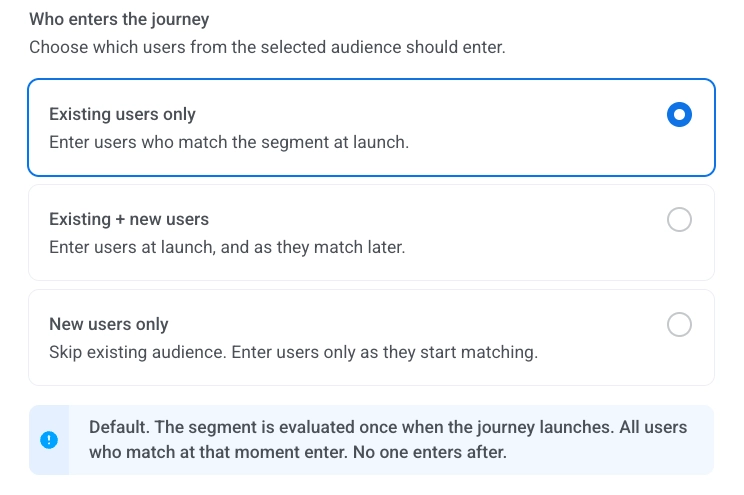
Choose which users from the selected segment can enter:
* **Existing users only (default):** only users who already match the segment at launch enter the journey. No one enters later. For example, send a one-time promo to users with the tag `Subscribed`.
* **Existing + new users:** users who match the segment at launch enter first. After launch, users who become matches also enter. For example, run an onboarding journey for users with the tag `Registered`.
* **New users only:** no one enters at launch. Only users who become matches after the journey is activated enter. For example, run a post-purchase flow only for users who make their first order after activation.
### Recurring entry
When **Recurring entry** is selected, users enter the journey repeatedly.
Choose the schedule:
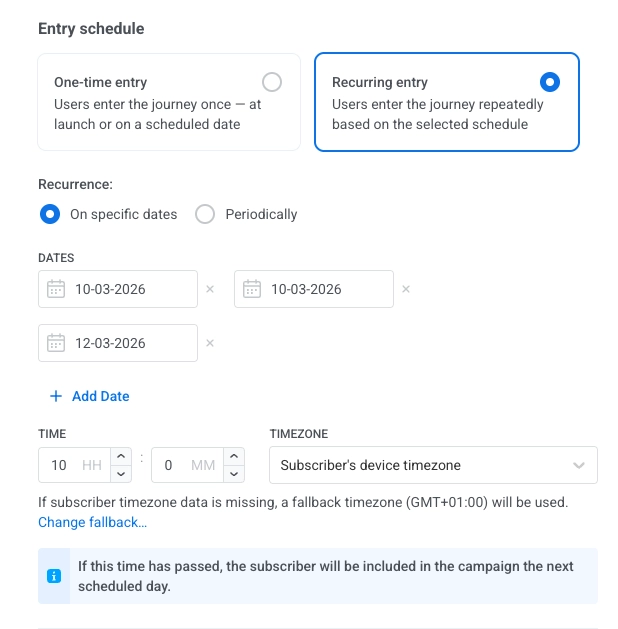
* **On specific dates:** users enter on the dates you pick.
* **Periodically:** users enter at a fixed interval (e.g. every 1 day).
#### On specific dates
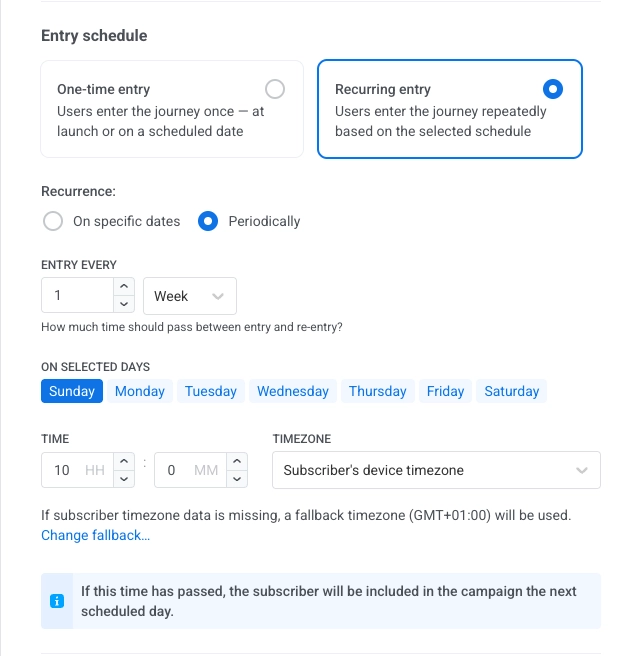
Users enter the same journey on the dates you choose (e.g. the same reminder or signup flow runs on each scheduled webinar or training date).
1. Select **On specific dates** and pick the dates in the calendar. Click **+ Add Date** to add more dates.
2. Set the time.
3. Set the timezone the same way as for [Schedule for a specific day](#schedule-for-a-specific-day).
If a subscriber's scheduled time has already passed, they are included on the next scheduled date.
#### Periodically
Users enter the journey at a fixed interval on the days you choose (e.g. a fitness app runs the same daily 8 AM reminder journey every day).
1. Select **Periodically**.
2. In **ENTRY EVERY**, set the interval (e.g. every 1 day, every 2 weeks).
3. Pick the days (of the week or month, depending on the interval).
4. Set the time and the timezone the same way as for [Schedule for a specific day](#schedule-for-a-specific-day).
If a subscriber's scheduled time has already passed, they are included on the next scheduled day.