# WhatsApp
The WhatsApp element in Pushwoosh Customer Journey allows you to send personalized WhatsApp messages to users.
The WhatsApp element can be configured to use pre-approved templates from your Meta account or custom content created directly within Pushwoosh.
> **Note:** You can initiate conversations only by using an approved Message Template. [Learn more](/product/messaging-channels/whatsapp-messages/send-whatsapp-messages/send-whatsapp-via-customer-journey/)
## Use custom content
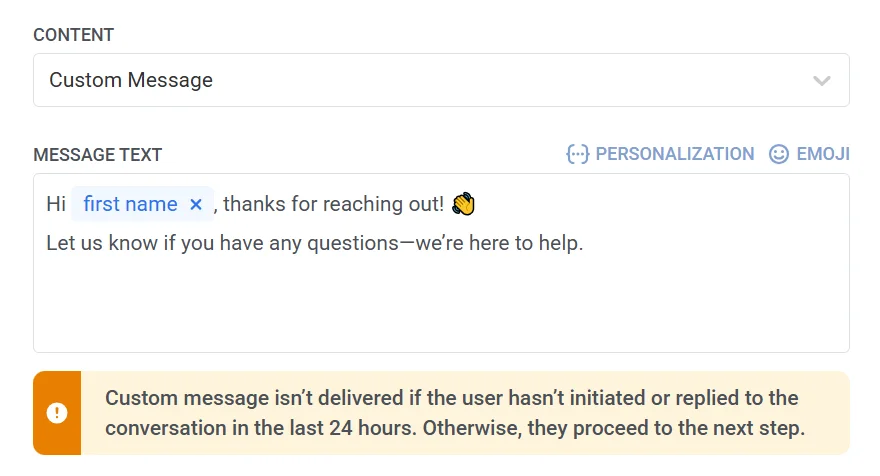
If a user initiates a conversation, you are allowed to respond with custom content within a 24-hour period. Note that custom content only supports plain text (including placeholders, if any) and does not allow additional settings, such as platform-specific adjustments, media attachments, languages, etc.
## Use a pre-approved template from your Meta account
Select this option to use a pre-existing template from your Meta account. After selecting a template, Pushwoosh displays a preview of the message content. If the template contains placeholders, each one represents a dynamic variable that must be configured before the message can be sent. [Learn more](/product/messaging-channels/whatsapp-messages/send-whatsapp-messages/send-whatsapp-via-customer-journey/#configure-dynamic-variables)
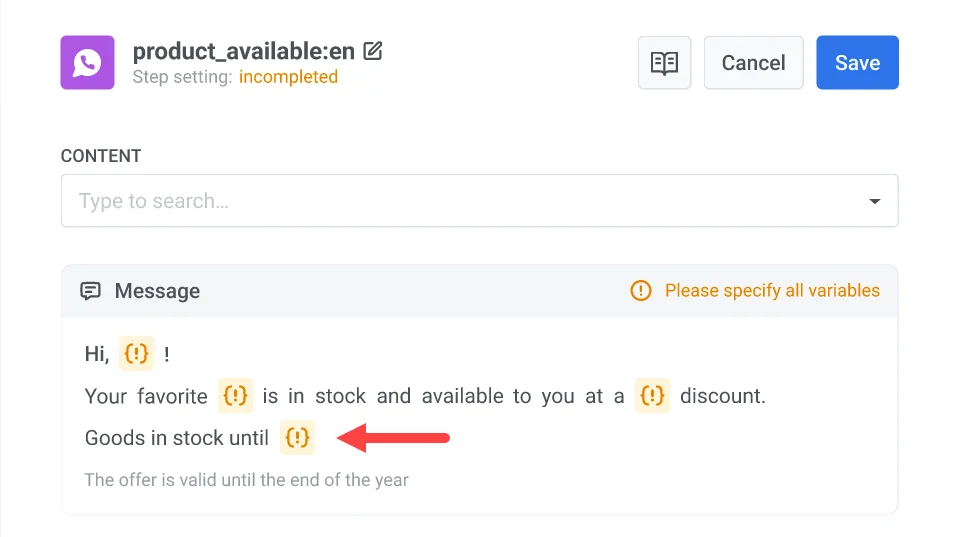
If you want to use catalog message templates that allow users to browse your product catalog directly within WhatsApp, you can select from two types: **Basic catalog message** or **Multi-product catalog message** (allows you to select specific products to display).
[Learn more](/product/messaging-channels/whatsapp-messages/send-whatsapp-messages/send-catalogs-via-whatsapp)
#### Configure action URLs
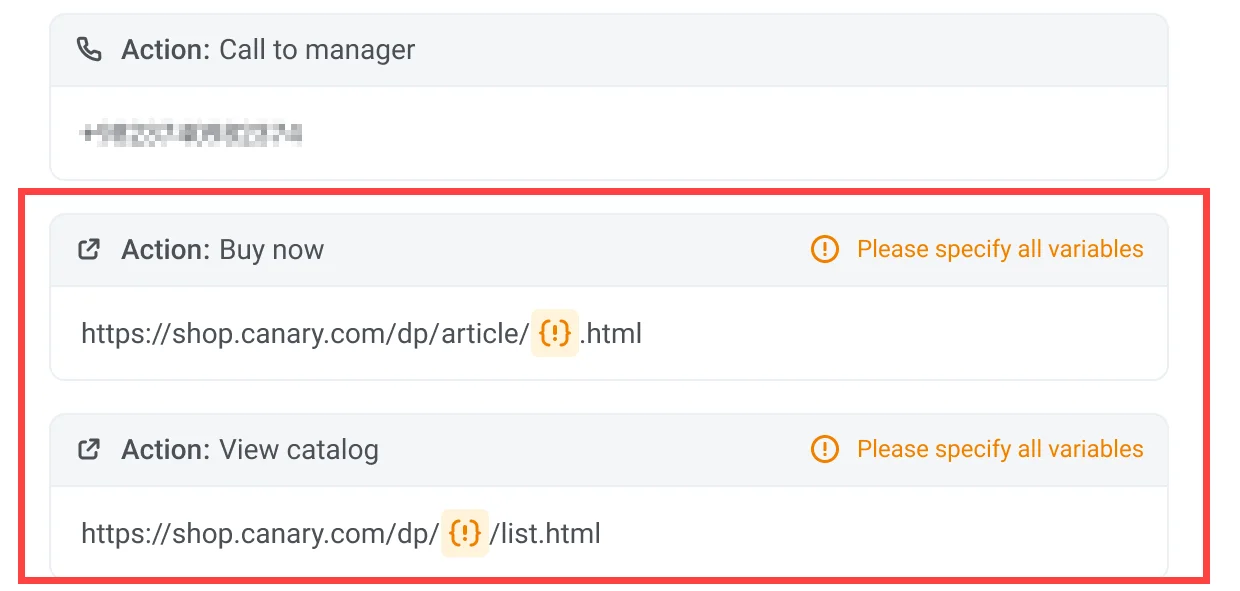
WhatsApp message templates can include action buttons (e.g., “Buy Now”) that open a URL when tapped. These buttons can be personalized using dynamic variables inserted as placeholders in the URL.
The action URL is defined during template creation in your Meta Business account. If the URL includes placeholders (e.g., `{product_id}`), you must assign a value to each placeholder in Pushwoosh before sending the message. [Learn more](/product/messaging-channels/whatsapp-messages/send-whatsapp-messages/send-whatsapp-via-customer-journey/#configure-action-urls)
#### Add media attachments
When using a template that includes a media file (image, video, or PDF), please note that the media is not stored in the template itself. These files are uploaded only as examples during template submission to Meta for validation purposes. To successfully send the message in a live campaign, you must specify the actual file URL in Pushwoosh.
To add media, enter a valid, publicly accessible URL pointing to the actual media file in the **Image** field.
Example: [`https://yourdomain.com/files/offer-banner.jpg`](https://yourdomain.com/files/offer-banner.jpg)
**Note:** The message will not be sent if the media file URL is missing or inaccessible.
[Learn more](/product/messaging-channels/whatsapp-messages/send-whatsapp-messages/send-whatsapp-via-customer-journey/#add-media-attachments)
## Set message type
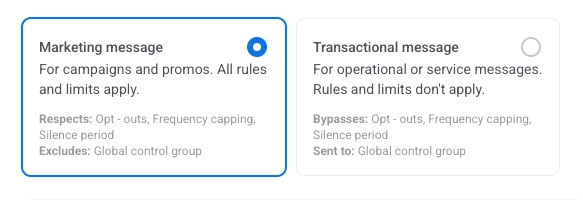
Choose **Marketing message** or **Transactional message**:
* **Marketing message**: For campaigns and promos. All rules and limits apply. Respects: Opt-outs, Frequency capping, and Silence period. Excludes: the [global control group](/product/audience-data-and-segmentation/global-control-group/).
* **Transactional message**: For operational or service messages. Rules and limits don't apply. Bypasses: Opt-outs, Frequency capping, and Silence period. Sent to: the [global control group](/product/audience-data-and-segmentation/global-control-group/).
[Learn how message type affects delivery](/product/messaging-channels/marketing-vs-transactional/).
## Set frequency capping
Use [**Frequency capping**](/product/messaging-channels/global-frequency-capping/#enable-global-frequency-capping) to limit how often users receive WhatsApp messages, preventing over-messaging and reducing churn. Choose one of the following options:
* **Use Global frequency capping settings**
Apply the project-wide limits configured in your [Global frequency capping settings](/product/messaging-channels/global-frequency-capping/#enable-global-frequency-capping).
For example, if the global limit is set to 3 WhatsApp messages in 9 days, additional messages exceeding this limit will be skipped.
* **Ignore Global frequency capping**
The user will receive this message even if they've exceeded the channel's message limits. Use this option with caution to avoid over-messaging.
* **Use custom frequency capping**
Set a custom message limit for this message. If the user exceeds this custom cap, the message will be skipped, and the user will proceed to the next step.
> **Important:** Custom frequency capping does not isolate the message from **Global frequency capping**. All messages sent on the same channel, including those from other journeys or campaigns, are still counted toward the global cap. If the user has already received 3 WhatsApp messages this week from other sources, this message may still be blocked, even if the custom capping would allow it.
[Learn more](/product/messaging-channels/global-frequency-capping/#customize-capping-for-specific-messages)
## Use vouchers
You can personalize WhatsApp messages by attaching a voucher code from a predefined pool. This is useful for promotions, discounts, and loyalty incentives.
For this, create a WhatsApp template that includes the placeholder ``{{voucher}}``.
To include a voucher in your WhatsApp message:
1. Toggle **Vouchers** to ON in the WhatsApp message step.
2. In the **Voucher Pool** field, select the pool containing your available voucher codes. Make sure to add the pool of vouchers in advance.
3. (Optional) Use the **Assign Tag** field to apply a tag to users who receive a voucher. This tag can be used for segmentation or reporting.
[Learn more about vouchers](/product/content/vouchers/)
After configuring the WhatsApp element, click **Save** to apply your settings.
 ## Use a pre-approved template from your Meta account
Select this option to use a pre-existing template from your Meta account. After selecting a template, Pushwoosh displays a preview of the message content. If the template contains placeholders, each one represents a dynamic variable that must be configured before the message can be sent. [Learn more](/product/messaging-channels/whatsapp-messages/send-whatsapp-messages/send-whatsapp-via-customer-journey/#configure-dynamic-variables)

If you want to use catalog message templates that allow users to browse your product catalog directly within WhatsApp, you can select from two types: **Basic catalog message** or **Multi-product catalog message** (allows you to select specific products to display).
[Learn more](/product/messaging-channels/whatsapp-messages/send-whatsapp-messages/send-catalogs-via-whatsapp)
#### Configure action URLs
WhatsApp message templates can include action buttons (e.g., “Buy Now”) that open a URL when tapped. These buttons can be personalized using dynamic variables inserted as placeholders in the URL.
The action URL is defined during template creation in your Meta Business account. If the URL includes placeholders (e.g., `{product_id}`), you must assign a value to each placeholder in Pushwoosh before sending the message. [Learn more](/product/messaging-channels/whatsapp-messages/send-whatsapp-messages/send-whatsapp-via-customer-journey/#configure-action-urls)
## Use a pre-approved template from your Meta account
Select this option to use a pre-existing template from your Meta account. After selecting a template, Pushwoosh displays a preview of the message content. If the template contains placeholders, each one represents a dynamic variable that must be configured before the message can be sent. [Learn more](/product/messaging-channels/whatsapp-messages/send-whatsapp-messages/send-whatsapp-via-customer-journey/#configure-dynamic-variables)

If you want to use catalog message templates that allow users to browse your product catalog directly within WhatsApp, you can select from two types: **Basic catalog message** or **Multi-product catalog message** (allows you to select specific products to display).
[Learn more](/product/messaging-channels/whatsapp-messages/send-whatsapp-messages/send-catalogs-via-whatsapp)
#### Configure action URLs
WhatsApp message templates can include action buttons (e.g., “Buy Now”) that open a URL when tapped. These buttons can be personalized using dynamic variables inserted as placeholders in the URL.
The action URL is defined during template creation in your Meta Business account. If the URL includes placeholders (e.g., `{product_id}`), you must assign a value to each placeholder in Pushwoosh before sending the message. [Learn more](/product/messaging-channels/whatsapp-messages/send-whatsapp-messages/send-whatsapp-via-customer-journey/#configure-action-urls)
 #### Add media attachments
When using a template that includes a media file (image, video, or PDF), please note that the media is not stored in the template itself. These files are uploaded only as examples during template submission to Meta for validation purposes. To successfully send the message in a live campaign, you must specify the actual file URL in Pushwoosh.
To add media, enter a valid, publicly accessible URL pointing to the actual media file in the **Image** field.
Example: [`https://yourdomain.com/files/offer-banner.jpg`](https://yourdomain.com/files/offer-banner.jpg)
**Note:** The message will not be sent if the media file URL is missing or inaccessible.
[Learn more](/product/messaging-channels/whatsapp-messages/send-whatsapp-messages/send-whatsapp-via-customer-journey/#add-media-attachments)
## Set message type
Choose **Marketing message** or **Transactional message**:
* **Marketing message**: For campaigns and promos. All rules and limits apply. Respects: Opt-outs, Frequency capping, and Silence period. Excludes: the [global control group](/product/audience-data-and-segmentation/global-control-group/).
* **Transactional message**: For operational or service messages. Rules and limits don't apply. Bypasses: Opt-outs, Frequency capping, and Silence period. Sent to: the [global control group](/product/audience-data-and-segmentation/global-control-group/).
#### Add media attachments
When using a template that includes a media file (image, video, or PDF), please note that the media is not stored in the template itself. These files are uploaded only as examples during template submission to Meta for validation purposes. To successfully send the message in a live campaign, you must specify the actual file URL in Pushwoosh.
To add media, enter a valid, publicly accessible URL pointing to the actual media file in the **Image** field.
Example: [`https://yourdomain.com/files/offer-banner.jpg`](https://yourdomain.com/files/offer-banner.jpg)
**Note:** The message will not be sent if the media file URL is missing or inaccessible.
[Learn more](/product/messaging-channels/whatsapp-messages/send-whatsapp-messages/send-whatsapp-via-customer-journey/#add-media-attachments)
## Set message type
Choose **Marketing message** or **Transactional message**:
* **Marketing message**: For campaigns and promos. All rules and limits apply. Respects: Opt-outs, Frequency capping, and Silence period. Excludes: the [global control group](/product/audience-data-and-segmentation/global-control-group/).
* **Transactional message**: For operational or service messages. Rules and limits don't apply. Bypasses: Opt-outs, Frequency capping, and Silence period. Sent to: the [global control group](/product/audience-data-and-segmentation/global-control-group/).
 [Learn how message type affects delivery](/product/messaging-channels/marketing-vs-transactional/).
## Set frequency capping
Use [**Frequency capping**](/product/messaging-channels/global-frequency-capping/#enable-global-frequency-capping) to limit how often users receive WhatsApp messages, preventing over-messaging and reducing churn. Choose one of the following options:
* **Use Global frequency capping settings**
Apply the project-wide limits configured in your [Global frequency capping settings](/product/messaging-channels/global-frequency-capping/#enable-global-frequency-capping).
For example, if the global limit is set to 3 WhatsApp messages in 9 days, additional messages exceeding this limit will be skipped.
* **Ignore Global frequency capping**
The user will receive this message even if they've exceeded the channel's message limits. Use this option with caution to avoid over-messaging.
* **Use custom frequency capping**
Set a custom message limit for this message. If the user exceeds this custom cap, the message will be skipped, and the user will proceed to the next step.
> **Important:** Custom frequency capping does not isolate the message from **Global frequency capping**. All messages sent on the same channel, including those from other journeys or campaigns, are still counted toward the global cap. If the user has already received 3 WhatsApp messages this week from other sources, this message may still be blocked, even if the custom capping would allow it.
[Learn more](/product/messaging-channels/global-frequency-capping/#customize-capping-for-specific-messages)
## Use vouchers
You can personalize WhatsApp messages by attaching a voucher code from a predefined pool. This is useful for promotions, discounts, and loyalty incentives.
For this, create a WhatsApp template that includes the placeholder ``{{voucher}}``.
To include a voucher in your WhatsApp message:
1. Toggle **Vouchers** to ON in the WhatsApp message step.
2. In the **Voucher Pool** field, select the pool containing your available voucher codes. Make sure to add the pool of vouchers in advance.
3. (Optional) Use the **Assign Tag** field to apply a tag to users who receive a voucher. This tag can be used for segmentation or reporting.
[Learn more about vouchers](/product/content/vouchers/)
After configuring the WhatsApp element, click **Save** to apply your settings.
[Learn how message type affects delivery](/product/messaging-channels/marketing-vs-transactional/).
## Set frequency capping
Use [**Frequency capping**](/product/messaging-channels/global-frequency-capping/#enable-global-frequency-capping) to limit how often users receive WhatsApp messages, preventing over-messaging and reducing churn. Choose one of the following options:
* **Use Global frequency capping settings**
Apply the project-wide limits configured in your [Global frequency capping settings](/product/messaging-channels/global-frequency-capping/#enable-global-frequency-capping).
For example, if the global limit is set to 3 WhatsApp messages in 9 days, additional messages exceeding this limit will be skipped.
* **Ignore Global frequency capping**
The user will receive this message even if they've exceeded the channel's message limits. Use this option with caution to avoid over-messaging.
* **Use custom frequency capping**
Set a custom message limit for this message. If the user exceeds this custom cap, the message will be skipped, and the user will proceed to the next step.
> **Important:** Custom frequency capping does not isolate the message from **Global frequency capping**. All messages sent on the same channel, including those from other journeys or campaigns, are still counted toward the global cap. If the user has already received 3 WhatsApp messages this week from other sources, this message may still be blocked, even if the custom capping would allow it.
[Learn more](/product/messaging-channels/global-frequency-capping/#customize-capping-for-specific-messages)
## Use vouchers
You can personalize WhatsApp messages by attaching a voucher code from a predefined pool. This is useful for promotions, discounts, and loyalty incentives.
For this, create a WhatsApp template that includes the placeholder ``{{voucher}}``.
To include a voucher in your WhatsApp message:
1. Toggle **Vouchers** to ON in the WhatsApp message step.
2. In the **Voucher Pool** field, select the pool containing your available voucher codes. Make sure to add the pool of vouchers in advance.
3. (Optional) Use the **Assign Tag** field to apply a tag to users who receive a voucher. This tag can be used for segmentation or reporting.
[Learn more about vouchers](/product/content/vouchers/)
After configuring the WhatsApp element, click **Save** to apply your settings.