# Kakao
The Kakao element in Pushwoosh Customer Journey lets you send Kakao messages to users using pre-approved Kakao templates.
## Add the Kakao element to a journey
To send a Kakao message, drag the **Kakao** element onto the journey canvas and connect it to the desired step in your flow.
Once added, click the element to open its configuration panel.
## Select message content
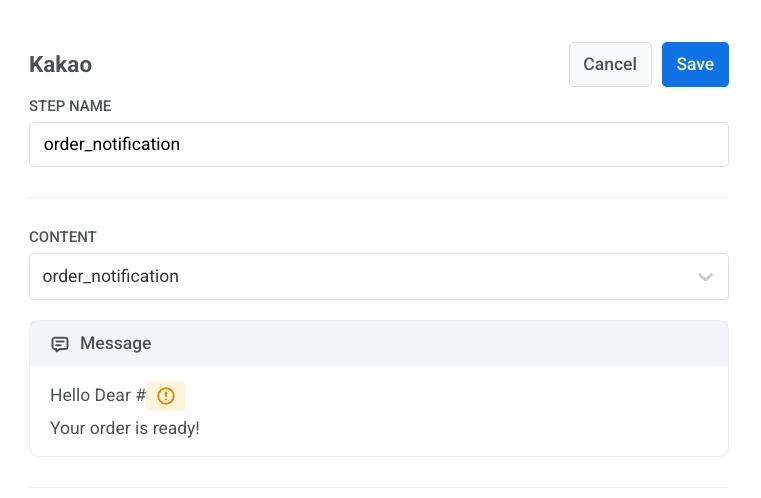
In the **Content** dropdown, select one of your Kakao templates.
After selecting a template, Pushwoosh shows a preview of the message text.
## Personalize the message with variables
If your template includes placeholders, you must map them before sending.
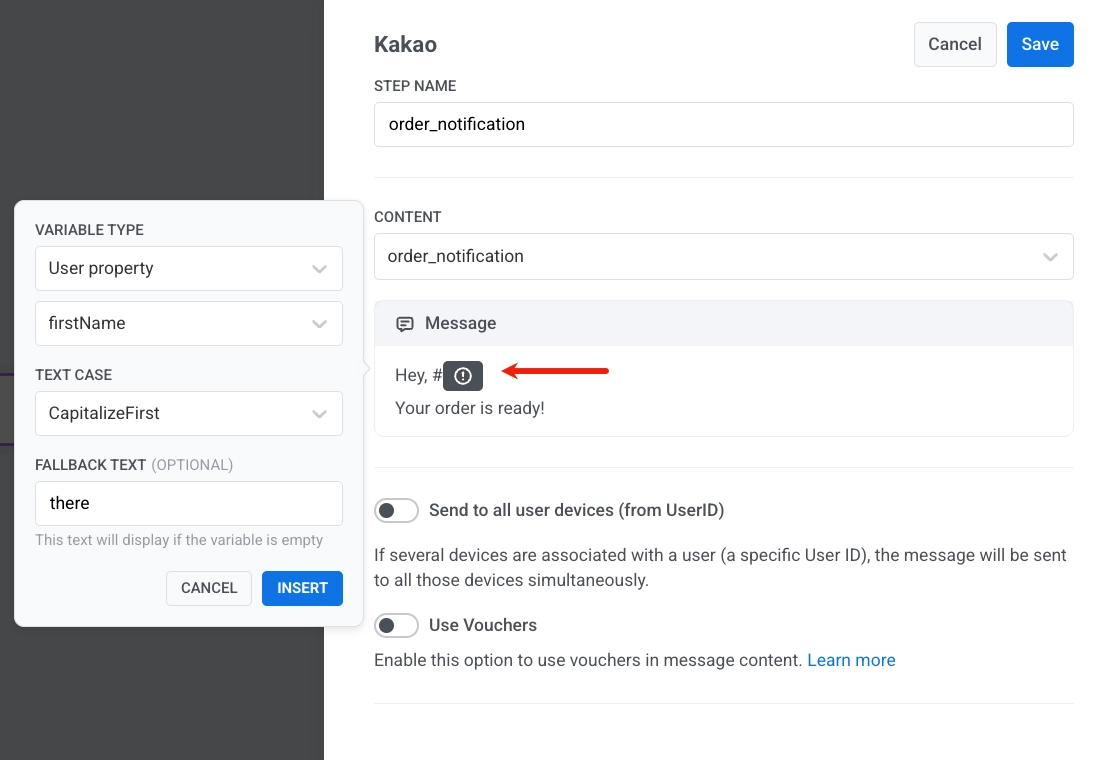
Click inside the message where the variable should appear and insert a variable using the variable picker. For each variable, you can choose:
* **Variable type**:
* User property: data from the user profile (for example, `firstName`)
* Event property: data from the event that triggered the journey
* **Text case** (optional), such as CapitalizeFirst
* **Fallback text** (optional), which is shown if the value is missing
*Example message:*
```
Hey, #{firstName}!
Your order is ready.
```
If `firstName` is empty, the fallback text (for example, `there`) will be used instead.
## Send to all user devices
Enable **Send to all user devices (from UserID)** if you want the message to be delivered to all devices associated with the same user ID.
When disabled, the message is sent only to the device that triggered the journey.
[Learn more about User IDs](/product/pushwoosh-knowledge-hub/users-userids/)
## Use vouchers
You can personalize Kakao messages by including a unique voucher code from a predefined pool. This is ideal for delivering promotions, discounts, or loyalty incentives through one-on-one communication.
Add a voucher placeholder in Kakao format so the code is rendered in the text, for example `#{voucher}`.
Next, configure where the voucher comes from and how it is assigned:
1. Toggle **Vouchers** to ON in the Kakao message step.
2. In **Voucher Pool**, select the pool that contains your voucher codes. Make sure the pool is created in advance.
3. (Optional) Use **Assign Tag** to apply a tag to users who receive a voucher. This helps with segmentation and reporting.
[Learn more about vouchers](/product/content/vouchers/)
After configuring the Kakao element, click **Save** to apply the settings.
 After selecting a template, Pushwoosh shows a preview of the message text.
## Personalize the message with variables
If your template includes placeholders, you must map them before sending.
Click inside the message where the variable should appear and insert a variable using the variable picker. For each variable, you can choose:
* **Variable type**:
* User property: data from the user profile (for example, `firstName`)
* Event property: data from the event that triggered the journey
* **Text case** (optional), such as CapitalizeFirst
* **Fallback text** (optional), which is shown if the value is missing
After selecting a template, Pushwoosh shows a preview of the message text.
## Personalize the message with variables
If your template includes placeholders, you must map them before sending.
Click inside the message where the variable should appear and insert a variable using the variable picker. For each variable, you can choose:
* **Variable type**:
* User property: data from the user profile (for example, `firstName`)
* Event property: data from the event that triggered the journey
* **Text case** (optional), such as CapitalizeFirst
* **Fallback text** (optional), which is shown if the value is missing
 *Example message:*
```
Hey, #{firstName}!
Your order is ready.
```
If `firstName` is empty, the fallback text (for example, `there`) will be used instead.
## Send to all user devices
Enable **Send to all user devices (from UserID)** if you want the message to be delivered to all devices associated with the same user ID.
When disabled, the message is sent only to the device that triggered the journey.
[Learn more about User IDs](/product/pushwoosh-knowledge-hub/users-userids/)
## Use vouchers
You can personalize Kakao messages by including a unique voucher code from a predefined pool. This is ideal for delivering promotions, discounts, or loyalty incentives through one-on-one communication.
Add a voucher placeholder in Kakao format so the code is rendered in the text, for example `#{voucher}`.
Next, configure where the voucher comes from and how it is assigned:
1. Toggle **Vouchers** to ON in the Kakao message step.
2. In **Voucher Pool**, select the pool that contains your voucher codes. Make sure the pool is created in advance.
3. (Optional) Use **Assign Tag** to apply a tag to users who receive a voucher. This helps with segmentation and reporting.
[Learn more about vouchers](/product/content/vouchers/)
After configuring the Kakao element, click **Save** to apply the settings.
*Example message:*
```
Hey, #{firstName}!
Your order is ready.
```
If `firstName` is empty, the fallback text (for example, `there`) will be used instead.
## Send to all user devices
Enable **Send to all user devices (from UserID)** if you want the message to be delivered to all devices associated with the same user ID.
When disabled, the message is sent only to the device that triggered the journey.
[Learn more about User IDs](/product/pushwoosh-knowledge-hub/users-userids/)
## Use vouchers
You can personalize Kakao messages by including a unique voucher code from a predefined pool. This is ideal for delivering promotions, discounts, or loyalty incentives through one-on-one communication.
Add a voucher placeholder in Kakao format so the code is rendered in the text, for example `#{voucher}`.
Next, configure where the voucher comes from and how it is assigned:
1. Toggle **Vouchers** to ON in the Kakao message step.
2. In **Voucher Pool**, select the pool that contains your voucher codes. Make sure the pool is created in advance.
3. (Optional) Use **Assign Tag** to apply a tag to users who receive a voucher. This helps with segmentation and reporting.
[Learn more about vouchers](/product/content/vouchers/)
After configuring the Kakao element, click **Save** to apply the settings.