# In-app
To show an [in-app](/product/messaging-channels/in-apps/) message in a journey, add the **In-App** element next to the step that should trigger it. Then choose a Rich Media page to display.
##### When the message is displayed
* If the app is open when the In-App element is triggered, the message is shown immediately.
* If the app is closed, the message is shown the next time the user opens the app.
Click the **In-App** element to open its settings. Configure the following:
## Select template and set expiration
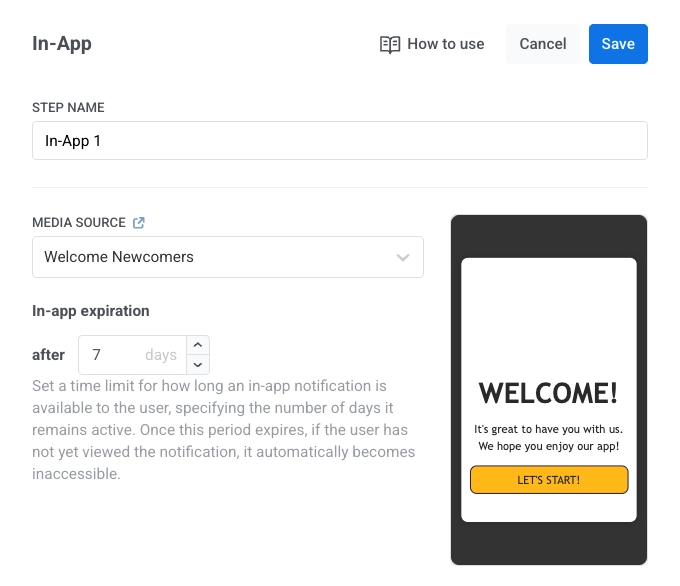
In **Media Source**, select a Rich Media template (newest first) and click **Apply**. Set **In-app expiration** (number of days the message is available).
## Set message type
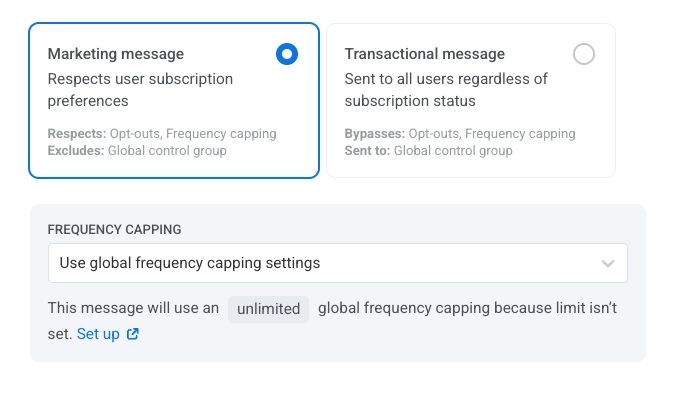
Choose **Marketing message** or **Transactional message**:
* **Marketing message**: For campaigns and promos. All rules and limits apply. Respects: opt-outs, frequency capping, and the silence period. Excludes: the [global control group](/product/audience-data-and-segmentation/global-control-group/) users.
* **Transactional message**: For operational or service messages. Rules and limits don't apply. Bypasses: opt-outs, frequency capping, and the silence period. Sent to: the [global control group](/product/audience-data-and-segmentation/global-control-group/) users.
[Learn more about the difference between marketing and transactional messages](/product/messaging-channels/marketing-vs-transactional/).
## Set frequency capping
Use [**Frequency capping**](/product/messaging-channels/global-frequency-capping/#enable-global-frequency-capping) to limit how often users receive in-app messages, preventing over-messaging and reducing churn. In the In-App element settings, choose one of the following options:
* **Use Global frequency capping settings**
Apply the project-wide limits configured in your [Global frequency capping settings](/product/messaging-channels/global-frequency-capping/#enable-global-frequency-capping).
For example, if the global limit is set to 3 messages in 9 days, additional messages exceeding this limit will be skipped.
* **Ignore Global frequency capping**
The user will receive this message even if they've exceeded the channel's message limits. Use this option with caution to avoid over-messaging.
* **Use custom frequency capping**
Set a custom message limit for this message. If the user exceeds this custom cap, the message will be skipped, and the user will proceed to the next step.
[Learn more](/product/messaging-channels/global-frequency-capping/#customize-capping-for-specific-messages)
 ## Set message type
Choose **Marketing message** or **Transactional message**:
* **Marketing message**: For campaigns and promos. All rules and limits apply. Respects: opt-outs, frequency capping, and the silence period. Excludes: the [global control group](/product/audience-data-and-segmentation/global-control-group/) users.
* **Transactional message**: For operational or service messages. Rules and limits don't apply. Bypasses: opt-outs, frequency capping, and the silence period. Sent to: the [global control group](/product/audience-data-and-segmentation/global-control-group/) users.
## Set message type
Choose **Marketing message** or **Transactional message**:
* **Marketing message**: For campaigns and promos. All rules and limits apply. Respects: opt-outs, frequency capping, and the silence period. Excludes: the [global control group](/product/audience-data-and-segmentation/global-control-group/) users.
* **Transactional message**: For operational or service messages. Rules and limits don't apply. Bypasses: opt-outs, frequency capping, and the silence period. Sent to: the [global control group](/product/audience-data-and-segmentation/global-control-group/) users.
 [Learn more about the difference between marketing and transactional messages](/product/messaging-channels/marketing-vs-transactional/).
## Set frequency capping
Use [**Frequency capping**](/product/messaging-channels/global-frequency-capping/#enable-global-frequency-capping) to limit how often users receive in-app messages, preventing over-messaging and reducing churn. In the In-App element settings, choose one of the following options:
* **Use Global frequency capping settings**
Apply the project-wide limits configured in your [Global frequency capping settings](/product/messaging-channels/global-frequency-capping/#enable-global-frequency-capping).
For example, if the global limit is set to 3 messages in 9 days, additional messages exceeding this limit will be skipped.
* **Ignore Global frequency capping**
The user will receive this message even if they've exceeded the channel's message limits. Use this option with caution to avoid over-messaging.
* **Use custom frequency capping**
Set a custom message limit for this message. If the user exceeds this custom cap, the message will be skipped, and the user will proceed to the next step.
[Learn more](/product/messaging-channels/global-frequency-capping/#customize-capping-for-specific-messages)
[Learn more about the difference between marketing and transactional messages](/product/messaging-channels/marketing-vs-transactional/).
## Set frequency capping
Use [**Frequency capping**](/product/messaging-channels/global-frequency-capping/#enable-global-frequency-capping) to limit how often users receive in-app messages, preventing over-messaging and reducing churn. In the In-App element settings, choose one of the following options:
* **Use Global frequency capping settings**
Apply the project-wide limits configured in your [Global frequency capping settings](/product/messaging-channels/global-frequency-capping/#enable-global-frequency-capping).
For example, if the global limit is set to 3 messages in 9 days, additional messages exceeding this limit will be skipped.
* **Ignore Global frequency capping**
The user will receive this message even if they've exceeded the channel's message limits. Use this option with caution to avoid over-messaging.
* **Use custom frequency capping**
Set a custom message limit for this message. If the user exceeds this custom cap, the message will be skipped, and the user will proceed to the next step.
[Learn more](/product/messaging-channels/global-frequency-capping/#customize-capping-for-specific-messages)