# Journey editing
Both draft and active journeys can be edited. You may need to update journey elements in the following cases:
* Test the effectiveness of your communications
* Adjust a journey to some special events and changing conditions
* Edit occasional errors
## Editing a draft journey
To edit an element of a journey that has not yet been launched, simply double-click on it. You can learn more about setting up each element in the [journey elements](/product/customer-journey/journey-elements/) article.
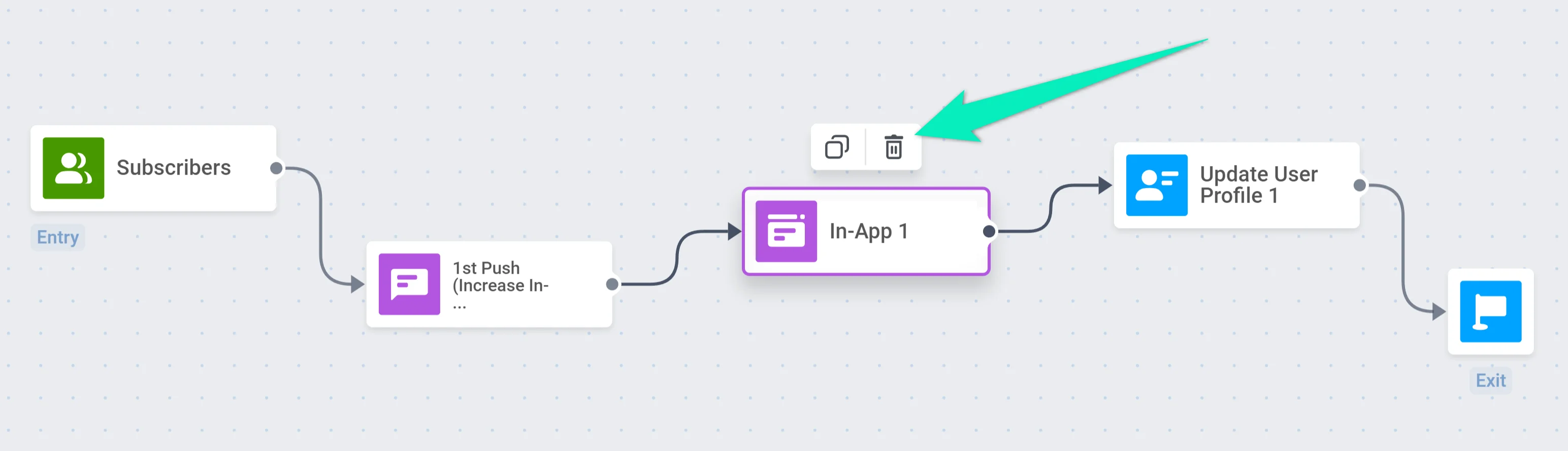
If you need to delete an element of a draft journey, select this element and click on the trash icon:
## Editing an active journey
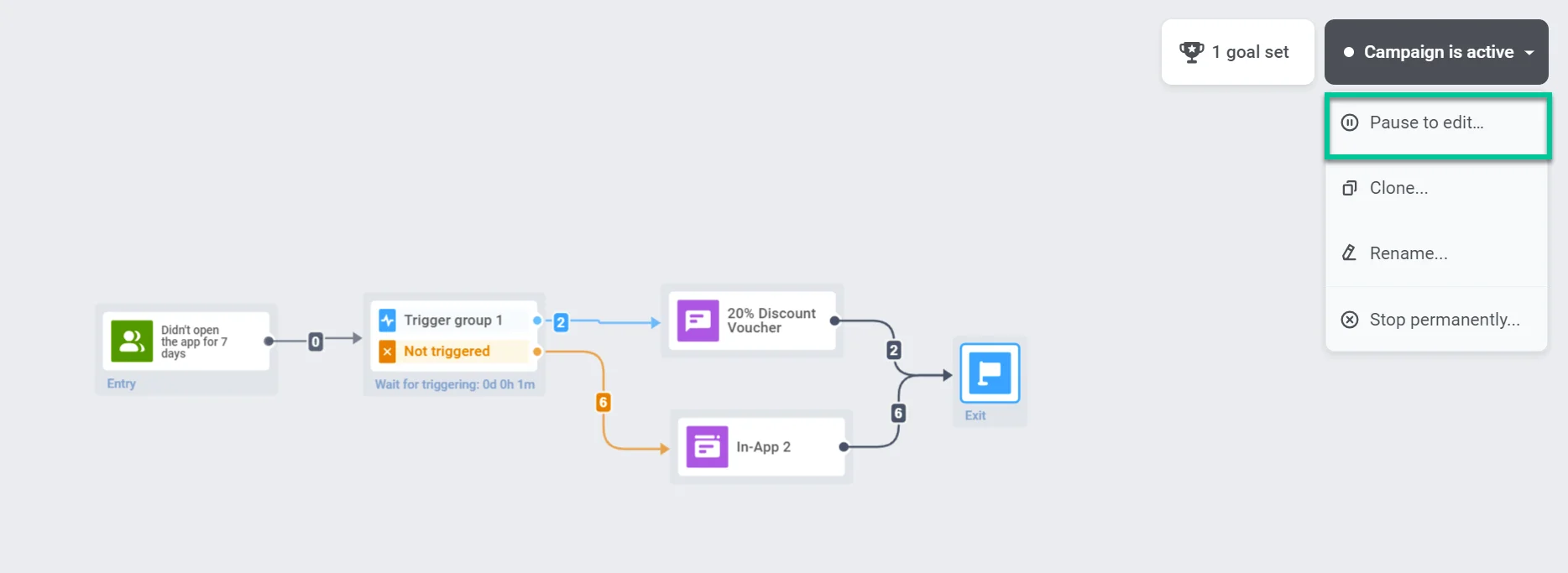
To edit an active journey, you first need to pause it. Click on the campaign's dropdown menu and select **Pause to edit.**
After pausing the journey, you can modify and delete its elements just like in the draft journey.
If you change the content of a push, in-app, email, or SMS, all users will receive the new content version after re-launching the journey.
If you delete an element, do not forget to connect the remaining elements to each other or to the new element if you add one:
You can view the editing history by clicking on the hourglass icon:
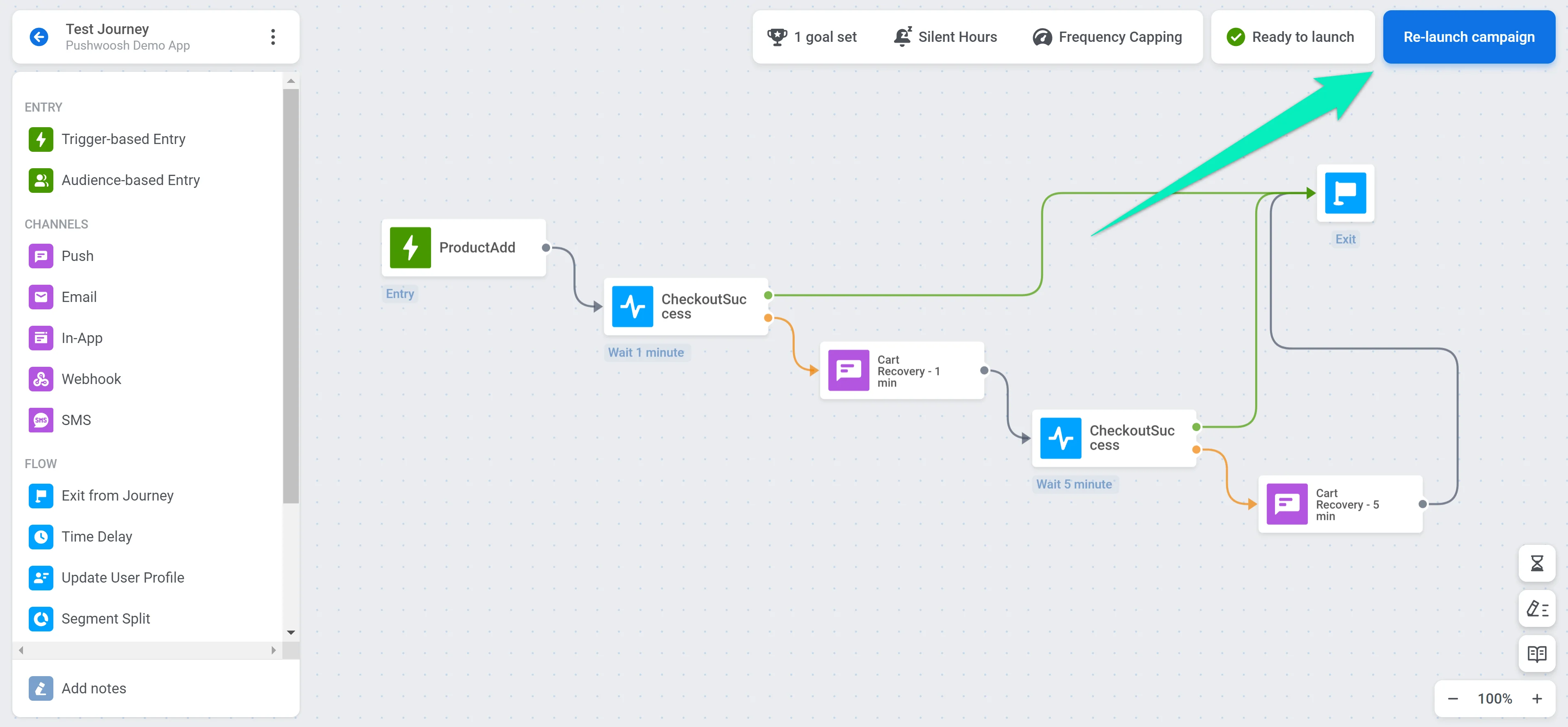
If you have finished editing and are ready to enable the journey, click **Re-launch campaign** at the top right:
### Editing Audience-based journeys
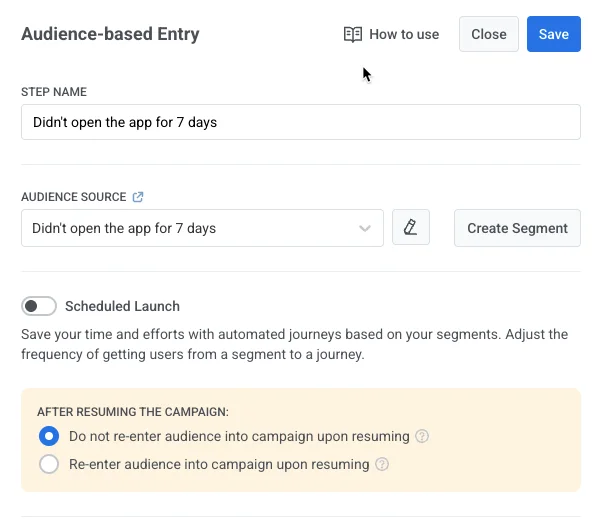
After you pause the journey, edit it (e.g. change message content or add steps), and click **Re-launch campaign**, the [**Audience-based entry**](/product/customer-journey/journey-elements/entry-elements/audience-based-entry/) element shows options that depend on the current **Entry schedule** setting. These options control how users are treated when the journey resumes.
##### No scheduled entry date
If **Entry schedule** is **One-time entry** and **Immediately** (users entered at launch, no date was set), choose how the audience is handled when the journey resumes:
* **Do not re-enter audience into campaign upon resuming (default)**
Users who previously entered will not re-enter the journey. They will continue from where they left off.
* **Re-enter audience into campaign upon resuming**
Users who still match the segment criteria will be allowed to re-enter the journey upon resuming if the [Campaign entry limit](/product/customer-journey/journey-settings/#campaign-entry-limit) settings allow re-entry, and the user is not currently in the journey.
This means users who previously entered and are no longer active in the journey can be re-added if both conditions are met.
##### Scheduled entry date
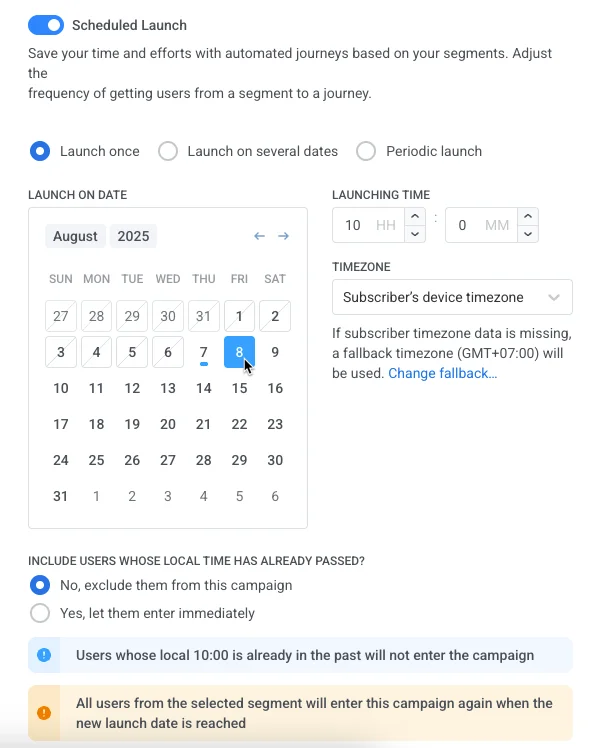
If **Entry schedule** is **One-time entry** and **Schedule for a specific day**, select what happens for users whose scheduled entry time (in their local timezone) has already passed:
* **Exclude users whose local time has passed**
Users whose local scheduled time (e.g. 10:00) has already passed will not enter the campaign.
* **Let users enter immediately**
Users whose local time has already passed will enter the campaign immediately when it is re-launched.
In the **After resuming the campaign** section, choose how the audience is handled when you click Re-launch:
* **Do not re-enter audience into campaign upon resuming (default)**
Users who previously entered will not re-enter the journey. They will continue from where they left off.
* **Re-enter audience into campaign upon resuming**
Users who still match the segment criteria will be allowed to re-enter the journey upon resuming if the [Campaign entry limit](/product/customer-journey/journey-settings/#campaign-entry-limit) settings allow re-entry, and the user is not currently in the journey.
## View journey change history
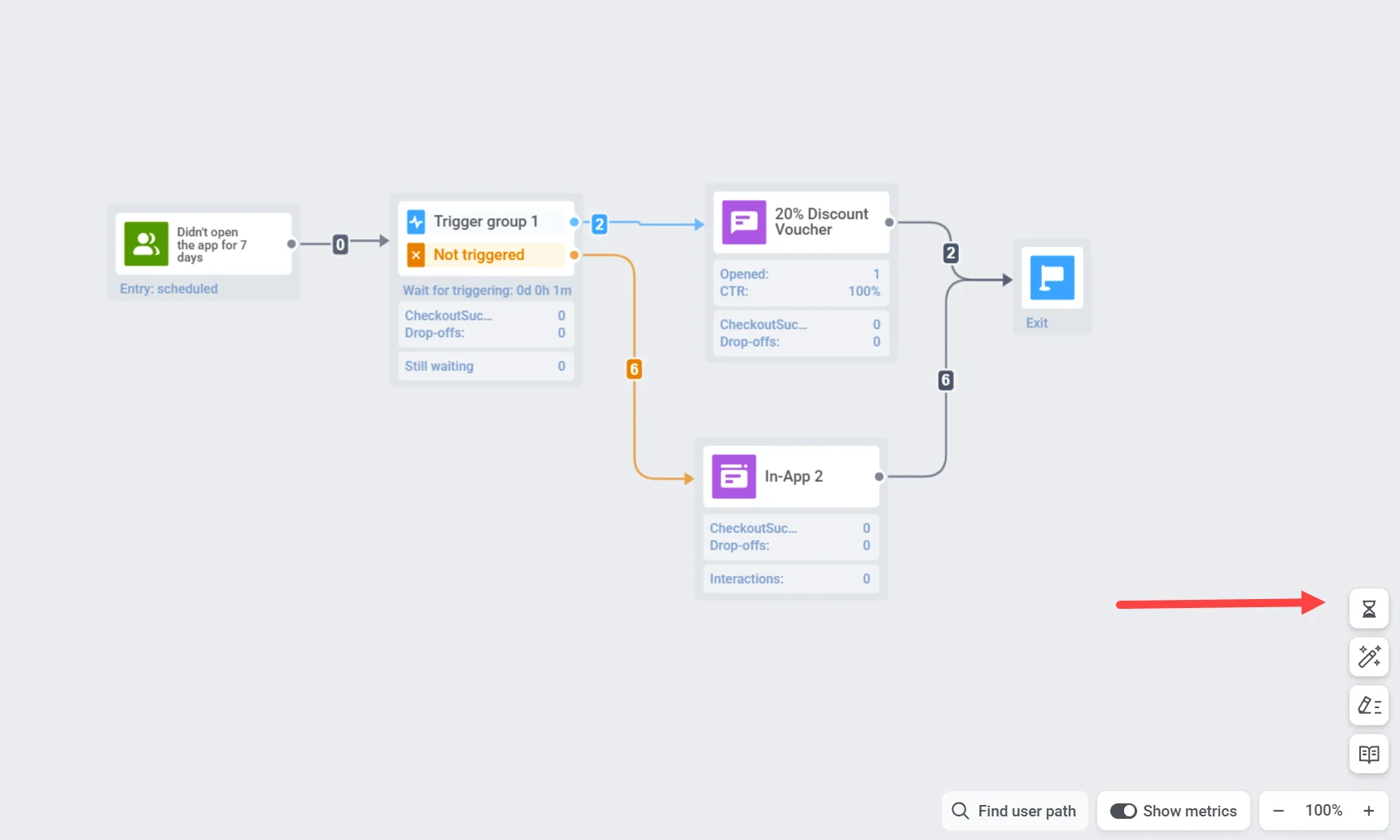
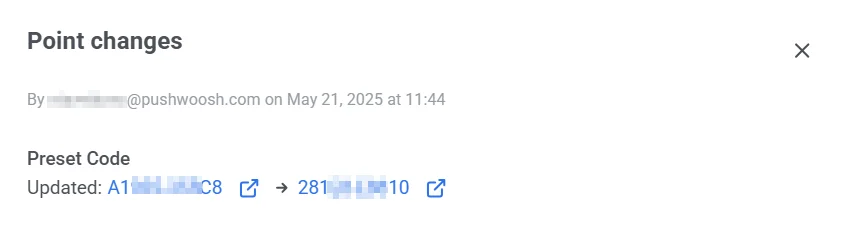
You can track all changes made to the journey in the **History** panel, located on the right side of the journey builder. To open it, click the **clock icon** at the bottom-right corner of the canvas.
The panel displays a detailed log of when each update occurred, who made the change, and what was modified (e.g., campaign launch, entry conditions). This helps maintain transparency and version control throughout the journey's lifecycle.
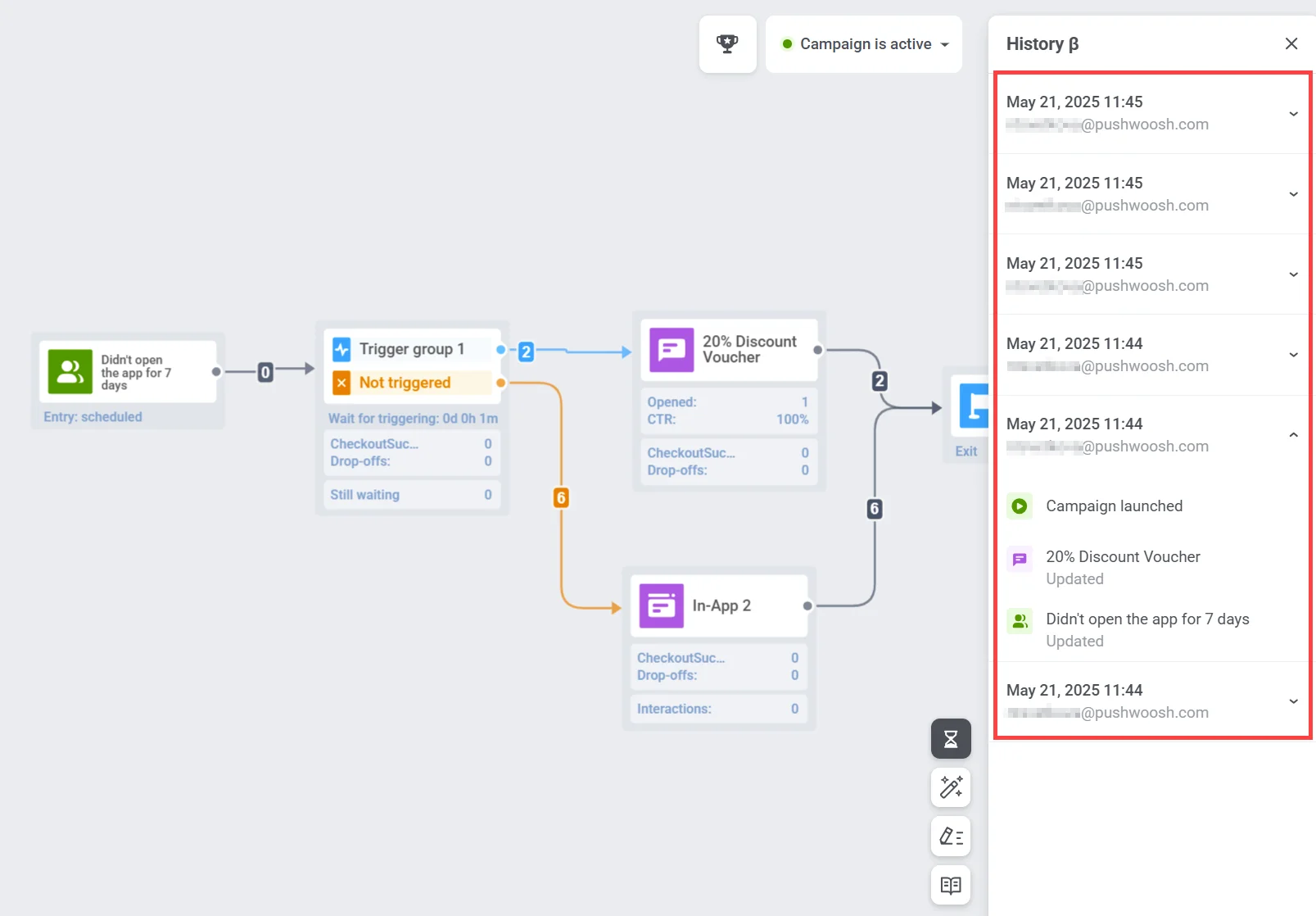
Each entry can be expanded to view specific changes made to individual journey elements.
 ## Editing an active journey
To edit an active journey, you first need to pause it. Click on the campaign's dropdown menu and select **Pause to edit.**
## Editing an active journey
To edit an active journey, you first need to pause it. Click on the campaign's dropdown menu and select **Pause to edit.**
 After pausing the journey, you can modify and delete its elements just like in the draft journey.
If you change the content of a push, in-app, email, or SMS, all users will receive the new content version after re-launching the journey.
If you delete an element, do not forget to connect the remaining elements to each other or to the new element if you add one:
You can view the editing history by clicking on the hourglass icon:
After pausing the journey, you can modify and delete its elements just like in the draft journey.
If you change the content of a push, in-app, email, or SMS, all users will receive the new content version after re-launching the journey.
If you delete an element, do not forget to connect the remaining elements to each other or to the new element if you add one:
You can view the editing history by clicking on the hourglass icon:
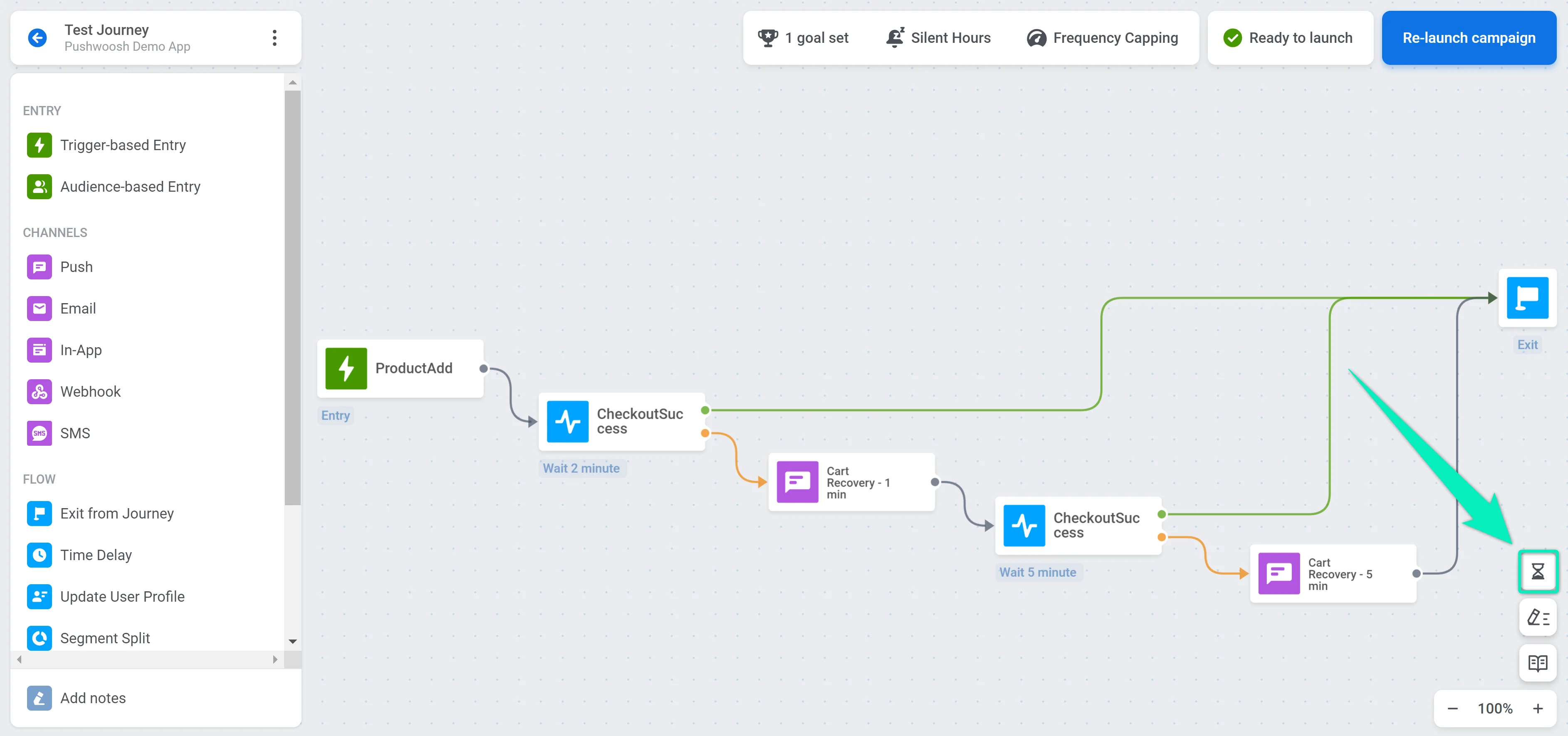 If you have finished editing and are ready to enable the journey, click **Re-launch campaign** at the top right:
 ### Editing Audience-based journeys
After you pause the journey, edit it (e.g. change message content or add steps), and click **Re-launch campaign**, the [**Audience-based entry**](/product/customer-journey/journey-elements/entry-elements/audience-based-entry/) element shows options that depend on the current **Entry schedule** setting. These options control how users are treated when the journey resumes.
##### No scheduled entry date
If **Entry schedule** is **One-time entry** and **Immediately** (users entered at launch, no date was set), choose how the audience is handled when the journey resumes:
* **Do not re-enter audience into campaign upon resuming (default)**
Users who previously entered will not re-enter the journey. They will continue from where they left off.
* **Re-enter audience into campaign upon resuming**
Users who still match the segment criteria will be allowed to re-enter the journey upon resuming if the [Campaign entry limit](/product/customer-journey/journey-settings/#campaign-entry-limit) settings allow re-entry, and the user is not currently in the journey.
This means users who previously entered and are no longer active in the journey can be re-added if both conditions are met.

##### Scheduled entry date
If **Entry schedule** is **One-time entry** and **Schedule for a specific day**, select what happens for users whose scheduled entry time (in their local timezone) has already passed:
* **Exclude users whose local time has passed**
Users whose local scheduled time (e.g. 10:00) has already passed will not enter the campaign.
* **Let users enter immediately**
Users whose local time has already passed will enter the campaign immediately when it is re-launched.

In the **After resuming the campaign** section, choose how the audience is handled when you click Re-launch:
* **Do not re-enter audience into campaign upon resuming (default)**
Users who previously entered will not re-enter the journey. They will continue from where they left off.
* **Re-enter audience into campaign upon resuming**
Users who still match the segment criteria will be allowed to re-enter the journey upon resuming if the [Campaign entry limit](/product/customer-journey/journey-settings/#campaign-entry-limit) settings allow re-entry, and the user is not currently in the journey.
## View journey change history
You can track all changes made to the journey in the **History** panel, located on the right side of the journey builder. To open it, click the **clock icon** at the bottom-right corner of the canvas.

The panel displays a detailed log of when each update occurred, who made the change, and what was modified (e.g., campaign launch, entry conditions). This helps maintain transparency and version control throughout the journey's lifecycle.

Each entry can be expanded to view specific changes made to individual journey elements.

### Editing Audience-based journeys
After you pause the journey, edit it (e.g. change message content or add steps), and click **Re-launch campaign**, the [**Audience-based entry**](/product/customer-journey/journey-elements/entry-elements/audience-based-entry/) element shows options that depend on the current **Entry schedule** setting. These options control how users are treated when the journey resumes.
##### No scheduled entry date
If **Entry schedule** is **One-time entry** and **Immediately** (users entered at launch, no date was set), choose how the audience is handled when the journey resumes:
* **Do not re-enter audience into campaign upon resuming (default)**
Users who previously entered will not re-enter the journey. They will continue from where they left off.
* **Re-enter audience into campaign upon resuming**
Users who still match the segment criteria will be allowed to re-enter the journey upon resuming if the [Campaign entry limit](/product/customer-journey/journey-settings/#campaign-entry-limit) settings allow re-entry, and the user is not currently in the journey.
This means users who previously entered and are no longer active in the journey can be re-added if both conditions are met.

##### Scheduled entry date
If **Entry schedule** is **One-time entry** and **Schedule for a specific day**, select what happens for users whose scheduled entry time (in their local timezone) has already passed:
* **Exclude users whose local time has passed**
Users whose local scheduled time (e.g. 10:00) has already passed will not enter the campaign.
* **Let users enter immediately**
Users whose local time has already passed will enter the campaign immediately when it is re-launched.

In the **After resuming the campaign** section, choose how the audience is handled when you click Re-launch:
* **Do not re-enter audience into campaign upon resuming (default)**
Users who previously entered will not re-enter the journey. They will continue from where they left off.
* **Re-enter audience into campaign upon resuming**
Users who still match the segment criteria will be allowed to re-enter the journey upon resuming if the [Campaign entry limit](/product/customer-journey/journey-settings/#campaign-entry-limit) settings allow re-entry, and the user is not currently in the journey.
## View journey change history
You can track all changes made to the journey in the **History** panel, located on the right side of the journey builder. To open it, click the **clock icon** at the bottom-right corner of the canvas.

The panel displays a detailed log of when each update occurred, who made the change, and what was modified (e.g., campaign launch, entry conditions). This helps maintain transparency and version control throughout the journey's lifecycle.

Each entry can be expanded to view specific changes made to individual journey elements.
