# Web forms
A **web form** is web content with input fields: an email field, fields that save answers to tags, a consent checkbox, and a submit button. Show it in a Popup or Inline [web campaign](/product/messaging-channels/web-popups/create-web-popups-campaigns/) to subscribe visitors to email and store what they tell you in their profiles, with no separate subscription form to set up.
## How a web form works
When a visitor submits the form, Pushwoosh does these things in order:
1. Writes each filled-in answer from a **Tag input** field to its tag on the visitor's browser device right away, even if the visitor isn't subscribed to web push. An empty answer leaves the tag's current value as it is.
2. Subscribes the email address to email and creates an email device with the same tag values, if the form has an **Email input**. If [double opt-in](#confirm-emails-with-double-opt-in) is on, the visitor first gets a confirmation email.
3. Shows the form's [Success page](#design-the-success-page) once Pushwoosh accepts the submission.
If your plan doesn't include the web platform, the tags aren't saved, and the submission is still accepted. A form without an **Email input** only saves tags to the browser device, for example to ask visitors about their interests.
## Build a web form
To build a form, create it, add the fields, design the Success page, and save it. Split the form into pages if it is long.
### Create a web form
1. Go to **Content → Web content**.
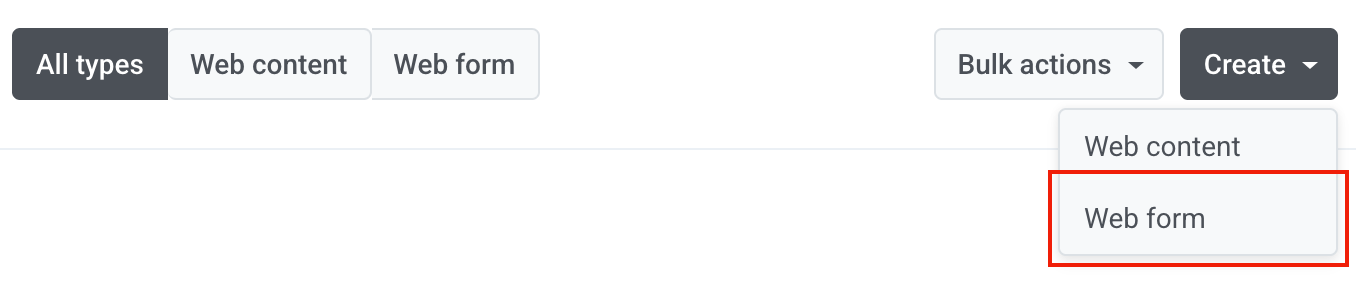
2. Click **Create** and choose the **Web form** type.
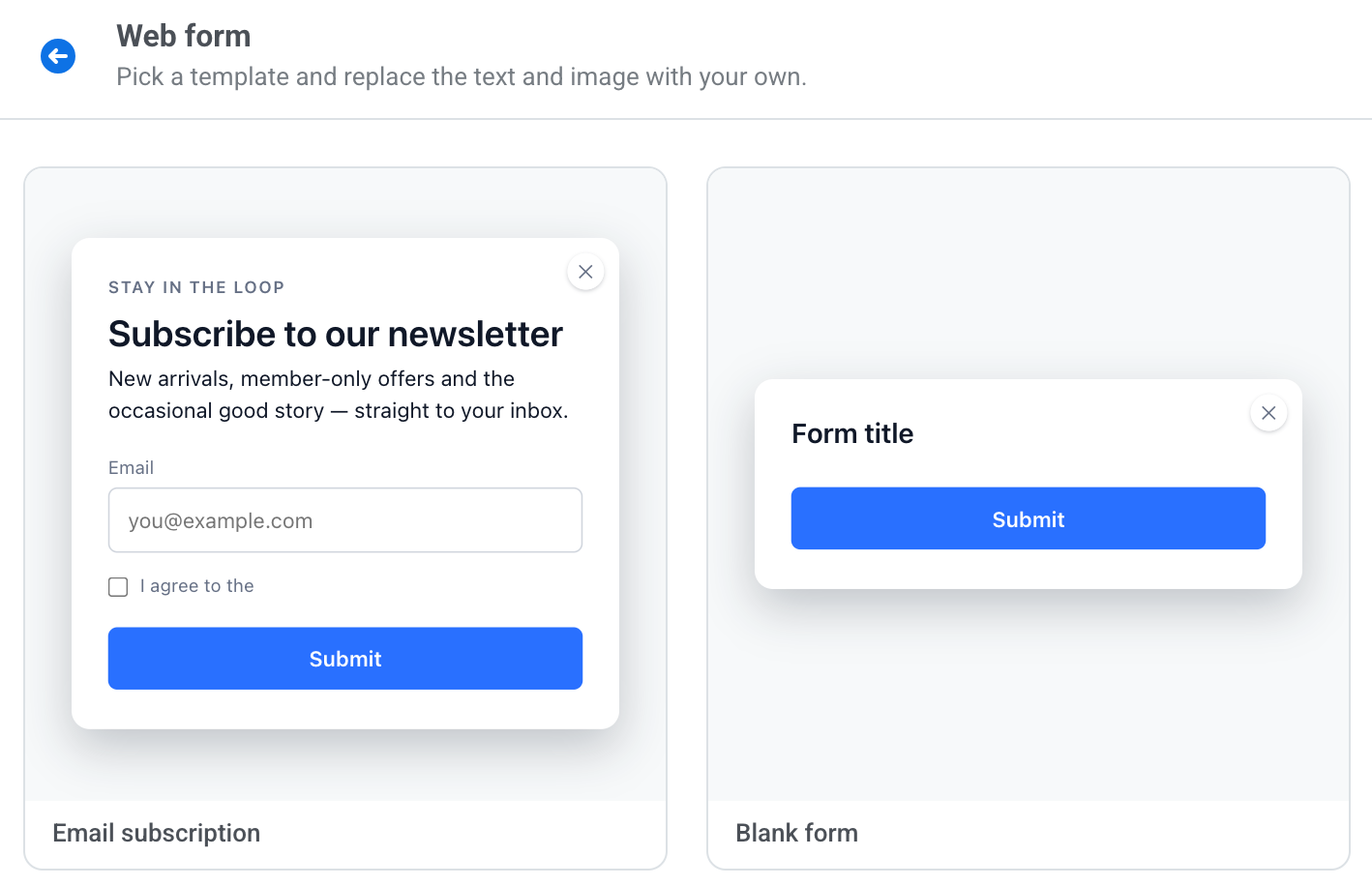
3. Pick a template:
- **Email subscription:** a signup form with a heading, an email field, a consent checkbox, a **Submit** button, and a "Thank you!" Success page.
- **Blank form:** an empty form with a title and a **Submit** button.
4. Click the name in the top bar and enter a name for the form. Visitors don't see it. Until the form has a name, **Save** is unavailable, and hovering it shows **Enter a popup name first**.
### Add form fields
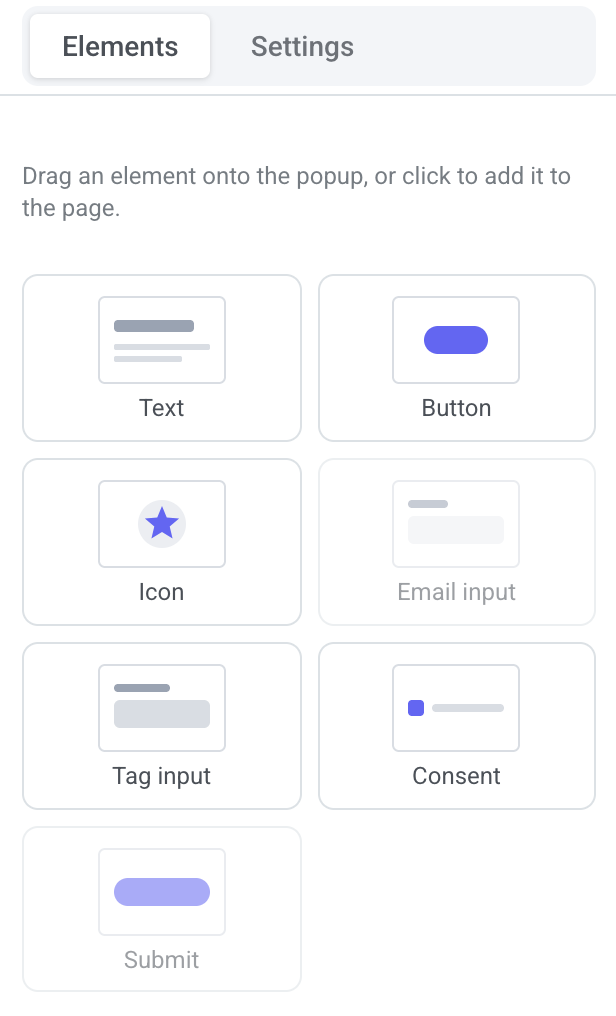
A web form has the **Text**, **Button**, and **Icon** blocks and four form blocks: **Email input**, **Tag input**, **Consent**, and **Submit**.
1. Open the **Elements** tab on the right.
2. Drag a block onto the form, or click it to add it to the current page.
3. Select the block on the form. Its options open in the **Settings** tab.
- To move the block up or down, use the **POSITION** arrows.
- To remove the block, click the delete icon.
A form can have only one **Email input** and one **Submit**, so their tiles become unavailable once the form has them.
Undo and redo work the same way as in web content. See [Undo and redo](/product/content/web-popup-content/web-content/#undo-and-redo).
Learn more about setting up each block in [Blocks](/product/content/web-popup-content/blocks/).
### Design the Success page
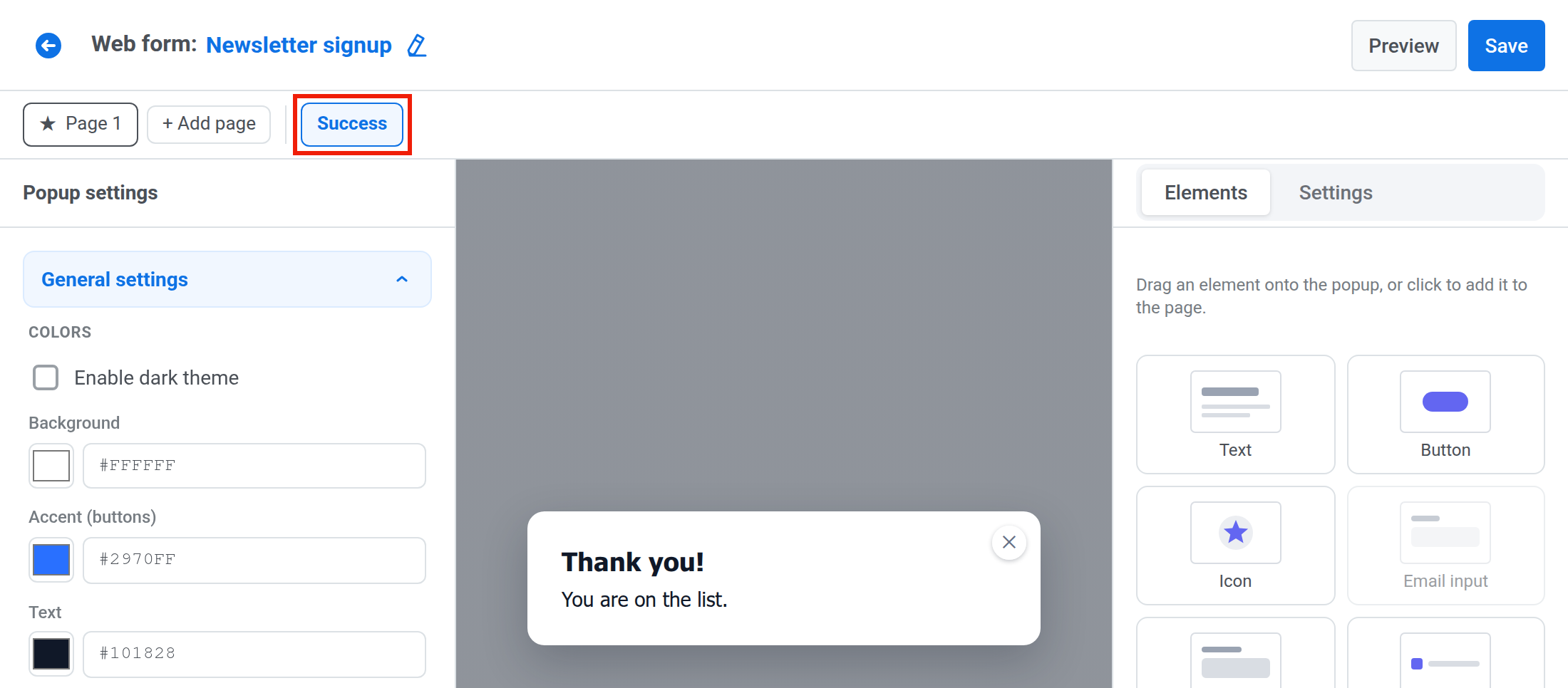
Every web form ends with a **Success** page, which the visitor sees after Pushwoosh accepts the submission. You can't delete it or make it the start page.
1. Click the **Success** tab, the last tab after **+ Add page**.
2. Edit the page like any other. Use **Text**, **Button**, and **Icon** blocks, for example for a thank-you message with a discount code. A **Submit** button can't be placed here.
### Split a long form into pages
Add pages to ask fewer questions at a time.
1. Click **+ Add page**. The new page is added after the current page, and never after the **Success** page.
2. Add a button with the **Go to page** action to move the visitor forward.
A button that goes straight to the **Success** page submits the form. See [Multiple pages](/product/content/web-popup-content/multi-page/) for how to add, duplicate, and delete pages.
A duplicated page is copied without its form blocks. A form has only one **Email input** and one **Submit**, and each tag can be used once.
#### How a multi-page form is submitted
The form's one **Submit** button sends all pages together.
Before the form is sent:
- The visitor can't go forward while a field on the current page is invalid. Going back is always possible.
- Pressing Enter in a field moves to the next page, or submits the form on the last page.
- On submit, the form first checks every page in the browser. If a field on another page is invalid, the form switches to that page and shows the field's error text there, and nothing is sent.
After the form is sent:
- If Pushwoosh rejects the email address, the form switches to the page with the **Email input** and shows its **Invalid email text** there.
- If Pushwoosh rejects the submission for another reason, for example because the fields no longer match the saved form, the visitor stays on the current page and sees the **Submit error text**.
### Save the form
To see the form at full size before you save, click **Preview**. Preview doesn't send anything, so test the form on your site.
1. Click **Save** in the top bar.
2. If the **The form can't be saved yet** banner opens, fix each problem it lists. See [If the form can't be saved](#if-the-form-cant-be-saved).
3. Click **Save** again.
#### If the form can't be saved
The **The form can't be saved yet** banner lists every problem that stops the save. Find your message in the table and do what it says.
| Message in the banner | What to do |
|---|---|
| **Add an Email input or a Tag input** | Add at least one field. |
| **The form needs exactly one Submit button, not on the success page** | Keep one **Submit** button, on a page other than **Success**. |
| **A form with an Email input needs a Consent block with a privacy policy URL** | Add a **Consent** block and fill **Privacy policy URL**. |
| **The privacy policy URL must start with https:// or / — otherwise the site shows no link** | Enter the URL as `https://…` or as a path on your site that starts with `/`. |
| **Keep only one Email input** | Delete the extra **Email input**. |
| **Choose a tag in every Tag input** | Choose a tag in each **Tag input**, or delete the empty field. |
| **Tag “…” is chosen in more than one field** | Choose a different tag in one of the fields. |
| **“…” is a reserved tag — a form can't write `PW_FF_*` tags** | Choose another tag. |
| **The form needs exactly one success page** | Keep one **Success** page. |
When you save, Pushwoosh also checks each chosen tag. If a tag was deleted or hidden, or its name starts with `PW_FF_`, the form isn't saved, and an error message names the tag, for example `Tag "City" must be an existing, non-hidden tag, not PW_FF_*, used once`. Choose another tag in that field.
## Show the form on your site
A form appears on your site only inside an active web campaign. You can use one form in several campaigns. A **Popup** campaign shows it over the page, and an **Inline** campaign shows it as a block inside a page element.
Before you start, ask your developer to:
- Check that your site runs [Web SDK](/developer/pushwoosh-sdk/web-push-notifications/web-push-sdk-30/#inline-campaigns-and-web-forms) 3.99.0 or later. An older Web SDK shows the form without its fields.
- Add the page element the campaign is placed into, if you plan an **Inline** campaign. See [CSS selector](/product/messaging-channels/web-popups/create-web-popups-campaigns/#css-selector).
Then create the campaign:
1. Go to **Campaigns → Web campaigns**.
2. Click **Create campaign** and choose **Popup** or **Inline**.
3. In **Web content**, choose your form. Forms show **Web form** under their name.
4. Set up the audience and display settings.
5. Launch the campaign.
See [Create Web popup campaigns](/product/messaging-channels/web-popups/create-web-popups-campaigns/) for every step.
## Confirm emails with double opt-in
When double opt-in is on for the project, a visitor who submits an email gets a confirmation email and is subscribed only after clicking its link. The confirmation link is valid for 24 hours. Pushwoosh saves the form's tag values for the email address when the visitor confirms.
- If the visitor submits the same address in the same campaign again while unconfirmed, Pushwoosh sends the confirmation email again, at most once every five minutes. Only the link in the newest email works.
- An address already confirmed through any web campaign of the project is subscribed right away, without another confirmation email. A confirmation through a subscription form from **Audience → Subscription forms** doesn't count here.
- The confirmation email needs a verified sending domain. While your account has none, Pushwoosh rejects every submission that would send a confirmation email, and the visitor sees the **Submit error text**.
- If your plan doesn't include email, the address isn't subscribed when the visitor clicks the link, and it stays unconfirmed. This failure doesn't appear in the campaign's failed submissions.
Double opt-in is one setting for the subscription forms and the web campaign forms of a project. See [Confirm subscribers with double opt-in](/product/audience-data-and-segmentation/subscription-forms/double-opt-in/).
## Track form results
Open the campaign's statistics from **Campaigns → Web campaigns** to see how many visitors submitted the form, why submissions failed, and to export the subscribers.
 3. Pick a template:
- **Email subscription:** a signup form with a heading, an email field, a consent checkbox, a **Submit** button, and a "Thank you!" Success page.
- **Blank form:** an empty form with a title and a **Submit** button.
3. Pick a template:
- **Email subscription:** a signup form with a heading, an email field, a consent checkbox, a **Submit** button, and a "Thank you!" Success page.
- **Blank form:** an empty form with a title and a **Submit** button.
 4. Click the name in the top bar and enter a name for the form. Visitors don't see it. Until the form has a name, **Save** is unavailable, and hovering it shows **Enter a popup name first**.
### Add form fields
A web form has the **Text**, **Button**, and **Icon** blocks and four form blocks: **Email input**, **Tag input**, **Consent**, and **Submit**.
1. Open the **Elements** tab on the right.
4. Click the name in the top bar and enter a name for the form. Visitors don't see it. Until the form has a name, **Save** is unavailable, and hovering it shows **Enter a popup name first**.
### Add form fields
A web form has the **Text**, **Button**, and **Icon** blocks and four form blocks: **Email input**, **Tag input**, **Consent**, and **Submit**.
1. Open the **Elements** tab on the right.
 2. Drag a block onto the form, or click it to add it to the current page.
3. Select the block on the form. Its options open in the **Settings** tab.
- To move the block up or down, use the **POSITION** arrows.
- To remove the block, click the delete icon.
A form can have only one **Email input** and one **Submit**, so their tiles become unavailable once the form has them.
Undo and redo work the same way as in web content. See [Undo and redo](/product/content/web-popup-content/web-content/#undo-and-redo).
Learn more about setting up each block in [Blocks](/product/content/web-popup-content/blocks/).
### Design the Success page
Every web form ends with a **Success** page, which the visitor sees after Pushwoosh accepts the submission. You can't delete it or make it the start page.
1. Click the **Success** tab, the last tab after **+ Add page**.
2. Drag a block onto the form, or click it to add it to the current page.
3. Select the block on the form. Its options open in the **Settings** tab.
- To move the block up or down, use the **POSITION** arrows.
- To remove the block, click the delete icon.
A form can have only one **Email input** and one **Submit**, so their tiles become unavailable once the form has them.
Undo and redo work the same way as in web content. See [Undo and redo](/product/content/web-popup-content/web-content/#undo-and-redo).
Learn more about setting up each block in [Blocks](/product/content/web-popup-content/blocks/).
### Design the Success page
Every web form ends with a **Success** page, which the visitor sees after Pushwoosh accepts the submission. You can't delete it or make it the start page.
1. Click the **Success** tab, the last tab after **+ Add page**.
 2. Edit the page like any other. Use **Text**, **Button**, and **Icon** blocks, for example for a thank-you message with a discount code. A **Submit** button can't be placed here.
### Split a long form into pages
Add pages to ask fewer questions at a time.
1. Click **+ Add page**. The new page is added after the current page, and never after the **Success** page.
2. Add a button with the **Go to page** action to move the visitor forward.
A button that goes straight to the **Success** page submits the form. See [Multiple pages](/product/content/web-popup-content/multi-page/) for how to add, duplicate, and delete pages.
A duplicated page is copied without its form blocks. A form has only one **Email input** and one **Submit**, and each tag can be used once.
#### How a multi-page form is submitted
The form's one **Submit** button sends all pages together.
Before the form is sent:
- The visitor can't go forward while a field on the current page is invalid. Going back is always possible.
- Pressing Enter in a field moves to the next page, or submits the form on the last page.
- On submit, the form first checks every page in the browser. If a field on another page is invalid, the form switches to that page and shows the field's error text there, and nothing is sent.
After the form is sent:
- If Pushwoosh rejects the email address, the form switches to the page with the **Email input** and shows its **Invalid email text** there.
- If Pushwoosh rejects the submission for another reason, for example because the fields no longer match the saved form, the visitor stays on the current page and sees the **Submit error text**.
### Save the form
To see the form at full size before you save, click **Preview**. Preview doesn't send anything, so test the form on your site.
1. Click **Save** in the top bar.
2. If the **The form can't be saved yet** banner opens, fix each problem it lists. See [If the form can't be saved](#if-the-form-cant-be-saved).
2. Edit the page like any other. Use **Text**, **Button**, and **Icon** blocks, for example for a thank-you message with a discount code. A **Submit** button can't be placed here.
### Split a long form into pages
Add pages to ask fewer questions at a time.
1. Click **+ Add page**. The new page is added after the current page, and never after the **Success** page.
2. Add a button with the **Go to page** action to move the visitor forward.
A button that goes straight to the **Success** page submits the form. See [Multiple pages](/product/content/web-popup-content/multi-page/) for how to add, duplicate, and delete pages.
A duplicated page is copied without its form blocks. A form has only one **Email input** and one **Submit**, and each tag can be used once.
#### How a multi-page form is submitted
The form's one **Submit** button sends all pages together.
Before the form is sent:
- The visitor can't go forward while a field on the current page is invalid. Going back is always possible.
- Pressing Enter in a field moves to the next page, or submits the form on the last page.
- On submit, the form first checks every page in the browser. If a field on another page is invalid, the form switches to that page and shows the field's error text there, and nothing is sent.
After the form is sent:
- If Pushwoosh rejects the email address, the form switches to the page with the **Email input** and shows its **Invalid email text** there.
- If Pushwoosh rejects the submission for another reason, for example because the fields no longer match the saved form, the visitor stays on the current page and sees the **Submit error text**.
### Save the form
To see the form at full size before you save, click **Preview**. Preview doesn't send anything, so test the form on your site.
1. Click **Save** in the top bar.
2. If the **The form can't be saved yet** banner opens, fix each problem it lists. See [If the form can't be saved](#if-the-form-cant-be-saved).
 3. Click **Save** again.
#### If the form can't be saved
The **The form can't be saved yet** banner lists every problem that stops the save. Find your message in the table and do what it says.
| Message in the banner | What to do |
|---|---|
| **Add an Email input or a Tag input** | Add at least one field. |
| **The form needs exactly one Submit button, not on the success page** | Keep one **Submit** button, on a page other than **Success**. |
| **A form with an Email input needs a Consent block with a privacy policy URL** | Add a **Consent** block and fill **Privacy policy URL**. |
| **The privacy policy URL must start with https:// or / — otherwise the site shows no link** | Enter the URL as `https://…` or as a path on your site that starts with `/`. |
| **Keep only one Email input** | Delete the extra **Email input**. |
| **Choose a tag in every Tag input** | Choose a tag in each **Tag input**, or delete the empty field. |
| **Tag “…” is chosen in more than one field** | Choose a different tag in one of the fields. |
| **“…” is a reserved tag — a form can't write `PW_FF_*` tags** | Choose another tag. |
| **The form needs exactly one success page** | Keep one **Success** page. |
When you save, Pushwoosh also checks each chosen tag. If a tag was deleted or hidden, or its name starts with `PW_FF_`, the form isn't saved, and an error message names the tag, for example `Tag "City" must be an existing, non-hidden tag, not PW_FF_*, used once`. Choose another tag in that field.
## Show the form on your site
A form appears on your site only inside an active web campaign. You can use one form in several campaigns. A **Popup** campaign shows it over the page, and an **Inline** campaign shows it as a block inside a page element.
Before you start, ask your developer to:
- Check that your site runs [Web SDK](/developer/pushwoosh-sdk/web-push-notifications/web-push-sdk-30/#inline-campaigns-and-web-forms) 3.99.0 or later. An older Web SDK shows the form without its fields.
- Add the page element the campaign is placed into, if you plan an **Inline** campaign. See [CSS selector](/product/messaging-channels/web-popups/create-web-popups-campaigns/#css-selector).
Then create the campaign:
1. Go to **Campaigns → Web campaigns**.
2. Click **Create campaign** and choose **Popup** or **Inline**.
3. In **Web content**, choose your form. Forms show **Web form** under their name.
4. Set up the audience and display settings.
5. Launch the campaign.
See [Create Web popup campaigns](/product/messaging-channels/web-popups/create-web-popups-campaigns/) for every step.
## Confirm emails with double opt-in
When double opt-in is on for the project, a visitor who submits an email gets a confirmation email and is subscribed only after clicking its link. The confirmation link is valid for 24 hours. Pushwoosh saves the form's tag values for the email address when the visitor confirms.
- If the visitor submits the same address in the same campaign again while unconfirmed, Pushwoosh sends the confirmation email again, at most once every five minutes. Only the link in the newest email works.
- An address already confirmed through any web campaign of the project is subscribed right away, without another confirmation email. A confirmation through a subscription form from **Audience → Subscription forms** doesn't count here.
- The confirmation email needs a verified sending domain. While your account has none, Pushwoosh rejects every submission that would send a confirmation email, and the visitor sees the **Submit error text**.
- If your plan doesn't include email, the address isn't subscribed when the visitor clicks the link, and it stays unconfirmed. This failure doesn't appear in the campaign's failed submissions.
Double opt-in is one setting for the subscription forms and the web campaign forms of a project. See [Confirm subscribers with double opt-in](/product/audience-data-and-segmentation/subscription-forms/double-opt-in/).
## Track form results
Open the campaign's statistics from **Campaigns → Web campaigns** to see how many visitors submitted the form, why submissions failed, and to export the subscribers.
3. Click **Save** again.
#### If the form can't be saved
The **The form can't be saved yet** banner lists every problem that stops the save. Find your message in the table and do what it says.
| Message in the banner | What to do |
|---|---|
| **Add an Email input or a Tag input** | Add at least one field. |
| **The form needs exactly one Submit button, not on the success page** | Keep one **Submit** button, on a page other than **Success**. |
| **A form with an Email input needs a Consent block with a privacy policy URL** | Add a **Consent** block and fill **Privacy policy URL**. |
| **The privacy policy URL must start with https:// or / — otherwise the site shows no link** | Enter the URL as `https://…` or as a path on your site that starts with `/`. |
| **Keep only one Email input** | Delete the extra **Email input**. |
| **Choose a tag in every Tag input** | Choose a tag in each **Tag input**, or delete the empty field. |
| **Tag “…” is chosen in more than one field** | Choose a different tag in one of the fields. |
| **“…” is a reserved tag — a form can't write `PW_FF_*` tags** | Choose another tag. |
| **The form needs exactly one success page** | Keep one **Success** page. |
When you save, Pushwoosh also checks each chosen tag. If a tag was deleted or hidden, or its name starts with `PW_FF_`, the form isn't saved, and an error message names the tag, for example `Tag "City" must be an existing, non-hidden tag, not PW_FF_*, used once`. Choose another tag in that field.
## Show the form on your site
A form appears on your site only inside an active web campaign. You can use one form in several campaigns. A **Popup** campaign shows it over the page, and an **Inline** campaign shows it as a block inside a page element.
Before you start, ask your developer to:
- Check that your site runs [Web SDK](/developer/pushwoosh-sdk/web-push-notifications/web-push-sdk-30/#inline-campaigns-and-web-forms) 3.99.0 or later. An older Web SDK shows the form without its fields.
- Add the page element the campaign is placed into, if you plan an **Inline** campaign. See [CSS selector](/product/messaging-channels/web-popups/create-web-popups-campaigns/#css-selector).
Then create the campaign:
1. Go to **Campaigns → Web campaigns**.
2. Click **Create campaign** and choose **Popup** or **Inline**.
3. In **Web content**, choose your form. Forms show **Web form** under their name.
4. Set up the audience and display settings.
5. Launch the campaign.
See [Create Web popup campaigns](/product/messaging-channels/web-popups/create-web-popups-campaigns/) for every step.
## Confirm emails with double opt-in
When double opt-in is on for the project, a visitor who submits an email gets a confirmation email and is subscribed only after clicking its link. The confirmation link is valid for 24 hours. Pushwoosh saves the form's tag values for the email address when the visitor confirms.
- If the visitor submits the same address in the same campaign again while unconfirmed, Pushwoosh sends the confirmation email again, at most once every five minutes. Only the link in the newest email works.
- An address already confirmed through any web campaign of the project is subscribed right away, without another confirmation email. A confirmation through a subscription form from **Audience → Subscription forms** doesn't count here.
- The confirmation email needs a verified sending domain. While your account has none, Pushwoosh rejects every submission that would send a confirmation email, and the visitor sees the **Submit error text**.
- If your plan doesn't include email, the address isn't subscribed when the visitor clicks the link, and it stays unconfirmed. This failure doesn't appear in the campaign's failed submissions.
Double opt-in is one setting for the subscription forms and the web campaign forms of a project. See [Confirm subscribers with double opt-in](/product/audience-data-and-segmentation/subscription-forms/double-opt-in/).
## Track form results
Open the campaign's statistics from **Campaigns → Web campaigns** to see how many visitors submitted the form, why submissions failed, and to export the subscribers.