# SMS presets
**SMS presets** are reusable SMS messages you prepare once and send again in [SMS campaigns](/product/messaging-channels/sms) and Customer Journeys. Personalize the text for each user, adapt it to different languages, or fill it with products and articles instead of writing everything by hand.
## Create an SMS preset
1. Go to **Content > Messenger presets**.
2. Open the **SMS** tab.
3. Click **Create SMS content**.
4. Choose a content type:
* **Regular SMS:** a message you write yourself, optionally personalized with tags.
* **Product Recommendations:** a message built from your [Product Catalog](/product/content/product-catalog), with products picked by hand, pulled by a catalog rule (category and sort order), pulled by a recommendation strategy (for example, bestsellers or recently viewed), or fetched from the recipient's abandoned cart.
* **News Feeds:** a message built from a registered news feed with the latest or trending articles, optionally filtered to one feed and one category.
5. Enter a clear, descriptive name for the preset.
Continue with [Add languages](#add-languages), then build content for the type you chose.
## Add languages
You can create the same SMS preset in multiple languages.
1. Compose the default-language message first.
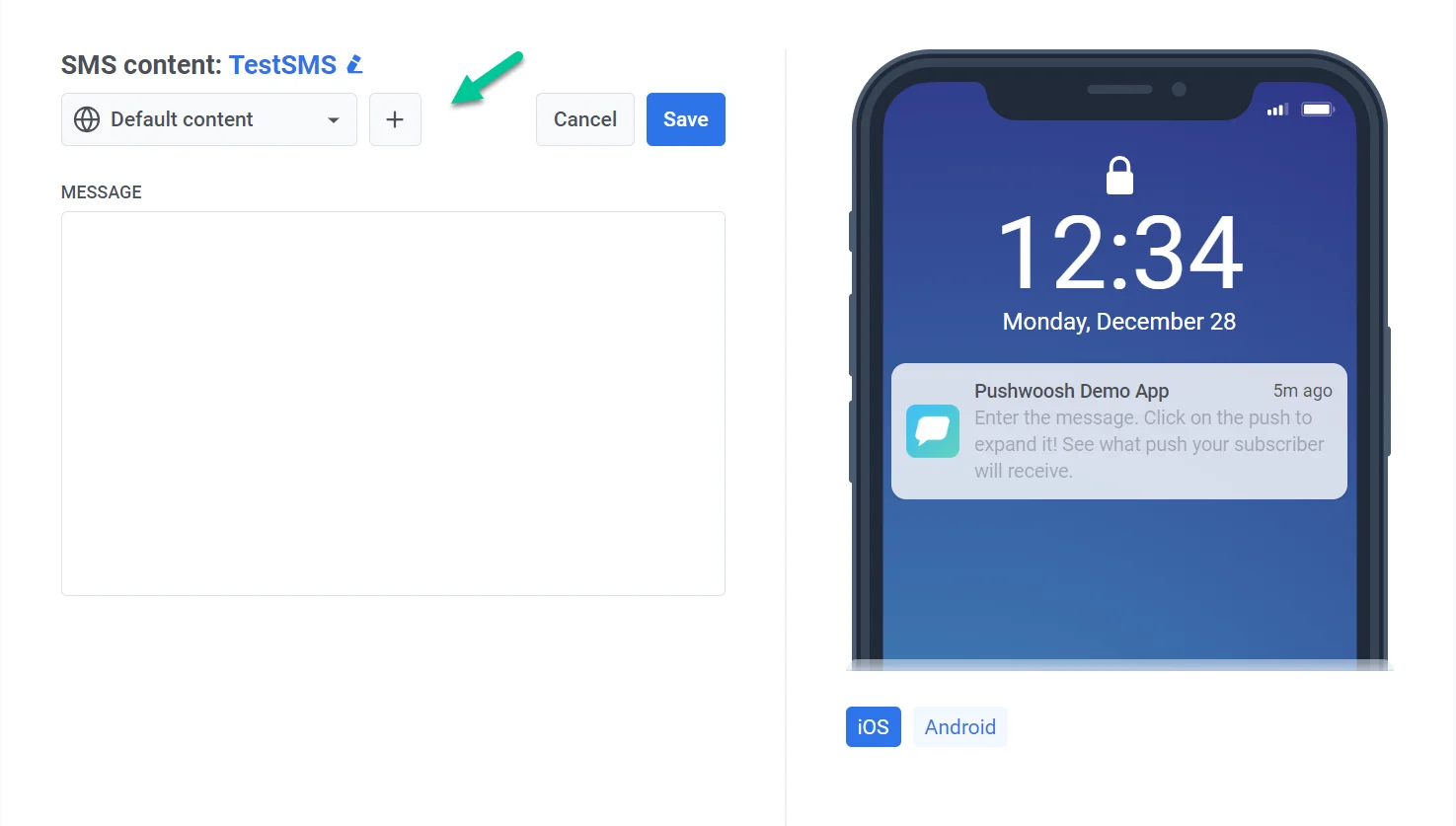
2. Click the **+** icon at the top of the editor.
3. Select the additional languages you need.
4. Switch between languages in the dropdown and fill in the message for each one.
For example, if your default language is English and you add Spanish and German, users with Spanish or German phone settings receive the message in their language. Everyone else receives the English version.
## Build content by type
The editor fields depend on the content type you chose when creating the preset.
### Regular SMS
**Regular SMS** is a plain-text message you type in the **Message** field. Personalize it with user data or add a tracked link if you need to.
1. In the **Message** field, type your SMS text.
2. Click **Emoji** above the field to insert an emoji.
3. To personalize the message, follow the steps in [Personalize SMS content](#personalize-sms-content) below.
4. To add a tracked, shortened link, paste the URL into **Shorten a link** and click **Shorten & insert**. To skip shortening and tracking, paste the URL directly into the **Message** field instead.
Below the **Message** field, the editor shows the character and segment count.
#### Personalize SMS content
Insert user data into the message so each recipient sees their own name, city, or other details you have stored.
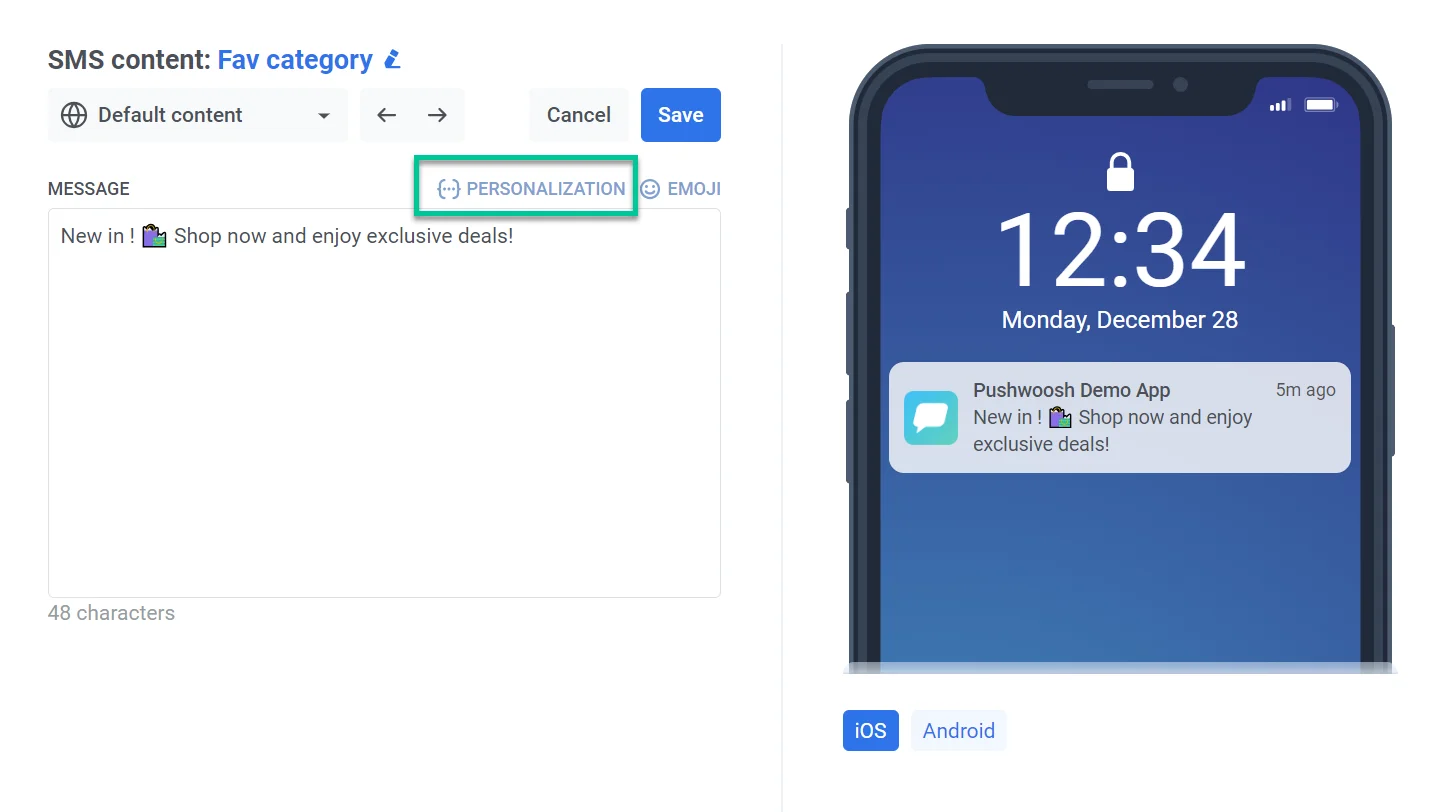
1. Click **Personalization** above the message field.
2. Select a tag from the dropdown. Available tags depend on the user data you have collected. [Learn more about tags](/product/audience-data-and-segmentation/user-data-tags/tags)
3. Select a format modifier for how the tag value appears:
* **CapitalizeFirst:** the first letter is uppercase and the rest lowercase. For example, "john doe" becomes "John doe".
* **CapitalizeAllFirst:** the first letter of each word is uppercase. For example, "john doe" becomes "John Doe".
* **UPPERCASE:** all letters uppercase. For example, "john doe" becomes "JOHN DOE".
* **Lowercase:** all letters lowercase. For example, "JOHN DOE" becomes "john doe".
* **Regular:** keeps the original formatting from your data. For example, "john doe" stays "john doe".
4. In **Default Tag Value**, enter the fallback text when the tag has no value for a user. For example, for `{City}`, enter "your city".
5. Click **Insert**. The tag appears in the message as a placeholder. At send time, Pushwoosh replaces it with each user's value. If a user has no value for that tag, the **Default Tag Value** from step 4 is used instead.
For example, you insert `{City}` with default value "your city" into the message "Explore, dine, and discover in `{City}`. Start now!"
* **City has a value:** "Explore, dine, and discover in Chicago. Start now!"
* **City is empty:** "Explore, dine, and discover in your city. Start now!"
### Product Recommendations
**Product Recommendations** pulls product names, prices, and links from your [Product Catalog](/product/content/product-catalog) into the SMS. Use it to promote a fixed set of products, highlight bestsellers or new arrivals, or remind users about items left in their cart.
#### Compose the message
Write the SMS text for the products your content source will return. Start with the single **Message** field (**Items** defaults to 1 on a new preset). To include two or more products, set **Items** in **Content source**, then fill **Intro**, **Item template**, and **Outro**.
##### One item
1. In the **Message** field, type your SMS text. Click **Title**, **Price**, **Category**, or **Link** to insert a product placeholder like `{{product.title}}` at the cursor.
2. To add a tracked, shortened link, paste the URL into **Shorten a link** and click **Shorten & insert**.
##### More than one item
Set **Items** to 2 or more in **Content source** below to split the message into three blocks around the repeated product list.
1. Fill in **Intro**. This block is sent once, before the products.
2. Fill in **Item template**. This block is repeated for each product. Click **Title**, **Price**, **Category**, or **Link** to insert a product field. Each inserts a placeholder like `{{product.title}}` at the cursor.
3. Choose **Separator between items**: **comma** puts products on one line (`Sneakers, Hoodie`), **new line** puts each product on its own line.
4. Fill in **Outro**. This block is sent once, after the products. Click **Title**, **Price**, **Category**, or **Link** here too to insert a product placeholder. Intro, items, and outro are joined with a new line.
5. To add a tracked, shortened link, paste the URL into **Shorten a link** and click **Shorten & insert**.
#### Choose a content source
1. Scroll to **Content source** at the bottom of the editor.
2. Set **Source** to one of four options:
* **Manual:** hand-pick up to 3 products.
* **Catalog rule:** fetch products by category and sort order.
* **Recommendations:** fetch products by a recommendation strategy.
* **Abandoned cart:** fetch products from the recipient's abandoned cart.
Configure the source you chose:
##### Manual
1. Click **Add a product**.
2. Search your catalog and select a product. Repeat to add up to 3 products.
3. To remove a product, click **Remove** next to it.
4. Before reusing an older preset, click **Refresh from catalog**. Prices and titles are frozen at pick time.
##### Catalog rule
1. Set **Category** and **Sort by**.
2. Set **Items** to how many products to include (up to 3 per message).
3. Optionally, under **Pinned rows**, hand-pick products to lead the message before the rule fills the remaining slots.
4. Optionally check **Trim product title to** a fixed character count to keep the message inside SMS length limits.
5. Set what happens **if the feed returns nothing**: skip sending to that recipient, or send a fallback text.
##### Recommendations
1. Set **Strategy** to how products are picked:
* **Bestsellers (7 or 30 days):** products with the most units sold in the last 7 or 30 days. Needs `PW_OrderCreated` and `PW_OrderUpdated` events with an `items` array.
* **Newest:** latest products added to the catalog. Ranks from catalog data only.
* **Back in stock:** products that recently came back in stock. Ranks from catalog stock changes.
* **Price drop:** products with a recent price decrease. Ranks from catalog price changes.
* **Bought together:** products other users viewed, added to cart, or bought alongside an anchor product in the last 30 days. Needs product activity events and a device tag that holds the anchor product ID.
* **Recently viewed:** products that other users interacted with alongside the last 10 products this recipient interacted with, based on the last 30 days. Products the recipient already interacted with are left out. Needs events from the SDK or API with a `userId` and a product ID (`product_id`, `productId`, `item_id`, `sku`, or a `products` array) that matches the product `id` in your catalog.
**Bestsellers**, **Bought together**, and **Recently viewed** need product events from your app, website, or backend, the same ones that power the [Products block in email](/product/content/email-content/drag-and-drop-email-editor/blocks/#get-recommended-products). See [How to set up product recommendations in email](/tutorials/product-guides/email-marketing-campaigns/how-to-set-up-product-recommendations-in-email/) for what to send.
2. Set **Category** to filter which products the strategy can pick from, and **Items** to how many products to include (up to 3 per message). If the strategy returns nothing, the plain catalog rule fills the message instead of sending it empty.
3. Optionally, pin products under **Pinned rows**. Pinned rows count against **Items**: the **Add a product** picker blocks you from selecting more than **Items** to begin with, showing 0 slots left once you hit the cap. If you lower **Items** below the number of rows already pinned, the extra pinned rows don't send. Pin a product the strategy would also return and the row repeats, since the rule can't exclude a pinned product from its own results.
4. Optionally check **Trim product title to** a fixed character count.
5. Set what happens **if the feed returns nothing**: skip sending to that recipient, or send a fallback text.
##### Abandoned cart
Pushwoosh fetches each recipient's own cart when the message goes out, not in advance. Set **Items** to how many products to fetch (up to 3). Because the products depend on who's receiving the message, there's no preview and **Pinned rows** aren't available. Unlike **Catalog rule** and **Recommendations**, there's no **If the feed returns nothing** option here — Abandoned cart has no fallback control for a recipient with an empty cart.
### News Feeds
**News Feeds** pulls article titles, summaries, and links from an RSS or Atom feed into the SMS. Use it to share the latest news, trending stories, or updates from a specific category.
#### Compose the message
The message fields depend on **Articles** in **Content source** below. On a new preset,
**Articles** defaults to 1, showing a single message field. Set it to 2 or more, and the field
splits into **Intro**, **Article template**, and **Outro** blocks. Below the message fields, the
editor shows an estimated character and segment count once at least one article matches the feed
rule.
##### One article
1. In the **Message** field, type your SMS text. Click **Title**, **Summary**, **Category**, **Author**, or **Link** to insert an article field. Each inserts a placeholder like `{{news.title}}` at the cursor. There's no publish-date field.
2. To add a tracked, shortened link, paste the URL into **Shorten a link** and click **Shorten & insert**.
##### More than one article
Set **Articles** to 2 or more in **Content source** below to split the message into **Intro**, **Article template**, and **Outro** blocks around the repeated article list.
1. Fill in **Intro**. This block is sent once, before the articles.
2. Fill in **Article template**. This block is repeated for each article. Click **Title**, **Summary**, **Category**, **Author**, or **Link** to insert an article field. Each inserts a placeholder like `{{news.title}}` at the cursor.
3. Set **Separator between articles** to comma or new line.
4. Fill in **Outro**. This block is sent once, after the articles. Click **Title**, **Summary**, **Category**, **Author**, or **Link** here too to insert an article field. Intro, articles, and outro are joined with a new line.
5. To add a tracked, shortened link, paste the URL into **Shorten a link** and click **Shorten & insert**.
#### Choose a content source
Feeds must be registered on the [**News feeds**](/product/content/news-feeds/) page for your application. This panel only picks a feed. It doesn't register one. If none exist yet, a warning banner appears — register a feed on that page first, using **Add feed**.
1. Scroll to **Content source** at the bottom of the editor.
2. Set **Feed** to one registered feed, or **All feeds** to pull from every feed in the project.
3. Set **Rubric** to one category of the selected feed, or leave it as **Any rubric**. Switching the feed resets this field, since categories belong to the feed they came from.
4. Set **Ranking**:
* **Newest:** the latest articles by publish date from the feed.
* **Trending:** the articles with the most recent opens on your site and clicks in your emails.
5. Set **Articles** to how many articles to include (up to 3 per message).
6. Under **Pinned articles**, click **Add an article** to hand-pick articles that lead the message. A pinned article is excluded from what the feed fetches, so it's never repeated. Titles are frozen at pick time. The send doesn't re-read them.
7. Optionally check **Trim article title to** a fixed character count.
8. Under **If the feed returns nothing**, choose what happens when the rule finds no articles:
* **Do not send to this recipient:** skip the send for that user.
* **Send this text instead:** send a fallback message you type in the field that appears. If you leave that field blank, Pushwoosh skips the send to that recipient instead of sending an empty SMS — fill in real fallback text if you want a message to go out.
To check the fallback text and content source settings you saved, see [Review what's saved into the preset](#review-whats-saved-into-the-preset).
## Review what's saved into the preset
For Product Recommendations and News Feeds presets, Pushwoosh saves your **Content source** settings as a [Liquid](/product/personalization/liquid-templates/) template that fetches products or articles at send time. Reviewing it helps you check your filters, fallback text, and pinned items, especially when the preview is empty. The panel is read-only — change settings through **Content source** instead.
1. Scroll to **Content source** and click **Show what is saved into the preset**.
2. Review the Liquid block Pushwoosh stores for this preset. It includes the request that fetches your products or articles, your content source settings, and any fallback message text.
3. Click **Hide what is saved into the preset** to collapse the panel.
## Add MMS attachments
On the same editor page, attach up to 3 images to turn the message into an MMS. Attachments are set per language, the same as the message text.
1. Scroll to **MMS attachments** — below **Content source**, or below the message fields for **Regular SMS**.
2. Optionally enter a **Subject**. A subject requires at least one image. A subject without an attachment is rejected. Up to 40 characters if the subject is plain ASCII, or 13 characters if it contains any non-ASCII character (for example Cyrillic, CJK, or most emoji).
3. Click **Add image** to pick a file from your project's media library. You can attach up to 3 images. Use JPG or GIF files under 200 KB each — AbleMobile, the only MMS-capable provider, rejects the whole send otherwise.
4. Once you've added a second image, set **Show text after** to choose which image the message text should appear after (**Image 1**, **Image 2**, and so on). With a single image, the text is shown after it automatically.
Leaving the attachments empty sends a regular SMS. There's no separate MMS toggle.
## Send over RCS
The **RCS** block sends a Twilio content template over RCS (Rich Communication Services) instead of the message text: a branded chat message with a card, carousel, media, or buttons. It needs Twilio connected with your own account credentials and a Messaging Service. See [RCS messages through Twilio](/product/messaging-channels/sms/rcs-messages/) for the requirements and the Twilio setup.
Each language of the preset can have its own template. A language without a template is sent as a regular SMS.
1. Switch to the language you want to set up, the same as in [Add languages](#add-languages).
2. Scroll to the **RCS** block.
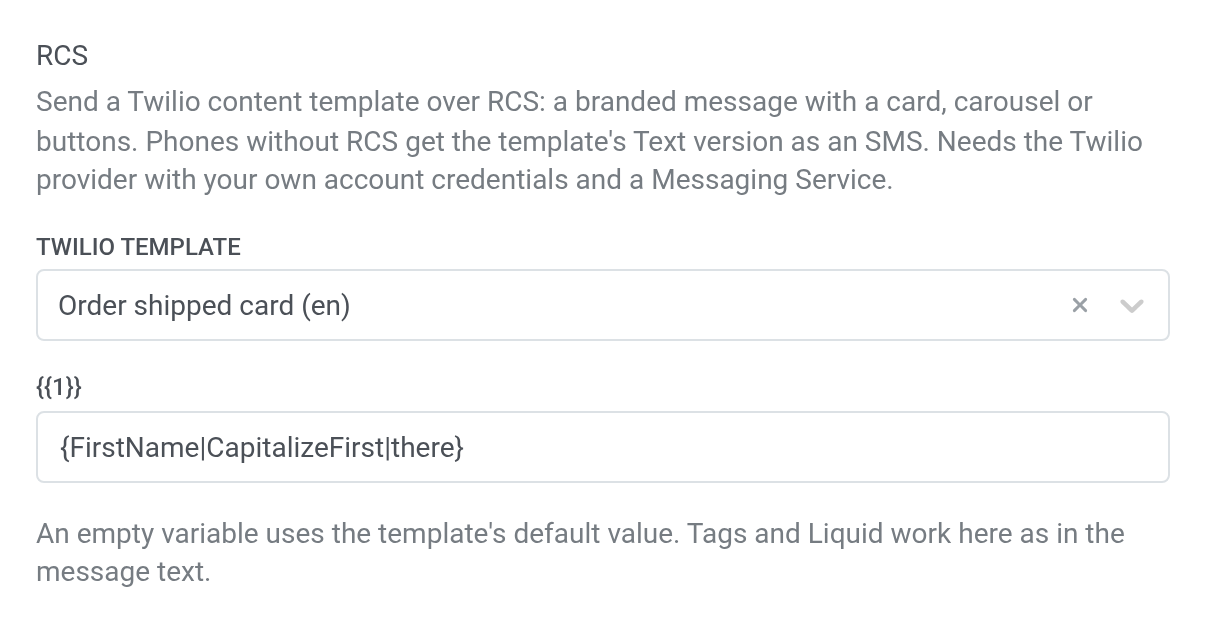
3. In **Twilio template**, select a template. The list holds only templates of the connected Twilio account with an RCS content type: card, carousel, quick reply, call to action, or media. Each template is listed by name and language. To send this language as a regular SMS, leave the field at **Don't send over RCS** or clear it.
4. If the template has variables, fill in a field for each one.
5. Keep the **Message** field filled in. A send without message text is rejected, even when the language has a template.
### Template variables
A template can have variables, for example the first name in a card title. Each variable has its own field, titled by the variable, such as `{{1}}`.
Type text, a [tag](#personalize-sms-content), or Liquid in the field, the same as in the message text. A field left empty uses the template's default value, shown as the field's placeholder.
Choosing a different template clears the variables you entered for the previous one.
### Update the buttons of a template
A journey doesn't see changes you make to a template's quick reply buttons in Twilio until you save the preset again. To update the buttons:
1. Open the SMS preset.
2. Click **Save** at the top of the editor.
Saving makes Pushwoosh read the buttons from Twilio and store a copy with the preset. Journeys build their [reply branches](/product/customer-journey/journey-elements/channels/sms/#branch-on-rcs-reply-buttons) from this copy.
If a selected template no longer exists in Twilio, saving fails. Select another template in the **RCS** block and save again.
### What phones without RCS receive
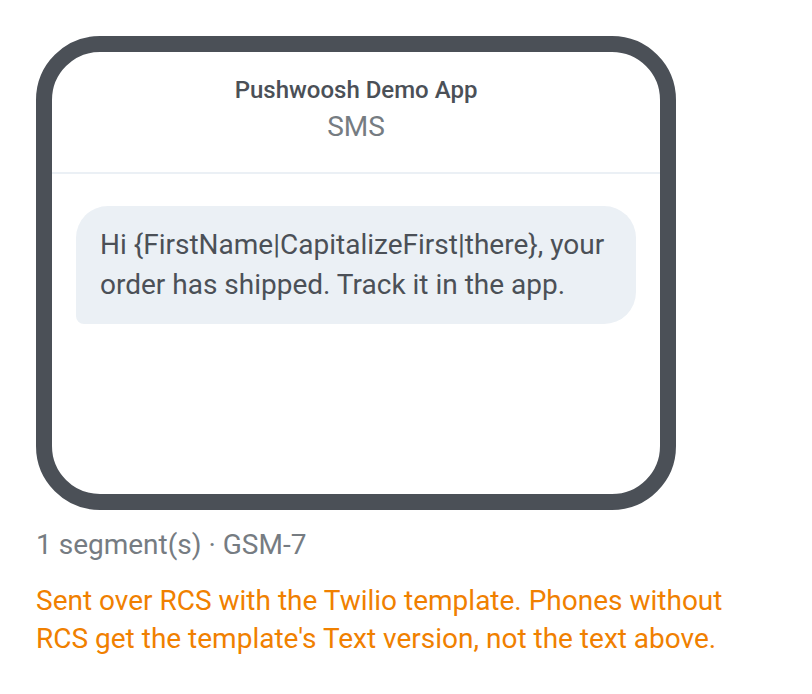
Phones that can't receive RCS get an SMS built from the template's **Text** type, not from the **Message** field.
### RCS warnings
The **RCS** block warns you when the template can't be sent the way you expect. Each warning has its own fix:
| Warning | What it means | What to do |
| --- | --- | --- |
| **The template has no Text version, so phones without RCS won't get the message** | The template has no SMS fallback. | Add the **Text** type to the template in Twilio, or pick another template. |
| **Template … is no longer in the Twilio account, so the message will fail to send** | The template saved in the preset was deleted in Twilio. | Click **Remove template** and select another one. |
| **Couldn't load Twilio templates** | Pushwoosh couldn't read the template list. Most often the application's SMS settings have no Twilio **Account SID** and **Auth token** of your own, or Twilio rejected them. | Check the credentials in [SMS platform configuration](/product/first-steps/start-with-your-project/configure-platforms/sms-configuration/). |
## Preview and save
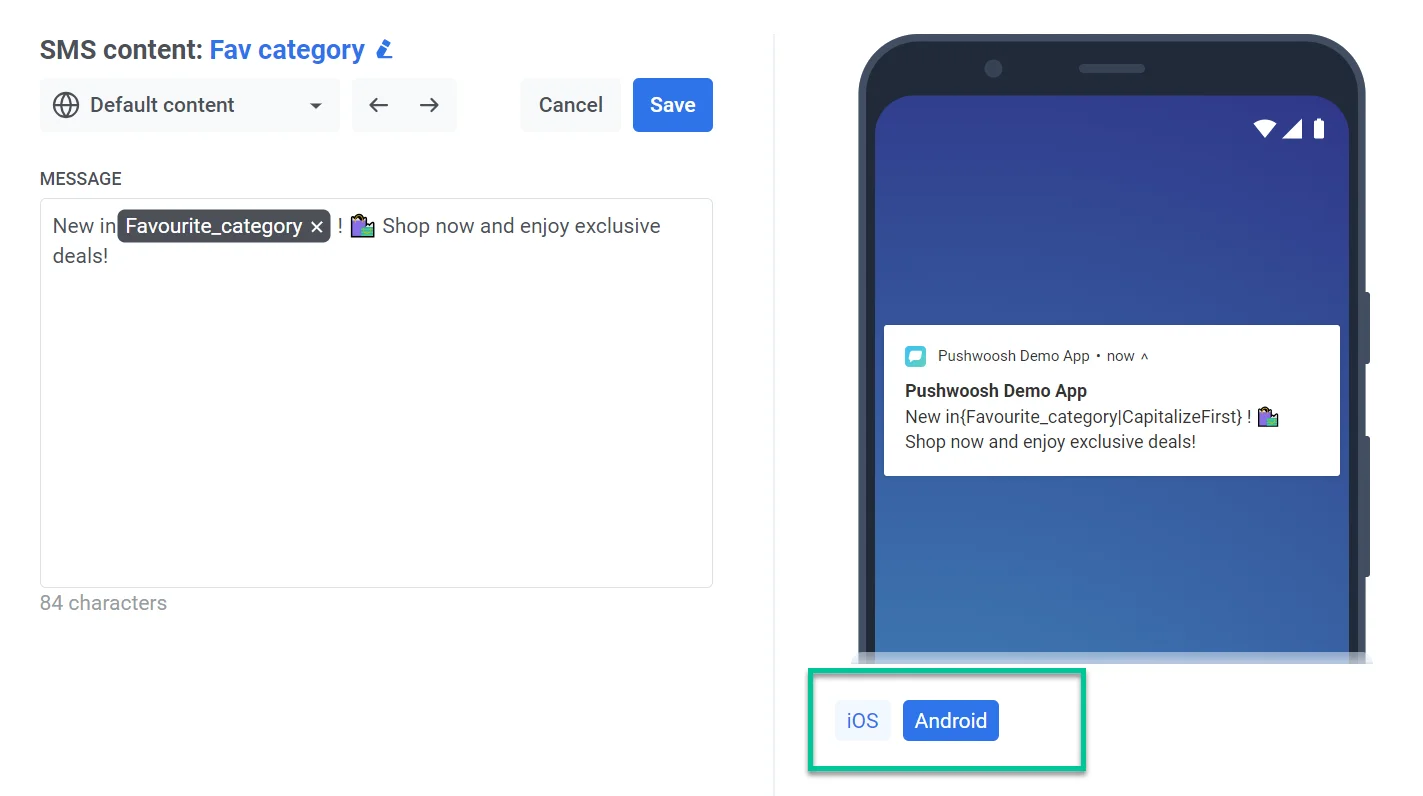
The preview panel on the right side of the editor shows how the message looks as an SMS bubble. It updates as you edit.
1. Check the preview on the right to see the message text and segment count.
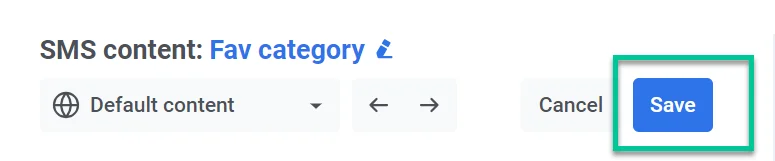
2. Click **Save** at the top of the editor.
Once saved, use the preset in [SMS campaigns](/product/messaging-channels/sms) and Customer Journeys.
## Manage SMS presets
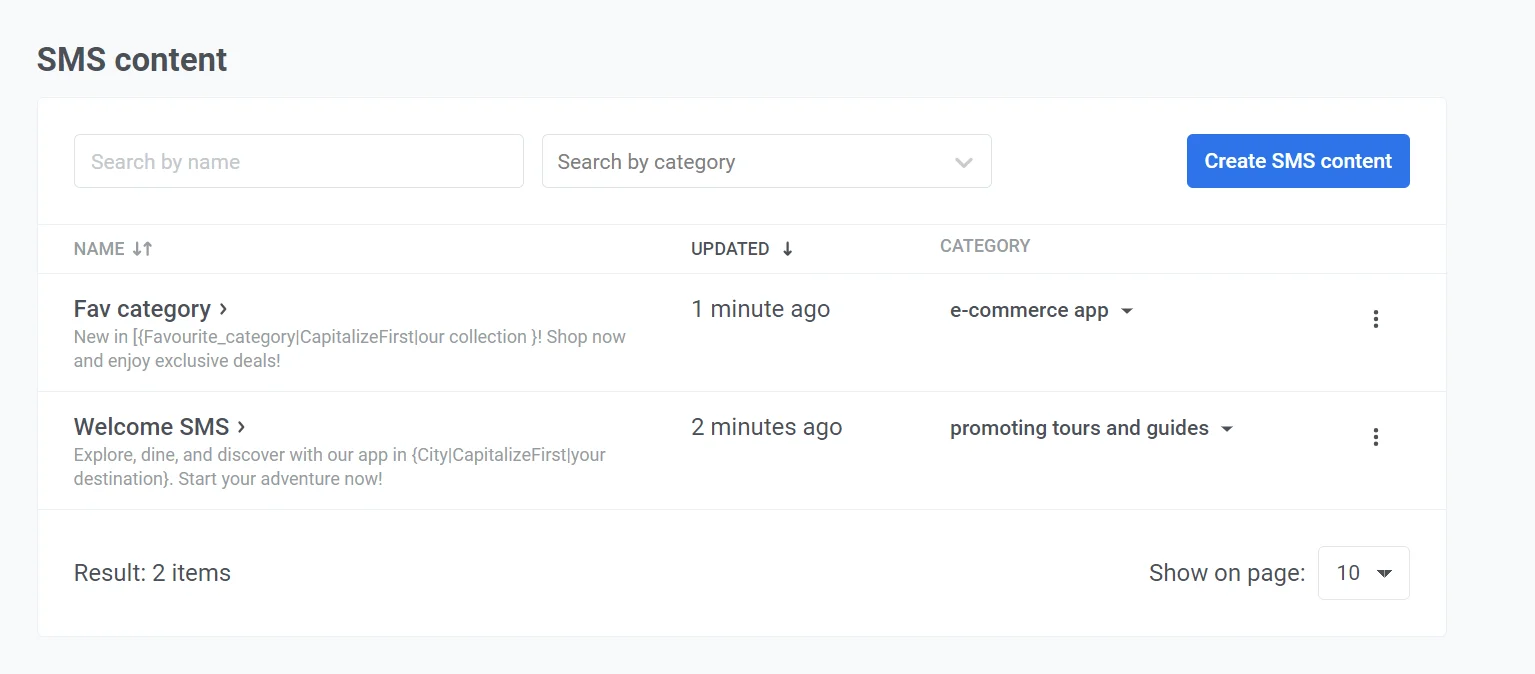
Saved presets appear under **Content > Messenger presets** on the **SMS** tab. The list shows each preset's title, category, and last updated date. Use the search bars at the top to find content by name or category. From this page, you can edit, delete, or create new SMS content.
A preset with a **Rich message** badge is a copy of a [rich message](/product/content/sms-and-messenger-presets/rich-messages/). You can't edit or delete it or change its category here. Click it to open the rich message in its editor. If rich messages aren't turned on for your account, the copy opens read-only in its own form.
### SMS categories
Each SMS message has a category shown in the **Category** column. To change it, click the current category next to the SMS title, then:
* **Assign a category:** select one from the dropdown, or create a new one.
* **Remove the category:** select **Default**.
 4. Choose a content type:
* **Regular SMS:** a message you write yourself, optionally personalized with tags.
* **Product Recommendations:** a message built from your [Product Catalog](/product/content/product-catalog), with products picked by hand, pulled by a catalog rule (category and sort order), pulled by a recommendation strategy (for example, bestsellers or recently viewed), or fetched from the recipient's abandoned cart.
* **News Feeds:** a message built from a registered news feed with the latest or trending articles, optionally filtered to one feed and one category.
5. Enter a clear, descriptive name for the preset.
Continue with [Add languages](#add-languages), then build content for the type you chose.
## Add languages
You can create the same SMS preset in multiple languages.
1. Compose the default-language message first.
2. Click the **+** icon at the top of the editor.
4. Choose a content type:
* **Regular SMS:** a message you write yourself, optionally personalized with tags.
* **Product Recommendations:** a message built from your [Product Catalog](/product/content/product-catalog), with products picked by hand, pulled by a catalog rule (category and sort order), pulled by a recommendation strategy (for example, bestsellers or recently viewed), or fetched from the recipient's abandoned cart.
* **News Feeds:** a message built from a registered news feed with the latest or trending articles, optionally filtered to one feed and one category.
5. Enter a clear, descriptive name for the preset.
Continue with [Add languages](#add-languages), then build content for the type you chose.
## Add languages
You can create the same SMS preset in multiple languages.
1. Compose the default-language message first.
2. Click the **+** icon at the top of the editor.
 3. Select the additional languages you need.
4. Switch between languages in the dropdown and fill in the message for each one.
For example, if your default language is English and you add Spanish and German, users with Spanish or German phone settings receive the message in their language. Everyone else receives the English version.
## Build content by type
The editor fields depend on the content type you chose when creating the preset.
### Regular SMS
**Regular SMS** is a plain-text message you type in the **Message** field. Personalize it with user data or add a tracked link if you need to.
1. In the **Message** field, type your SMS text.
2. Click **Emoji** above the field to insert an emoji.
3. To personalize the message, follow the steps in [Personalize SMS content](#personalize-sms-content) below.
4. To add a tracked, shortened link, paste the URL into **Shorten a link** and click **Shorten & insert**. To skip shortening and tracking, paste the URL directly into the **Message** field instead.
Below the **Message** field, the editor shows the character and segment count.
3. Select the additional languages you need.
4. Switch between languages in the dropdown and fill in the message for each one.
For example, if your default language is English and you add Spanish and German, users with Spanish or German phone settings receive the message in their language. Everyone else receives the English version.
## Build content by type
The editor fields depend on the content type you chose when creating the preset.
### Regular SMS
**Regular SMS** is a plain-text message you type in the **Message** field. Personalize it with user data or add a tracked link if you need to.
1. In the **Message** field, type your SMS text.
2. Click **Emoji** above the field to insert an emoji.
3. To personalize the message, follow the steps in [Personalize SMS content](#personalize-sms-content) below.
4. To add a tracked, shortened link, paste the URL into **Shorten a link** and click **Shorten & insert**. To skip shortening and tracking, paste the URL directly into the **Message** field instead.
Below the **Message** field, the editor shows the character and segment count.
 #### Personalize SMS content
Insert user data into the message so each recipient sees their own name, city, or other details you have stored.
1. Click **Personalization** above the message field.
2. Select a tag from the dropdown. Available tags depend on the user data you have collected. [Learn more about tags](/product/audience-data-and-segmentation/user-data-tags/tags)
3. Select a format modifier for how the tag value appears:
* **CapitalizeFirst:** the first letter is uppercase and the rest lowercase. For example, "john doe" becomes "John doe".
* **CapitalizeAllFirst:** the first letter of each word is uppercase. For example, "john doe" becomes "John Doe".
* **UPPERCASE:** all letters uppercase. For example, "john doe" becomes "JOHN DOE".
* **Lowercase:** all letters lowercase. For example, "JOHN DOE" becomes "john doe".
* **Regular:** keeps the original formatting from your data. For example, "john doe" stays "john doe".
4. In **Default Tag Value**, enter the fallback text when the tag has no value for a user. For example, for `{City}`, enter "your city".
5. Click **Insert**. The tag appears in the message as a placeholder. At send time, Pushwoosh replaces it with each user's value. If a user has no value for that tag, the **Default Tag Value** from step 4 is used instead.
#### Personalize SMS content
Insert user data into the message so each recipient sees their own name, city, or other details you have stored.
1. Click **Personalization** above the message field.
2. Select a tag from the dropdown. Available tags depend on the user data you have collected. [Learn more about tags](/product/audience-data-and-segmentation/user-data-tags/tags)
3. Select a format modifier for how the tag value appears:
* **CapitalizeFirst:** the first letter is uppercase and the rest lowercase. For example, "john doe" becomes "John doe".
* **CapitalizeAllFirst:** the first letter of each word is uppercase. For example, "john doe" becomes "John Doe".
* **UPPERCASE:** all letters uppercase. For example, "john doe" becomes "JOHN DOE".
* **Lowercase:** all letters lowercase. For example, "JOHN DOE" becomes "john doe".
* **Regular:** keeps the original formatting from your data. For example, "john doe" stays "john doe".
4. In **Default Tag Value**, enter the fallback text when the tag has no value for a user. For example, for `{City}`, enter "your city".
5. Click **Insert**. The tag appears in the message as a placeholder. At send time, Pushwoosh replaces it with each user's value. If a user has no value for that tag, the **Default Tag Value** from step 4 is used instead.
 For example, you insert `{City}` with default value "your city" into the message "Explore, dine, and discover in `{City}`. Start now!"
* **City has a value:** "Explore, dine, and discover in Chicago. Start now!"
* **City is empty:** "Explore, dine, and discover in your city. Start now!"
### Product Recommendations
**Product Recommendations** pulls product names, prices, and links from your [Product Catalog](/product/content/product-catalog) into the SMS. Use it to promote a fixed set of products, highlight bestsellers or new arrivals, or remind users about items left in their cart.
#### Compose the message
Write the SMS text for the products your content source will return. Start with the single **Message** field (**Items** defaults to 1 on a new preset). To include two or more products, set **Items** in **Content source**, then fill **Intro**, **Item template**, and **Outro**.
##### One item
1. In the **Message** field, type your SMS text. Click **Title**, **Price**, **Category**, or **Link** to insert a product placeholder like `{{product.title}}` at the cursor.
2. To add a tracked, shortened link, paste the URL into **Shorten a link** and click **Shorten & insert**.
For example, you insert `{City}` with default value "your city" into the message "Explore, dine, and discover in `{City}`. Start now!"
* **City has a value:** "Explore, dine, and discover in Chicago. Start now!"
* **City is empty:** "Explore, dine, and discover in your city. Start now!"
### Product Recommendations
**Product Recommendations** pulls product names, prices, and links from your [Product Catalog](/product/content/product-catalog) into the SMS. Use it to promote a fixed set of products, highlight bestsellers or new arrivals, or remind users about items left in their cart.
#### Compose the message
Write the SMS text for the products your content source will return. Start with the single **Message** field (**Items** defaults to 1 on a new preset). To include two or more products, set **Items** in **Content source**, then fill **Intro**, **Item template**, and **Outro**.
##### One item
1. In the **Message** field, type your SMS text. Click **Title**, **Price**, **Category**, or **Link** to insert a product placeholder like `{{product.title}}` at the cursor.
2. To add a tracked, shortened link, paste the URL into **Shorten a link** and click **Shorten & insert**.
 ##### More than one item
Set **Items** to 2 or more in **Content source** below to split the message into three blocks around the repeated product list.
1. Fill in **Intro**. This block is sent once, before the products.
2. Fill in **Item template**. This block is repeated for each product. Click **Title**, **Price**, **Category**, or **Link** to insert a product field. Each inserts a placeholder like `{{product.title}}` at the cursor.
3. Choose **Separator between items**: **comma** puts products on one line (`Sneakers, Hoodie`), **new line** puts each product on its own line.
4. Fill in **Outro**. This block is sent once, after the products. Click **Title**, **Price**, **Category**, or **Link** here too to insert a product placeholder. Intro, items, and outro are joined with a new line.
5. To add a tracked, shortened link, paste the URL into **Shorten a link** and click **Shorten & insert**.
##### More than one item
Set **Items** to 2 or more in **Content source** below to split the message into three blocks around the repeated product list.
1. Fill in **Intro**. This block is sent once, before the products.
2. Fill in **Item template**. This block is repeated for each product. Click **Title**, **Price**, **Category**, or **Link** to insert a product field. Each inserts a placeholder like `{{product.title}}` at the cursor.
3. Choose **Separator between items**: **comma** puts products on one line (`Sneakers, Hoodie`), **new line** puts each product on its own line.
4. Fill in **Outro**. This block is sent once, after the products. Click **Title**, **Price**, **Category**, or **Link** here too to insert a product placeholder. Intro, items, and outro are joined with a new line.
5. To add a tracked, shortened link, paste the URL into **Shorten a link** and click **Shorten & insert**.
 #### Choose a content source
1. Scroll to **Content source** at the bottom of the editor.
2. Set **Source** to one of four options:
* **Manual:** hand-pick up to 3 products.
* **Catalog rule:** fetch products by category and sort order.
* **Recommendations:** fetch products by a recommendation strategy.
* **Abandoned cart:** fetch products from the recipient's abandoned cart.
Configure the source you chose:
##### Manual
1. Click **Add a product**.
2. Search your catalog and select a product. Repeat to add up to 3 products.
3. To remove a product, click **Remove** next to it.
4. Before reusing an older preset, click **Refresh from catalog**. Prices and titles are frozen at pick time.
#### Choose a content source
1. Scroll to **Content source** at the bottom of the editor.
2. Set **Source** to one of four options:
* **Manual:** hand-pick up to 3 products.
* **Catalog rule:** fetch products by category and sort order.
* **Recommendations:** fetch products by a recommendation strategy.
* **Abandoned cart:** fetch products from the recipient's abandoned cart.
Configure the source you chose:
##### Manual
1. Click **Add a product**.
2. Search your catalog and select a product. Repeat to add up to 3 products.
3. To remove a product, click **Remove** next to it.
4. Before reusing an older preset, click **Refresh from catalog**. Prices and titles are frozen at pick time.
 ##### Catalog rule
1. Set **Category** and **Sort by**.
2. Set **Items** to how many products to include (up to 3 per message).
3. Optionally, under **Pinned rows**, hand-pick products to lead the message before the rule fills the remaining slots.
4. Optionally check **Trim product title to** a fixed character count to keep the message inside SMS length limits.
5. Set what happens **if the feed returns nothing**: skip sending to that recipient, or send a fallback text.
##### Catalog rule
1. Set **Category** and **Sort by**.
2. Set **Items** to how many products to include (up to 3 per message).
3. Optionally, under **Pinned rows**, hand-pick products to lead the message before the rule fills the remaining slots.
4. Optionally check **Trim product title to** a fixed character count to keep the message inside SMS length limits.
5. Set what happens **if the feed returns nothing**: skip sending to that recipient, or send a fallback text.
 ##### Recommendations
1. Set **Strategy** to how products are picked:
* **Bestsellers (7 or 30 days):** products with the most units sold in the last 7 or 30 days. Needs `PW_OrderCreated` and `PW_OrderUpdated` events with an `items` array.
* **Newest:** latest products added to the catalog. Ranks from catalog data only.
* **Back in stock:** products that recently came back in stock. Ranks from catalog stock changes.
* **Price drop:** products with a recent price decrease. Ranks from catalog price changes.
* **Bought together:** products other users viewed, added to cart, or bought alongside an anchor product in the last 30 days. Needs product activity events and a device tag that holds the anchor product ID.
* **Recently viewed:** products that other users interacted with alongside the last 10 products this recipient interacted with, based on the last 30 days. Products the recipient already interacted with are left out. Needs events from the SDK or API with a `userId` and a product ID (`product_id`, `productId`, `item_id`, `sku`, or a `products` array) that matches the product `id` in your catalog.
**Bestsellers**, **Bought together**, and **Recently viewed** need product events from your app, website, or backend, the same ones that power the [Products block in email](/product/content/email-content/drag-and-drop-email-editor/blocks/#get-recommended-products). See [How to set up product recommendations in email](/tutorials/product-guides/email-marketing-campaigns/how-to-set-up-product-recommendations-in-email/) for what to send.
##### Recommendations
1. Set **Strategy** to how products are picked:
* **Bestsellers (7 or 30 days):** products with the most units sold in the last 7 or 30 days. Needs `PW_OrderCreated` and `PW_OrderUpdated` events with an `items` array.
* **Newest:** latest products added to the catalog. Ranks from catalog data only.
* **Back in stock:** products that recently came back in stock. Ranks from catalog stock changes.
* **Price drop:** products with a recent price decrease. Ranks from catalog price changes.
* **Bought together:** products other users viewed, added to cart, or bought alongside an anchor product in the last 30 days. Needs product activity events and a device tag that holds the anchor product ID.
* **Recently viewed:** products that other users interacted with alongside the last 10 products this recipient interacted with, based on the last 30 days. Products the recipient already interacted with are left out. Needs events from the SDK or API with a `userId` and a product ID (`product_id`, `productId`, `item_id`, `sku`, or a `products` array) that matches the product `id` in your catalog.
**Bestsellers**, **Bought together**, and **Recently viewed** need product events from your app, website, or backend, the same ones that power the [Products block in email](/product/content/email-content/drag-and-drop-email-editor/blocks/#get-recommended-products). See [How to set up product recommendations in email](/tutorials/product-guides/email-marketing-campaigns/how-to-set-up-product-recommendations-in-email/) for what to send.
 2. Set **Category** to filter which products the strategy can pick from, and **Items** to how many products to include (up to 3 per message). If the strategy returns nothing, the plain catalog rule fills the message instead of sending it empty.
 3. Optionally, pin products under **Pinned rows**. Pinned rows count against **Items**: the **Add a product** picker blocks you from selecting more than **Items** to begin with, showing 0 slots left once you hit the cap. If you lower **Items** below the number of rows already pinned, the extra pinned rows don't send. Pin a product the strategy would also return and the row repeats, since the rule can't exclude a pinned product from its own results.
 4. Optionally check **Trim product title to** a fixed character count.
5. Set what happens **if the feed returns nothing**: skip sending to that recipient, or send a fallback text.
##### Abandoned cart
Pushwoosh fetches each recipient's own cart when the message goes out, not in advance. Set **Items** to how many products to fetch (up to 3). Because the products depend on who's receiving the message, there's no preview and **Pinned rows** aren't available. Unlike **Catalog rule** and **Recommendations**, there's no **If the feed returns nothing** option here — Abandoned cart has no fallback control for a recipient with an empty cart.
4. Optionally check **Trim product title to** a fixed character count.
5. Set what happens **if the feed returns nothing**: skip sending to that recipient, or send a fallback text.
##### Abandoned cart
Pushwoosh fetches each recipient's own cart when the message goes out, not in advance. Set **Items** to how many products to fetch (up to 3). Because the products depend on who's receiving the message, there's no preview and **Pinned rows** aren't available. Unlike **Catalog rule** and **Recommendations**, there's no **If the feed returns nothing** option here — Abandoned cart has no fallback control for a recipient with an empty cart.
 ### News Feeds
**News Feeds** pulls article titles, summaries, and links from an RSS or Atom feed into the SMS. Use it to share the latest news, trending stories, or updates from a specific category.
#### Compose the message
The message fields depend on **Articles** in **Content source** below. On a new preset,
**Articles** defaults to 1, showing a single message field. Set it to 2 or more, and the field
splits into **Intro**, **Article template**, and **Outro** blocks. Below the message fields, the
editor shows an estimated character and segment count once at least one article matches the feed
rule.
##### One article
1. In the **Message** field, type your SMS text. Click **Title**, **Summary**, **Category**, **Author**, or **Link** to insert an article field. Each inserts a placeholder like `{{news.title}}` at the cursor. There's no publish-date field.
2. To add a tracked, shortened link, paste the URL into **Shorten a link** and click **Shorten & insert**.
### News Feeds
**News Feeds** pulls article titles, summaries, and links from an RSS or Atom feed into the SMS. Use it to share the latest news, trending stories, or updates from a specific category.
#### Compose the message
The message fields depend on **Articles** in **Content source** below. On a new preset,
**Articles** defaults to 1, showing a single message field. Set it to 2 or more, and the field
splits into **Intro**, **Article template**, and **Outro** blocks. Below the message fields, the
editor shows an estimated character and segment count once at least one article matches the feed
rule.
##### One article
1. In the **Message** field, type your SMS text. Click **Title**, **Summary**, **Category**, **Author**, or **Link** to insert an article field. Each inserts a placeholder like `{{news.title}}` at the cursor. There's no publish-date field.
2. To add a tracked, shortened link, paste the URL into **Shorten a link** and click **Shorten & insert**.
 ##### More than one article
Set **Articles** to 2 or more in **Content source** below to split the message into **Intro**, **Article template**, and **Outro** blocks around the repeated article list.
1. Fill in **Intro**. This block is sent once, before the articles.
2. Fill in **Article template**. This block is repeated for each article. Click **Title**, **Summary**, **Category**, **Author**, or **Link** to insert an article field. Each inserts a placeholder like `{{news.title}}` at the cursor.
3. Set **Separator between articles** to comma or new line.
4. Fill in **Outro**. This block is sent once, after the articles. Click **Title**, **Summary**, **Category**, **Author**, or **Link** here too to insert an article field. Intro, articles, and outro are joined with a new line.
5. To add a tracked, shortened link, paste the URL into **Shorten a link** and click **Shorten & insert**.
##### More than one article
Set **Articles** to 2 or more in **Content source** below to split the message into **Intro**, **Article template**, and **Outro** blocks around the repeated article list.
1. Fill in **Intro**. This block is sent once, before the articles.
2. Fill in **Article template**. This block is repeated for each article. Click **Title**, **Summary**, **Category**, **Author**, or **Link** to insert an article field. Each inserts a placeholder like `{{news.title}}` at the cursor.
3. Set **Separator between articles** to comma or new line.
4. Fill in **Outro**. This block is sent once, after the articles. Click **Title**, **Summary**, **Category**, **Author**, or **Link** here too to insert an article field. Intro, articles, and outro are joined with a new line.
5. To add a tracked, shortened link, paste the URL into **Shorten a link** and click **Shorten & insert**.
 #### Choose a content source
Feeds must be registered on the [**News feeds**](/product/content/news-feeds/) page for your application. This panel only picks a feed. It doesn't register one. If none exist yet, a warning banner appears — register a feed on that page first, using **Add feed**.
1. Scroll to **Content source** at the bottom of the editor.
2. Set **Feed** to one registered feed, or **All feeds** to pull from every feed in the project.
3. Set **Rubric** to one category of the selected feed, or leave it as **Any rubric**. Switching the feed resets this field, since categories belong to the feed they came from.
4. Set **Ranking**:
* **Newest:** the latest articles by publish date from the feed.
* **Trending:** the articles with the most recent opens on your site and clicks in your emails.
5. Set **Articles** to how many articles to include (up to 3 per message).
#### Choose a content source
Feeds must be registered on the [**News feeds**](/product/content/news-feeds/) page for your application. This panel only picks a feed. It doesn't register one. If none exist yet, a warning banner appears — register a feed on that page first, using **Add feed**.
1. Scroll to **Content source** at the bottom of the editor.
2. Set **Feed** to one registered feed, or **All feeds** to pull from every feed in the project.
3. Set **Rubric** to one category of the selected feed, or leave it as **Any rubric**. Switching the feed resets this field, since categories belong to the feed they came from.
4. Set **Ranking**:
* **Newest:** the latest articles by publish date from the feed.
* **Trending:** the articles with the most recent opens on your site and clicks in your emails.
5. Set **Articles** to how many articles to include (up to 3 per message).
 6. Under **Pinned articles**, click **Add an article** to hand-pick articles that lead the message. A pinned article is excluded from what the feed fetches, so it's never repeated. Titles are frozen at pick time. The send doesn't re-read them.
7. Optionally check **Trim article title to** a fixed character count.
8. Under **If the feed returns nothing**, choose what happens when the rule finds no articles:
* **Do not send to this recipient:** skip the send for that user.
* **Send this text instead:** send a fallback message you type in the field that appears. If you leave that field blank, Pushwoosh skips the send to that recipient instead of sending an empty SMS — fill in real fallback text if you want a message to go out.
To check the fallback text and content source settings you saved, see [Review what's saved into the preset](#review-whats-saved-into-the-preset).
6. Under **Pinned articles**, click **Add an article** to hand-pick articles that lead the message. A pinned article is excluded from what the feed fetches, so it's never repeated. Titles are frozen at pick time. The send doesn't re-read them.
7. Optionally check **Trim article title to** a fixed character count.
8. Under **If the feed returns nothing**, choose what happens when the rule finds no articles:
* **Do not send to this recipient:** skip the send for that user.
* **Send this text instead:** send a fallback message you type in the field that appears. If you leave that field blank, Pushwoosh skips the send to that recipient instead of sending an empty SMS — fill in real fallback text if you want a message to go out.
To check the fallback text and content source settings you saved, see [Review what's saved into the preset](#review-whats-saved-into-the-preset).
 ## Review what's saved into the preset
For Product Recommendations and News Feeds presets, Pushwoosh saves your **Content source** settings as a [Liquid](/product/personalization/liquid-templates/) template that fetches products or articles at send time. Reviewing it helps you check your filters, fallback text, and pinned items, especially when the preview is empty. The panel is read-only — change settings through **Content source** instead.
1. Scroll to **Content source** and click **Show what is saved into the preset**.
2. Review the Liquid block Pushwoosh stores for this preset. It includes the request that fetches your products or articles, your content source settings, and any fallback message text.
3. Click **Hide what is saved into the preset** to collapse the panel.
## Review what's saved into the preset
For Product Recommendations and News Feeds presets, Pushwoosh saves your **Content source** settings as a [Liquid](/product/personalization/liquid-templates/) template that fetches products or articles at send time. Reviewing it helps you check your filters, fallback text, and pinned items, especially when the preview is empty. The panel is read-only — change settings through **Content source** instead.
1. Scroll to **Content source** and click **Show what is saved into the preset**.
2. Review the Liquid block Pushwoosh stores for this preset. It includes the request that fetches your products or articles, your content source settings, and any fallback message text.
3. Click **Hide what is saved into the preset** to collapse the panel.
 ## Add MMS attachments
On the same editor page, attach up to 3 images to turn the message into an MMS. Attachments are set per language, the same as the message text.
1. Scroll to **MMS attachments** — below **Content source**, or below the message fields for **Regular SMS**.
2. Optionally enter a **Subject**. A subject requires at least one image. A subject without an attachment is rejected. Up to 40 characters if the subject is plain ASCII, or 13 characters if it contains any non-ASCII character (for example Cyrillic, CJK, or most emoji).
3. Click **Add image** to pick a file from your project's media library. You can attach up to 3 images. Use JPG or GIF files under 200 KB each — AbleMobile, the only MMS-capable provider, rejects the whole send otherwise.
4. Once you've added a second image, set **Show text after** to choose which image the message text should appear after (**Image 1**, **Image 2**, and so on). With a single image, the text is shown after it automatically.
Leaving the attachments empty sends a regular SMS. There's no separate MMS toggle.
## Send over RCS
The **RCS** block sends a Twilio content template over RCS (Rich Communication Services) instead of the message text: a branded chat message with a card, carousel, media, or buttons. It needs Twilio connected with your own account credentials and a Messaging Service. See [RCS messages through Twilio](/product/messaging-channels/sms/rcs-messages/) for the requirements and the Twilio setup.
Each language of the preset can have its own template. A language without a template is sent as a regular SMS.
1. Switch to the language you want to set up, the same as in [Add languages](#add-languages).
2. Scroll to the **RCS** block.
3. In **Twilio template**, select a template. The list holds only templates of the connected Twilio account with an RCS content type: card, carousel, quick reply, call to action, or media. Each template is listed by name and language. To send this language as a regular SMS, leave the field at **Don't send over RCS** or clear it.
4. If the template has variables, fill in a field for each one.
## Add MMS attachments
On the same editor page, attach up to 3 images to turn the message into an MMS. Attachments are set per language, the same as the message text.
1. Scroll to **MMS attachments** — below **Content source**, or below the message fields for **Regular SMS**.
2. Optionally enter a **Subject**. A subject requires at least one image. A subject without an attachment is rejected. Up to 40 characters if the subject is plain ASCII, or 13 characters if it contains any non-ASCII character (for example Cyrillic, CJK, or most emoji).
3. Click **Add image** to pick a file from your project's media library. You can attach up to 3 images. Use JPG or GIF files under 200 KB each — AbleMobile, the only MMS-capable provider, rejects the whole send otherwise.
4. Once you've added a second image, set **Show text after** to choose which image the message text should appear after (**Image 1**, **Image 2**, and so on). With a single image, the text is shown after it automatically.
Leaving the attachments empty sends a regular SMS. There's no separate MMS toggle.
## Send over RCS
The **RCS** block sends a Twilio content template over RCS (Rich Communication Services) instead of the message text: a branded chat message with a card, carousel, media, or buttons. It needs Twilio connected with your own account credentials and a Messaging Service. See [RCS messages through Twilio](/product/messaging-channels/sms/rcs-messages/) for the requirements and the Twilio setup.
Each language of the preset can have its own template. A language without a template is sent as a regular SMS.
1. Switch to the language you want to set up, the same as in [Add languages](#add-languages).
2. Scroll to the **RCS** block.
3. In **Twilio template**, select a template. The list holds only templates of the connected Twilio account with an RCS content type: card, carousel, quick reply, call to action, or media. Each template is listed by name and language. To send this language as a regular SMS, leave the field at **Don't send over RCS** or clear it.
4. If the template has variables, fill in a field for each one.
 5. Keep the **Message** field filled in. A send without message text is rejected, even when the language has a template.
### Template variables
A template can have variables, for example the first name in a card title. Each variable has its own field, titled by the variable, such as `{{1}}`.
Type text, a [tag](#personalize-sms-content), or Liquid in the field, the same as in the message text. A field left empty uses the template's default value, shown as the field's placeholder.
Choosing a different template clears the variables you entered for the previous one.
### Update the buttons of a template
A journey doesn't see changes you make to a template's quick reply buttons in Twilio until you save the preset again. To update the buttons:
1. Open the SMS preset.
2. Click **Save** at the top of the editor.
Saving makes Pushwoosh read the buttons from Twilio and store a copy with the preset. Journeys build their [reply branches](/product/customer-journey/journey-elements/channels/sms/#branch-on-rcs-reply-buttons) from this copy.
If a selected template no longer exists in Twilio, saving fails. Select another template in the **RCS** block and save again.
### What phones without RCS receive
Phones that can't receive RCS get an SMS built from the template's **Text** type, not from the **Message** field.
5. Keep the **Message** field filled in. A send without message text is rejected, even when the language has a template.
### Template variables
A template can have variables, for example the first name in a card title. Each variable has its own field, titled by the variable, such as `{{1}}`.
Type text, a [tag](#personalize-sms-content), or Liquid in the field, the same as in the message text. A field left empty uses the template's default value, shown as the field's placeholder.
Choosing a different template clears the variables you entered for the previous one.
### Update the buttons of a template
A journey doesn't see changes you make to a template's quick reply buttons in Twilio until you save the preset again. To update the buttons:
1. Open the SMS preset.
2. Click **Save** at the top of the editor.
Saving makes Pushwoosh read the buttons from Twilio and store a copy with the preset. Journeys build their [reply branches](/product/customer-journey/journey-elements/channels/sms/#branch-on-rcs-reply-buttons) from this copy.
If a selected template no longer exists in Twilio, saving fails. Select another template in the **RCS** block and save again.
### What phones without RCS receive
Phones that can't receive RCS get an SMS built from the template's **Text** type, not from the **Message** field.
 ### RCS warnings
The **RCS** block warns you when the template can't be sent the way you expect. Each warning has its own fix:
| Warning | What it means | What to do |
| --- | --- | --- |
| **The template has no Text version, so phones without RCS won't get the message** | The template has no SMS fallback. | Add the **Text** type to the template in Twilio, or pick another template. |
| **Template … is no longer in the Twilio account, so the message will fail to send** | The template saved in the preset was deleted in Twilio. | Click **Remove template** and select another one. |
| **Couldn't load Twilio templates** | Pushwoosh couldn't read the template list. Most often the application's SMS settings have no Twilio **Account SID** and **Auth token** of your own, or Twilio rejected them. | Check the credentials in [SMS platform configuration](/product/first-steps/start-with-your-project/configure-platforms/sms-configuration/). |
## Preview and save
The preview panel on the right side of the editor shows how the message looks as an SMS bubble. It updates as you edit.
1. Check the preview on the right to see the message text and segment count.
### RCS warnings
The **RCS** block warns you when the template can't be sent the way you expect. Each warning has its own fix:
| Warning | What it means | What to do |
| --- | --- | --- |
| **The template has no Text version, so phones without RCS won't get the message** | The template has no SMS fallback. | Add the **Text** type to the template in Twilio, or pick another template. |
| **Template … is no longer in the Twilio account, so the message will fail to send** | The template saved in the preset was deleted in Twilio. | Click **Remove template** and select another one. |
| **Couldn't load Twilio templates** | Pushwoosh couldn't read the template list. Most often the application's SMS settings have no Twilio **Account SID** and **Auth token** of your own, or Twilio rejected them. | Check the credentials in [SMS platform configuration](/product/first-steps/start-with-your-project/configure-platforms/sms-configuration/). |
## Preview and save
The preview panel on the right side of the editor shows how the message looks as an SMS bubble. It updates as you edit.
1. Check the preview on the right to see the message text and segment count.
 2. Click **Save** at the top of the editor.
 Once saved, use the preset in [SMS campaigns](/product/messaging-channels/sms) and Customer Journeys.
## Manage SMS presets
Saved presets appear under **Content > Messenger presets** on the **SMS** tab. The list shows each preset's title, category, and last updated date. Use the search bars at the top to find content by name or category. From this page, you can edit, delete, or create new SMS content.
Once saved, use the preset in [SMS campaigns](/product/messaging-channels/sms) and Customer Journeys.
## Manage SMS presets
Saved presets appear under **Content > Messenger presets** on the **SMS** tab. The list shows each preset's title, category, and last updated date. Use the search bars at the top to find content by name or category. From this page, you can edit, delete, or create new SMS content.
 A preset with a **Rich message** badge is a copy of a [rich message](/product/content/sms-and-messenger-presets/rich-messages/). You can't edit or delete it or change its category here. Click it to open the rich message in its editor. If rich messages aren't turned on for your account, the copy opens read-only in its own form.
### SMS categories
Each SMS message has a category shown in the **Category** column. To change it, click the current category next to the SMS title, then:
* **Assign a category:** select one from the dropdown, or create a new one.
* **Remove the category:** select **Default**.
A preset with a **Rich message** badge is a copy of a [rich message](/product/content/sms-and-messenger-presets/rich-messages/). You can't edit or delete it or change its category here. Click it to open the rich message in its editor. If rich messages aren't turned on for your account, the copy opens read-only in its own form.
### SMS categories
Each SMS message has a category shown in the **Category** column. To change it, click the current category next to the SMS title, then:
* **Assign a category:** select one from the dropdown, or create a new one.
* **Remove the category:** select **Default**.