# Push AI composer
The **Pushwoosh AI composer** is an intelligent content generation tool that helps you create engaging push notification messages.
With AI composer, you can:
* Generate compelling push notification content quickly
* Create variations for A/B testing
* Maintain consistent brand voice across campaigns
* Localize content for multiple languages
## Generate push content with AI composer
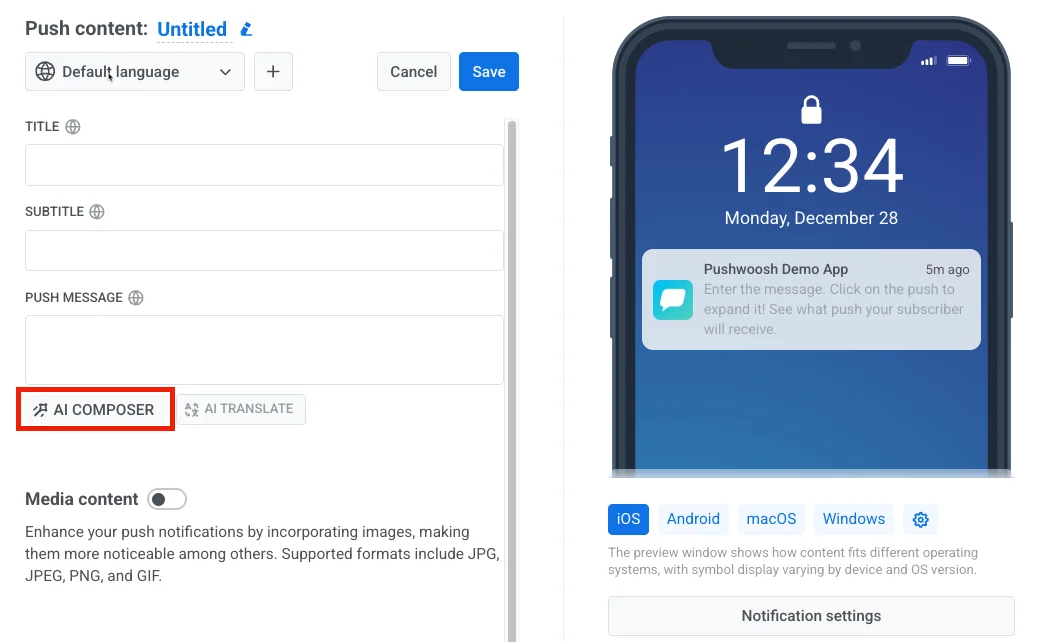
To generate a message using AI composer, open the [Push presets editor](/product/content/push-presets#create-push-content) and look for the **AI composer** button located just below the push message input field.
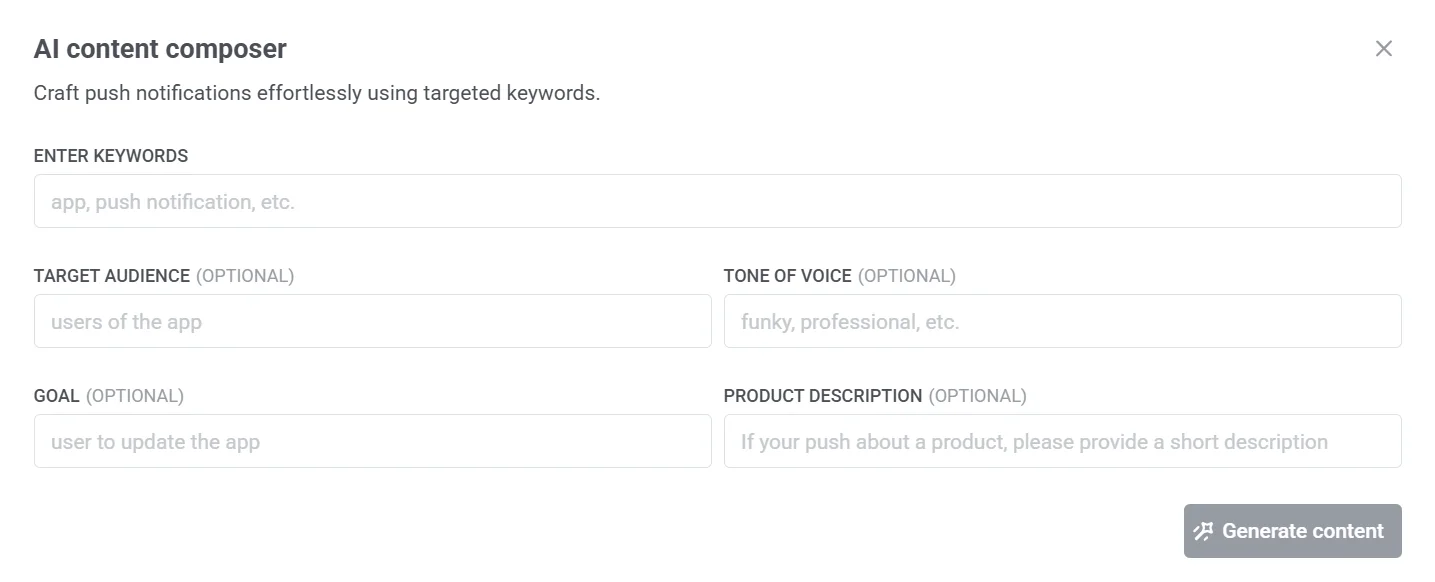
In the window that opens, you’ll see a form with several input fields.
1. **Enter keywords** *(Required)*
Start by entering key terms related to your message, such as ***app, push notification, discount,*** etc. These keywords help guide the content generation.
2. **Target audience** *(Optional)*
Specify who the message is for, e.g., ***“new users,” “active users,” or “users of the app.”*** This helps tailor the tone and content.
3. **Set the tone of voice** *(Optional)*
Define the tone you want the message to have, such as ***professional, casual,*** or ***fun***. This helps ensure the notification aligns with your brand voice.
4. **Set the goal** *(Optional)*
Clarify the purpose of the message, e.g., ***“get users to update the app”*** or ***“encourage a purchase.”*** This helps focus the messaging.
5. **Add the product description** *(Optional)*
If your push notification is about a specific product, include a short description to provide more context for the generated content.
6. Once all relevant fields are filled out, click **Generate content** to receive a ready-to-use push notification message.
7. If you're satisfied with the generated text, click **Copy to message** to insert it into your push notification. If you'd like a different version, click **Generate again** to create new text.
## Example scenario: Notifying users about a new app update
Imagine, you’ve just released a new version of your fitness app that includes performance improvements and a refreshed interface. You want to notify your active iOS users about the update using a friendly and engaging tone.
To do this efficiently, you use the **AI composer**. Here’s how you fill out the form:
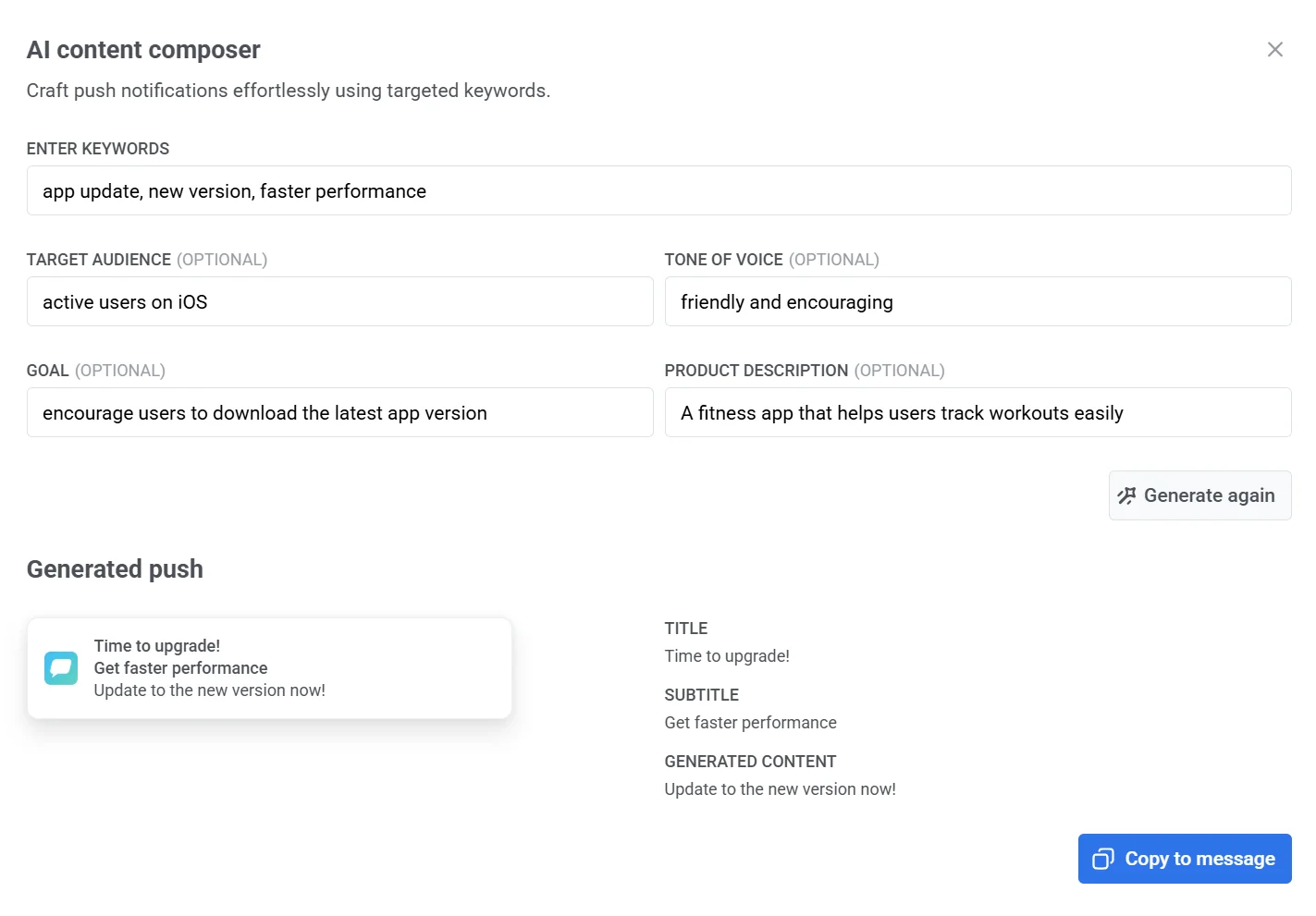
* **Enter keywords:** *app update, new version, faster performance*
* **Target audience:** *active users on iOS*
* **Tone of voice:** *friendly and encouraging*
* **Goal:** *encourage users to download the latest app version*
* **Product description:** *A fitness app that helps users track workouts easily*
After clicking **Generate content**, the AI returns a push notification like:
> **Title:** Time to upgrade!
> **Subtitle:** Get faster performance
> **Message:** Update to the new version now!
You can fine-tune the message if needed or use it as-is and send it to your selected audience.
 In the window that opens, you’ll see a form with several input fields.
 1. **Enter keywords** *(Required)*
Start by entering key terms related to your message, such as ***app, push notification, discount,*** etc. These keywords help guide the content generation.
2. **Target audience** *(Optional)*
Specify who the message is for, e.g., ***“new users,” “active users,” or “users of the app.”*** This helps tailor the tone and content.
3. **Set the tone of voice** *(Optional)*
Define the tone you want the message to have, such as ***professional, casual,*** or ***fun***. This helps ensure the notification aligns with your brand voice.
4. **Set the goal** *(Optional)*
Clarify the purpose of the message, e.g., ***“get users to update the app”*** or ***“encourage a purchase.”*** This helps focus the messaging.
5. **Add the product description** *(Optional)*
If your push notification is about a specific product, include a short description to provide more context for the generated content.
6. Once all relevant fields are filled out, click **Generate content** to receive a ready-to-use push notification message.
7. If you're satisfied with the generated text, click **Copy to message** to insert it into your push notification. If you'd like a different version, click **Generate again** to create new text.
## Example scenario: Notifying users about a new app update
Imagine, you’ve just released a new version of your fitness app that includes performance improvements and a refreshed interface. You want to notify your active iOS users about the update using a friendly and engaging tone.
To do this efficiently, you use the **AI composer**. Here’s how you fill out the form:
* **Enter keywords:** *app update, new version, faster performance*
* **Target audience:** *active users on iOS*
* **Tone of voice:** *friendly and encouraging*
* **Goal:** *encourage users to download the latest app version*
* **Product description:** *A fitness app that helps users track workouts easily*
After clicking **Generate content**, the AI returns a push notification like:
> **Title:** Time to upgrade!
> **Subtitle:** Get faster performance
> **Message:** Update to the new version now!
1. **Enter keywords** *(Required)*
Start by entering key terms related to your message, such as ***app, push notification, discount,*** etc. These keywords help guide the content generation.
2. **Target audience** *(Optional)*
Specify who the message is for, e.g., ***“new users,” “active users,” or “users of the app.”*** This helps tailor the tone and content.
3. **Set the tone of voice** *(Optional)*
Define the tone you want the message to have, such as ***professional, casual,*** or ***fun***. This helps ensure the notification aligns with your brand voice.
4. **Set the goal** *(Optional)*
Clarify the purpose of the message, e.g., ***“get users to update the app”*** or ***“encourage a purchase.”*** This helps focus the messaging.
5. **Add the product description** *(Optional)*
If your push notification is about a specific product, include a short description to provide more context for the generated content.
6. Once all relevant fields are filled out, click **Generate content** to receive a ready-to-use push notification message.
7. If you're satisfied with the generated text, click **Copy to message** to insert it into your push notification. If you'd like a different version, click **Generate again** to create new text.
## Example scenario: Notifying users about a new app update
Imagine, you’ve just released a new version of your fitness app that includes performance improvements and a refreshed interface. You want to notify your active iOS users about the update using a friendly and engaging tone.
To do this efficiently, you use the **AI composer**. Here’s how you fill out the form:
* **Enter keywords:** *app update, new version, faster performance*
* **Target audience:** *active users on iOS*
* **Tone of voice:** *friendly and encouraging*
* **Goal:** *encourage users to download the latest app version*
* **Product description:** *A fitness app that helps users track workouts easily*
After clicking **Generate content**, the AI returns a push notification like:
> **Title:** Time to upgrade!
> **Subtitle:** Get faster performance
> **Message:** Update to the new version now!
 You can fine-tune the message if needed or use it as-is and send it to your selected audience.