# Build push stories content
Build a push preset whose expanded iOS notification plays as a full-screen, Instagram-style stories experience: full-bleed images, auto-advancing pages, and a button on each page.
## Prerequisites
Before you send push stories, your iOS team needs to:
1. Add a Notification Content Extension to the app using the `PushwooshNotificationUI` module. Share the [iOS push stories developer guide](/developer/pushwoosh-sdk/ios-sdk/ios-push-stories/) with them.
2. Release an app update that includes the extension.
See [iOS push stories](/product/messaging-channels/push-notifications/advanced-push-features/ios-push-stories/) for what recipients see without that extension.
## Create the preset
1. Open **Content** → **Push Presets**.
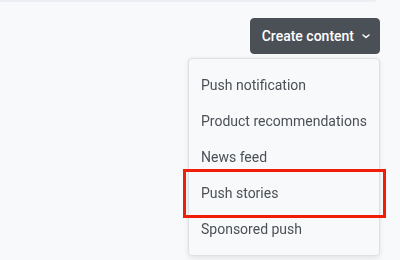
2. Click **Create content**.
3. Choose **Push stories** from the dropdown.
### Compose the message
Write the push title, subtitle, and message the same way as for a regular [push preset](/product/content/push-presets/).
### Build the stories pages
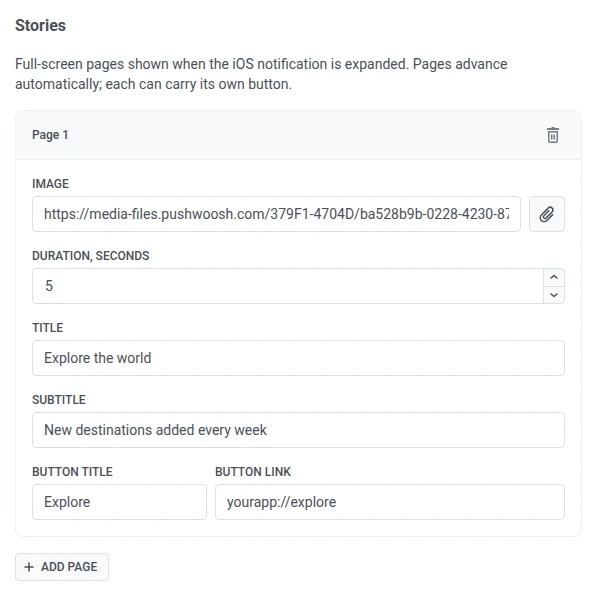
In **Stories**, fill in the fields for each page:
| Field | Description |
|-------|-------------|
| Image | URL of the page's full-screen image. Click the paperclip to pick one from [Media storage](/product/content/media-store/) instead of pasting a URL. |
| Duration, seconds | How long the page stays on screen before auto-advancing, from 1 to 30 seconds. Defaults to 5 seconds. |
| Title | Large text shown over the bottom of the page's image. |
| Subtitle | Smaller text under the title. |
| Button title | Label of the page's call-to-action button. |
| Button link | URL or app deep link opened when the button is tapped. |
Click **Add page** to add more pages, up to 10 in total. Each page plays in order and carries its own image, timing, and button.
### Check the preview
Use the preview panel on the right to check each page before sending. It has two tabs:
* **Push:** the collapsed notification.

* **Story:** the page you're editing, including its image and button. With several pages, the preview plays them in turn, and the progress bar at the top shows one segment per page.
## Send push stories
To send the preset, select it as the content of a one-time push. The audience is then limited to iOS. See [Send a one-time push with push stories](/product/messaging-channels/push-notifications/advanced-push-features/ios-push-stories/#send-a-one-time-push-with-push-stories).
 ### Compose the message
Write the push title, subtitle, and message the same way as for a regular [push preset](/product/content/push-presets/).
### Build the stories pages
In **Stories**, fill in the fields for each page:
| Field | Description |
|-------|-------------|
| Image | URL of the page's full-screen image. Click the paperclip to pick one from [Media storage](/product/content/media-store/) instead of pasting a URL. |
| Duration, seconds | How long the page stays on screen before auto-advancing, from 1 to 30 seconds. Defaults to 5 seconds. |
| Title | Large text shown over the bottom of the page's image. |
| Subtitle | Smaller text under the title. |
| Button title | Label of the page's call-to-action button. |
| Button link | URL or app deep link opened when the button is tapped. |
Click **Add page** to add more pages, up to 10 in total. Each page plays in order and carries its own image, timing, and button.
### Compose the message
Write the push title, subtitle, and message the same way as for a regular [push preset](/product/content/push-presets/).
### Build the stories pages
In **Stories**, fill in the fields for each page:
| Field | Description |
|-------|-------------|
| Image | URL of the page's full-screen image. Click the paperclip to pick one from [Media storage](/product/content/media-store/) instead of pasting a URL. |
| Duration, seconds | How long the page stays on screen before auto-advancing, from 1 to 30 seconds. Defaults to 5 seconds. |
| Title | Large text shown over the bottom of the page's image. |
| Subtitle | Smaller text under the title. |
| Button title | Label of the page's call-to-action button. |
| Button link | URL or app deep link opened when the button is tapped. |
Click **Add page** to add more pages, up to 10 in total. Each page plays in order and carries its own image, timing, and button.
 ### Check the preview
Use the preview panel on the right to check each page before sending. It has two tabs:
* **Push:** the collapsed notification.
* **Story:** the page you're editing, including its image and button. With several pages, the preview plays them in turn, and the progress bar at the top shows one segment per page.
### Check the preview
Use the preview panel on the right to check each page before sending. It has two tabs:
* **Push:** the collapsed notification.
* **Story:** the page you're editing, including its image and button. With several pages, the preview plays them in turn, and the progress bar at the top shows one segment per page.
 ## Send push stories
To send the preset, select it as the content of a one-time push. The audience is then limited to iOS. See [Send a one-time push with push stories](/product/messaging-channels/push-notifications/advanced-push-features/ios-push-stories/#send-a-one-time-push-with-push-stories).
## Send push stories
To send the preset, select it as the content of a one-time push. The audience is then limited to iOS. See [Send a one-time push with push stories](/product/messaging-channels/push-notifications/advanced-push-features/ios-push-stories/#send-a-one-time-push-with-push-stories).