# Product catalog
Product catalog keeps your product data in one place in Pushwoosh: titles, prices, images, stock, and links. Connect a feed, import a CSV, or add products by hand, then use them in [Products blocks](/product/content/email-content/drag-and-drop-email-editor/blocks/#products) across your emails instead of copying the same details into every message. When your feed syncs, prices and availability update automatically, so your campaigns stay current without manual edits.
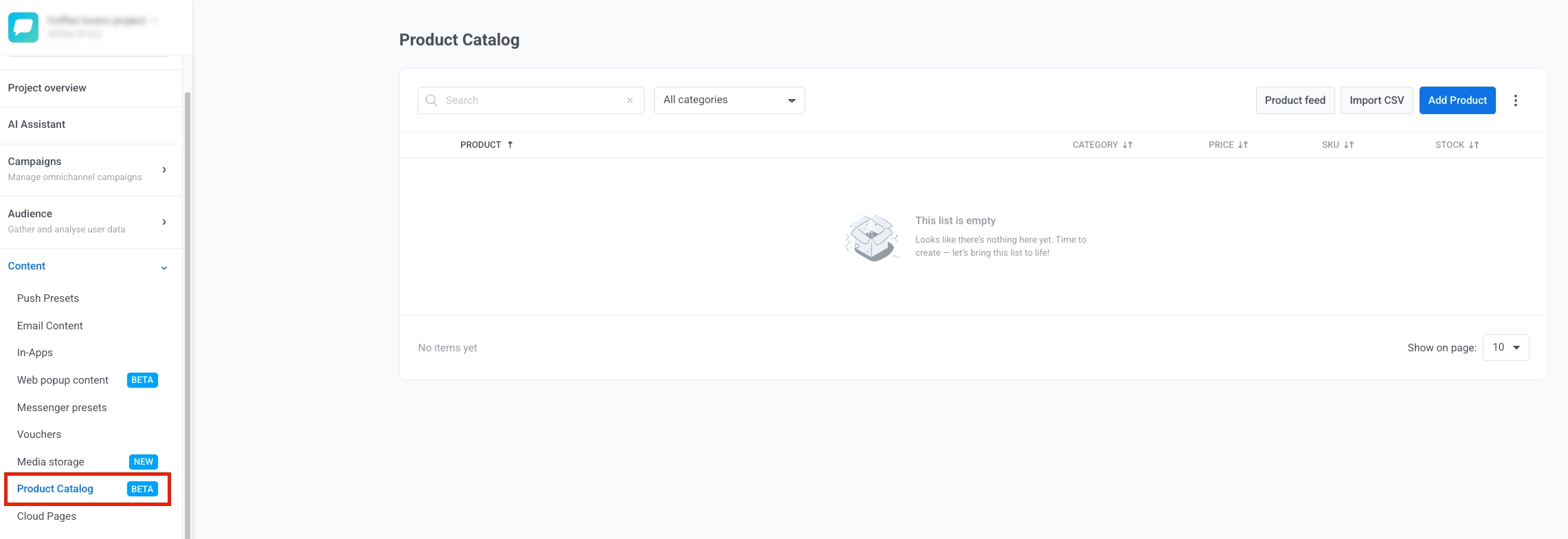
The catalog is per application. To open it, go to **Content** → **Product Catalog** for the application in the Pushwoosh Control Panel.
## Ways to populate your catalog
There are three ways to get products into the catalog. Use whichever fits your setup, or combine them:
* **Connect a feed:** point Pushwoosh at your existing Google Merchant Center or JSON product feed URL and it syncs automatically. Best if you already maintain a feed for another channel (Google Shopping, another ESP, and so on).
* **Import a CSV:** a one-time or repeatable bulk upload, useful if you don't have a live feed.
* **Add products manually:** create individual products directly in the Control Panel.
### Connect a feed
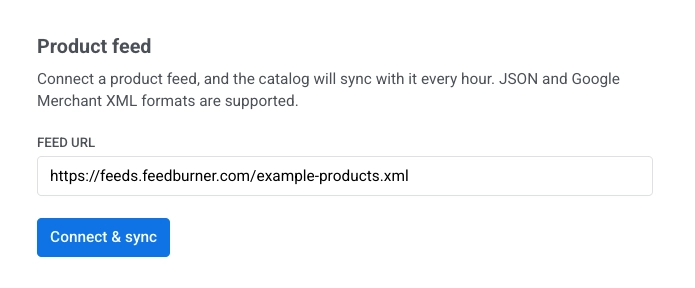
1. Click **Product feed**.
2. Enter your feed URL in **Feed URL**, then click **Connect & sync**. Pushwoosh fetches the feed, maps its fields to the catalog (see below), and reports how many products were added, updated, or removed.
Once connected, the feed **syncs automatically every hour**. You can also click **Sync now** at any time to trigger an immediate sync. For example, run a sync right after you update your feed for a flash sale. If the feed hasn't changed since the last sync, Pushwoosh skips reprocessing it and confirms nothing changed.
Each sync reports:
* **Imported:** new or updated products.
* **Removed:** products removed from the catalog because they're no longer in the feed.
* **Skipped:** feed entries that couldn't be mapped (missing required fields, and so on).
Click **Disconnect feed** to stop syncing. Products already imported stay in the catalog — disconnecting doesn't remove them.
#### Google Merchant XML field mapping
If you connect a Google Merchant feed, its standard `g:` tags map to catalog fields like this:
| Feed field | Catalog field |
| :---- | :---- |
| `g:id` | Product ID (`id`) |
| `title` | Title |
| `description` | Description |
| `g:image_link` | Image URL |
| `link` | Product URL |
| `g:price` | Price + currency |
| `g:sale_price` | Sale price |
| `g:product_type` | Category |
| `g:mpn` / `g:gtin` | SKU |
| `g:availability` | Stock |
A JSON feed should be either a bare array of products or an object with a `products` array, using the same field names as the [CSV structure](#import-a-csv) below (`image_url`, `sale_price`, `stock`, and so on) — not the catalog field names shown under [Catalog fields](#catalog-fields), which use a different naming convention.
### Import a CSV
1. **Prepare your CSV.** Build a file with the columns below.
CSV file structure
| Column | Required | Notes |
| :---- | :---- | :---- |
| `id` | Yes | Unique product identifier |
| `title` | Yes | Product name |
| `description` | No | Short product description |
| `image_url` | No | Direct link to product image |
| `url` | No | Link to product page |
| `price` | No | Original price, decimal format (for example, `22.00`) |
| `sale_price` | No | Discounted price, leave empty if none |
| `currency` | No | 3-letter code: `USD`, `EUR`, and so on |
| `category` | No | Product category |
| `sku` | No | Stock keeping unit |
| `stock` | No | Number of items in stock. Leave empty only for products that are genuinely out of stock — see the warning below. |
The first row must be a header. Use UTF-8 encoding and comma-separated values. The file can't contain columns outside this list — an unrecognized column fails the entire import, not just that column.
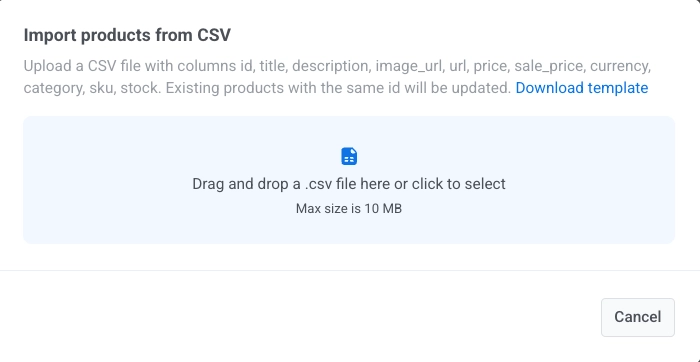
2. Click **Import CSV**, download the template if you need the exact headers, and upload your file.
Products are matched and updated by their **id** column, so re-uploading the same file with changed values updates existing products instead of duplicating them.
### Add products manually
Add one product at a time when you don't need a feed or CSV.
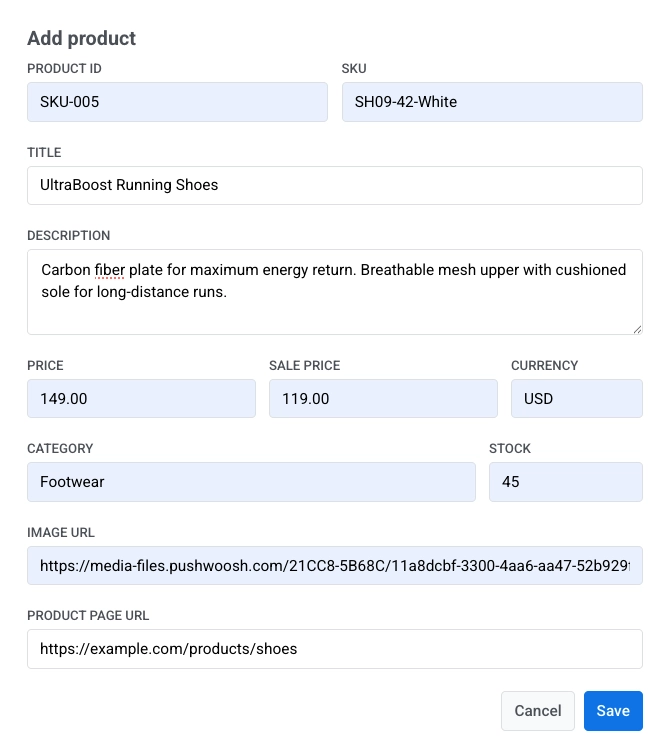
1. Click **Add Product**.
2. Fill in the product details. See [Catalog fields](#catalog-fields) for what each field means.
3. Click **Save**.
## Manage your catalog
After you add or import products, they appear in a catalog list where you can review and manage them.
Use the catalog list to:
* Search products by name.
* Filter them by category.
* Review product details such as category, price, SKU, and stock.
* Open the **⋮** menu on a product row and click **Edit** or **Delete**.
* Open the **⋮** menu in the top bar and click **Delete all products** to remove every product from the catalog.
### Catalog fields
Every product in the catalog has these fields, regardless of how it was added:
| Field | Description |
| :---- | :---- |
| **id** | Stable product identifier. Used to match updates from a feed or CSV, and to reference the product from a Products block. |
| **title** | Product name. |
| **description** | Product description. |
| **imageUrl** | URL of the product image. |
| **url** | Link to the product page. |
| **price** | Regular price. |
| **salePrice** | Discounted price, if any. Shown as a struck-through original price alongside the sale price in Products blocks. |
| **currency** | Currency code for price and salePrice. |
| **category** | Product category, used for filtering and for category-based rules in the Products block. |
| **sku** | Stock-keeping unit / product code. |
| **currentStock** | Quantity in stock. `0` means the product is treated as out of stock: it stays in the catalog but won't appear in Products blocks that pull from a [catalog rule](/product/content/email-content/drag-and-drop-email-editor/blocks/#pull-products-with-a-catalog-rule). For an untracked or unlimited quantity, set a high value (99999 or more) — the catalog list shows it as ∞. |
### Keep your catalog up to date
Use the same method you chose to populate the catalog when you need to add products or refresh existing ones:
* **Feed:** Pushwoosh syncs the connected feed automatically every hour. Open **Product feed** and click **Sync now** to refresh immediately. New products are added, changed fields are updated, and products removed from the feed are deleted from the catalog. See [Connect a feed](#connect-a-feed).
* **CSV:** Upload an updated file through **Import CSV**. Products match on **id**, so new rows add products and changed rows update existing ones without creating duplicates. See [Import a CSV](#import-a-csv).
* **Manual:** Click **Add Product** to create a new item, or **Edit** on an existing row to update one product. See [Add products manually](#add-products-manually).
If you hand-pick catalog products in a [Products block](/product/content/email-content/drag-and-drop-email-editor/blocks/#products), click **Refresh from catalog** in the block settings to pull the latest title, description, price, and image into your email.
## What you can do with your catalog
Once your catalog has products, use them in a [Products](/product/content/email-content/drag-and-drop-email-editor/blocks/#products) block: pick items by hand, or pull them with a [catalog rule](/product/content/email-content/drag-and-drop-email-editor/blocks/#pull-products-with-a-catalog-rule).
To show each shopper their abandoned cart instead, set the Products block source to [Cart](/product/content/email-content/drag-and-drop-email-editor/blocks/#show-items-from-the-cart) and follow [How to set up an abandoned cart campaign](/product/how-to-guides/lifecycle-marketing-campaigns/how-to-set-up-an-abandoned-cart-campaign/).
 ## Ways to populate your catalog
There are three ways to get products into the catalog. Use whichever fits your setup, or combine them:
* **Connect a feed:** point Pushwoosh at your existing Google Merchant Center or JSON product feed URL and it syncs automatically. Best if you already maintain a feed for another channel (Google Shopping, another ESP, and so on).
* **Import a CSV:** a one-time or repeatable bulk upload, useful if you don't have a live feed.
* **Add products manually:** create individual products directly in the Control Panel.
### Connect a feed
1. Click **Product feed**.
2. Enter your feed URL in **Feed URL**, then click **Connect & sync**. Pushwoosh fetches the feed, maps its fields to the catalog (see below), and reports how many products were added, updated, or removed.
## Ways to populate your catalog
There are three ways to get products into the catalog. Use whichever fits your setup, or combine them:
* **Connect a feed:** point Pushwoosh at your existing Google Merchant Center or JSON product feed URL and it syncs automatically. Best if you already maintain a feed for another channel (Google Shopping, another ESP, and so on).
* **Import a CSV:** a one-time or repeatable bulk upload, useful if you don't have a live feed.
* **Add products manually:** create individual products directly in the Control Panel.
### Connect a feed
1. Click **Product feed**.
2. Enter your feed URL in **Feed URL**, then click **Connect & sync**. Pushwoosh fetches the feed, maps its fields to the catalog (see below), and reports how many products were added, updated, or removed.
 Once connected, the feed **syncs automatically every hour**. You can also click **Sync now** at any time to trigger an immediate sync. For example, run a sync right after you update your feed for a flash sale. If the feed hasn't changed since the last sync, Pushwoosh skips reprocessing it and confirms nothing changed.
Each sync reports:
* **Imported:** new or updated products.
* **Removed:** products removed from the catalog because they're no longer in the feed.
* **Skipped:** feed entries that couldn't be mapped (missing required fields, and so on).
Click **Disconnect feed** to stop syncing. Products already imported stay in the catalog — disconnecting doesn't remove them.
#### Google Merchant XML field mapping
If you connect a Google Merchant feed, its standard `g:` tags map to catalog fields like this:
| Feed field | Catalog field |
| :---- | :---- |
| `g:id` | Product ID (`id`) |
| `title` | Title |
| `description` | Description |
| `g:image_link` | Image URL |
| `link` | Product URL |
| `g:price` | Price + currency |
| `g:sale_price` | Sale price |
| `g:product_type` | Category |
| `g:mpn` / `g:gtin` | SKU |
| `g:availability` | Stock |
A JSON feed should be either a bare array of products or an object with a `products` array, using the same field names as the [CSV structure](#import-a-csv) below (`image_url`, `sale_price`, `stock`, and so on) — not the catalog field names shown under [Catalog fields](#catalog-fields), which use a different naming convention.
### Import a CSV
1. **Prepare your CSV.** Build a file with the columns below.
Once connected, the feed **syncs automatically every hour**. You can also click **Sync now** at any time to trigger an immediate sync. For example, run a sync right after you update your feed for a flash sale. If the feed hasn't changed since the last sync, Pushwoosh skips reprocessing it and confirms nothing changed.
Each sync reports:
* **Imported:** new or updated products.
* **Removed:** products removed from the catalog because they're no longer in the feed.
* **Skipped:** feed entries that couldn't be mapped (missing required fields, and so on).
Click **Disconnect feed** to stop syncing. Products already imported stay in the catalog — disconnecting doesn't remove them.
#### Google Merchant XML field mapping
If you connect a Google Merchant feed, its standard `g:` tags map to catalog fields like this:
| Feed field | Catalog field |
| :---- | :---- |
| `g:id` | Product ID (`id`) |
| `title` | Title |
| `description` | Description |
| `g:image_link` | Image URL |
| `link` | Product URL |
| `g:price` | Price + currency |
| `g:sale_price` | Sale price |
| `g:product_type` | Category |
| `g:mpn` / `g:gtin` | SKU |
| `g:availability` | Stock |
A JSON feed should be either a bare array of products or an object with a `products` array, using the same field names as the [CSV structure](#import-a-csv) below (`image_url`, `sale_price`, `stock`, and so on) — not the catalog field names shown under [Catalog fields](#catalog-fields), which use a different naming convention.
### Import a CSV
1. **Prepare your CSV.** Build a file with the columns below.
 Products are matched and updated by their **id** column, so re-uploading the same file with changed values updates existing products instead of duplicating them.
### Add products manually
Add one product at a time when you don't need a feed or CSV.
1. Click **Add Product**.
2. Fill in the product details. See [Catalog fields](#catalog-fields) for what each field means.
3. Click **Save**.
Products are matched and updated by their **id** column, so re-uploading the same file with changed values updates existing products instead of duplicating them.
### Add products manually
Add one product at a time when you don't need a feed or CSV.
1. Click **Add Product**.
2. Fill in the product details. See [Catalog fields](#catalog-fields) for what each field means.
3. Click **Save**.
 ## Manage your catalog
After you add or import products, they appear in a catalog list where you can review and manage them.
## Manage your catalog
After you add or import products, they appear in a catalog list where you can review and manage them.
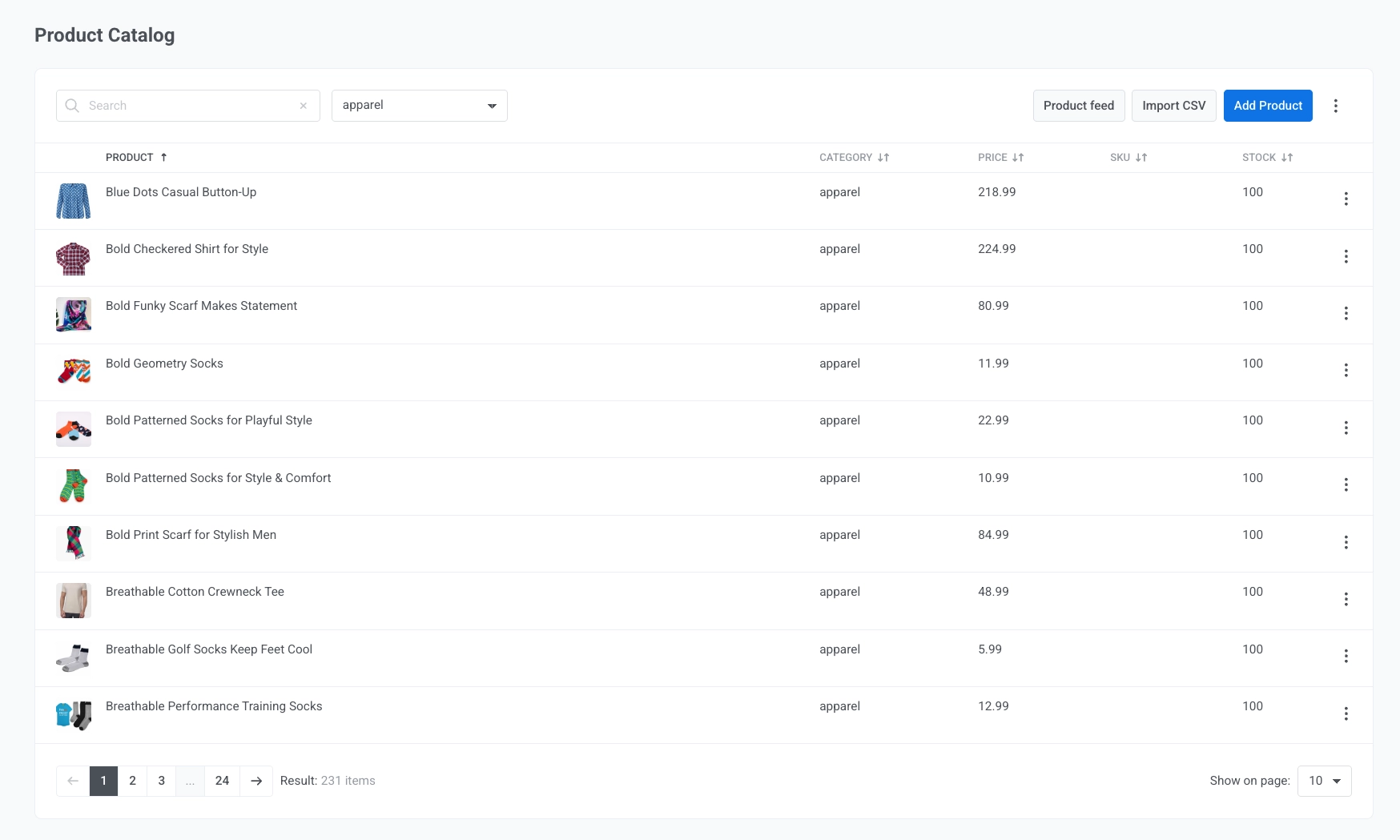 Use the catalog list to:
* Search products by name.
* Filter them by category.
* Review product details such as category, price, SKU, and stock.
* Open the **⋮** menu on a product row and click **Edit** or **Delete**.
* Open the **⋮** menu in the top bar and click **Delete all products** to remove every product from the catalog.
### Catalog fields
Every product in the catalog has these fields, regardless of how it was added:
| Field | Description |
| :---- | :---- |
| **id** | Stable product identifier. Used to match updates from a feed or CSV, and to reference the product from a Products block. |
| **title** | Product name. |
| **description** | Product description. |
| **imageUrl** | URL of the product image. |
| **url** | Link to the product page. |
| **price** | Regular price. |
| **salePrice** | Discounted price, if any. Shown as a struck-through original price alongside the sale price in Products blocks. |
| **currency** | Currency code for price and salePrice. |
| **category** | Product category, used for filtering and for category-based rules in the Products block. |
| **sku** | Stock-keeping unit / product code. |
| **currentStock** | Quantity in stock. `0` means the product is treated as out of stock: it stays in the catalog but won't appear in Products blocks that pull from a [catalog rule](/product/content/email-content/drag-and-drop-email-editor/blocks/#pull-products-with-a-catalog-rule). For an untracked or unlimited quantity, set a high value (99999 or more) — the catalog list shows it as ∞. |
### Keep your catalog up to date
Use the same method you chose to populate the catalog when you need to add products or refresh existing ones:
* **Feed:** Pushwoosh syncs the connected feed automatically every hour. Open **Product feed** and click **Sync now** to refresh immediately. New products are added, changed fields are updated, and products removed from the feed are deleted from the catalog. See [Connect a feed](#connect-a-feed).
* **CSV:** Upload an updated file through **Import CSV**. Products match on **id**, so new rows add products and changed rows update existing ones without creating duplicates. See [Import a CSV](#import-a-csv).
* **Manual:** Click **Add Product** to create a new item, or **Edit** on an existing row to update one product. See [Add products manually](#add-products-manually).
If you hand-pick catalog products in a [Products block](/product/content/email-content/drag-and-drop-email-editor/blocks/#products), click **Refresh from catalog** in the block settings to pull the latest title, description, price, and image into your email.
## What you can do with your catalog
Once your catalog has products, use them in a [Products](/product/content/email-content/drag-and-drop-email-editor/blocks/#products) block: pick items by hand, or pull them with a [catalog rule](/product/content/email-content/drag-and-drop-email-editor/blocks/#pull-products-with-a-catalog-rule).
To show each shopper their abandoned cart instead, set the Products block source to [Cart](/product/content/email-content/drag-and-drop-email-editor/blocks/#show-items-from-the-cart) and follow [How to set up an abandoned cart campaign](/product/how-to-guides/lifecycle-marketing-campaigns/how-to-set-up-an-abandoned-cart-campaign/).
Use the catalog list to:
* Search products by name.
* Filter them by category.
* Review product details such as category, price, SKU, and stock.
* Open the **⋮** menu on a product row and click **Edit** or **Delete**.
* Open the **⋮** menu in the top bar and click **Delete all products** to remove every product from the catalog.
### Catalog fields
Every product in the catalog has these fields, regardless of how it was added:
| Field | Description |
| :---- | :---- |
| **id** | Stable product identifier. Used to match updates from a feed or CSV, and to reference the product from a Products block. |
| **title** | Product name. |
| **description** | Product description. |
| **imageUrl** | URL of the product image. |
| **url** | Link to the product page. |
| **price** | Regular price. |
| **salePrice** | Discounted price, if any. Shown as a struck-through original price alongside the sale price in Products blocks. |
| **currency** | Currency code for price and salePrice. |
| **category** | Product category, used for filtering and for category-based rules in the Products block. |
| **sku** | Stock-keeping unit / product code. |
| **currentStock** | Quantity in stock. `0` means the product is treated as out of stock: it stays in the catalog but won't appear in Products blocks that pull from a [catalog rule](/product/content/email-content/drag-and-drop-email-editor/blocks/#pull-products-with-a-catalog-rule). For an untracked or unlimited quantity, set a high value (99999 or more) — the catalog list shows it as ∞. |
### Keep your catalog up to date
Use the same method you chose to populate the catalog when you need to add products or refresh existing ones:
* **Feed:** Pushwoosh syncs the connected feed automatically every hour. Open **Product feed** and click **Sync now** to refresh immediately. New products are added, changed fields are updated, and products removed from the feed are deleted from the catalog. See [Connect a feed](#connect-a-feed).
* **CSV:** Upload an updated file through **Import CSV**. Products match on **id**, so new rows add products and changed rows update existing ones without creating duplicates. See [Import a CSV](#import-a-csv).
* **Manual:** Click **Add Product** to create a new item, or **Edit** on an existing row to update one product. See [Add products manually](#add-products-manually).
If you hand-pick catalog products in a [Products block](/product/content/email-content/drag-and-drop-email-editor/blocks/#products), click **Refresh from catalog** in the block settings to pull the latest title, description, price, and image into your email.
## What you can do with your catalog
Once your catalog has products, use them in a [Products](/product/content/email-content/drag-and-drop-email-editor/blocks/#products) block: pick items by hand, or pull them with a [catalog rule](/product/content/email-content/drag-and-drop-email-editor/blocks/#pull-products-with-a-catalog-rule).
To show each shopper their abandoned cart instead, set the Products block source to [Cart](/product/content/email-content/drag-and-drop-email-editor/blocks/#show-items-from-the-cart) and follow [How to set up an abandoned cart campaign](/product/how-to-guides/lifecycle-marketing-campaigns/how-to-set-up-an-abandoned-cart-campaign/).