# Content creation and organization in Pushwoosh

Pushwoosh provides the tools and insights you need to create, manage, and optimize messaging content for your campaigns. Whether you are crafting a push notification, designing an email, creating Web popup content, setting up rich media, or building SMS messages, Pushwoosh empowers you to deliver relevant and engaging communications across multiple channels.


## Available content types 

Pushwoosh allows you to create content to send messages across different channels, such as:
### Content for core messaging channels
<CardGrid>
  <IconLinkCard
      href="/product/content/push-presets/"
      icon="push"
      title="Push presets"
      description=""
  />
  <IconLinkCard
      href="/product/content/email-content/"
      icon="email"
      title="Email content"
      description=""
  />
  <IconLinkCard
      href="/product/content/in-apps/"
      icon="inapp"
      title="In-app templates"
      description=""
  />
  <IconLinkCard
      href="/product/content/web-popups-content/"
      icon="document"
      title="Web popup content"
      description=""
  />
  <IconLinkCard
      href="/product/content/cloud-pages/"
      icon="document"
      title="Cloud Pages"
      description=""
  />
</CardGrid>

For silent push, save to inbox, or platform-specific settings (sounds, badges, expiration), use the [Push preset (legacy form)](/product/content/push-presets/push-preset-legacy-form/).

### Content for messenger chats and related channels 

<CardGrid>
      <IconLinkCard
      href="/product/content/sms-presets/"
      icon="sms"
      title="SMS presets"
      description=""
  />
  <IconLinkCard
    href="/product/content/line-presets/"
    icon="line"
    title="LINE presets"
    description=""
  />
</CardGrid>

### Promotional content (vouchers)
<CardGrid>
    <IconLinkCard
      href="/product/content/vouchers/"
      icon="heart"
      title="Vouchers"
      description="Create voucher pools for messages with promo codes"
  />
</CardGrid>

### Media library
<CardGrid>
    <IconLinkCard
      href="/product/content/media-store/"
      icon="document"
      title="Media store"
      description="Upload and host images, then reuse them across content with a stable URL"
  />
</CardGrid>

### Product catalog
<CardGrid>
    <IconLinkCard
      href="/product/content/product-catalog/"
      icon="document"
      title="Product catalog"
      description="Keep product data in one place. Sync a feed, import a CSV, or add items by hand, then use them in Products blocks"
  />
</CardGrid>

### Brand book

Brand book saves your logo, colors, fonts, and block defaults once, so you can apply consistent styling to any email or in-app template instead of setting it up from scratch each time. 

<CardGrid>
    <IconLinkCard
      href="/product/content/brand-book/"
      icon="document"
      title="Brand book"
      description="Save your logo, colors, and fonts once, then apply consistent styling to any email or in-app template"
  />
</CardGrid>

## Use Push AI composer and translator

To streamline content creation, Pushwoosh offers the AI Content Composer, an AI-powered assistant that automatically generates high-quality, engaging copy for push notifications. Simply provide keywords, and the AI will suggest compelling messages tailored to your audience. This helps you save time, optimize messaging, and enhance engagement across all content types.
<LinkCard title="Learn more" href="/product/content/push-presets/push-ai-composer/" />

## Enhance email content with AI tools

Pushwoosh's Drag & drop editor includes built-in AI tools that help you create high-quality, personalized email content faster.
<LinkCard title="Learn more" href="/product/content/email-content/ai-tools-in-email-editor/" />

## Content categories

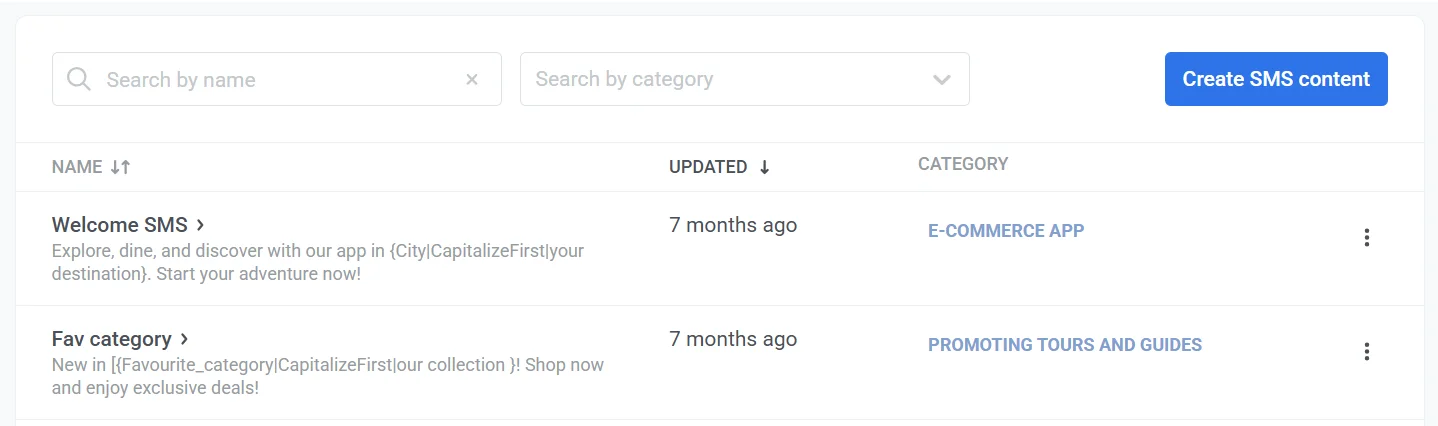
**Content categories** help you organize all types of content within a single project. These categories allow you to structure and manage content efficiently. This makes it easier to locate and reuse specific pieces of messaging material. 
![Content categories](/contentcategories.webp)

<Aside>Content categories apply to all content types (except push) within a project, helping organize messages across different channels.</Aside>

To set a category, click on **No category** in the **Category** column and then select or add a category.

![Set a category](/contentcategories-1.webp)