# Show in-app content to specific users
Every block in the [built-in editor](/product/content/in-apps/no-code-in-app-editor/create-rich-media-in-the-built-in-editor/), and every element inside it, has two settings in the right panel for controlling who sees it: **Visibility** and **Display condition**.
## Show or hide content per device
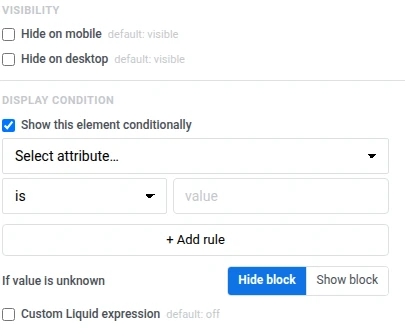
Open a block or element's settings and use **Hide on mobile** or **Hide on desktop** under **Visibility** to show it at only one preview width, matching the phone (360px) and tablet (768px) widths of the [phone/desktop toggle](/product/content/in-apps/no-code-in-app-editor/create-rich-media-in-the-built-in-editor/#top-bar) in the top bar.
## Show content to specific users
A **display condition** shows or hides a block for specific users based on their [Tags](/product/audience-data-and-segmentation/user-data-tags/tags/). Every user gets the same in-app template, but each one only sees the blocks meant for them.
You can add a display condition to any block or element on the canvas.
**To set a display condition:**
1. Select the block or element on the canvas.
2. In the right panel under **Display condition**, turn on **Show this block conditionally** (**Show this element conditionally** if you selected an element inside a block).
3. Pick a Tag, an operator, and a value (for example, **is** and **true**).
4. Click **+ Add rule** to add more rules.
5. Under **If value is unknown**, choose **Hide block** or **Show block**. This controls what happens when the Tag has no value for a user.
### Example scenario: win-back offer for lapsed users
A win-back offer that only appears for users who haven't purchased in a while, so active shoppers don't see a discount they don't need.
| Condition | What the user sees |
|---|---|
| `RFM Recency` **≥** `90` | The win-back Card block, with a discount offer |
| Anything else | The Card block stays hidden |
**To set up this scenario:**
1. Add a **Card** block with the win-back offer (image, heading, and a discount code button).
2. Select the Card on the canvas, and under **Display condition**, turn on **Show this block conditionally**.
3. Set the rule to `RFM Recency` **≥** `90`.
4. Under **If value is unknown**, choose **Hide block** — new users without purchase history shouldn't see a win-back message meant for lapsed ones.
A user who last ordered 120 days ago sees the offer. A user who ordered last week, or has no order history yet, never sees the block.
## Write a custom Liquid condition
When the rule builder is not enough, write the condition yourself in [Liquid](/product/personalization/liquid-templates/).
1. Select the block or element on the canvas.
2. Under **Display condition**, turn on **Custom Liquid expression**.
3. Type your condition. For example, to show a block to users in Germany or VIP subscribers:
```
Country == "DE" or VIP
```
A custom expression replaces any rules set in the builder above it.
Tag names with spaces are converted automatically. For example, `Last Order` becomes `LastOrder`.
 ### Example scenario: win-back offer for lapsed users
A win-back offer that only appears for users who haven't purchased in a while, so active shoppers don't see a discount they don't need.
| Condition | What the user sees |
|---|---|
| `RFM Recency` **≥** `90` | The win-back Card block, with a discount offer |
| Anything else | The Card block stays hidden |
**To set up this scenario:**
1. Add a **Card** block with the win-back offer (image, heading, and a discount code button).
2. Select the Card on the canvas, and under **Display condition**, turn on **Show this block conditionally**.
3. Set the rule to `RFM Recency` **≥** `90`.
4. Under **If value is unknown**, choose **Hide block** — new users without purchase history shouldn't see a win-back message meant for lapsed ones.
A user who last ordered 120 days ago sees the offer. A user who ordered last week, or has no order history yet, never sees the block.
## Write a custom Liquid condition
When the rule builder is not enough, write the condition yourself in [Liquid](/product/personalization/liquid-templates/).
1. Select the block or element on the canvas.
2. Under **Display condition**, turn on **Custom Liquid expression**.
3. Type your condition. For example, to show a block to users in Germany or VIP subscribers:
```
Country == "DE" or VIP
```
A custom expression replaces any rules set in the builder above it.
Tag names with spaces are converted automatically. For example, `Last Order` becomes `LastOrder`.
### Example scenario: win-back offer for lapsed users
A win-back offer that only appears for users who haven't purchased in a while, so active shoppers don't see a discount they don't need.
| Condition | What the user sees |
|---|---|
| `RFM Recency` **≥** `90` | The win-back Card block, with a discount offer |
| Anything else | The Card block stays hidden |
**To set up this scenario:**
1. Add a **Card** block with the win-back offer (image, heading, and a discount code button).
2. Select the Card on the canvas, and under **Display condition**, turn on **Show this block conditionally**.
3. Set the rule to `RFM Recency` **≥** `90`.
4. Under **If value is unknown**, choose **Hide block** — new users without purchase history shouldn't see a win-back message meant for lapsed ones.
A user who last ordered 120 days ago sees the offer. A user who ordered last week, or has no order history yet, never sees the block.
## Write a custom Liquid condition
When the rule builder is not enough, write the condition yourself in [Liquid](/product/personalization/liquid-templates/).
1. Select the block or element on the canvas.
2. Under **Display condition**, turn on **Custom Liquid expression**.
3. Type your condition. For example, to show a block to users in Germany or VIP subscribers:
```
Country == "DE" or VIP
```
A custom expression replaces any rules set in the builder above it.
Tag names with spaces are converted automatically. For example, `Last Order` becomes `LastOrder`.