# Email ad inventory
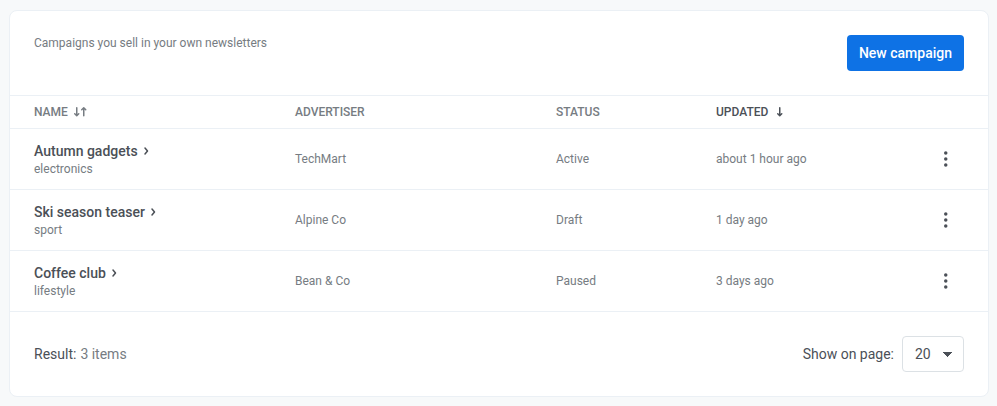
The email ad inventory holds the campaigns and creatives your account sells against the [Ad slot block](/product/content/email-content/drag-and-drop-email-editor/blocks/#ad-slot) in the Drag & drop email editor. Add a campaign, add one or more creatives to it, then point an Ad slot block at it by Campaign ID or Category to make it eligible to show.
## Open the ad inventory
Go to `https://app.pushwoosh.com/applications//email-ads`, replacing `` with your application's code. This screen has no entry in the Control Panel menu yet — bookmark the URL once you have access.
## Add a campaign
1. Click **New campaign**.
2. Fill in the campaign:
* **Name:** an internal name for the campaign, for example "September sponsor".
* **Advertiser:** who bought the slot.
* **Category:** an optional tag an Ad slot block can match on instead of the campaign's ID.
* **Status:** **Draft**, **Active**, **Paused**, or **Finished**. Only an **Active** campaign is eligible to show — set it once the campaign is ready to run, then switch it to **Paused** or **Finished** to stop the campaign.
* **Sends limit:** meant to cap how many times the campaign can be attached to a send. This release stores the number but has no delivery logic that reads it. Pause or finish the campaign yourself when you want it to stop.
3. Click **Save**. Pushwoosh keeps you on the campaign's own page so you can add creatives next.
## Add creatives to a campaign
A campaign needs at least one creative to actually show anything. An Active campaign with no creatives still matches an Ad slot block, but has nothing to render, so the slot behaves the same as if no campaign had matched.
1. Click **Add creative**.
2. Fill in the creative:
* **Name:** an internal name for the creative.
* **Image URL:** a hosted image shown in the ad.
* **Headline:** the ad's headline.
* **Text:** the ad's body copy.
* **Button text:** the call-to-action label.
* **Target URL:** where the ad links to.
* **Weight:** how often this creative is picked relative to the campaign's other creatives — a higher number wins more often. Leave it empty to use the default weight of 1.
3. Click **Save**.
**Save** stays disabled until you've filled in **Name**, **Target URL**, and either **Image URL** or **Headline**.
## Manage campaigns and creatives
Back on the ad inventory list:
* Click a campaign's name to open it.
* Click the **three-dot menu (⋮)** next to a campaign to **Edit** or **Delete** it. Deleting a campaign deletes its creatives too.
* On a campaign's page, use **Edit** or **Delete** next to a creative to change or remove it.
Without **Modify email ads**, the **New campaign** button, the row menu, and every **Save**/**Edit**/**Delete** action are hidden. You can still open a campaign and read every field on it. Creatives are more limited: the list shows only each creative's **Name** and **Weight** — its **Image URL**, **Headline**, **Text**, **Button text**, and **Target URL** only show up in **Edit**, which needs **Modify email ads** too.
 ## Open the ad inventory
Go to `https://app.pushwoosh.com/applications/
## Open the ad inventory
Go to `https://app.pushwoosh.com/applications/