# Configure email-wide styling and footer
## Configure email-wide styling
Email settings control styling for the whole email: document size and background, sender-facing options, and default styles for blocks.
Open the **Settings** tab in the right-hand panel.
Available sections:
* **Document:** size and look of the whole email area: width, padding, background image or gradient, the gap between blocks, default image corner radius, content area corner radius, and content shadow.
* **Typography:** email-wide font family, and per text style (Heading 1, Heading 2, Normal, etc.) the font size, font weight, line height, and letter spacing.
* **Color scheme:** the email's palette. **Background** and **Text** repaint the page, **Heading** recolors the heading styles, and **Link** recolors menu links that don't have an explicit color; the rest feed AI generation and the color pickers elsewhere in the editor — existing blocks keep their own colors. Turn on **Dark mode variant** to set separate colors for clients that honor dark mode.
* **Email options:** turn **View in browser** and **Unsubscribe link** on or off for the email.
* **Block defaults:** starting background, background image, border color, border width, border radius, and default mobile/desktop visibility for blocks you add later, so new content matches the email until you override a block on the canvas.
* **Columns defaults:** spacing for every Columns layout: outer padding, padding inside each column, and the gap between columns.
* **Card defaults:** starting look for Card containers that group content in the layout, applied until you style a card individually.
* **Button group defaults:** spacing and alignment when several buttons sit together as a group.
* **Button defaults:** starting look for new Button blocks so CTAs stay consistent across the email until you style one separately.
* **Divider defaults:** starting line style, color, thickness, and width for new Divider blocks.
Defaults apply wherever an individual block does not override them.
## Configure the email footer
Every email includes a **Footer** block for the legally required sender information and unsubscribe link. Select **Footer** in the **Layers panel** to open its settings. Display conditions apply to blocks on the canvas, not the **Footer**. [Learn more about display conditions](/product/content/email-content/drag-and-drop-email-editor/show-content-to-specific-recipients/).
Use **Load from account** to pull in your saved account-level footer, or **Save as account default** to reuse the current footer as the starting point for future emails.
* **Email type:** **Marketing** or **Transactional**. Unsubscribe visibility follows this setting.
* **Logo:** set the logo URL or pick one from the gallery, then set the width in px and an optional click-through link.
* **Company name**, **Postal address**, and **Copyright:** your sender identity in the footer.
In **Links & badges**:
* **Footer links:** add labeled links, such as Privacy Policy or Terms.
* **App store badges:** add App Store or Google Play badges with destination URLs.
* **Social links:** add icons that link to your social profiles.
In **Style**:
* **Text color:** set the footer text color.
* **Font size (px):** set the footer font size.
* **Alignment:** left, center, or right.
* **Underline links:** turn on to underline footer links.
In **Options**:
* **Unsubscribe link text:** the label for the managed unsubscribe link on marketing emails. Transactional emails omit it.
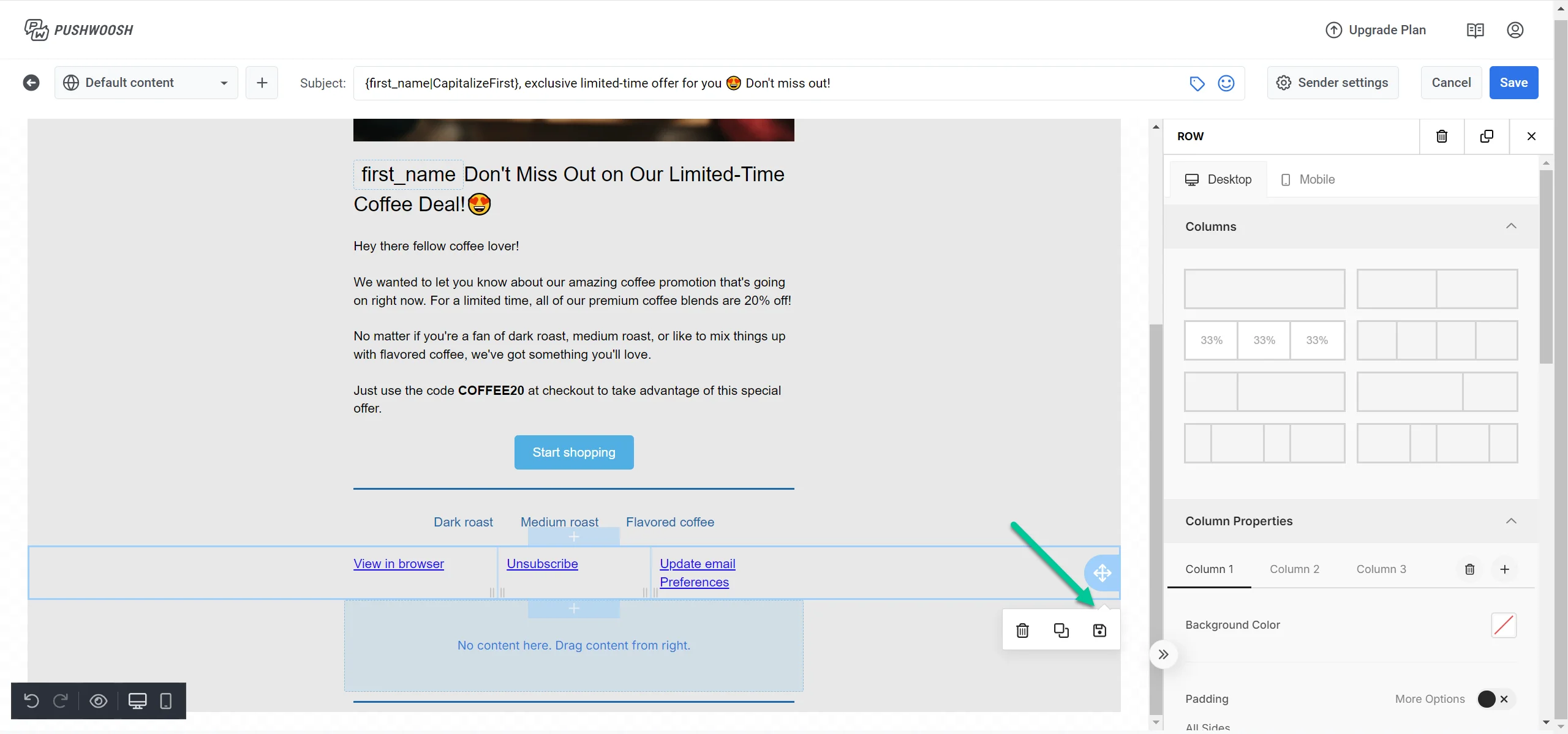 Use **Load from account** to pull in your saved account-level footer, or **Save as account default** to reuse the current footer as the starting point for future emails.
* **Email type:** **Marketing** or **Transactional**. Unsubscribe visibility follows this setting.
* **Logo:** set the logo URL or pick one from the gallery, then set the width in px and an optional click-through link.
* **Company name**, **Postal address**, and **Copyright:** your sender identity in the footer.
In **Links & badges**:
* **Footer links:** add labeled links, such as Privacy Policy or Terms.
* **App store badges:** add App Store or Google Play badges with destination URLs.
* **Social links:** add icons that link to your social profiles.
Use **Load from account** to pull in your saved account-level footer, or **Save as account default** to reuse the current footer as the starting point for future emails.
* **Email type:** **Marketing** or **Transactional**. Unsubscribe visibility follows this setting.
* **Logo:** set the logo URL or pick one from the gallery, then set the width in px and an optional click-through link.
* **Company name**, **Postal address**, and **Copyright:** your sender identity in the footer.
In **Links & badges**:
* **Footer links:** add labeled links, such as Privacy Policy or Terms.
* **App store badges:** add App Store or Google Play badges with destination URLs.
* **Social links:** add icons that link to your social profiles.
 In **Style**:
* **Text color:** set the footer text color.
* **Font size (px):** set the footer font size.
* **Alignment:** left, center, or right.
* **Underline links:** turn on to underline footer links.
In **Options**:
* **Unsubscribe link text:** the label for the managed unsubscribe link on marketing emails. Transactional emails omit it.
In **Style**:
* **Text color:** set the footer text color.
* **Font size (px):** set the footer font size.
* **Alignment:** left, center, or right.
* **Underline links:** turn on to underline footer links.
In **Options**:
* **Unsubscribe link text:** the label for the managed unsubscribe link on marketing emails. Transactional emails omit it.