# Create a Brand book
Brand book saves your logo, colors, fonts, and block defaults once, so you can apply consistent styling to any email instead of setting it up from scratch each time.
## Open Brand book
In the [Drag & drop editor](/product/content/email-content/drag-and-drop-email-editor/), click the **⋮** menu in the top bar and select **Brand book**.
## Set up your brand
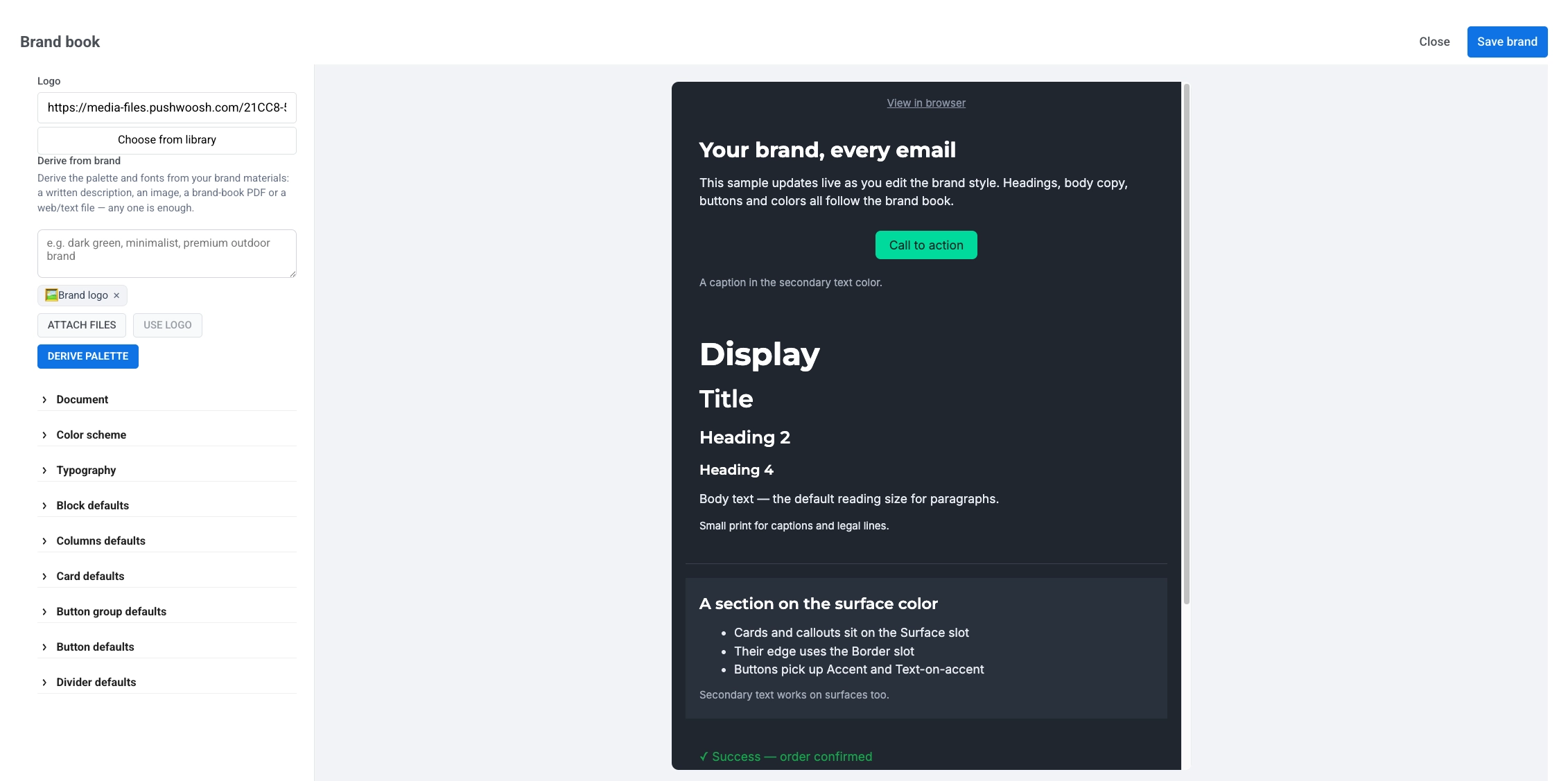
Settings are on the left. A live preview in the center shows a sample email styled with your current choices as you edit.
* **Logo:** paste a hosted image URL, or click **Choose from library** to pick one from your [Media store](/product/content/media-store/).
* **Derive from brand:** generate a starting palette and fonts from your brand materials. Enter a short description, attach an image or file (for example, a brand-book PDF), or click **Use logo** if you already added a logo. Any one source is enough. Click **Derive palette** to apply the result.
* Fine-tune colors, fonts, and block defaults in the accordion sections below **Derive from brand** (the same styling options as the editor **Settings** tab). [Learn more](/product/content/email-content/drag-and-drop-email-editor/configure-email-styling-and-footer/#configure-email-wide-styling)
## Save and apply your brand
Click **Save brand** to store your settings. If you opened Brand book from an email you were editing, you're asked to apply the brand to that email:
* **Apply:** repaints colors and replaces fonts and block defaults with your saved brand. The email's content is not affected.
* **Not now:** saves the brand for later without changing the email you're editing.
You can apply your saved brand to any other email the same way, by opening Brand book from it and saving again.
 * **Logo:** paste a hosted image URL, or click **Choose from library** to pick one from your [Media store](/product/content/media-store/).
* **Derive from brand:** generate a starting palette and fonts from your brand materials. Enter a short description, attach an image or file (for example, a brand-book PDF), or click **Use logo** if you already added a logo. Any one source is enough. Click **Derive palette** to apply the result.
* Fine-tune colors, fonts, and block defaults in the accordion sections below **Derive from brand** (the same styling options as the editor **Settings** tab). [Learn more](/product/content/email-content/drag-and-drop-email-editor/configure-email-styling-and-footer/#configure-email-wide-styling)
## Save and apply your brand
Click **Save brand** to store your settings. If you opened Brand book from an email you were editing, you're asked to apply the brand to that email:
* **Apply:** repaints colors and replaces fonts and block defaults with your saved brand. The email's content is not affected.
* **Not now:** saves the brand for later without changing the email you're editing.
You can apply your saved brand to any other email the same way, by opening Brand book from it and saving again.
* **Logo:** paste a hosted image URL, or click **Choose from library** to pick one from your [Media store](/product/content/media-store/).
* **Derive from brand:** generate a starting palette and fonts from your brand materials. Enter a short description, attach an image or file (for example, a brand-book PDF), or click **Use logo** if you already added a logo. Any one source is enough. Click **Derive palette** to apply the result.
* Fine-tune colors, fonts, and block defaults in the accordion sections below **Derive from brand** (the same styling options as the editor **Settings** tab). [Learn more](/product/content/email-content/drag-and-drop-email-editor/configure-email-styling-and-footer/#configure-email-wide-styling)
## Save and apply your brand
Click **Save brand** to store your settings. If you opened Brand book from an email you were editing, you're asked to apply the brand to that email:
* **Apply:** repaints colors and replaces fonts and block defaults with your saved brand. The email's content is not affected.
* **Not now:** saves the brand for later without changing the email you're editing.
You can apply your saved brand to any other email the same way, by opening Brand book from it and saving again.