# Use AI tools in the Drag & drop editor
Pushwoosh's Drag & drop editor uses AI throughout the email-building workflow, from a chat assistant that edits your content to one-click translation and brand-matched styling. This page maps each AI tool to the guide that covers it in depth.
## AI tab
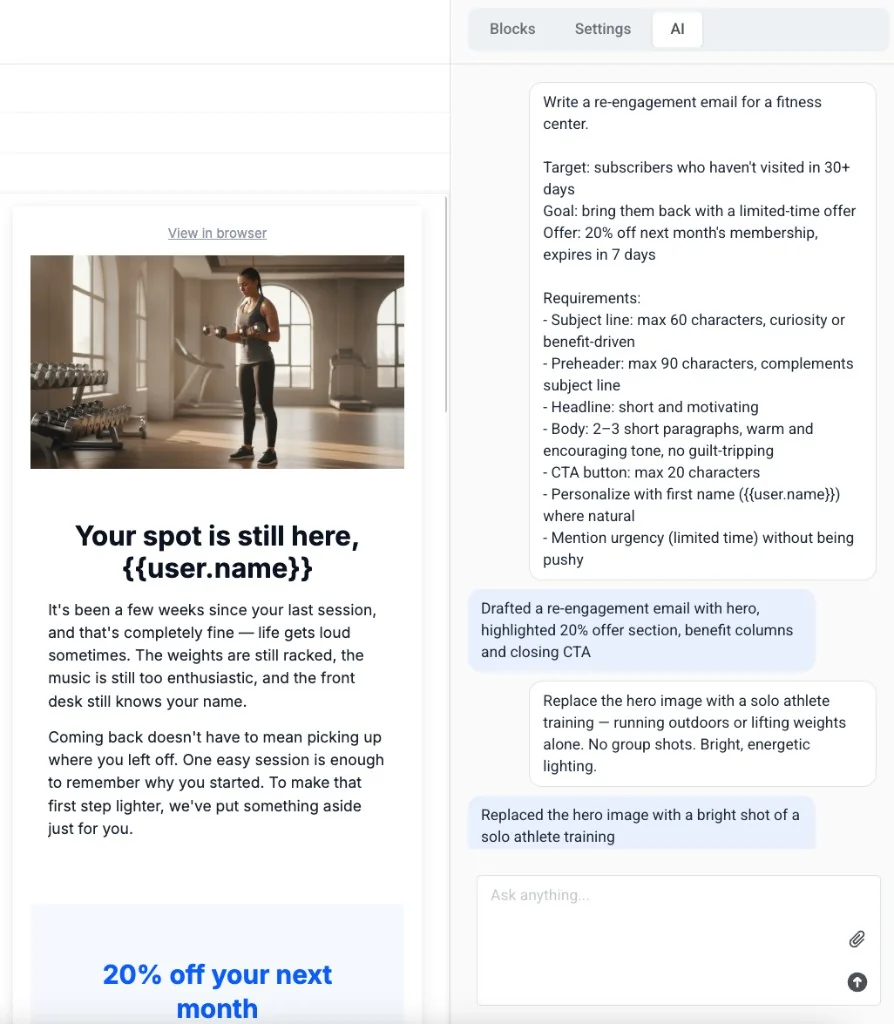
Open the **AI** tab in the right panel to chat with Pushwoosh's AI assistant: describe what you want in a prompt, and it generates or edits content for you directly in the email.
 ## Generate images and alt text
In the Image block, use **Generate with AI** to create an image from a text prompt, or **Generate alt with AI** to write accessible alt text from the image itself.
## Write subject lines and preheaders
Click the **AI** icon next to the **Subject line** or **Preheader** field to have Pushwoosh draft it from the email content you've already added.
## Translate content automatically
Click **Auto-translate** in the language bar to fill in missing translations with AI instead of typing each language by hand.
## Apply your brand automatically
**Derive brand** in Brand book generates a starting palette, fonts, and Brand voice — scan your website URL, or derive them from a short description, an attached file, or your logo.
## Generate images and alt text
In the Image block, use **Generate with AI** to create an image from a text prompt, or **Generate alt with AI** to write accessible alt text from the image itself.
## Write subject lines and preheaders
Click the **AI** icon next to the **Subject line** or **Preheader** field to have Pushwoosh draft it from the email content you've already added.
## Translate content automatically
Click **Auto-translate** in the language bar to fill in missing translations with AI instead of typing each language by hand.
## Apply your brand automatically
**Derive brand** in Brand book generates a starting palette, fonts, and Brand voice — scan your website URL, or derive them from a short description, an attached file, or your logo.