# Create a Brand book
Brand book saves your logo, colors, fonts, and block defaults once, so you can apply consistent styling to any email or in-app template instead of setting it up from scratch each time.
## Open Brand book
Open Brand book from the **⋮** menu in the top bar of either editor:
* [Email Drag & drop editor](/product/content/email-content/drag-and-drop-email-editor/create-email-content-with-drag-and-drop-editor/): select **Brand book**.
* [Built-in in-app editor](/product/content/in-apps/no-code-in-app-editor/create-rich-media-in-the-built-in-editor/): select **Brand book**.
Both open the same Brand book for the project, so it doesn't matter which editor you set it up from.
## Set up your brand
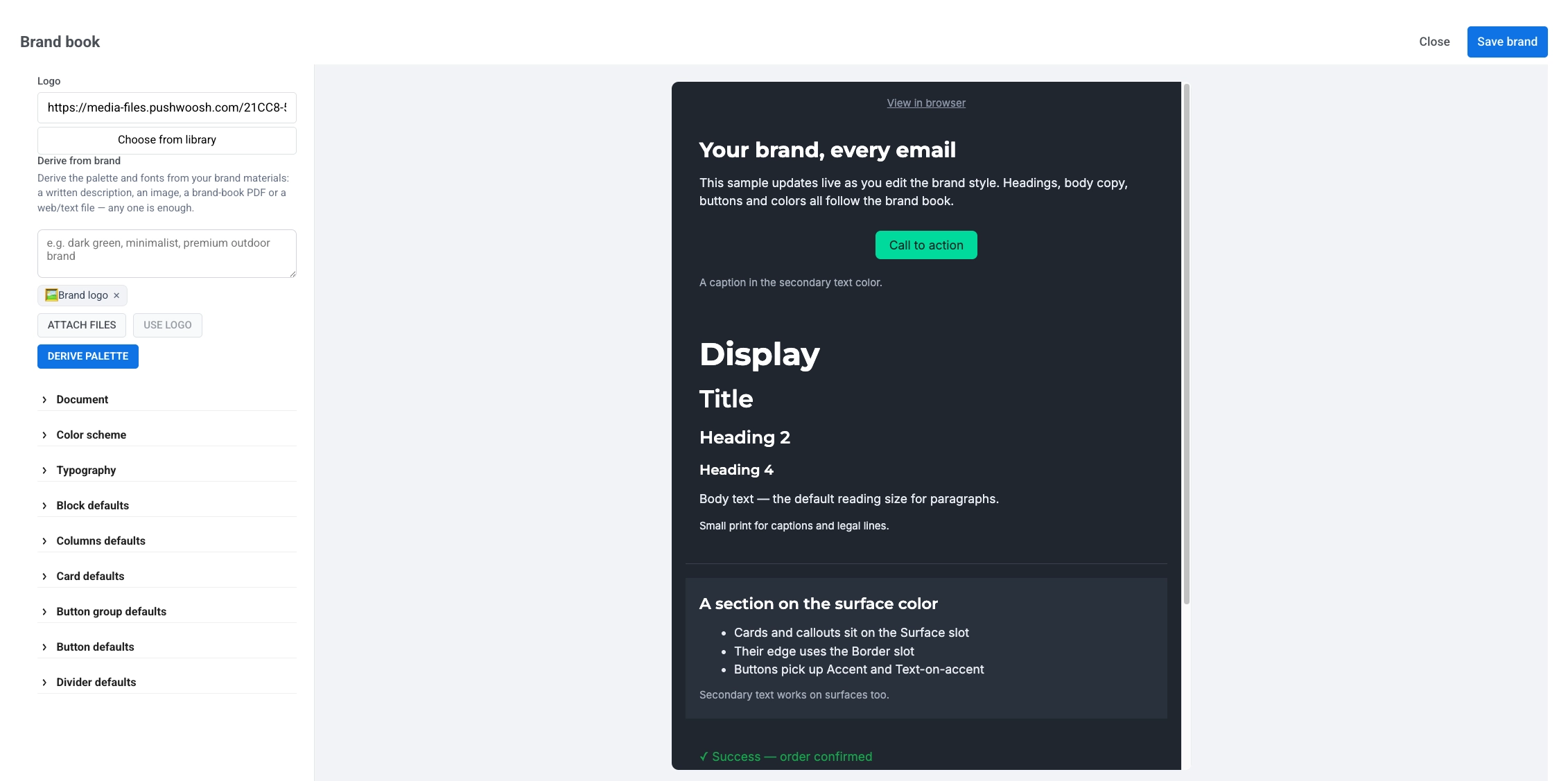
Settings are on the left. A live preview in the center shows a sample email styled with your current choices as you edit.
* **Logo:** paste a hosted image URL, or click **Choose from library** to pick one from your [Media store](/product/content/media-store/).
* **Derive from brand:** generate a starting palette and fonts from your brand materials. Enter a short description, attach an image or file (for example, a brand-book PDF), or click **Use logo** if you already added a logo. Any one source is enough. Click **Derive palette** to apply the result.
* Fine-tune colors, fonts, and block defaults in the accordion sections below **Derive from brand** (the same styling options as the email editor's **Settings** tab). [Learn more](/product/content/email-content/drag-and-drop-email-editor/configure-email-styling-and-footer/#configure-email-wide-styling)
## Save and apply your brand
Click **Save brand** to store your settings. If you opened Brand book from an email or in-app template you were editing, you're asked to apply the brand to it:
* **Apply:** repaints colors and replaces fonts and block defaults with your saved brand. The content itself is not affected.
* **Not now:** saves the brand for later without changing what you're editing.
You can apply your saved brand to any other email or in-app template the same way. Open Brand book from it and save again.
## Apply or reset brand styles
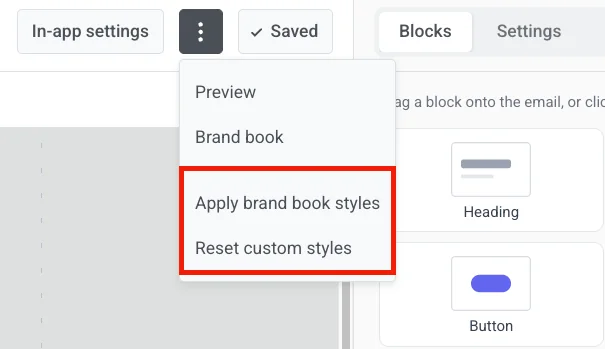
While you're editing an email or in-app template, open the **⋮** menu and use the options under **Brand styles**:
* **Apply brand book styles:** apply your saved brand to the template without opening Brand book. Unavailable until you've saved a brand at least once.
* **Reset custom styles:** remove style overrides so colors, fonts, and spacing follow the Brand book again. Content and layout stay the same.
Confirm each action when prompted. Use **Undo** in the top bar to reverse it.
 * **Logo:** paste a hosted image URL, or click **Choose from library** to pick one from your [Media store](/product/content/media-store/).
* **Derive from brand:** generate a starting palette and fonts from your brand materials. Enter a short description, attach an image or file (for example, a brand-book PDF), or click **Use logo** if you already added a logo. Any one source is enough. Click **Derive palette** to apply the result.
* Fine-tune colors, fonts, and block defaults in the accordion sections below **Derive from brand** (the same styling options as the email editor's **Settings** tab). [Learn more](/product/content/email-content/drag-and-drop-email-editor/configure-email-styling-and-footer/#configure-email-wide-styling)
## Save and apply your brand
Click **Save brand** to store your settings. If you opened Brand book from an email or in-app template you were editing, you're asked to apply the brand to it:
* **Apply:** repaints colors and replaces fonts and block defaults with your saved brand. The content itself is not affected.
* **Not now:** saves the brand for later without changing what you're editing.
You can apply your saved brand to any other email or in-app template the same way. Open Brand book from it and save again.
## Apply or reset brand styles
While you're editing an email or in-app template, open the **⋮** menu and use the options under **Brand styles**:
* **Apply brand book styles:** apply your saved brand to the template without opening Brand book. Unavailable until you've saved a brand at least once.
* **Reset custom styles:** remove style overrides so colors, fonts, and spacing follow the Brand book again. Content and layout stay the same.
* **Logo:** paste a hosted image URL, or click **Choose from library** to pick one from your [Media store](/product/content/media-store/).
* **Derive from brand:** generate a starting palette and fonts from your brand materials. Enter a short description, attach an image or file (for example, a brand-book PDF), or click **Use logo** if you already added a logo. Any one source is enough. Click **Derive palette** to apply the result.
* Fine-tune colors, fonts, and block defaults in the accordion sections below **Derive from brand** (the same styling options as the email editor's **Settings** tab). [Learn more](/product/content/email-content/drag-and-drop-email-editor/configure-email-styling-and-footer/#configure-email-wide-styling)
## Save and apply your brand
Click **Save brand** to store your settings. If you opened Brand book from an email or in-app template you were editing, you're asked to apply the brand to it:
* **Apply:** repaints colors and replaces fonts and block defaults with your saved brand. The content itself is not affected.
* **Not now:** saves the brand for later without changing what you're editing.
You can apply your saved brand to any other email or in-app template the same way. Open Brand book from it and save again.
## Apply or reset brand styles
While you're editing an email or in-app template, open the **⋮** menu and use the options under **Brand styles**:
* **Apply brand book styles:** apply your saved brand to the template without opening Brand book. Unavailable until you've saved a brand at least once.
* **Reset custom styles:** remove style overrides so colors, fonts, and spacing follow the Brand book again. Content and layout stay the same.
 Confirm each action when prompted. Use **Undo** in the top bar to reverse it.