# Approvals and content versions
Pushwoosh saves a new version every time you save a push preset or email template, for every account. Content approval adds a review step on top of that. While it's on, a version can't be sent until a reviewer approves it.
## View, compare, and restore versions
Every push preset and email template keeps its last 20 versions in its version history, available whether or not content approval is on for your account. A version that's waiting for approval is never evicted, even past the 20-version limit.
From the [push content editor](/product/content/push-presets/), open the version history to:
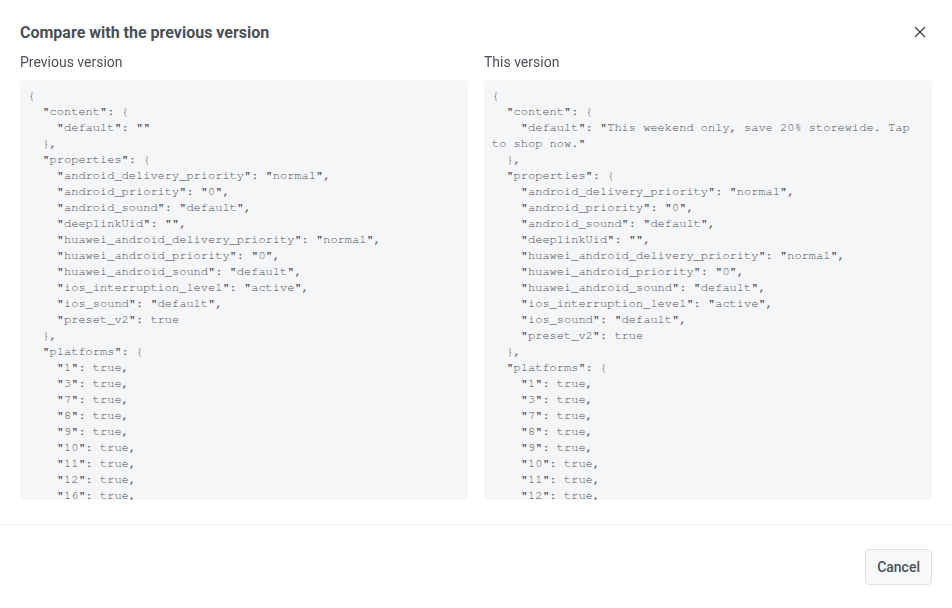
* **Compare** two versions side by side to see what changed between them.
* **Restore** an earlier version. This fills the text of that version into the editor, but media, actions, and settings stay as they are. Nothing is saved until you click **Save**.
## Turn on content approval
Without content approval, every saved version is automatically approved, so content keeps sending as before. To require review before sending, ask Pushwoosh support to turn on the **Require content approval** restriction for your account. It has no self-service toggle.
## Grant the Approve messages permission
Reviewers need the **Approve messages** permission to see the review queue and approve or reject submitted versions. Add it to a role from **Users and roles**, in the same **Messaging permissions** group as **Send messages** and **Delete messages**. See [Available permissions](/product/account-management-and-security/multi-login-accounts/#available-permissions) for the full roles matrix.
## Submit content for approval
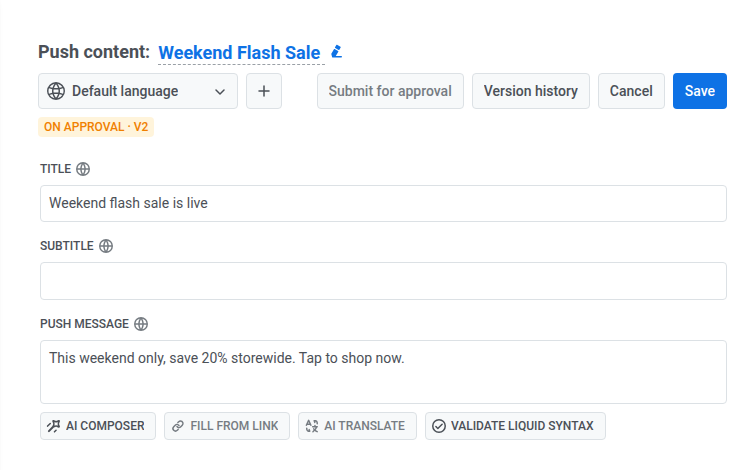
Once content approval is on, the editor shows a version status chip next to **Save**: **Draft**, **On approval**, **Approved**, or **Rejected**.
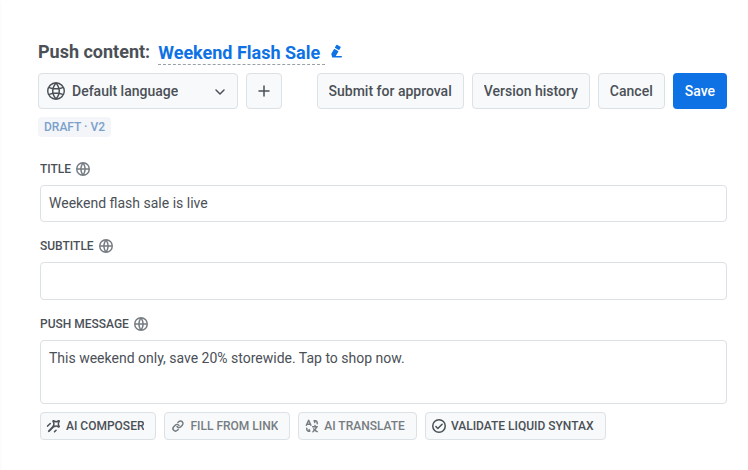
To submit a version for review, click **Submit for approval** next to **Save**. The chip changes to **On approval**, and the version appears in the reviewer's queue.
If a reviewer rejects it, the chip changes to **Rejected** and shows the reviewer's reason on its second line. Edit the content and click **Submit for approval** again to resubmit.
### Editing approved content starts a new draft
Editing a push preset or email template that's currently **Approved** moves it to **Draft**, with a version number next to the status, for example **Draft · v4**. Editing also cancels any other request still waiting for approval on that content.
## Review pending approvals
Reviewers work from the **Pending approval** tab on the [Push presets list](/product/content/push-presets/manage-push-presets/). A badge on the **Content** → **Push Presets** menu item shows how many versions are waiting for review.
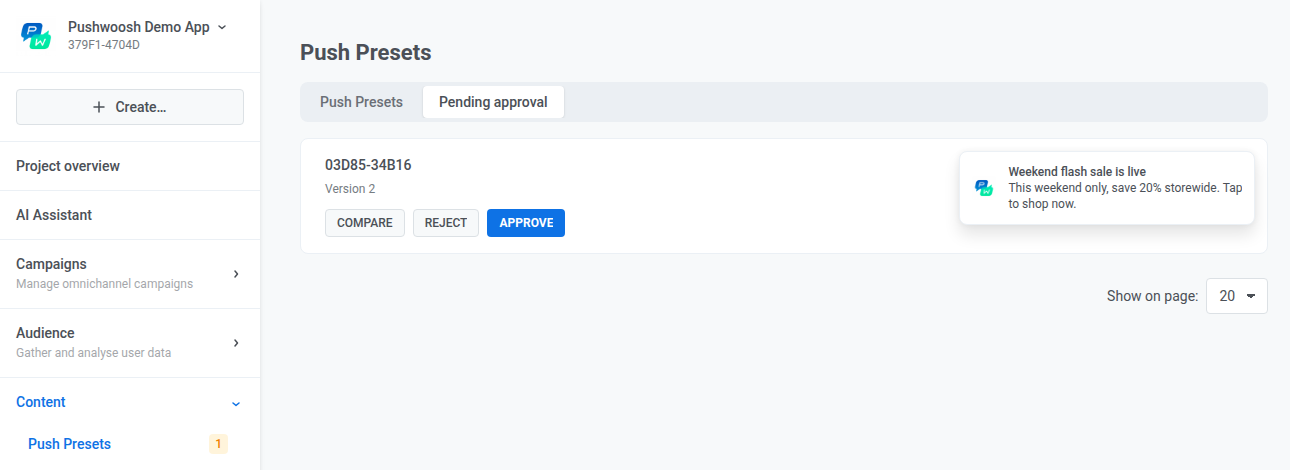
For each pending version, a reviewer can:
* **Compare** it against the previous version to see what changed.
* **Approve** it, so it becomes sendable.
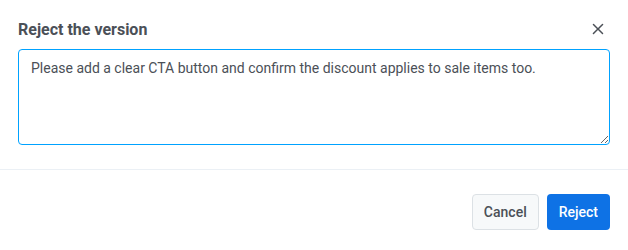
* **Reject** it with a reason. The reason is required, and appears both on the preset's card in the list and on its status chip in the editor.
## Sending is blocked until content is approved
With content approval on, you can't send a push preset or email template version that isn't **Approved**. This applies everywhere a send can start:
* The one-time push form lists unapproved presets in the dropdown but keeps them unselectable, and rejects the send with error code `2080`.
* A Customer Journey element sending unapproved content stops there, also with error code `2080`.
* The deprecated [`createMessage`](/developer/api-reference/messages-api/#createmessage) JSON API method rejects the request with error code `210`.
All three come back with the message `Preset content is not approved`.
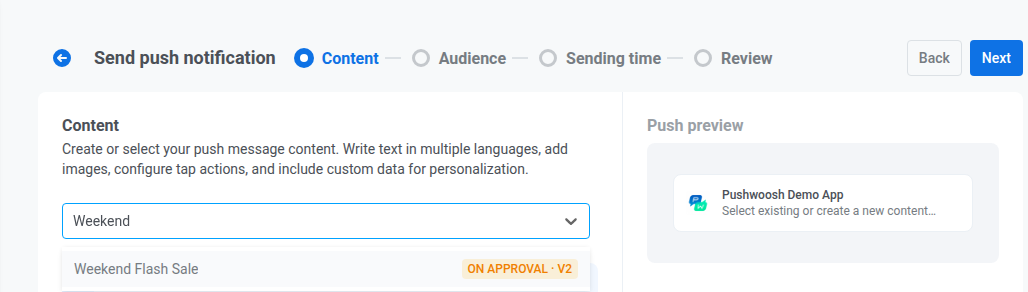
### The one-time push form also restricts creating and testing content
With content approval on, the one-time push form no longer offers [**Create new**](/product/messaging-channels/push-notifications/send-push-notifications/one-time-push/#select-or-create-push-message-content). Submit and approve the preset from **Content** → **Push presets** first, then select it from the dropdown. The push content editor also hides [**Test push notification**](/product/content/push-presets/#preview-and-save-push-content) entirely, regardless of the preset's version status.