# App Inbox presets
**App Inbox presets** are reusable message content for the [App Inbox channel](/product/messaging-channels/message-inbox/send-app-inbox-messages/). Build the content once, then use it in Inbox one-time messages and in the [App Inbox journey element](/product/customer-journey/journey-elements/channels/app-inbox/).
## Create an App Inbox preset
1. Go to **Content > Inbox Presets**.
2. Click **Create content**.
3. Click the preset name next to **Inbox content:** at the top to rename it.
## Add languages
You can create the same preset in multiple languages. Compose the default-language content first, then click the **+** icon next to **Default language** and select the languages you need, the same way as [push presets](/product/content/push-presets/#define-the-languages-you-want-to-use-in-your-push).
## Choose a layout type
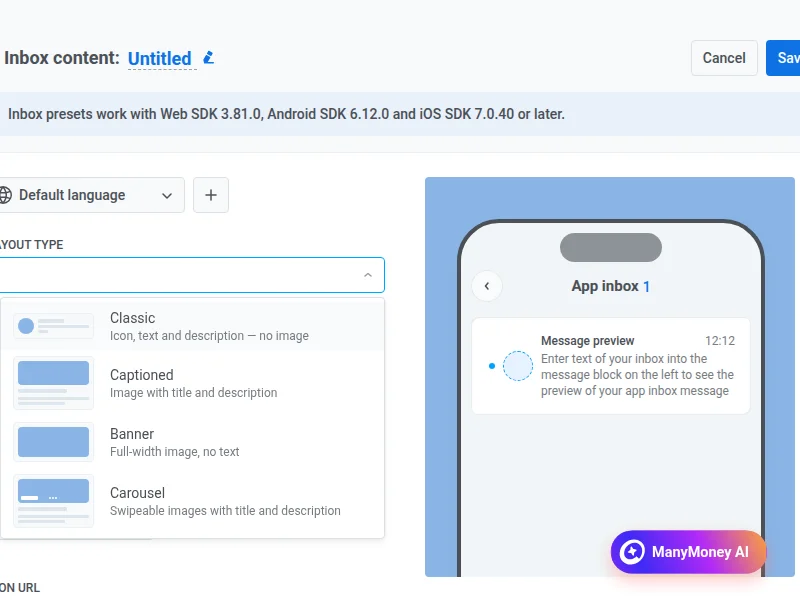
In **Layout type**, choose how the message appears in the inbox list:
* **Classic** — icon, text and description, no image.
* **Captioned** — image with title and description.
* **Banner** — full-width image, no text.
* **Carousel** — swipeable images with title and description.
The fields below change depending on the layout you pick.
### Classic
* **Title** and **Message** — the text shown in the inbox list.
* **Icon URL** — a URL or an image picked from [Media store](/product/content/media-store/). Recommended 1:1 aspect ratio.
### Captioned
* **Title** and **Message**.
* **Image URL** — a URL or an image picked from Media store. Recommended 1:2 aspect ratio.
### Banner
* **Image URL** only — a URL or an image picked from Media store. Recommended 1:2 aspect ratio. Banner has no Title or Message field.
### Carousel
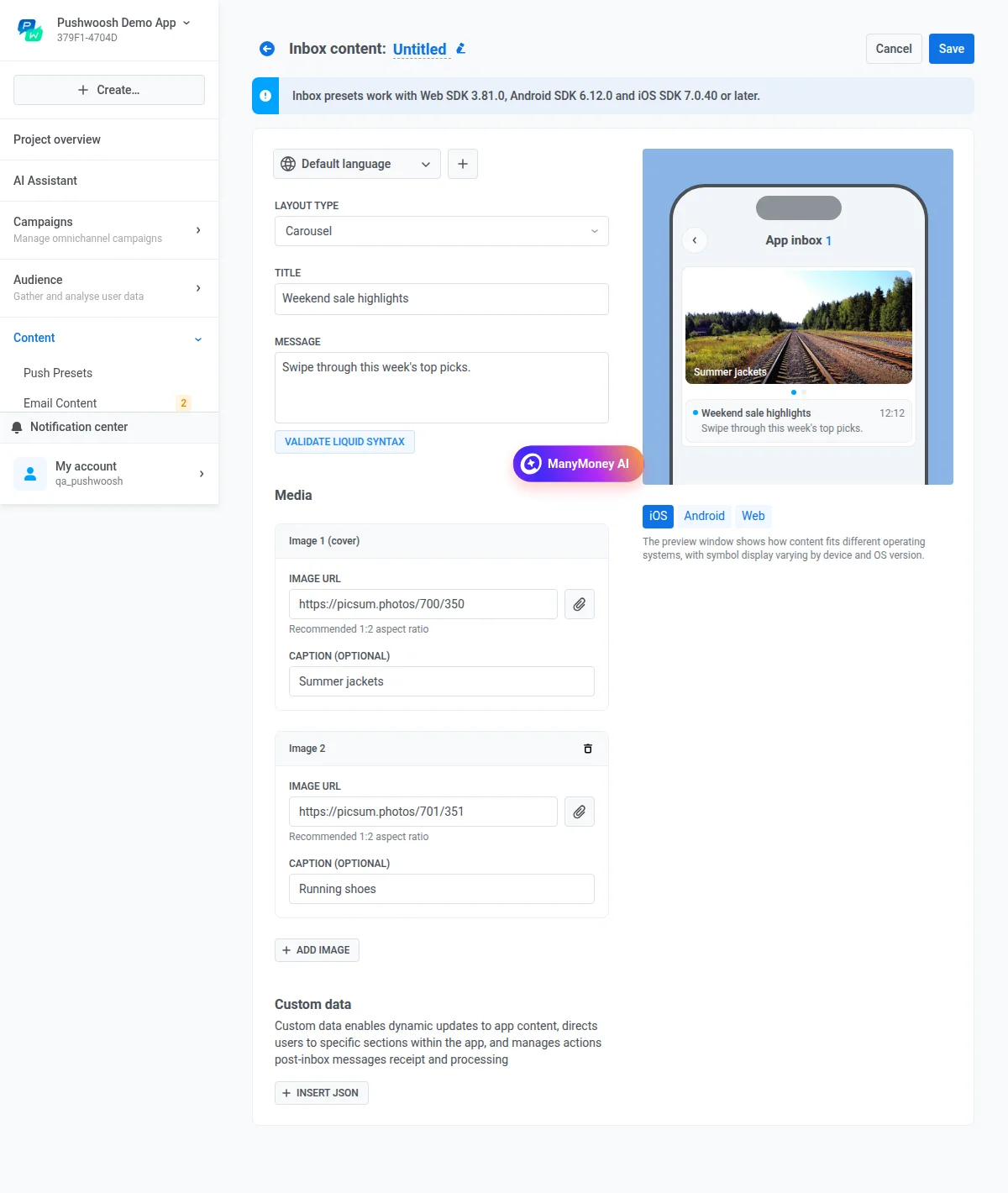
* **Title** and **Message**.
* **Media** — one or more slides. Each slide has an **Image URL** and an optional **Caption**. Click **Add image** to add another slide.
## Validate Liquid syntax
If you use [Liquid templates](/product/personalization/liquid-templates/) in the message, click **Validate Liquid Syntax** to check for syntax errors before saving.
## Add custom data
Click **Insert JSON** and enter a JSON object with key-value pairs. Pushwoosh delivers it to the SDK along with the message, the same as [Custom Data in push presets](/product/content/push-presets/#add-custom-data).
## Preview and save
The preview panel on the right shows the message as it appears in the inbox list, labeled **App inbox** with an unread count — the literal label shown in the preview panel. Switch between the **iOS**, **Android**, and **Web** tabs to see how the content fits each platform.
Click **Save** next to the preset name to store the preset. Saved presets are available from **Content > Inbox Presets**, for use in [one-time Inbox messages](/product/messaging-channels/message-inbox/send-app-inbox-messages/) and the [App Inbox journey element](/product/customer-journey/journey-elements/channels/app-inbox/).
 ### Classic
* **Title** and **Message** — the text shown in the inbox list.
* **Icon URL** — a URL or an image picked from [Media store](/product/content/media-store/). Recommended 1:1 aspect ratio.
### Captioned
* **Title** and **Message**.
* **Image URL** — a URL or an image picked from Media store. Recommended 1:2 aspect ratio.
### Banner
* **Image URL** only — a URL or an image picked from Media store. Recommended 1:2 aspect ratio. Banner has no Title or Message field.
### Carousel
* **Title** and **Message**.
* **Media** — one or more slides. Each slide has an **Image URL** and an optional **Caption**. Click **Add image** to add another slide.
### Classic
* **Title** and **Message** — the text shown in the inbox list.
* **Icon URL** — a URL or an image picked from [Media store](/product/content/media-store/). Recommended 1:1 aspect ratio.
### Captioned
* **Title** and **Message**.
* **Image URL** — a URL or an image picked from Media store. Recommended 1:2 aspect ratio.
### Banner
* **Image URL** only — a URL or an image picked from Media store. Recommended 1:2 aspect ratio. Banner has no Title or Message field.
### Carousel
* **Title** and **Message**.
* **Media** — one or more slides. Each slide has an **Image URL** and an optional **Caption**. Click **Add image** to add another slide.
 ## Validate Liquid syntax
If you use [Liquid templates](/product/personalization/liquid-templates/) in the message, click **Validate Liquid Syntax** to check for syntax errors before saving.
## Add custom data
Click **Insert JSON** and enter a JSON object with key-value pairs. Pushwoosh delivers it to the SDK along with the message, the same as [Custom Data in push presets](/product/content/push-presets/#add-custom-data).
## Preview and save
The preview panel on the right shows the message as it appears in the inbox list, labeled **App inbox** with an unread count — the literal label shown in the preview panel. Switch between the **iOS**, **Android**, and **Web** tabs to see how the content fits each platform.
Click **Save** next to the preset name to store the preset. Saved presets are available from **Content > Inbox Presets**, for use in [one-time Inbox messages](/product/messaging-channels/message-inbox/send-app-inbox-messages/) and the [App Inbox journey element](/product/customer-journey/journey-elements/channels/app-inbox/).
## Validate Liquid syntax
If you use [Liquid templates](/product/personalization/liquid-templates/) in the message, click **Validate Liquid Syntax** to check for syntax errors before saving.
## Add custom data
Click **Insert JSON** and enter a JSON object with key-value pairs. Pushwoosh delivers it to the SDK along with the message, the same as [Custom Data in push presets](/product/content/push-presets/#add-custom-data).
## Preview and save
The preview panel on the right shows the message as it appears in the inbox list, labeled **App inbox** with an unread count — the literal label shown in the preview panel. Switch between the **iOS**, **Android**, and **Web** tabs to see how the content fits each platform.
Click **Save** next to the preset name to store the preset. Saved presets are available from **Content > Inbox Presets**, for use in [one-time Inbox messages](/product/messaging-channels/message-inbox/send-app-inbox-messages/) and the [App Inbox journey element](/product/customer-journey/journey-elements/channels/app-inbox/).