# User Explorer
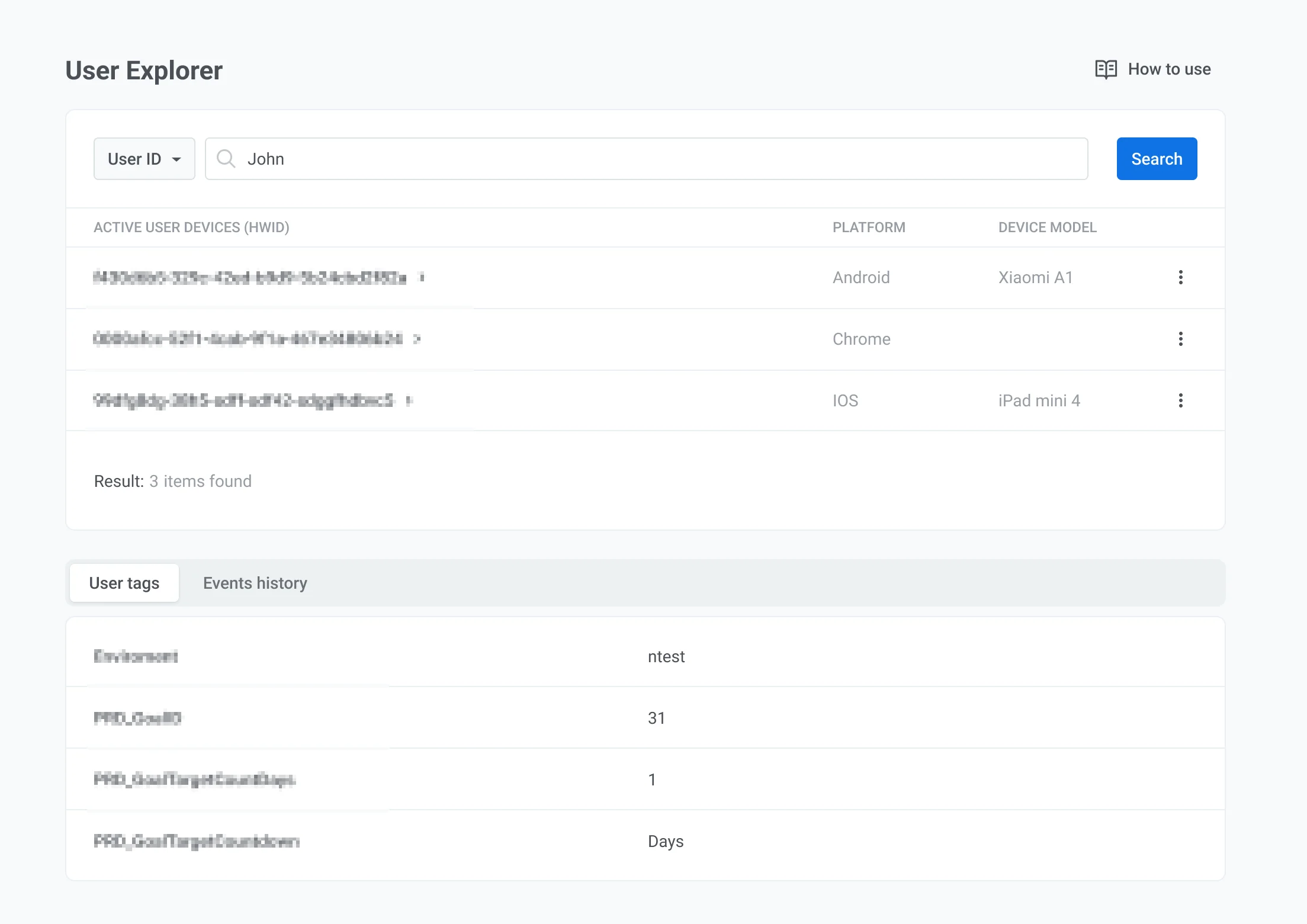
The User Explorer section provides a detailed view of your audience, allowing you to explore individual user data, including their devices, received messages, and interactions. It gathers and organizes customer data from multiple touchpoints, structuring real-time insights into centralized user profiles. This enables effective debugging, user segmentation, and targeted marketing strategies.
## Search for a user
1. Go to **Audience** → **User Explorer**.
2. In the search bar, select a criterion from the dropdown:
* **User ID:** search by [User ID](/product/pushwoosh-knowledge-hub/users-userids/)
* **HWID, Email, Phone:** search by [HWID](/product/pushwoosh-knowledge-hub/device-identifiers/#hwid), email address, or phone number
* **Token:** search by [push token](/product/pushwoosh-knowledge-hub/device-identifiers/#push-token)
3. Enter the value for the selected criterion.
4. Click **Search**.
Matching users appear in the results list under **USER ID**. Click the name to open the user profile.
## View user profile
The **View user** page opens when you select a user from the search results. Use the tabs at the top to review profile data:
* [**User overview**](#user-overview-tab): view user-level tags and edit tag values
* [**Devices and platforms**](#devices-and-platforms-tab): review channels, set test devices, or manage a channel
* [**Events History**](#events-history-tab): search and filter events, view event attributes
* [**Received Messages**](#received-messages-tab): find messages by code and open delivery details
* [**Segments**](#segments-tab): see segment membership and open segment settings
* [**Campaigns**](#campaigns-tab): see [Customer Journey](/product/customer-journey/pushwoosh-journey-overview/) entry, status, and exit dates
### User overview tab
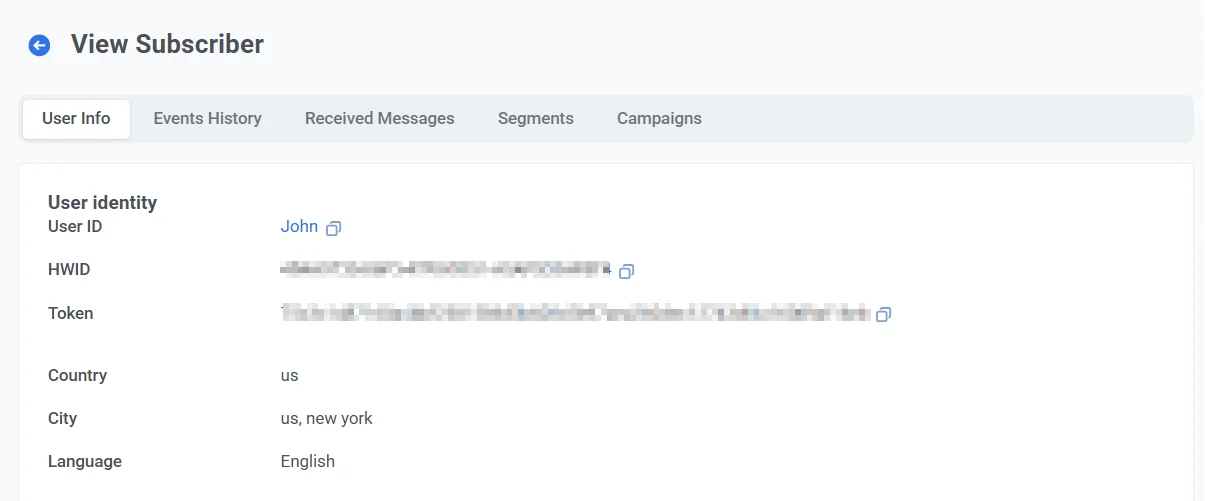
The **User overview** tab shows the user's **User ID** and a table of [tags](/product/audience-data-and-segmentation/user-data-tags/tags/) assigned at the user level.
The table includes every tag that has a value for this user.
#### Edit tag values
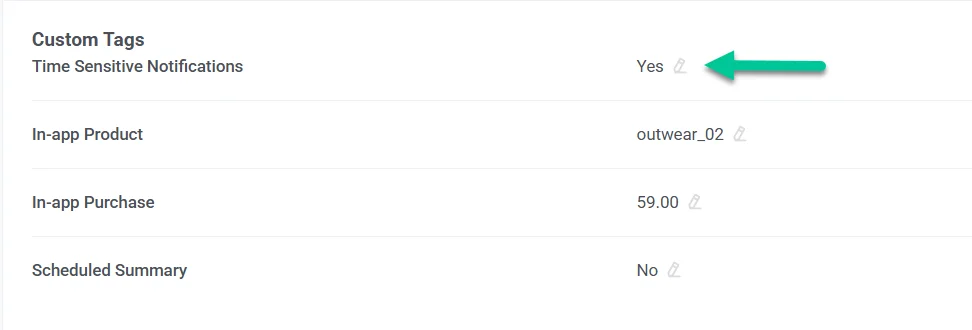
To edit a tag value in the table:
1. Find the tag in the table.
2. Click the **pencil icon** next to the value.
3. Enter a new value.
4. Click **Submit** to save changes or **Cancel** to discard them.
### Devices and platforms tab
The **Devices and platforms** tab lists every channel linked to the user. Select a platform in the left sidebar to view its profile in the main panel.
For each platform, you can review:
* **Subscription status** (for example, **SUBSCRIBED** for email)
* **Platform identifier** (for example, an email address or phone number)
* **Metadata:** **Last active**, **First subscription**, **Location**, **Language**, and **Timezone**
* **Tags** assigned to that platform. The table lists [default](/product/audience-data-and-segmentation/user-data-tags/tags#default-tags) and [custom](/product/audience-data-and-segmentation/user-data-tags/tags#custom-tags) tags that have values for this channel. You can edit values with the **pencil icon**.
#### Setting a test device
With a channel selected in the sidebar, click **Set as test device** at the top of its profile on the right. In the dialog, enter a recognizable name, add a description if needed, and click **Apply**.
The channel is added as a [test device](/product/first-steps/start-with-your-project/test-your-integration/test-devices/) and can receive test messages before you launch a campaign.
To remove it, click **Remove from test devices** on that channel profile.
#### Managing devices
Use the **three-dot menu (⋮)** in the platform profile header to manage that channel.
##### Delete a device
Select **Delete email** for email or **Delete device** for other platforms to remove the channel from the user profile.
##### Unsubscribe user from marketing emails (email only)
For an email profile, select **Unsubscribe from email campaigns** in the same menu to opt the user out of marketing email without removing the address.
Pushwoosh sets the [**Unsubscribed Emails**](/product/audience-data-and-segmentation/user-data-tags/tags/#default-tags) tag to `true` for that address. The user will no longer receive marketing emails. Transactional emails are not affected and will still be delivered. [Learn more](/product/messaging-channels/marketing-vs-transactional/).
### Events history tab
Pushwoosh tracks and stores the events log for each user for up to one year.
On the **Events History** tab, use **Search** to filter events by name. Use the channel dropdown to limit results to a specific platform.
Events are listed in chronological order. Each row shows the timestamp, event name, and device or platform.
Click the arrow at the start of a row to expand the event. The expanded section lists the attributes recorded for that event, such as platform, device type, or application version. Available attributes depend on the event type.
For example, `PW_ApplicationMinimized` may include `application_version` and `device_type`, and `PW_DeviceRegistered` may include `platform` and `platform_id`.
See [default events](/product/audience-data-and-segmentation/events/default-events/) for system event names and typical attributes.
### Received messages tab
The **Received Messages** tab lists messages sent to this user across channels. Use **Search** to find a message by message code.
Use the channel dropdown to show messages for one platform only.
Use the **message type** selector next to the channel dropdown to narrow the list by how the message was sent:
* **All messages:** show every message (default).
* **Broadcast:** show only broadcast messages sent to a segment or your whole audience.
* **Transactional:** show only [transactional](/product/messaging-channels/marketing-vs-transactional/) messages sent through the API to this specific user.
Each row includes:
* **Message code / Source:** The message identifier and where it was sent from (for example, **Transaction** or **Customer Journey Builder**). Click the message code to open message details and statistics. [Learn more](/product/statistics-and-analytics/messaging-statistics/).
* **Sent:** The date and time the message was sent.
* **Opened:** The date and time the user opened the message, if applicable.
* **Content:** A preview of the message, such as the email subject line.
### Segments tab
The **Segments** tab lists [segments](/product/audience-data-and-segmentation/segmentation/) this user currently belongs to.
Each row includes:
* **Segment:** The segment name. Click the name to open the segment and view or edit its settings.
* **Conditions:** The filter expression that defines the segment, including tags and other rules that match this user.
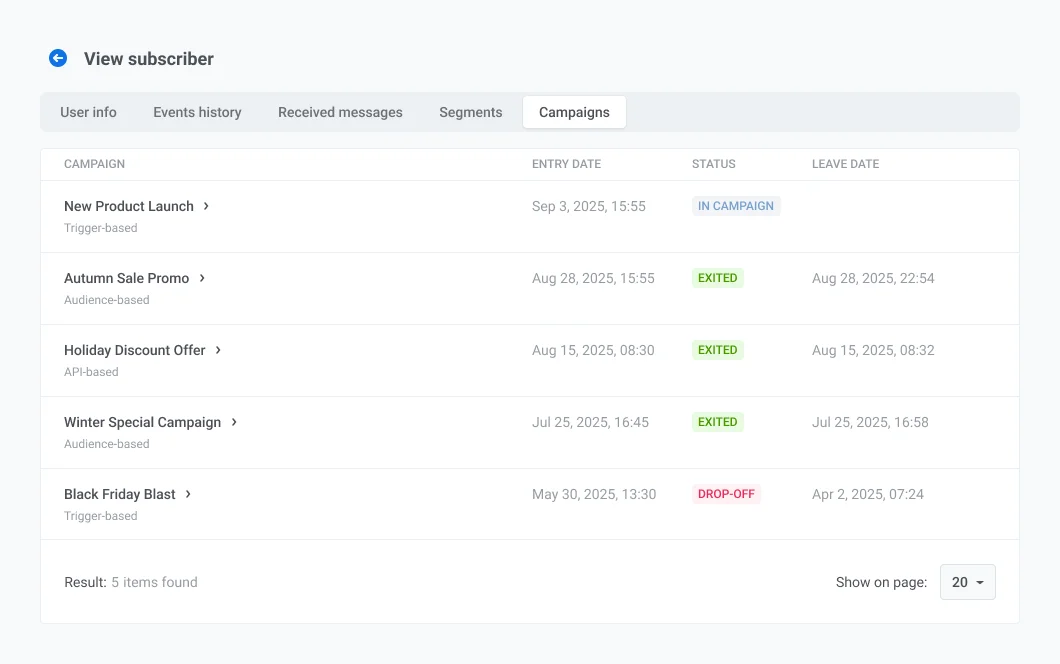
### Campaigns tab
The **Campaigns** tab lists [Customer Journey](/product/customer-journey/pushwoosh-journey-overview/) campaigns this user has entered.
Each row includes:
* **Campaign:** The campaign name and type shown below it, such as **Audience based** or **Trigger based**. Click the name to open the campaign.
* **Entry date:** The date and time the user entered the campaign.
* **Status:** The user's status in the campaign:
* **IN CAMPAIGN:** the user is currently progressing through the journey.
* **EXITED:** the user completed or left the journey.
* **DROP-OFF:** the user was dropped from the journey due to an error.
* **Leave date:** The date and time the user left the campaign.
 ## View user profile
The **View user** page opens when you select a user from the search results. Use the tabs at the top to review profile data:
* [**User overview**](#user-overview-tab): view user-level tags and edit tag values
* [**Devices and platforms**](#devices-and-platforms-tab): review channels, set test devices, or manage a channel
* [**Events History**](#events-history-tab): search and filter events, view event attributes
* [**Received Messages**](#received-messages-tab): find messages by code and open delivery details
* [**Segments**](#segments-tab): see segment membership and open segment settings
* [**Campaigns**](#campaigns-tab): see [Customer Journey](/product/customer-journey/pushwoosh-journey-overview/) entry, status, and exit dates
### User overview tab
The **User overview** tab shows the user's **User ID** and a table of [tags](/product/audience-data-and-segmentation/user-data-tags/tags/) assigned at the user level.
The table includes every tag that has a value for this user.
## View user profile
The **View user** page opens when you select a user from the search results. Use the tabs at the top to review profile data:
* [**User overview**](#user-overview-tab): view user-level tags and edit tag values
* [**Devices and platforms**](#devices-and-platforms-tab): review channels, set test devices, or manage a channel
* [**Events History**](#events-history-tab): search and filter events, view event attributes
* [**Received Messages**](#received-messages-tab): find messages by code and open delivery details
* [**Segments**](#segments-tab): see segment membership and open segment settings
* [**Campaigns**](#campaigns-tab): see [Customer Journey](/product/customer-journey/pushwoosh-journey-overview/) entry, status, and exit dates
### User overview tab
The **User overview** tab shows the user's **User ID** and a table of [tags](/product/audience-data-and-segmentation/user-data-tags/tags/) assigned at the user level.
The table includes every tag that has a value for this user.
 #### Edit tag values
To edit a tag value in the table:
1. Find the tag in the table.
2. Click the **pencil icon** next to the value.
3. Enter a new value.
4. Click **Submit** to save changes or **Cancel** to discard them.
#### Edit tag values
To edit a tag value in the table:
1. Find the tag in the table.
2. Click the **pencil icon** next to the value.
3. Enter a new value.
4. Click **Submit** to save changes or **Cancel** to discard them.
 ### Devices and platforms tab
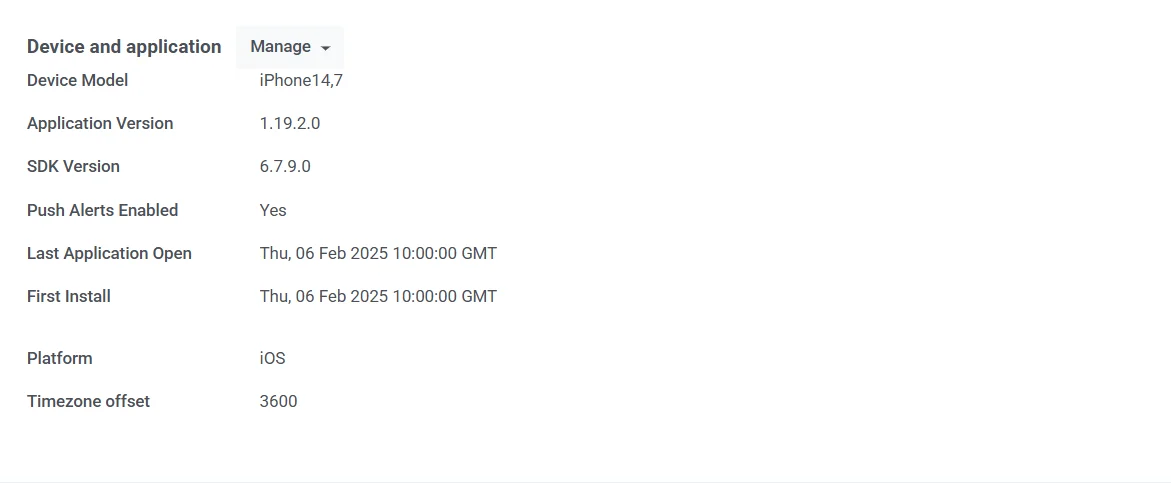
The **Devices and platforms** tab lists every channel linked to the user. Select a platform in the left sidebar to view its profile in the main panel.
For each platform, you can review:
* **Subscription status** (for example, **SUBSCRIBED** for email)
* **Platform identifier** (for example, an email address or phone number)
* **Metadata:** **Last active**, **First subscription**, **Location**, **Language**, and **Timezone**
* **Tags** assigned to that platform. The table lists [default](/product/audience-data-and-segmentation/user-data-tags/tags#default-tags) and [custom](/product/audience-data-and-segmentation/user-data-tags/tags#custom-tags) tags that have values for this channel. You can edit values with the **pencil icon**.
### Devices and platforms tab
The **Devices and platforms** tab lists every channel linked to the user. Select a platform in the left sidebar to view its profile in the main panel.
For each platform, you can review:
* **Subscription status** (for example, **SUBSCRIBED** for email)
* **Platform identifier** (for example, an email address or phone number)
* **Metadata:** **Last active**, **First subscription**, **Location**, **Language**, and **Timezone**
* **Tags** assigned to that platform. The table lists [default](/product/audience-data-and-segmentation/user-data-tags/tags#default-tags) and [custom](/product/audience-data-and-segmentation/user-data-tags/tags#custom-tags) tags that have values for this channel. You can edit values with the **pencil icon**.
 #### Setting a test device
With a channel selected in the sidebar, click **Set as test device** at the top of its profile on the right. In the dialog, enter a recognizable name, add a description if needed, and click **Apply**.
#### Setting a test device
With a channel selected in the sidebar, click **Set as test device** at the top of its profile on the right. In the dialog, enter a recognizable name, add a description if needed, and click **Apply**.
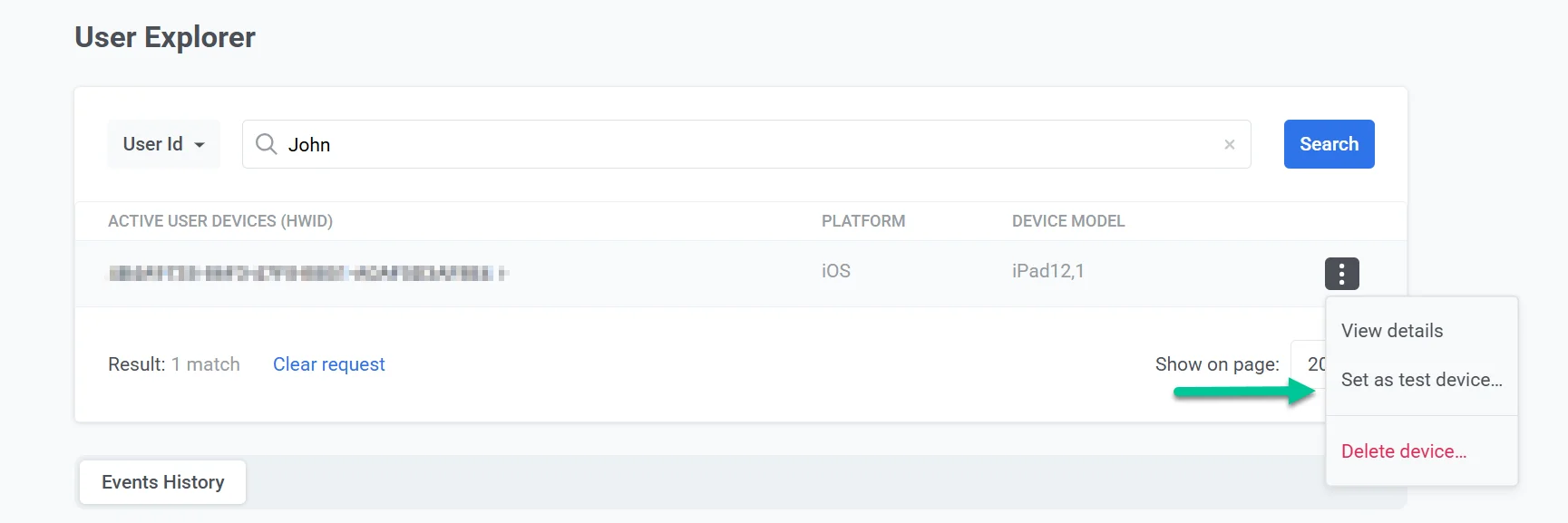 The channel is added as a [test device](/product/first-steps/start-with-your-project/test-your-integration/test-devices/) and can receive test messages before you launch a campaign.
To remove it, click **Remove from test devices** on that channel profile.
#### Managing devices
Use the **three-dot menu (⋮)** in the platform profile header to manage that channel.
##### Delete a device
Select **Delete email** for email or **Delete device** for other platforms to remove the channel from the user profile.
##### Unsubscribe user from marketing emails (email only)
For an email profile, select **Unsubscribe from email campaigns** in the same menu to opt the user out of marketing email without removing the address.
The channel is added as a [test device](/product/first-steps/start-with-your-project/test-your-integration/test-devices/) and can receive test messages before you launch a campaign.
To remove it, click **Remove from test devices** on that channel profile.
#### Managing devices
Use the **three-dot menu (⋮)** in the platform profile header to manage that channel.
##### Delete a device
Select **Delete email** for email or **Delete device** for other platforms to remove the channel from the user profile.
##### Unsubscribe user from marketing emails (email only)
For an email profile, select **Unsubscribe from email campaigns** in the same menu to opt the user out of marketing email without removing the address.
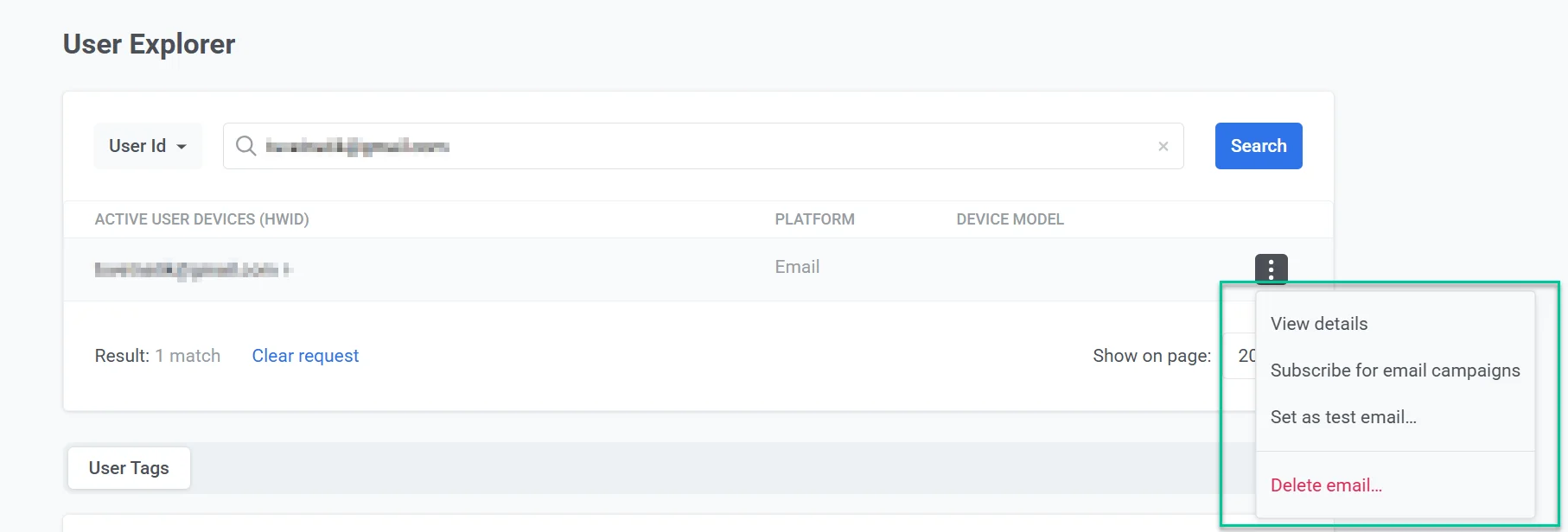 Pushwoosh sets the [**Unsubscribed Emails**](/product/audience-data-and-segmentation/user-data-tags/tags/#default-tags) tag to `true` for that address. The user will no longer receive marketing emails. Transactional emails are not affected and will still be delivered. [Learn more](/product/messaging-channels/marketing-vs-transactional/).
### Events history tab
Pushwoosh tracks and stores the events log for each user for up to one year.
On the **Events History** tab, use **Search** to filter events by name. Use the channel dropdown to limit results to a specific platform.
Events are listed in chronological order. Each row shows the timestamp, event name, and device or platform.
Pushwoosh sets the [**Unsubscribed Emails**](/product/audience-data-and-segmentation/user-data-tags/tags/#default-tags) tag to `true` for that address. The user will no longer receive marketing emails. Transactional emails are not affected and will still be delivered. [Learn more](/product/messaging-channels/marketing-vs-transactional/).
### Events history tab
Pushwoosh tracks and stores the events log for each user for up to one year.
On the **Events History** tab, use **Search** to filter events by name. Use the channel dropdown to limit results to a specific platform.
Events are listed in chronological order. Each row shows the timestamp, event name, and device or platform.
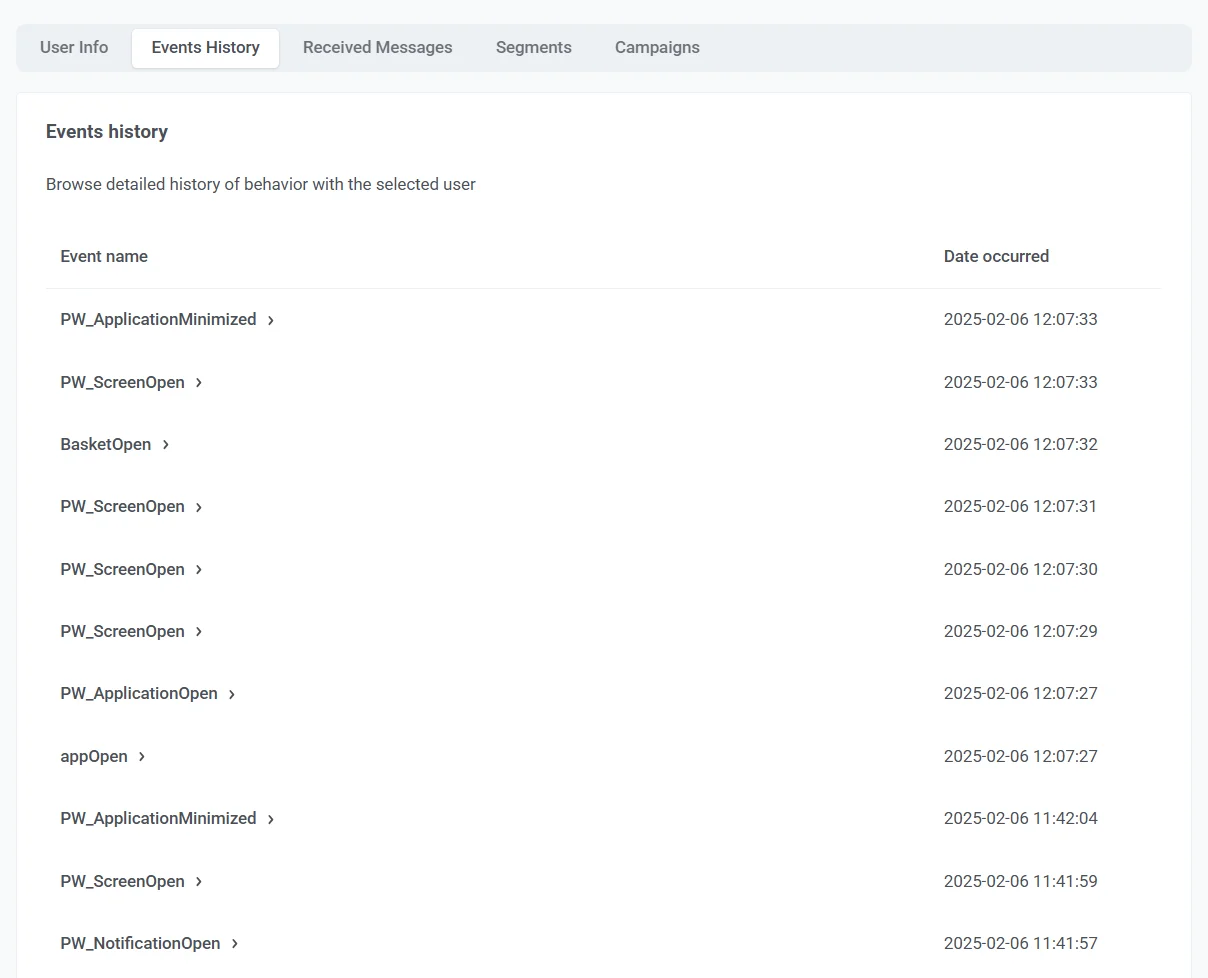 Click the arrow at the start of a row to expand the event. The expanded section lists the attributes recorded for that event, such as platform, device type, or application version. Available attributes depend on the event type.
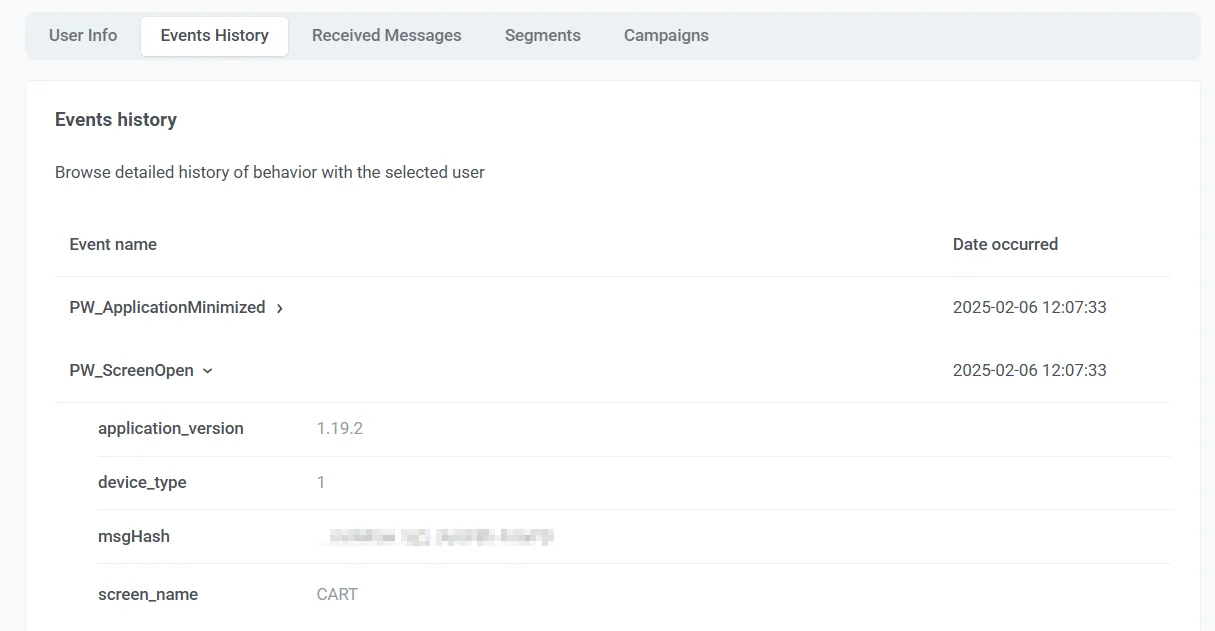 For example, `PW_ApplicationMinimized` may include `application_version` and `device_type`, and `PW_DeviceRegistered` may include `platform` and `platform_id`.
See [default events](/product/audience-data-and-segmentation/events/default-events/) for system event names and typical attributes.
### Received messages tab
The **Received Messages** tab lists messages sent to this user across channels. Use **Search** to find a message by message code.
Use the channel dropdown to show messages for one platform only.
Use the **message type** selector next to the channel dropdown to narrow the list by how the message was sent:
* **All messages:** show every message (default).
* **Broadcast:** show only broadcast messages sent to a segment or your whole audience.
* **Transactional:** show only [transactional](/product/messaging-channels/marketing-vs-transactional/) messages sent through the API to this specific user.
For example, `PW_ApplicationMinimized` may include `application_version` and `device_type`, and `PW_DeviceRegistered` may include `platform` and `platform_id`.
See [default events](/product/audience-data-and-segmentation/events/default-events/) for system event names and typical attributes.
### Received messages tab
The **Received Messages** tab lists messages sent to this user across channels. Use **Search** to find a message by message code.
Use the channel dropdown to show messages for one platform only.
Use the **message type** selector next to the channel dropdown to narrow the list by how the message was sent:
* **All messages:** show every message (default).
* **Broadcast:** show only broadcast messages sent to a segment or your whole audience.
* **Transactional:** show only [transactional](/product/messaging-channels/marketing-vs-transactional/) messages sent through the API to this specific user.
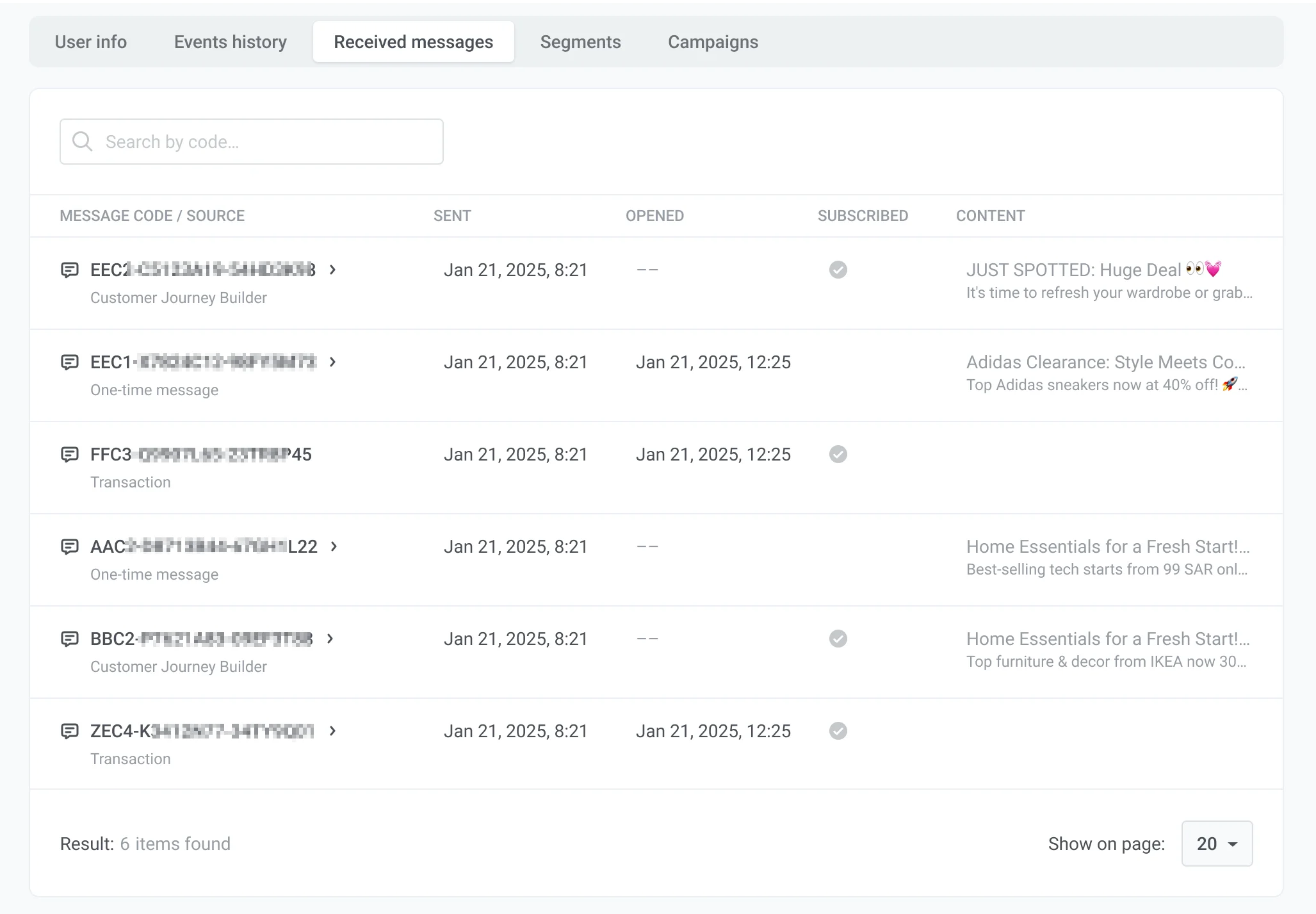 Each row includes:
* **Message code / Source:** The message identifier and where it was sent from (for example, **Transaction** or **Customer Journey Builder**). Click the message code to open message details and statistics. [Learn more](/product/statistics-and-analytics/messaging-statistics/).
* **Sent:** The date and time the message was sent.
* **Opened:** The date and time the user opened the message, if applicable.
* **Content:** A preview of the message, such as the email subject line.
### Segments tab
The **Segments** tab lists [segments](/product/audience-data-and-segmentation/segmentation/) this user currently belongs to.
Each row includes:
* **Message code / Source:** The message identifier and where it was sent from (for example, **Transaction** or **Customer Journey Builder**). Click the message code to open message details and statistics. [Learn more](/product/statistics-and-analytics/messaging-statistics/).
* **Sent:** The date and time the message was sent.
* **Opened:** The date and time the user opened the message, if applicable.
* **Content:** A preview of the message, such as the email subject line.
### Segments tab
The **Segments** tab lists [segments](/product/audience-data-and-segmentation/segmentation/) this user currently belongs to.
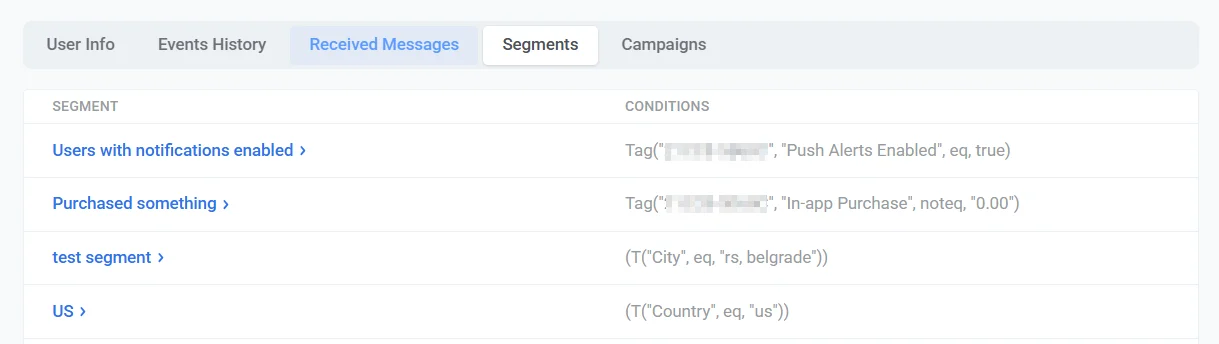 Each row includes:
* **Segment:** The segment name. Click the name to open the segment and view or edit its settings.
* **Conditions:** The filter expression that defines the segment, including tags and other rules that match this user.
### Campaigns tab
The **Campaigns** tab lists [Customer Journey](/product/customer-journey/pushwoosh-journey-overview/) campaigns this user has entered.
Each row includes:
* **Campaign:** The campaign name and type shown below it, such as **Audience based** or **Trigger based**. Click the name to open the campaign.
* **Entry date:** The date and time the user entered the campaign.
* **Status:** The user's status in the campaign:
* **IN CAMPAIGN:** the user is currently progressing through the journey.
* **EXITED:** the user completed or left the journey.
* **DROP-OFF:** the user was dropped from the journey due to an error.
* **Leave date:** The date and time the user left the campaign.
Each row includes:
* **Segment:** The segment name. Click the name to open the segment and view or edit its settings.
* **Conditions:** The filter expression that defines the segment, including tags and other rules that match this user.
### Campaigns tab
The **Campaigns** tab lists [Customer Journey](/product/customer-journey/pushwoosh-journey-overview/) campaigns this user has entered.
Each row includes:
* **Campaign:** The campaign name and type shown below it, such as **Audience based** or **Trigger based**. Click the name to open the campaign.
* **Entry date:** The date and time the user entered the campaign.
* **Status:** The user's status in the campaign:
* **IN CAMPAIGN:** the user is currently progressing through the journey.
* **EXITED:** the user completed or left the journey.
* **DROP-OFF:** the user was dropped from the journey due to an error.
* **Leave date:** The date and time the user left the campaign.