# View form performance and export subscribers
After your subscription forms are live on your site, compare their performance, identify which ones bring more subscribers, and export subscriber data for analysis or follow-up. You can also pause active forms, reactivate paused ones, and copy the embed code when you need to update your website.
## Manage forms
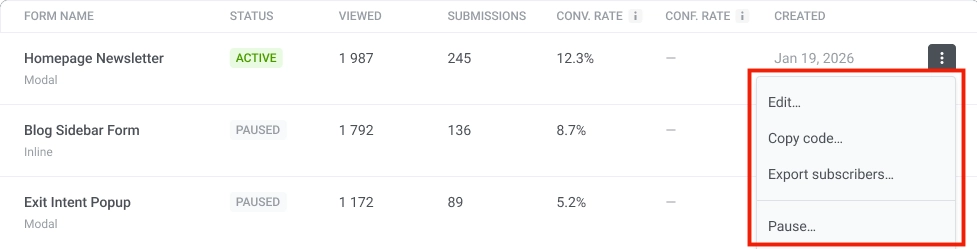
The **Form performance** table shows all forms and their metrics. Use the three-dot menu on each row to manage a form. Here you can:
- **Edit:** update form settings and fields
- **Copy code:** copy the embed code snippet to add the form to your website
- [**Export subscribers**](#export-subscribers): open the export dialog to download subscriber data as CSV
- **Pause:** temporarily stop showing the form (for active forms). For paused forms, the menu shows **Activate** to resume.
## Review form metrics
The table helps you compare how each subscription form performs and understand how visitors interact with it. Use these metrics to see how often a form is shown, how many visitors submit it, and how effectively it turns views into subscriptions.
The table has the following columns:
| | |
| --- | --- |
| **Form name** | The name you gave the form, with **Modal** or **Inline** shown on the second line under the name. |
| **Status** | **ACTIVE** or **PAUSED**. |
| **Viewed** | How many times visitors were shown the form. Counts **impressions**, not necessarily unique visitors.
For **modal popup**, a view is counted each time the modal appears on screen, even if the visitor closes it without entering data or submitting.
For **embedded inline**, a view is counted when the form becomes **visible on the visitor's screen**, for example after they scroll to it or if it is already visible when the page loads. |
| **Submissions** | How many visitors submitted the form. |
| **Conversion rate** | Percentage of form views that resulted in a submission: (Submissions / Viewed) × 100. Counts events, not unique visitors. |
| **Confirmation rate** | Percentage of subscribers who confirmed their email address. Only shown when double opt-in is enabled. |
| **Created** | When the form was created. |
## Export subscribers
1. In the Form performance table, open the three-dot menu for the form.
2. Click **Export subscribers**. The **Export subscribers** dialog opens.
3. Configure export options:
- **Filter:** **All subscribers**, **Pending only**, **Confirmed only**, or **Expired only**
- **Date range to export:** select the date range for the data you want to export
4. Click **Export**.
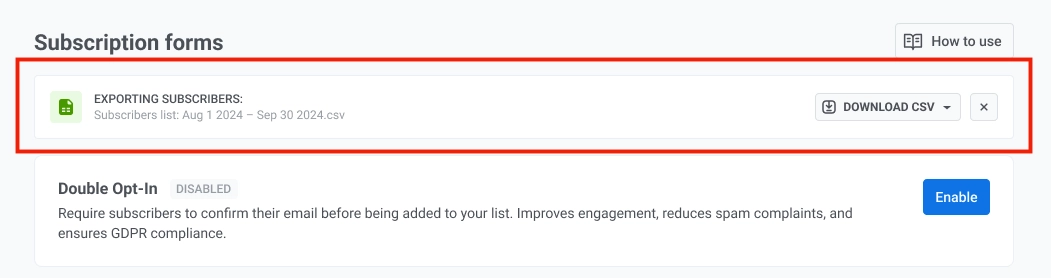
When the export is ready, a notification appears at the top of the page. Click **Download CSV** to download the file.
 ## Review form metrics
The table helps you compare how each subscription form performs and understand how visitors interact with it. Use these metrics to see how often a form is shown, how many visitors submit it, and how effectively it turns views into subscriptions.
The table has the following columns:
| | |
| --- | --- |
| **Form name** | The name you gave the form, with **Modal** or **Inline** shown on the second line under the name. |
| **Status** | **ACTIVE** or **PAUSED**. |
| **Viewed** | How many times visitors were shown the form. Counts **impressions**, not necessarily unique visitors.
## Review form metrics
The table helps you compare how each subscription form performs and understand how visitors interact with it. Use these metrics to see how often a form is shown, how many visitors submit it, and how effectively it turns views into subscriptions.
The table has the following columns:
| | |
| --- | --- |
| **Form name** | The name you gave the form, with **Modal** or **Inline** shown on the second line under the name. |
| **Status** | **ACTIVE** or **PAUSED**. |
| **Viewed** | How many times visitors were shown the form. Counts **impressions**, not necessarily unique visitors.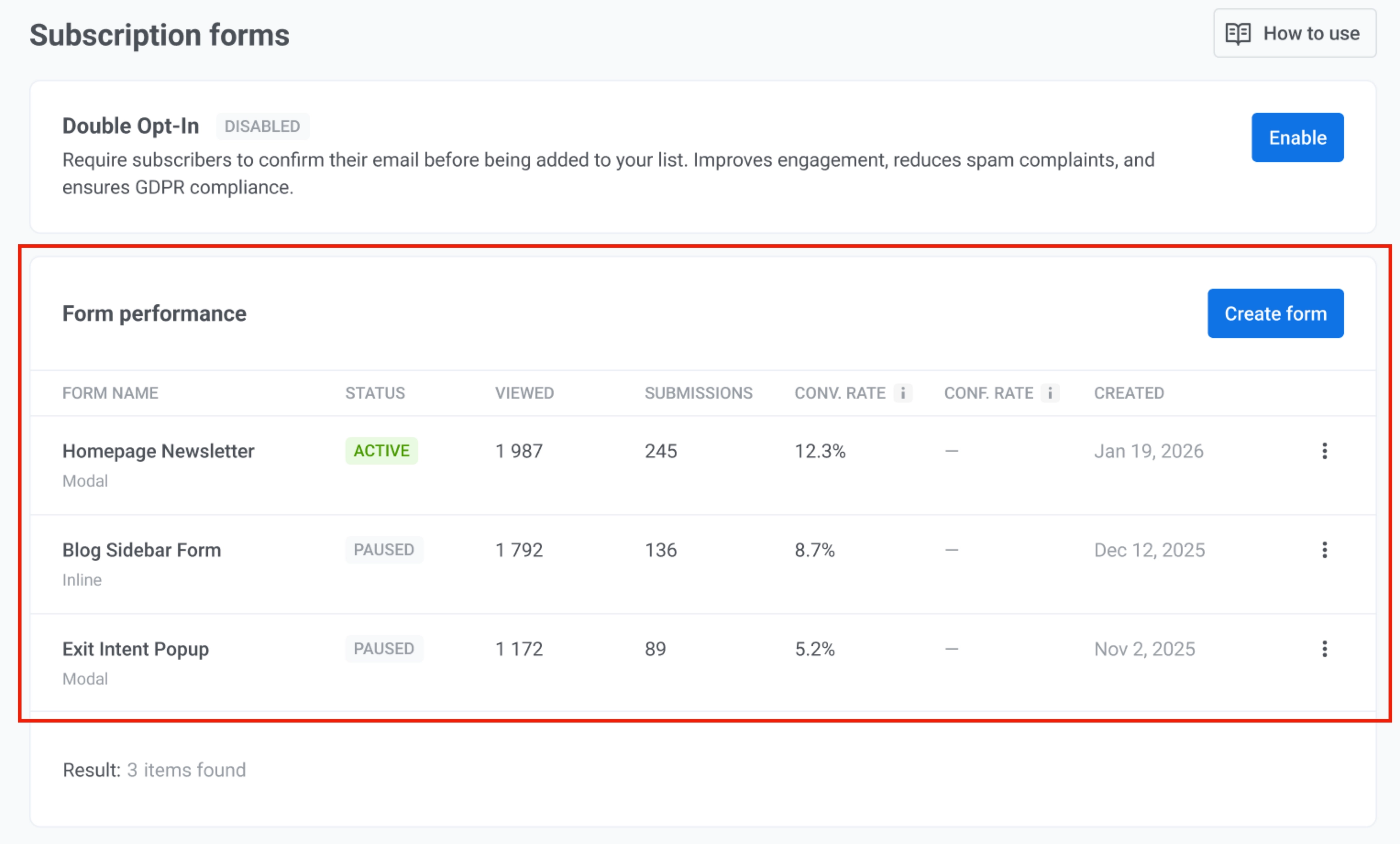 ## Export subscribers
1. In the Form performance table, open the three-dot menu for the form.
2. Click **Export subscribers**. The **Export subscribers** dialog opens.
3. Configure export options:
- **Filter:** **All subscribers**, **Pending only**, **Confirmed only**, or **Expired only**
- **Date range to export:** select the date range for the data you want to export
4. Click **Export**.
## Export subscribers
1. In the Form performance table, open the three-dot menu for the form.
2. Click **Export subscribers**. The **Export subscribers** dialog opens.
3. Configure export options:
- **Filter:** **All subscribers**, **Pending only**, **Confirmed only**, or **Expired only**
- **Date range to export:** select the date range for the data you want to export
4. Click **Export**.
 When the export is ready, a notification appears at the top of the page. Click **Download CSV** to download the file.