# Confirm subscribers with double opt-in
## Understand double opt-in
Double opt-in is a subscription confirmation method that requires people to verify their email address after submitting a form.
Use double opt-in to reduce invalid or mistyped signups, keep your contact list cleaner, and maintain a clearer record of subscriber consent.
Once double opt-in is on, subscribers receive a confirmation email and must click a link to finish signing up. The link expires after 24 hours. If the link expires, the subscriber sees a notification and must return to the form and resubscribe.
### What happens when you turn double opt-in on or off
##### Turning double opt-in on
- Subscribers who signed up **before** you enabled double opt-in keep their existing status (for example **Confirmed**) and do not receive new confirmation emails.
- All new signups after you enable double opt-in receive a confirmation email and stay in **Pending** until they confirm.
##### Turning double opt-in off
- Subscribers who signed up while double opt-in was enabled and are still in **Pending** are **not** automatically promoted to **Confirmed**. They must either confirm via the email they received (if the link is still valid) or submit the form again.
- All **new** signups after you disable double opt-in are recorded as **Confirmed** immediately and do not receive confirmation emails.
## How to configure double opt-in
### Enable double opt-in
On the **Audience → Subscription forms** page, click **Enable** on the Double Opt-In card to enable double opt-in.
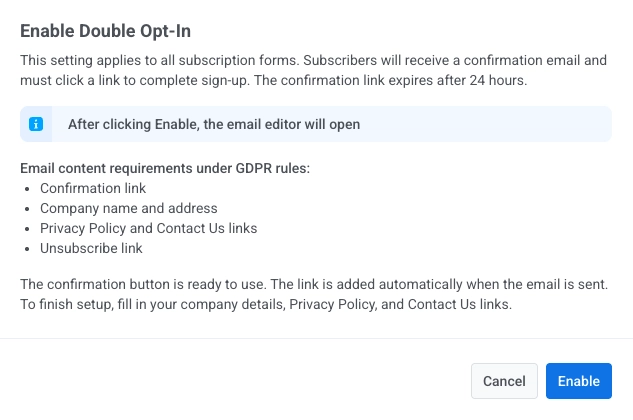
When you click **Enable**, a confirmation dialog opens with information you should review before turning on double opt-in. Click **Enable** in the dialog to continue.
### Customize the confirmation email content
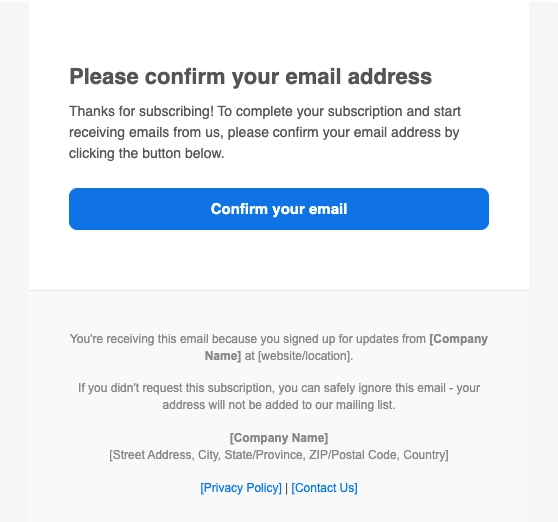
The confirmation email editor opens so you can customize the message for your brand and campaign.
The template already includes the confirmation button and the unsubscribe notice. Complete this template once before your forms start sending confirmation emails. Add company name, physical address, and links to your Privacy Policy and Contact Us pages.
In the editor:
- Set **Subject**, **From name**, and **From email** for the confirmation message.
- Add your company name and address.
- Include links to your Privacy Policy, Contact Us, and Unsubscribe pages.
## Consent logging in User Explorer for double opt-in
When double opt-in is enabled for subscription forms, Pushwoosh logs consent-related details in the subscriber profile in [**User Explorer**](/product/audience-data-and-segmentation/user-explorer/). You can use this information for internal reviews, to answer consent questions in support, or when your own legal and privacy teams need a record of what the product captured.
Pushwoosh records the following details in the subscriber profile:
- Form submission timestamp
- Confirmation timestamp (when the subscriber clicks the confirmation link)
- IP address
- Method of consent (subscription form with double opt-in)
For export and form metrics, see [View form performance and export subscribers](/product/audience-data-and-segmentation/subscription-forms/form-analytics-and-export/).
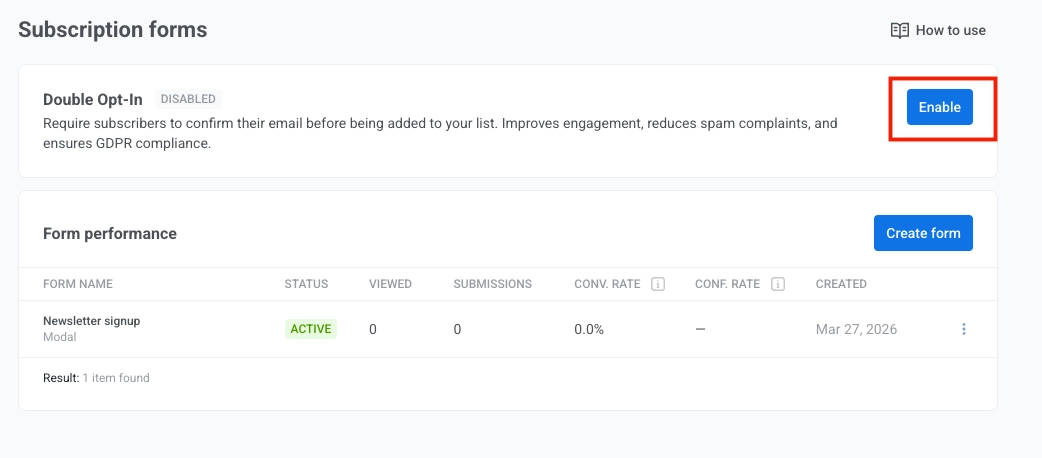 When you click **Enable**, a confirmation dialog opens with information you should review before turning on double opt-in. Click **Enable** in the dialog to continue.
 ### Customize the confirmation email content
The confirmation email editor opens so you can customize the message for your brand and campaign.
The template already includes the confirmation button and the unsubscribe notice. Complete this template once before your forms start sending confirmation emails. Add company name, physical address, and links to your Privacy Policy and Contact Us pages.
### Customize the confirmation email content
The confirmation email editor opens so you can customize the message for your brand and campaign.
The template already includes the confirmation button and the unsubscribe notice. Complete this template once before your forms start sending confirmation emails. Add company name, physical address, and links to your Privacy Policy and Contact Us pages.
 In the editor:
- Set **Subject**, **From name**, and **From email** for the confirmation message.
- Add your company name and address.
- Include links to your Privacy Policy, Contact Us, and Unsubscribe pages.
## Consent logging in User Explorer for double opt-in
When double opt-in is enabled for subscription forms, Pushwoosh logs consent-related details in the subscriber profile in [**User Explorer**](/product/audience-data-and-segmentation/user-explorer/). You can use this information for internal reviews, to answer consent questions in support, or when your own legal and privacy teams need a record of what the product captured.
Pushwoosh records the following details in the subscriber profile:
- Form submission timestamp
- Confirmation timestamp (when the subscriber clicks the confirmation link)
- IP address
- Method of consent (subscription form with double opt-in)
For export and form metrics, see [View form performance and export subscribers](/product/audience-data-and-segmentation/subscription-forms/form-analytics-and-export/).
In the editor:
- Set **Subject**, **From name**, and **From email** for the confirmation message.
- Add your company name and address.
- Include links to your Privacy Policy, Contact Us, and Unsubscribe pages.
## Consent logging in User Explorer for double opt-in
When double opt-in is enabled for subscription forms, Pushwoosh logs consent-related details in the subscriber profile in [**User Explorer**](/product/audience-data-and-segmentation/user-explorer/). You can use this information for internal reviews, to answer consent questions in support, or when your own legal and privacy teams need a record of what the product captured.
Pushwoosh records the following details in the subscriber profile:
- Form submission timestamp
- Confirmation timestamp (when the subscriber clicks the confirmation link)
- IP address
- Method of consent (subscription form with double opt-in)
For export and form metrics, see [View form performance and export subscribers](/product/audience-data-and-segmentation/subscription-forms/form-analytics-and-export/).