# External segments
With external segments, you connect your own database and give Pushwoosh a SQL query that returns user IDs. Pushwoosh runs that query against your database and keeps the resulting segment in sync, so you can target these users the same way as any other segment, without exporting or re-uploading a CSV every time the underlying list changes.
Setting up a connection touches your production database. Before you start, have your developer or database administrator prepare a read-only user (or, for BigQuery, a read-only service account) and confirm the query you plan to use.
## Create an external segment
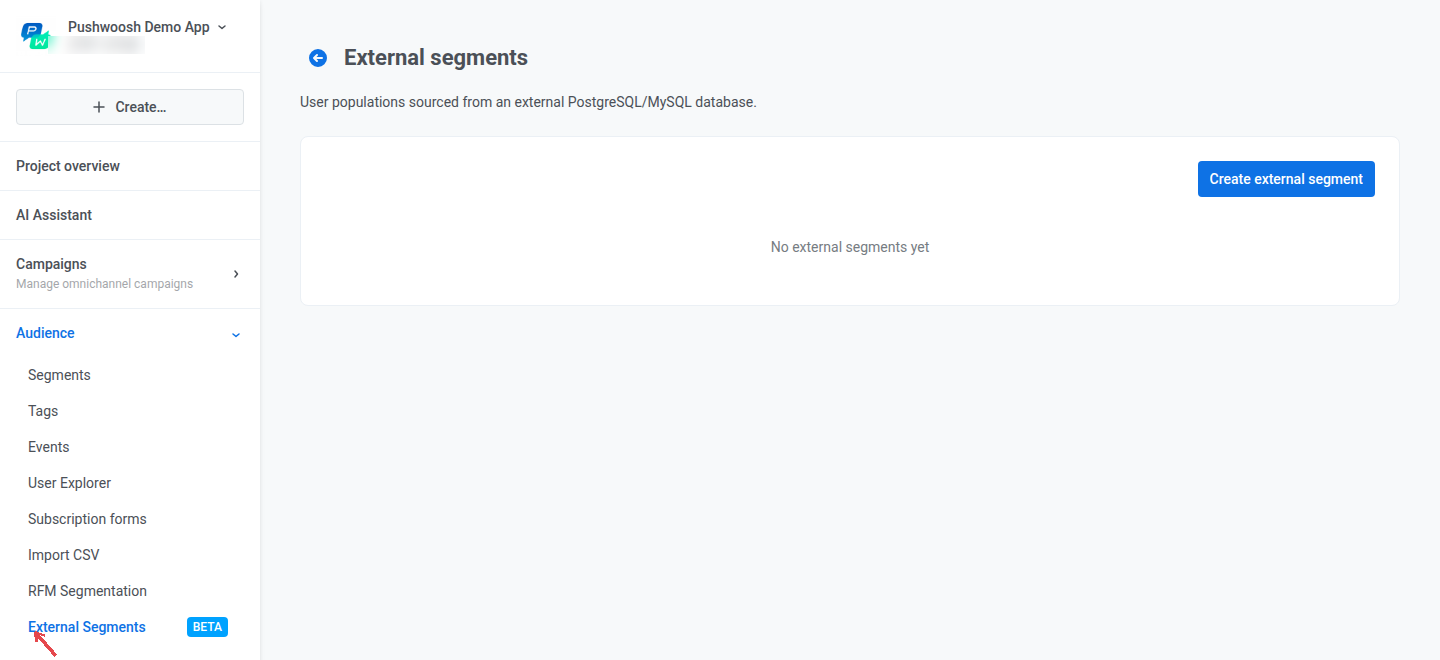
1. Go to **Audience** → **External Segments**.
2. Click **Create external segment**.
3. Enter a **Name** for the segment.
4. Choose the **Database type**: **PostgreSQL**, **MySQL**, or **Google BigQuery**.
5. Fill in the connection fields for your database type (see below).
6. Enter the **Query**. It must return a single column named `user_id`.
7. Click **Check connection** to confirm Pushwoosh can reach the database, then click **Check query** to confirm the query runs and returns the right column.
8. Click **Create**.
### PostgreSQL and MySQL connection fields
For **PostgreSQL** and **MySQL**, fill in:
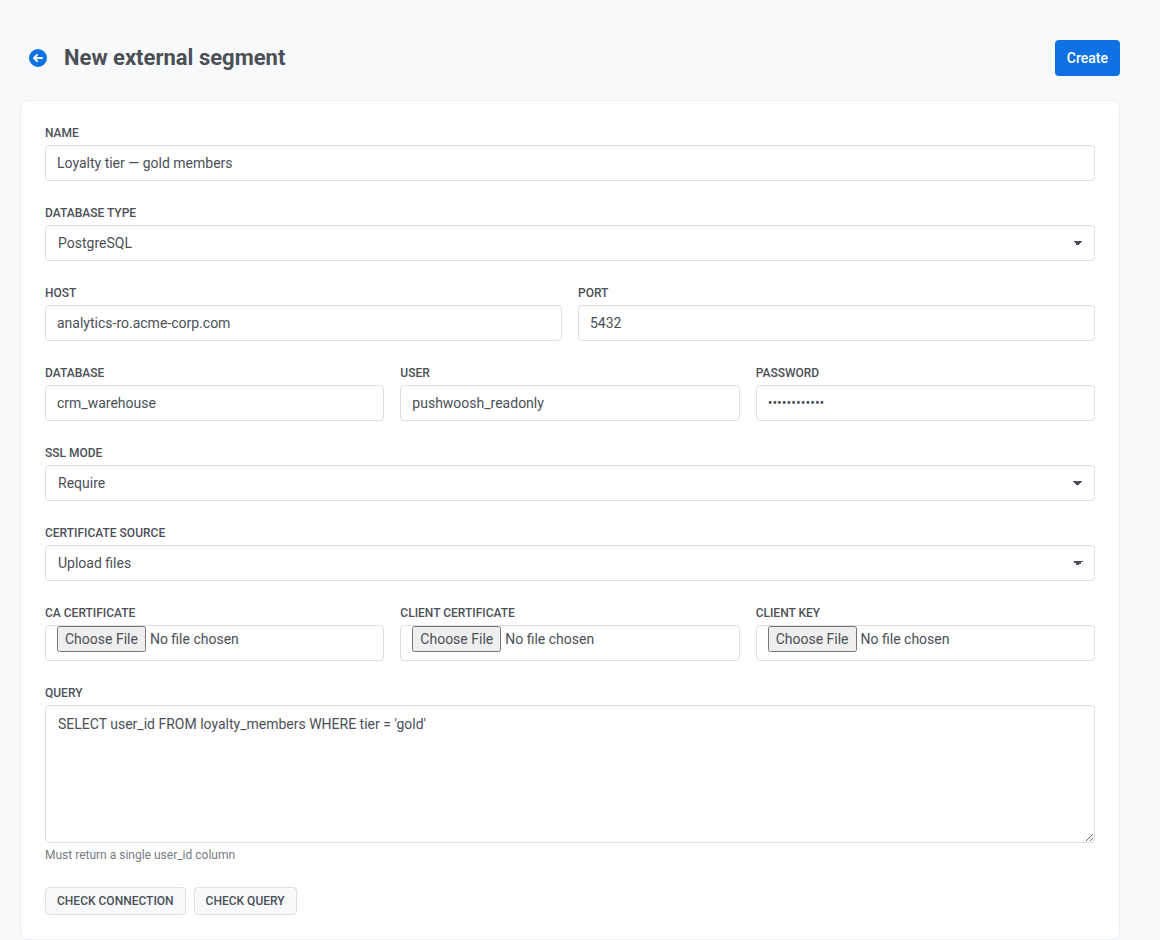
* **Host** and **Port**: the address of your database server. Pushwoosh requires a publicly reachable host and rejects private, internal, or loopback addresses when you check the connection or save the segment.
* **Database**: the database name.
* **User** and **Password**: credentials for a read-only account.
* **SSL mode** (PostgreSQL only): **Disable**, **Require**, **Verify CA**, or **Verify full**. MySQL connections don't use TLS. Choosing anything other than **Disable** reveals a **Certificate source** option (**Upload files** or **Paste PEM**) for the **CA certificate**, **Client certificate**, and **Client key**.
### BigQuery connection fields
For **Google BigQuery**, fill in:
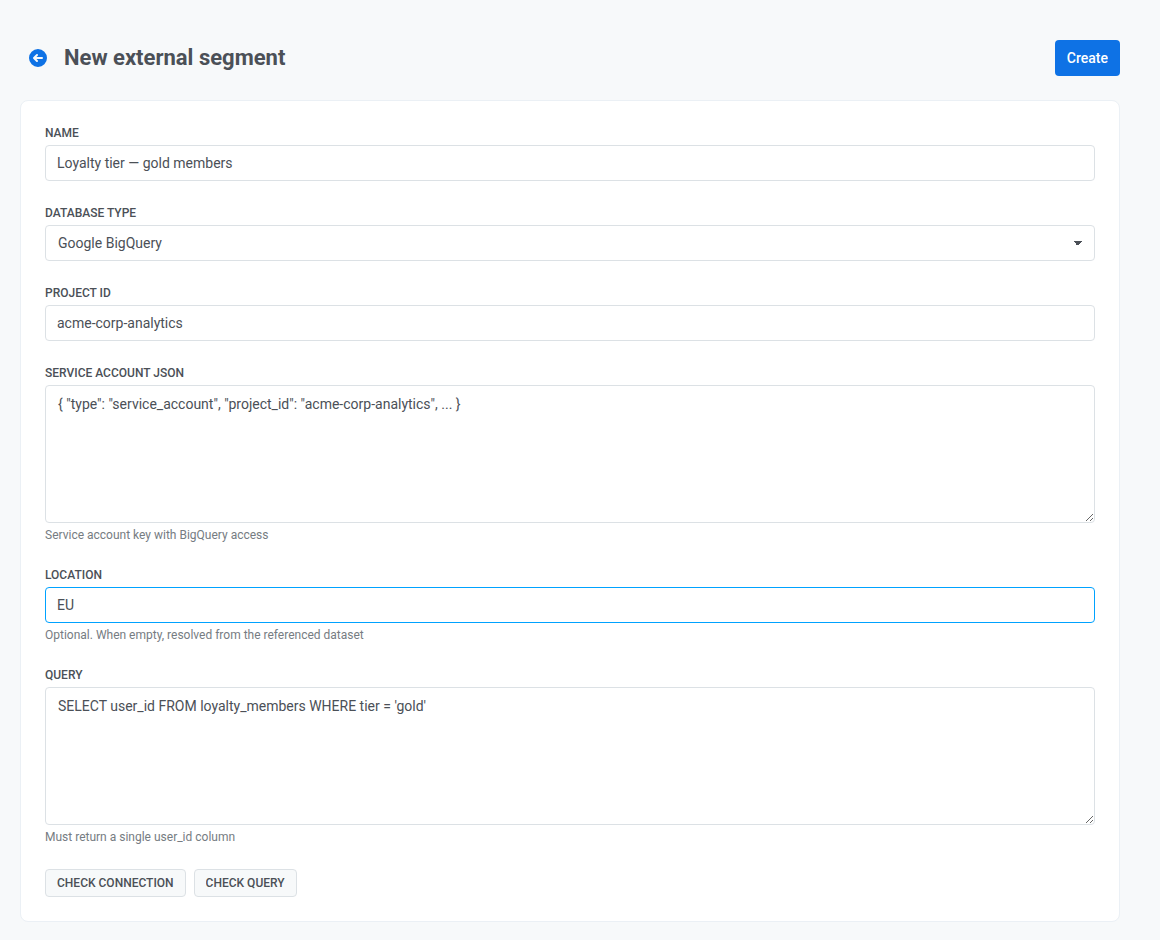
* **Project ID**: the GCP project that holds your dataset.
* **Service account JSON**: the key for a service account with BigQuery read access.
* **Location**: the dataset's region (for example, `EU`, `US`, or `europe-west3`). Leave it empty to resolve the location automatically from the dataset.
## How the query works
The query must return exactly one column named `user_id`, with one row per user you want in the segment:
```sql
SELECT user_id FROM loyalty_members WHERE tier = 'gold'
```
## How the segment stays up to date
Pushwoosh doesn't run your query on a fixed schedule. Instead, it refreshes the segment based on how recently it was last used:
* If the segment's data is less than an hour old, Pushwoosh serves it as-is.
* If it's older than an hour, Pushwoosh keeps serving the current data while it refreshes in the background.
* If it's older than three hours, Pushwoosh blocks and waits for a fresh refresh before serving the segment.
In practice, this means a segment you use regularly (for example, in a recurring journey) stays current, while a segment you rarely touch may take a moment to refresh the first time you use it again.
If a refresh fails (for example, the database becomes unreachable or the query starts erroring), Pushwoosh records the error, but the segment's status on the **External Segments** list doesn't change on its own. After you've fixed the issue on your end, open the segment and click **Check connection** to confirm it and clear the error.
## Use an external segment
Once created and valid, an external segment behaves like any other segment: it's available as a condition wherever you build a segment or filter, including [compound filters](/product/audience-data-and-segmentation/segmentation/create-segments/compound-filters) and [Audience-based entry](/product/customer-journey/journey-elements/#audience-based-entry) in Customer Journey.
## Manage external segments
On the **External Segments** list, each row shows the segment's name, database type, host, and status (valid or invalid).
* To change the connection or query, open the segment and update its fields. The database type can't be changed after creation. Create a new segment instead.
* To remove a segment, delete it. Pushwoosh blocks the deletion while the segment is used by a campaign, journey, filter, or popup form. Remove those references first, then delete the segment. This cannot be undone.
 ### PostgreSQL and MySQL connection fields
For **PostgreSQL** and **MySQL**, fill in:
* **Host** and **Port**: the address of your database server. Pushwoosh requires a publicly reachable host and rejects private, internal, or loopback addresses when you check the connection or save the segment.
* **Database**: the database name.
* **User** and **Password**: credentials for a read-only account.
* **SSL mode** (PostgreSQL only): **Disable**, **Require**, **Verify CA**, or **Verify full**. MySQL connections don't use TLS. Choosing anything other than **Disable** reveals a **Certificate source** option (**Upload files** or **Paste PEM**) for the **CA certificate**, **Client certificate**, and **Client key**.
### PostgreSQL and MySQL connection fields
For **PostgreSQL** and **MySQL**, fill in:
* **Host** and **Port**: the address of your database server. Pushwoosh requires a publicly reachable host and rejects private, internal, or loopback addresses when you check the connection or save the segment.
* **Database**: the database name.
* **User** and **Password**: credentials for a read-only account.
* **SSL mode** (PostgreSQL only): **Disable**, **Require**, **Verify CA**, or **Verify full**. MySQL connections don't use TLS. Choosing anything other than **Disable** reveals a **Certificate source** option (**Upload files** or **Paste PEM**) for the **CA certificate**, **Client certificate**, and **Client key**.
 ### BigQuery connection fields
For **Google BigQuery**, fill in:
* **Project ID**: the GCP project that holds your dataset.
* **Service account JSON**: the key for a service account with BigQuery read access.
* **Location**: the dataset's region (for example, `EU`, `US`, or `europe-west3`). Leave it empty to resolve the location automatically from the dataset.
### BigQuery connection fields
For **Google BigQuery**, fill in:
* **Project ID**: the GCP project that holds your dataset.
* **Service account JSON**: the key for a service account with BigQuery read access.
* **Location**: the dataset's region (for example, `EU`, `US`, or `europe-west3`). Leave it empty to resolve the location automatically from the dataset.
 ## How the query works
The query must return exactly one column named `user_id`, with one row per user you want in the segment:
```sql
SELECT user_id FROM loyalty_members WHERE tier = 'gold'
```
## How the segment stays up to date
Pushwoosh doesn't run your query on a fixed schedule. Instead, it refreshes the segment based on how recently it was last used:
* If the segment's data is less than an hour old, Pushwoosh serves it as-is.
* If it's older than an hour, Pushwoosh keeps serving the current data while it refreshes in the background.
* If it's older than three hours, Pushwoosh blocks and waits for a fresh refresh before serving the segment.
In practice, this means a segment you use regularly (for example, in a recurring journey) stays current, while a segment you rarely touch may take a moment to refresh the first time you use it again.
If a refresh fails (for example, the database becomes unreachable or the query starts erroring), Pushwoosh records the error, but the segment's status on the **External Segments** list doesn't change on its own. After you've fixed the issue on your end, open the segment and click **Check connection** to confirm it and clear the error.
## Use an external segment
Once created and valid, an external segment behaves like any other segment: it's available as a condition wherever you build a segment or filter, including [compound filters](/product/audience-data-and-segmentation/segmentation/create-segments/compound-filters) and [Audience-based entry](/product/customer-journey/journey-elements/#audience-based-entry) in Customer Journey.
## Manage external segments
On the **External Segments** list, each row shows the segment's name, database type, host, and status (valid or invalid).
* To change the connection or query, open the segment and update its fields. The database type can't be changed after creation. Create a new segment instead.
* To remove a segment, delete it. Pushwoosh blocks the deletion while the segment is used by a campaign, journey, filter, or popup form. Remove those references first, then delete the segment. This cannot be undone.
## How the query works
The query must return exactly one column named `user_id`, with one row per user you want in the segment:
```sql
SELECT user_id FROM loyalty_members WHERE tier = 'gold'
```
## How the segment stays up to date
Pushwoosh doesn't run your query on a fixed schedule. Instead, it refreshes the segment based on how recently it was last used:
* If the segment's data is less than an hour old, Pushwoosh serves it as-is.
* If it's older than an hour, Pushwoosh keeps serving the current data while it refreshes in the background.
* If it's older than three hours, Pushwoosh blocks and waits for a fresh refresh before serving the segment.
In practice, this means a segment you use regularly (for example, in a recurring journey) stays current, while a segment you rarely touch may take a moment to refresh the first time you use it again.
If a refresh fails (for example, the database becomes unreachable or the query starts erroring), Pushwoosh records the error, but the segment's status on the **External Segments** list doesn't change on its own. After you've fixed the issue on your end, open the segment and click **Check connection** to confirm it and clear the error.
## Use an external segment
Once created and valid, an external segment behaves like any other segment: it's available as a condition wherever you build a segment or filter, including [compound filters](/product/audience-data-and-segmentation/segmentation/create-segments/compound-filters) and [Audience-based entry](/product/customer-journey/journey-elements/#audience-based-entry) in Customer Journey.
## Manage external segments
On the **External Segments** list, each row shows the segment's name, database type, host, and status (valid or invalid).
* To change the connection or query, open the segment and update its fields. The database type can't be changed after creation. Create a new segment instead.
* To remove a segment, delete it. Pushwoosh blocks the deletion while the segment is used by a campaign, journey, filter, or popup form. Remove those references first, then delete the segment. This cannot be undone.