# Build segments by User ID
Use the **User ID** filter to create a segment of known users by their Pushwoosh User IDs. This works best when you already know which users you want to include and those User IDs are registered in your project.
## How to build a segment by User ID
To create a User ID-based segment:
1. Go to **Audience** → **Segments**.
2. Click **Create Segment**.
3. Select **Build Segment**.
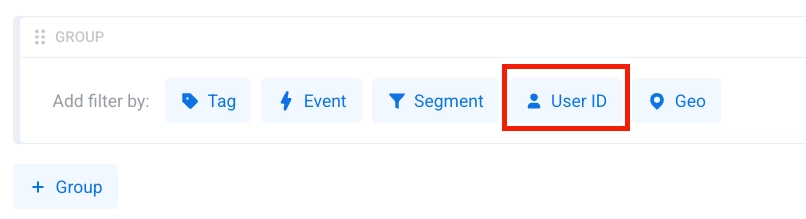
4. In the segment builder, click **User ID** in **Add filter by**.
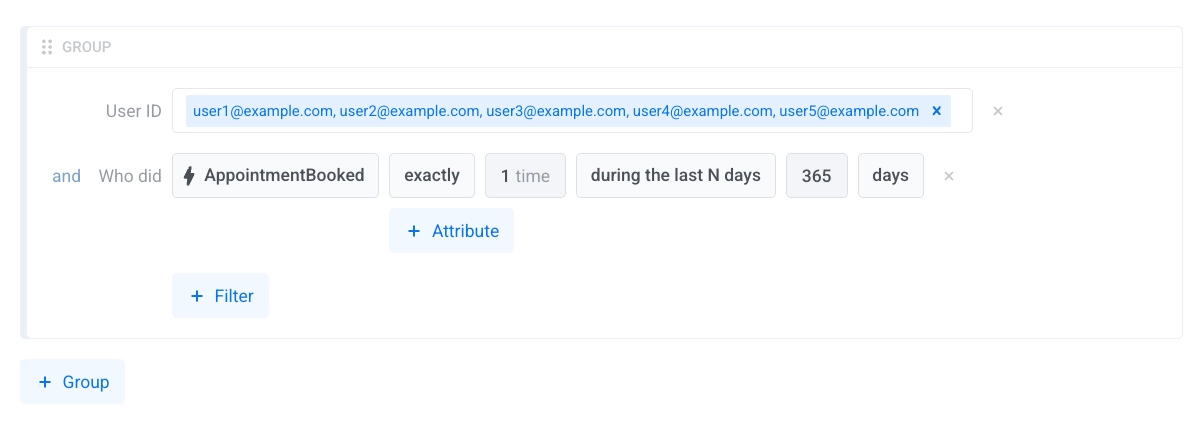
5. Add the User IDs that should be included in the segment.
6. Add more filters if needed.
7. To target a user across all their devices when a User ID matches the condition, use **Include all user devices**. [Learn how this option works](/product/audience-data-and-segmentation/segmentation/create-segments/by-tags/#include-all-user-devices).
8. Click **Save**.
 5. Add the User IDs that should be included in the segment.
 6. Add more filters if needed.
7. To target a user across all their devices when a User ID matches the condition, use **Include all user devices**. [Learn how this option works](/product/audience-data-and-segmentation/segmentation/create-segments/by-tags/#include-all-user-devices).
8. Click **Save**.
6. Add more filters if needed.
7. To target a user across all their devices when a User ID matches the condition, use **Include all user devices**. [Learn how this option works](/product/audience-data-and-segmentation/segmentation/create-segments/by-tags/#include-all-user-devices).
8. Click **Save**.