# Import a segment
**CSV import** allows you to create a segment by uploading a file containing User IDs or Hardware IDs (HWIDs) without needing to specify filtering conditions. This is useful when you have a predefined list of users from external sources.
## How to import a segment
To import a segment from a CSV file:
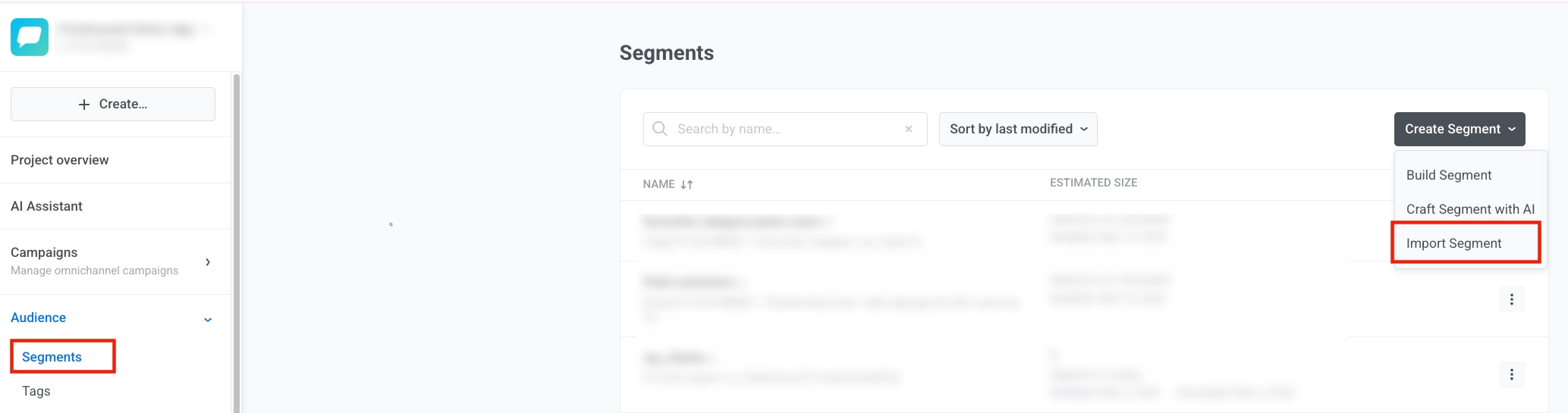
1. Go to **Audience** → **Segments**, click **Create Segment**, and select **Import segment**.
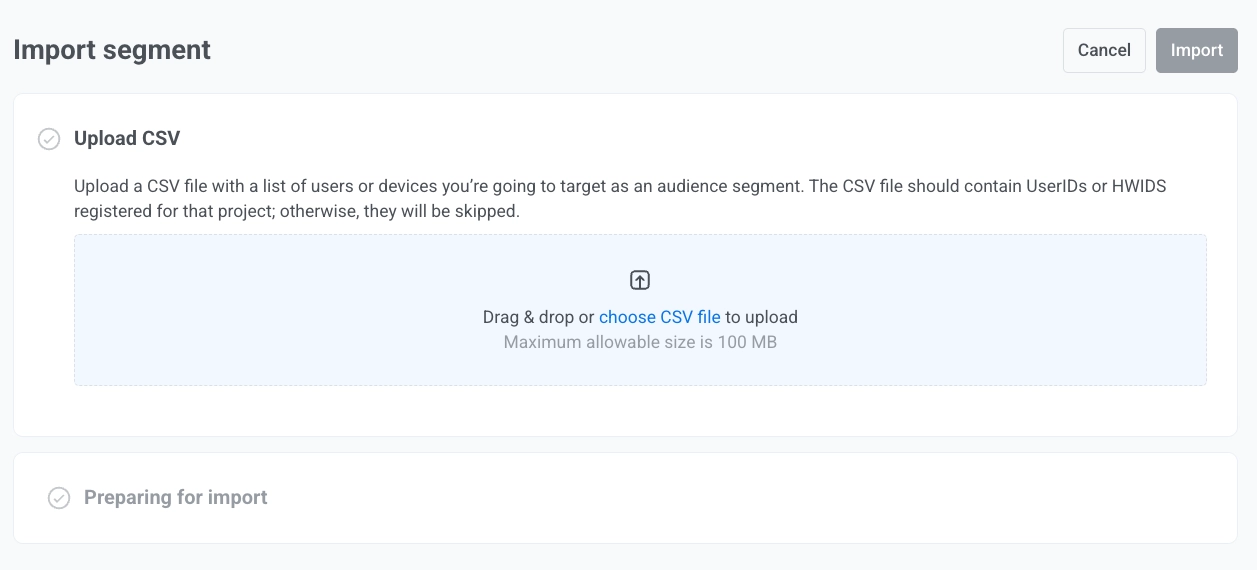
2. Upload your CSV file. Ensure your CSV file meets the following requirements:
- Contains [User IDs](/product/pushwoosh-knowledge-hub/users-userids/) or [Hardware IDs (HWIDs)](/product/pushwoosh-knowledge-hub/device-identifiers/#hwid) registered for your project. If the CSV file does not contain any User ID or HWID, it won't create any segment.
- File size is less than 100 MB
- If User IDs or HWIDs are not registered for your project, they will be skipped during import.
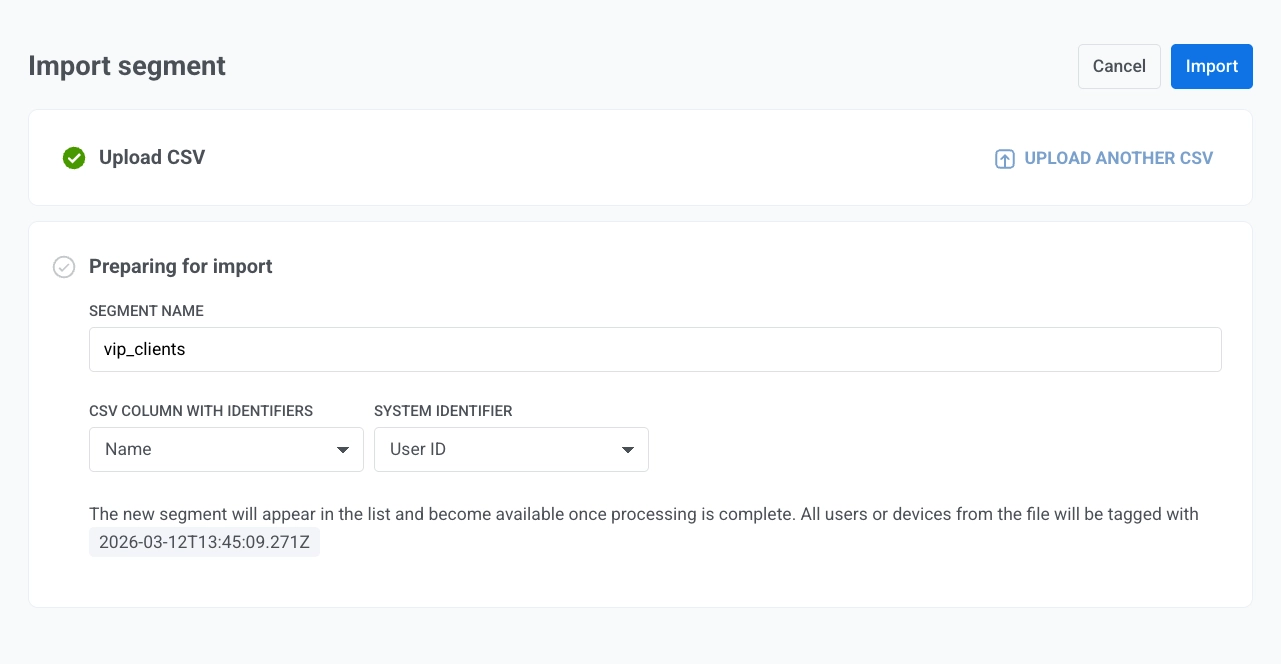
3. In the **Preparing for import** step:
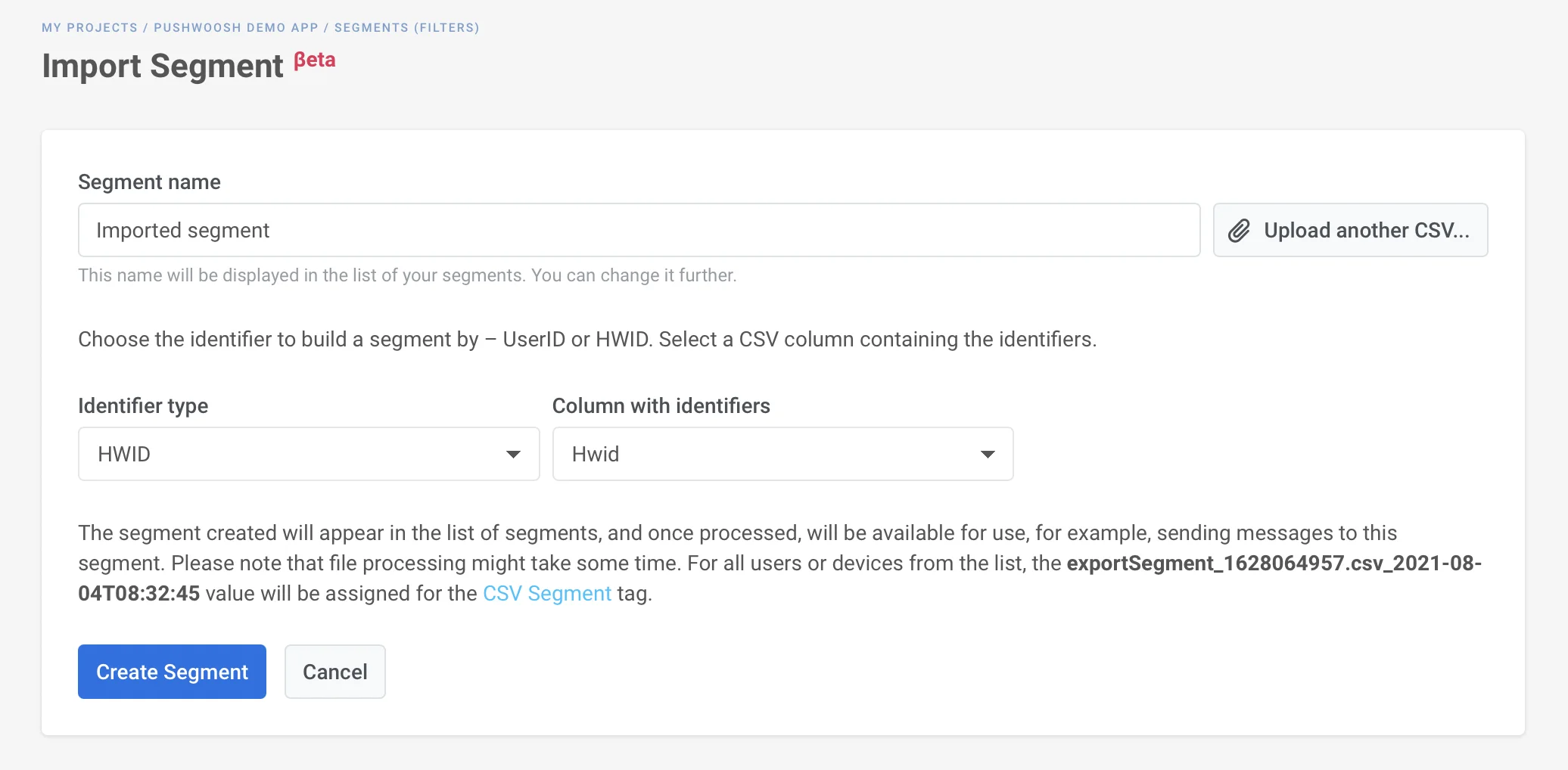
- Enter a **Segment name** (e.g. vip_clients).
- Under **CSV column with identifiers**, select the column that contains User IDs or HWIDs (the identifier values registered in your project). The values in that column must be the actual User IDs or HWIDs.
- Under **System identifier**, choose **User ID** or **Hardware ID** (HWID) to map that column to Pushwoosh.
- Click **Import**.
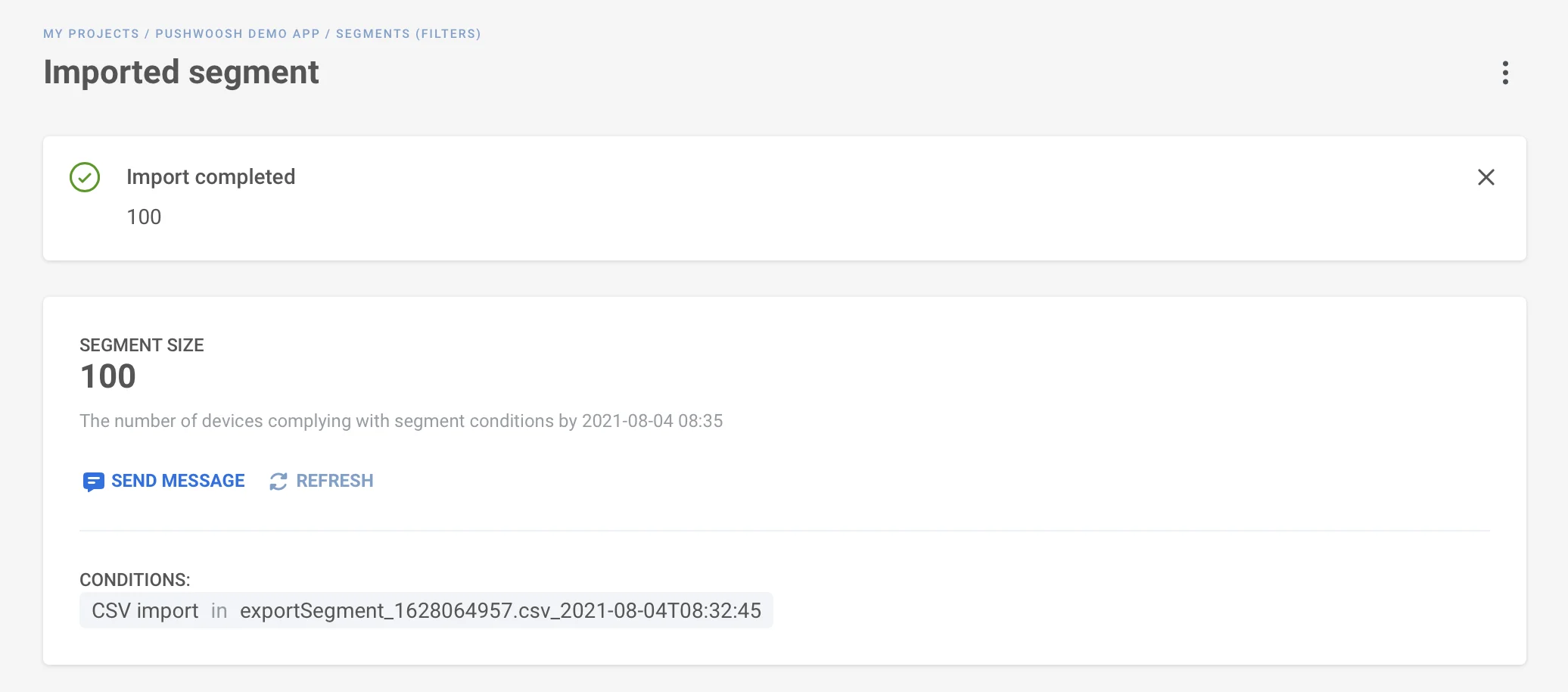
4. Wait for the import to complete. Processing the CSV file might take some time. You can leave the page while the import completes.
After the import is finished, the segment will appear in the [Segments list](/product/audience-data-and-segmentation/segmentation/#segments-list).
## CSV import tag
After import, Pushwoosh tags all users or devices from the file with a "CSV import" tag (value is the import timestamp).
You see this in the [Segments list](/product/audience-data-and-segmentation/segmentation/#segments-list) under the segment name and in each user's profile in [User Explorer](/product/audience-data-and-segmentation/user-explorer/).
## View imported segments
In the [Segments list](/product/audience-data-and-segmentation/segmentation/#segments-list), you'll see the segment name, the segment definition, the number of users, the last time the segment size was refreshed, and the modified date.
 2. Upload your CSV file. Ensure your CSV file meets the following requirements:
- Contains [User IDs](/product/pushwoosh-knowledge-hub/users-userids/) or [Hardware IDs (HWIDs)](/product/pushwoosh-knowledge-hub/device-identifiers/#hwid) registered for your project. If the CSV file does not contain any User ID or HWID, it won't create any segment.
- File size is less than 100 MB
- If User IDs or HWIDs are not registered for your project, they will be skipped during import.
2. Upload your CSV file. Ensure your CSV file meets the following requirements:
- Contains [User IDs](/product/pushwoosh-knowledge-hub/users-userids/) or [Hardware IDs (HWIDs)](/product/pushwoosh-knowledge-hub/device-identifiers/#hwid) registered for your project. If the CSV file does not contain any User ID or HWID, it won't create any segment.
- File size is less than 100 MB
- If User IDs or HWIDs are not registered for your project, they will be skipped during import.
 3. In the **Preparing for import** step:
- Enter a **Segment name** (e.g. vip_clients).
- Under **CSV column with identifiers**, select the column that contains User IDs or HWIDs (the identifier values registered in your project). The values in that column must be the actual User IDs or HWIDs.
- Under **System identifier**, choose **User ID** or **Hardware ID** (HWID) to map that column to Pushwoosh.
- Click **Import**.
3. In the **Preparing for import** step:
- Enter a **Segment name** (e.g. vip_clients).
- Under **CSV column with identifiers**, select the column that contains User IDs or HWIDs (the identifier values registered in your project). The values in that column must be the actual User IDs or HWIDs.
- Under **System identifier**, choose **User ID** or **Hardware ID** (HWID) to map that column to Pushwoosh.
- Click **Import**.
 4. Wait for the import to complete. Processing the CSV file might take some time. You can leave the page while the import completes.
 After the import is finished, the segment will appear in the [Segments list](/product/audience-data-and-segmentation/segmentation/#segments-list).
## CSV import tag
After import, Pushwoosh tags all users or devices from the file with a "CSV import" tag (value is the import timestamp).
After the import is finished, the segment will appear in the [Segments list](/product/audience-data-and-segmentation/segmentation/#segments-list).
## CSV import tag
After import, Pushwoosh tags all users or devices from the file with a "CSV import" tag (value is the import timestamp).
 You see this in the [Segments list](/product/audience-data-and-segmentation/segmentation/#segments-list) under the segment name and in each user's profile in [User Explorer](/product/audience-data-and-segmentation/user-explorer/).
## View imported segments
In the [Segments list](/product/audience-data-and-segmentation/segmentation/#segments-list), you'll see the segment name, the segment definition, the number of users, the last time the segment size was refreshed, and the modified date.
You see this in the [Segments list](/product/audience-data-and-segmentation/segmentation/#segments-list) under the segment name and in each user's profile in [User Explorer](/product/audience-data-and-segmentation/user-explorer/).
## View imported segments
In the [Segments list](/product/audience-data-and-segmentation/segmentation/#segments-list), you'll see the segment name, the segment definition, the number of users, the last time the segment size was refreshed, and the modified date.