# Build segments by existing segments
**Segment-based filtering** allows you to include users who already belong to one or more existing segments. This lets you reuse previously defined logic instead of recreating complex conditions from scratch, making it easier to build layered audience targeting.
## How to build segments by existing segments
To build a segment using existing segments:
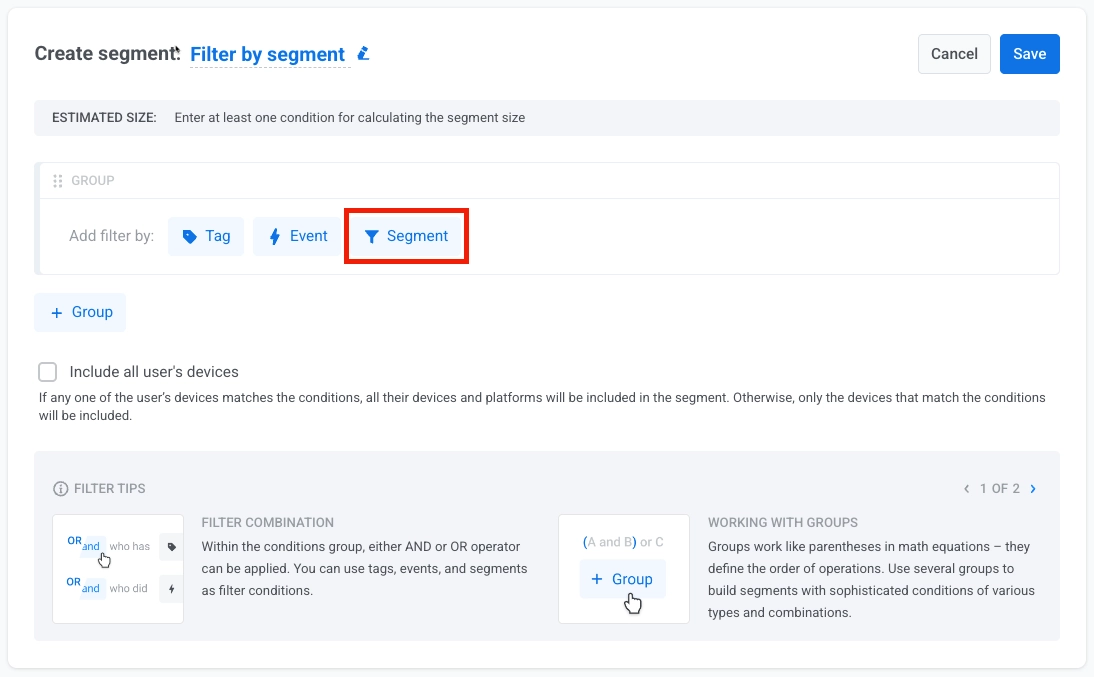
1. When creating a new segment, click **Add filter by** → **Segment**.
2. Select one or more existing segments to include in your new segment.
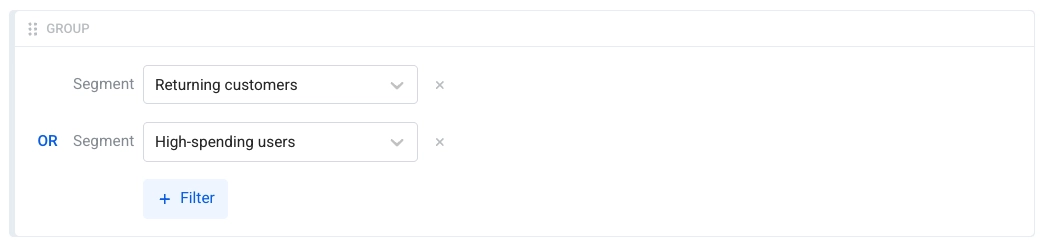
3. If you add multiple segments, choose how they should be combined using a logic operator:
- Select **AND** to include users who belong to all selected segments
- Select **OR** to include users who belong to any of the selected segments
## Include all user devices
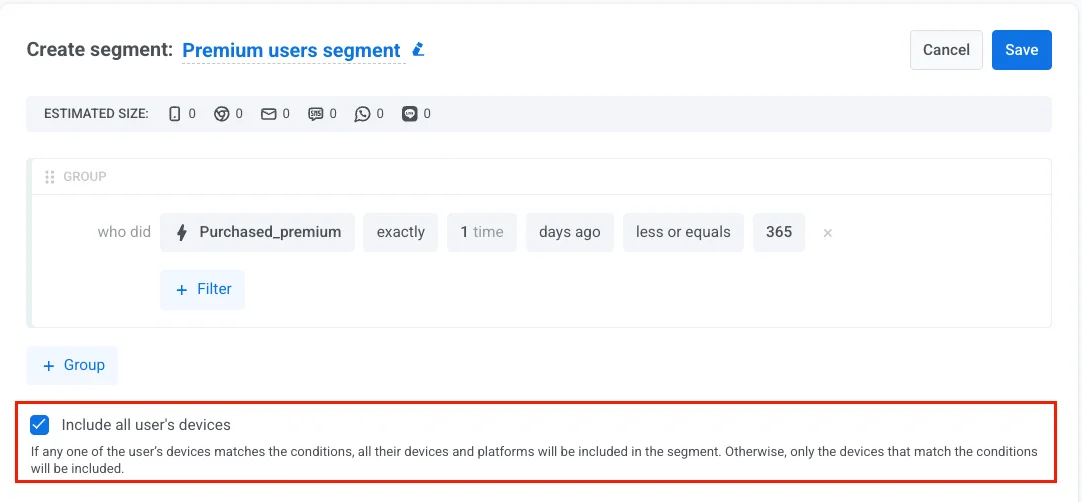
Enable this option to target a user across all their devices, not just the one that matched the segment condition. This ensures they receive your messages on every platform they use.
* **Enabled**: If any of the user's devices meet the condition (for example, purchase event, tag, behavior), all their devices across platforms are included in the segment.
* **Disabled**: Only the devices that meet the condition are included in the segment.
## Use cases for segment-based filtering
Below are practical scenarios showing how to use existing segments to create more targeted audiences.
##### Premium active users
**Goal:** Target only premium subscribers who are recently active.
**How to set up:**
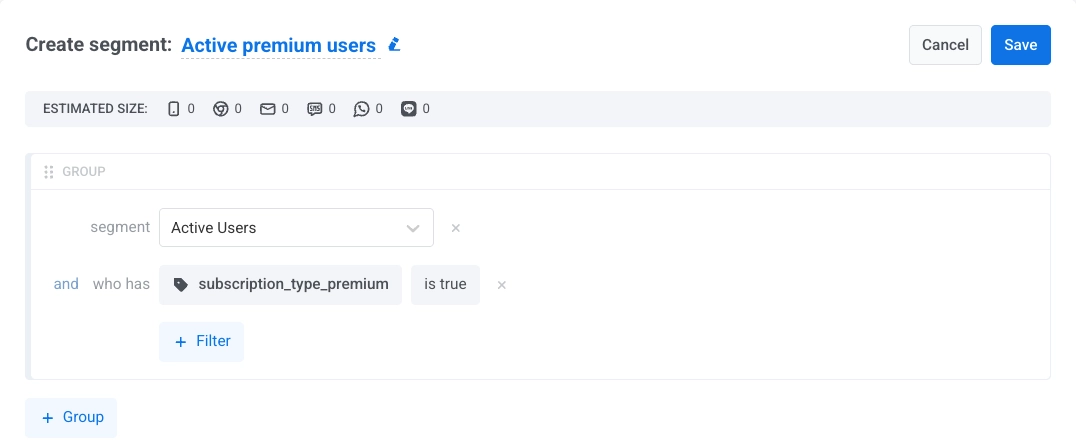
- **Segment filter:** Select `Active Users` (users who opened the app in the last 7 days)
- **Tag filter:** `subscription_type_premium` is true
- **Operator:** AND
**Use case:** Send exclusive offers or premium feature announcements to engaged, paying users.
##### Multi-segment engagement
**Goal:** Target users who belong to either high-value customers or recent purchasers.
**How to set up:**
- **Segment 1:** Select `High-Value Customers`
- **Segment 2:** Select `Recent Purchasers`
- **Operator:** OR
**Use case:** Run promotional campaigns targeting users with demonstrated purchase behavior from multiple angles.
## Tips for segment-based filtering
- Reuse well-defined segments to maintain consistency across campaigns and reduce setup time.
- Combine segment filters with [tags](/product/audience-data-and-segmentation/segmentation/create-segments/by-tags/) or [events](/product/audience-data-and-segmentation/segmentation/create-segments/by-events/) for more precise targeting.
- Keep track of segment nesting levels to avoid hitting the five-level limit.
- Regularly review and update base segments to ensure derived segments remain accurate.
 2. Select one or more existing segments to include in your new segment.
3. If you add multiple segments, choose how they should be combined using a logic operator:
- Select **AND** to include users who belong to all selected segments
- Select **OR** to include users who belong to any of the selected segments
2. Select one or more existing segments to include in your new segment.
3. If you add multiple segments, choose how they should be combined using a logic operator:
- Select **AND** to include users who belong to all selected segments
- Select **OR** to include users who belong to any of the selected segments
 ## Include all user devices
Enable this option to target a user across all their devices, not just the one that matched the segment condition. This ensures they receive your messages on every platform they use.
* **Enabled**: If any of the user's devices meet the condition (for example, purchase event, tag, behavior), all their devices across platforms are included in the segment.
* **Disabled**: Only the devices that meet the condition are included in the segment.
## Include all user devices
Enable this option to target a user across all their devices, not just the one that matched the segment condition. This ensures they receive your messages on every platform they use.
* **Enabled**: If any of the user's devices meet the condition (for example, purchase event, tag, behavior), all their devices across platforms are included in the segment.
* **Disabled**: Only the devices that meet the condition are included in the segment.
 ## Use cases for segment-based filtering
Below are practical scenarios showing how to use existing segments to create more targeted audiences.
##### Premium active users
**Goal:** Target only premium subscribers who are recently active.
**How to set up:**
- **Segment filter:** Select `Active Users` (users who opened the app in the last 7 days)
- **Tag filter:** `subscription_type_premium` is true
- **Operator:** AND
**Use case:** Send exclusive offers or premium feature announcements to engaged, paying users.
## Use cases for segment-based filtering
Below are practical scenarios showing how to use existing segments to create more targeted audiences.
##### Premium active users
**Goal:** Target only premium subscribers who are recently active.
**How to set up:**
- **Segment filter:** Select `Active Users` (users who opened the app in the last 7 days)
- **Tag filter:** `subscription_type_premium` is true
- **Operator:** AND
**Use case:** Send exclusive offers or premium feature announcements to engaged, paying users.
 ##### Multi-segment engagement
**Goal:** Target users who belong to either high-value customers or recent purchasers.
**How to set up:**
- **Segment 1:** Select `High-Value Customers`
- **Segment 2:** Select `Recent Purchasers`
- **Operator:** OR
**Use case:** Run promotional campaigns targeting users with demonstrated purchase behavior from multiple angles.
## Tips for segment-based filtering
- Reuse well-defined segments to maintain consistency across campaigns and reduce setup time.
- Combine segment filters with [tags](/product/audience-data-and-segmentation/segmentation/create-segments/by-tags/) or [events](/product/audience-data-and-segmentation/segmentation/create-segments/by-events/) for more precise targeting.
- Keep track of segment nesting levels to avoid hitting the five-level limit.
- Regularly review and update base segments to ensure derived segments remain accurate.
##### Multi-segment engagement
**Goal:** Target users who belong to either high-value customers or recent purchasers.
**How to set up:**
- **Segment 1:** Select `High-Value Customers`
- **Segment 2:** Select `Recent Purchasers`
- **Operator:** OR
**Use case:** Run promotional campaigns targeting users with demonstrated purchase behavior from multiple angles.
## Tips for segment-based filtering
- Reuse well-defined segments to maintain consistency across campaigns and reduce setup time.
- Combine segment filters with [tags](/product/audience-data-and-segmentation/segmentation/create-segments/by-tags/) or [events](/product/audience-data-and-segmentation/segmentation/create-segments/by-events/) for more precise targeting.
- Keep track of segment nesting levels to avoid hitting the five-level limit.
- Regularly review and update base segments to ensure derived segments remain accurate.