# Calculate segment size
## How to calculate the segment size
When planning your next targeted campaign, you may want to get an estimate of how many devices receive your push or see your in-app. Pushwoosh makes it easy to calculate the segment size and see the estimated number of subscribers across different communication channels.
After you create a segment, its size is calculated automatically when possible from the conditions you set.
When you change the conditions, the size is recalculated for the new criteria.
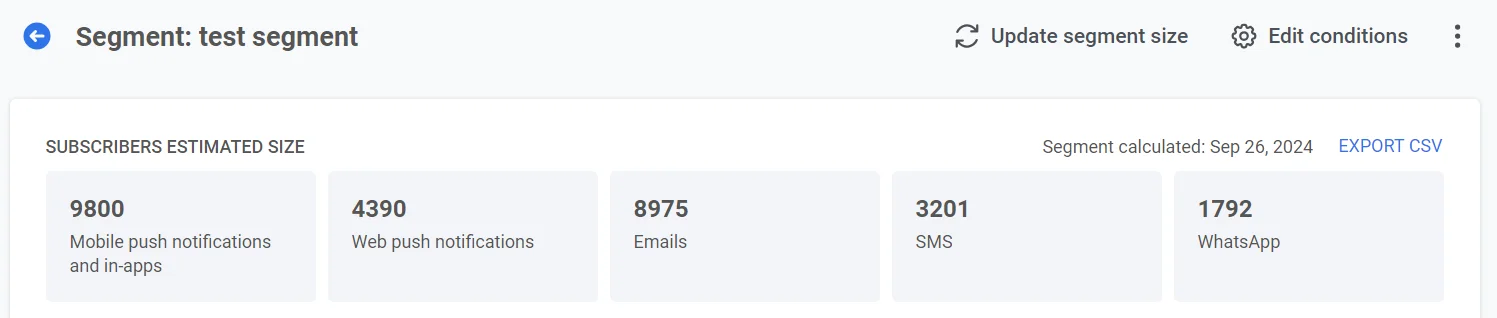
Once the segment size is calculated, the segment view shows a summary card **Included in segment: devices that match the conditions**.
The card displays:
* **Calculated:** The date of the last calculation, with a refresh icon to run **Update segment size** again.
* **Unique users:** Total number of distinct users in the segment.
* **Devices:** Counts by channel (mobile, web, email, SMS, WhatsApp, Line).
Below the card you see the conditions that define the segment.
Use **Update segment size** in the header or the refresh icon next to the calculated date to recalculate.
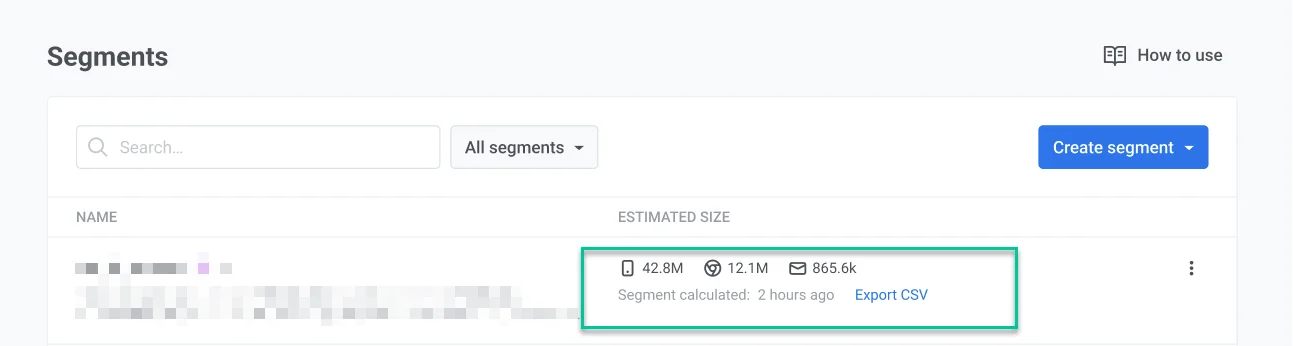
You can view the segment size in the Segments list, including the number of subscribers for each platform. If the size has not been calculated yet, the list shows "Segment not calculated" and the last modified date.
To refresh the segment size from the Segments list, click the three dots next to the segment name and select **Refresh Segment Size** or **Refresh & Export to CSV**.
### Export to CSV
Export this data to a CSV file for further analysis. From the segment detail page, use **Generate CSV for export** in the three-dot menu. [Learn more](/product/audience-data-and-segmentation/segmentation/#export-segment-users)
The CSV file contains information about each user and Tag values. You can use CSV files to send targeted pushes and emails. You can also analyze audience segments to improve your campaigns.
 You can view the segment size in the Segments list, including the number of subscribers for each platform. If the size has not been calculated yet, the list shows "Segment not calculated" and the last modified date.
 To refresh the segment size from the Segments list, click the three dots next to the segment name and select **Refresh Segment Size** or **Refresh & Export to CSV**.
### Export to CSV
Export this data to a CSV file for further analysis. From the segment detail page, use **Generate CSV for export** in the three-dot menu. [Learn more](/product/audience-data-and-segmentation/segmentation/#export-segment-users)
The CSV file contains information about each user and Tag values. You can use CSV files to send targeted pushes and emails. You can also analyze audience segments to improve your campaigns.
To refresh the segment size from the Segments list, click the three dots next to the segment name and select **Refresh Segment Size** or **Refresh & Export to CSV**.
### Export to CSV
Export this data to a CSV file for further analysis. From the segment detail page, use **Generate CSV for export** in the three-dot menu. [Learn more](/product/audience-data-and-segmentation/segmentation/#export-segment-users)
The CSV file contains information about each user and Tag values. You can use CSV files to send targeted pushes and emails. You can also analyze audience segments to improve your campaigns.