# Global control group
The Global control group allows you to define a fixed percentage of your user base who are excluded from all [marketing communications](/product/messaging-channels/marketing-vs-transactional/) (Push, Email, In-App). Control group users still receive [transactional messages](/product/messaging-channels/marketing-vs-transactional/).
This helps you measure how effective your messaging campaigns are by comparing results from users who received the messages to those who didn't (the control group).
### What users are included
Only new users who sign up after you turn on the control group can be added. Pushwoosh checks each new user once and randomly assigns some of them to the group based on the percentage you set (between 1% and 15%).
Users stay in the control group unless you change the group size or disable the group. Keeping the group unchanged helps maintain accurate campaign results.
### How the control group affects message delivery
**Marketing messages** (Push, Email, In-App) are automatically blocked for control group users across all types of campaigns.
**Transactional messages** (like password resets or order confirmations) are still delivered. To ensure this, select **Transactional** message when creating a customer journey campaign or sending a one-time message.
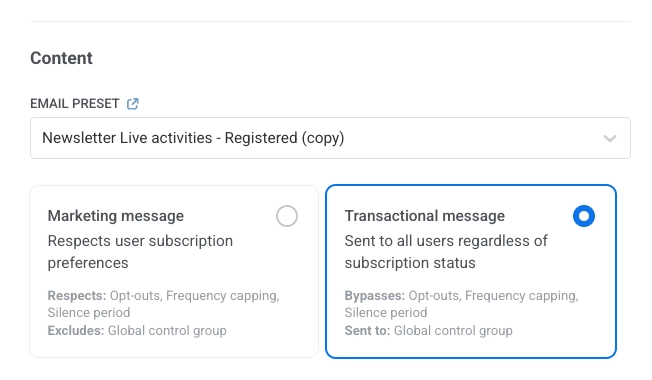
[Learn more about marketing and transactional messages](/product/messaging-channels/marketing-vs-transactional/).
### Working with control group users
When you enable the Global control group, Pushwoosh creates a system tag:
* **Tag name:** `PW_ControlGroup`
* **Values:** `true` (user is in the control group) or `false` (user is not)
You can use this tag to filter, segment, or export control group users.
## Enable the Global control group
1. Navigate to **Settings > Global control group**.
2. Click **Enable**.
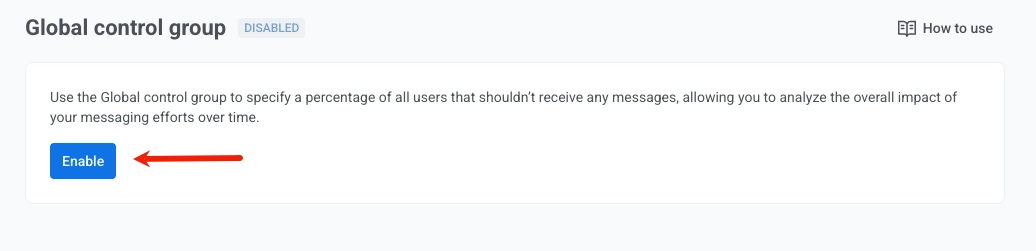
3. Select what percentage of users will be excluded from [marketing messages](/product/messaging-channels/marketing-vs-transactional/) to measure campaign impact.
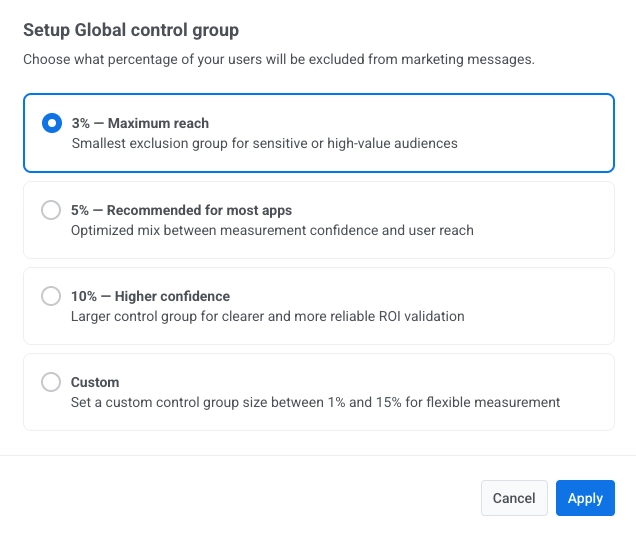
* **3%: Maximum reach**
Recommended for small apps or critical use cases where reaching more users is important and measurement accuracy can be slightly relaxed.
* **5%: Recommended for most apps**
Best default option. Provides a good balance between measurement confidence and user reach.
* **10%: Higher confidence**
Suitable for large-scale campaigns or when you need strong data accuracy to validate ROI.
* **Custom (1%–15%):**
Use when you need flexibility to define your own percentage based on app size, campaign type, or business needs.
Click **Apply** to save your selection.
## Manage the control group
#### Edit the control group
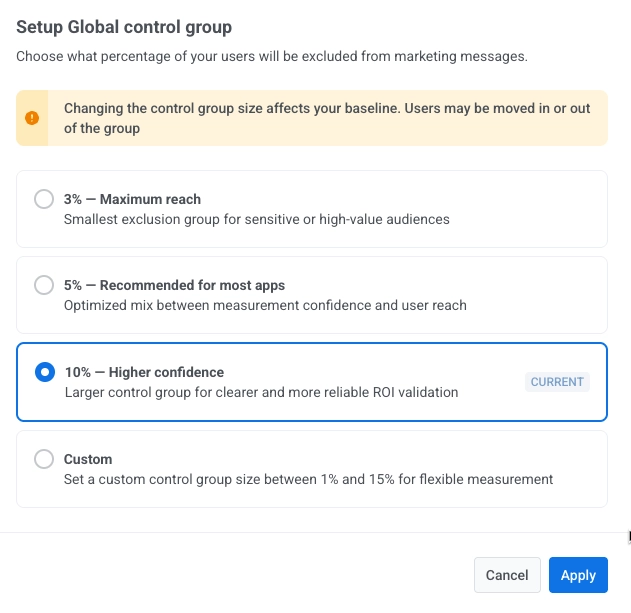
You can adjust the size of the control group at any time from **Settings > Global control group**.
1. Click **Edit group size**.
2. Choose a new percentage (1% to 15%).
3. Click **Apply** to confirm changes.
#### Export control group users
To download a list of users in the control group:
1. Open **Settings > Global control group**.
2. Click the **three-dot menu** in the top right.
3. Select **Export users**.
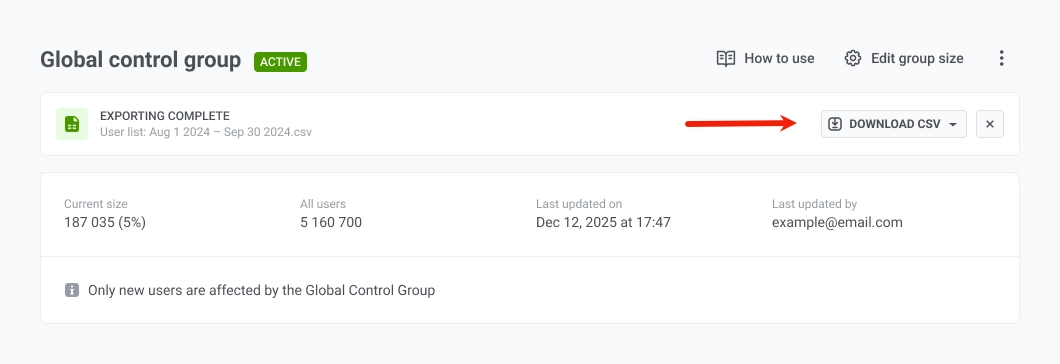
4. When the export finishes, click **Download CSV** to save the file.
#### Disable the control group
1. Click the **three-dot menu** next to the control group settings.
2. Select **Disable control group**.
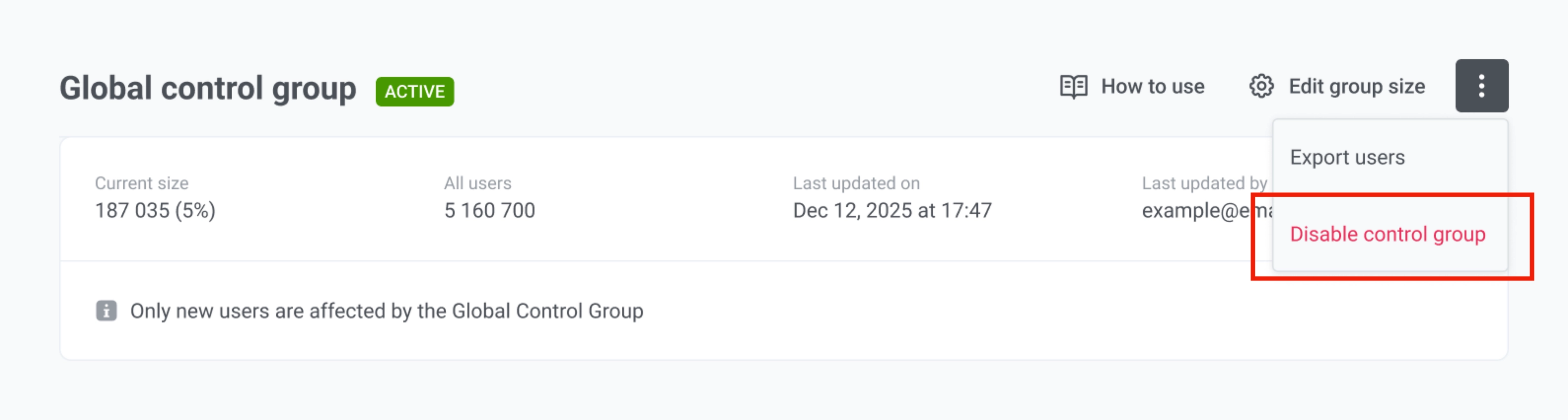
Disabling the group removes the control group status from all users, and they will start receiving [marketing messages](/product/messaging-channels/marketing-vs-transactional/) again. If you re-enable it later, Pushwoosh creates a new group with a new random selection.
## Analyze control group impact
The Global control group page shows how your messaging performs against the control group. It compares two groups of users on any event you choose:
* **Treatment group:** all users who are not in the control group. They keep receiving your marketing messages (Push, Email, In-App) as usual.
* **Control group:** the holdout you configured above. These users are excluded from marketing messages, so any difference in their behavior isn't influenced by your campaigns.
1. Select a time window: **Last 3 days**, **Last 7 days**, or **Last 30 days**.
2. Review the events comparison table. It's already populated with your [Conversion Goals from Customer Journey](/product/customer-journey/journey-settings/#conversion-goals).
3. To add more events, click **Add events to compare**. You can add up to 10 events in total.
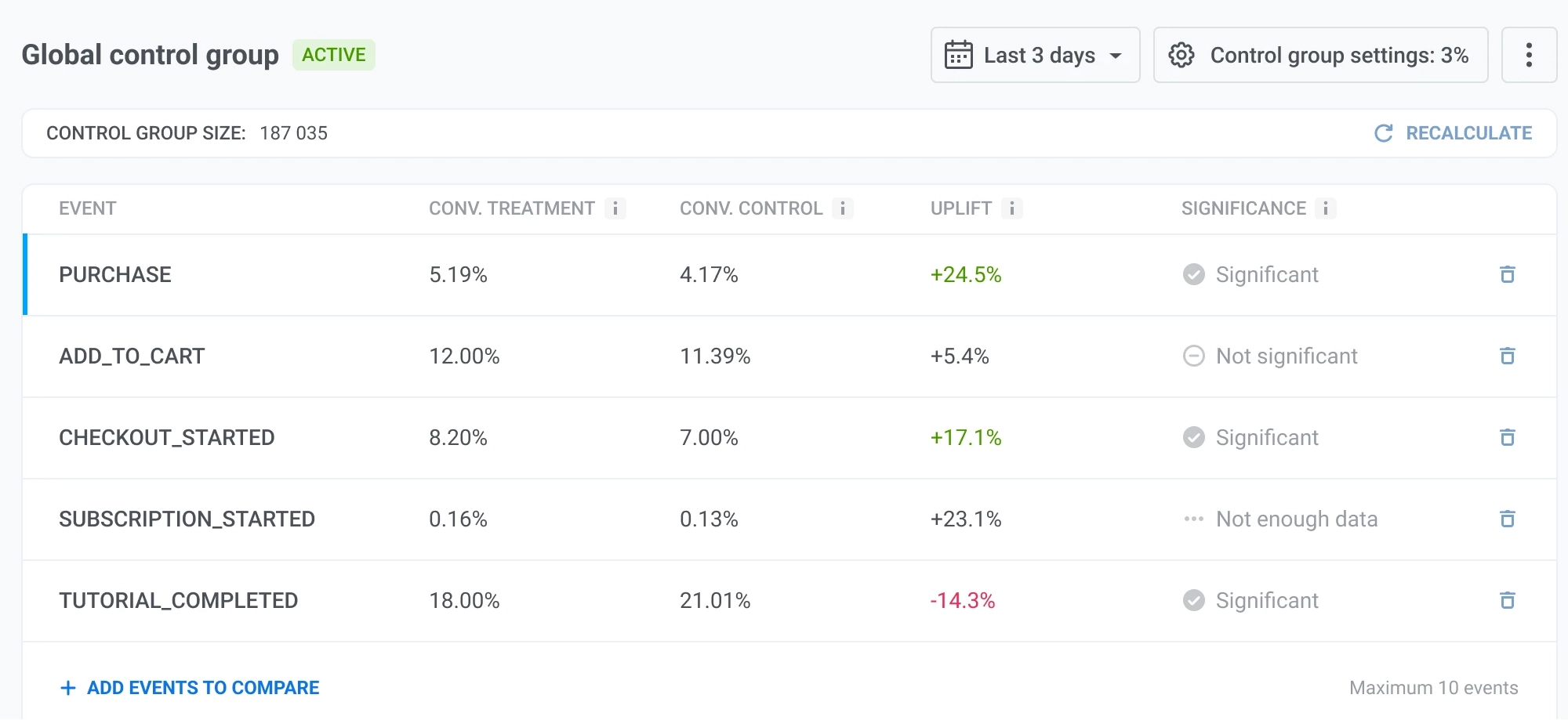
The table shows these metrics for each event:
* **Conv. Treatment:** the conversion rate in the treatment group. This is the share of unique users who received your marketing messages (Push, Email, In-App) and triggered the event at least once.
* **Conv. Control:** the conversion rate in the control group. This is the share of unique users who were held out from marketing messages and triggered the event at least once anyway, without any messaging influence.
* **Uplift:** the percentage difference between the treatment and control conversion rates, relative to the control rate. A positive value means the treatment group converted better. Calculated as `(conv. treatment − conv. control) / conv. control × 100%`.
* **Significance:** whether the difference is statistically reliable:
* **Significant:** the uplift is unlikely to be due to chance.
* **Not significant:** the difference isn't statistically reliable yet.
* **Not enough data:** either group has fewer than 10 conversions or fewer than 10 non-conversions for this event, so significance can't be calculated.
### Impact report
The **Impact report** shows a deeper breakdown for one event at a time. Use the **View event** dropdown to pick which event to inspect.
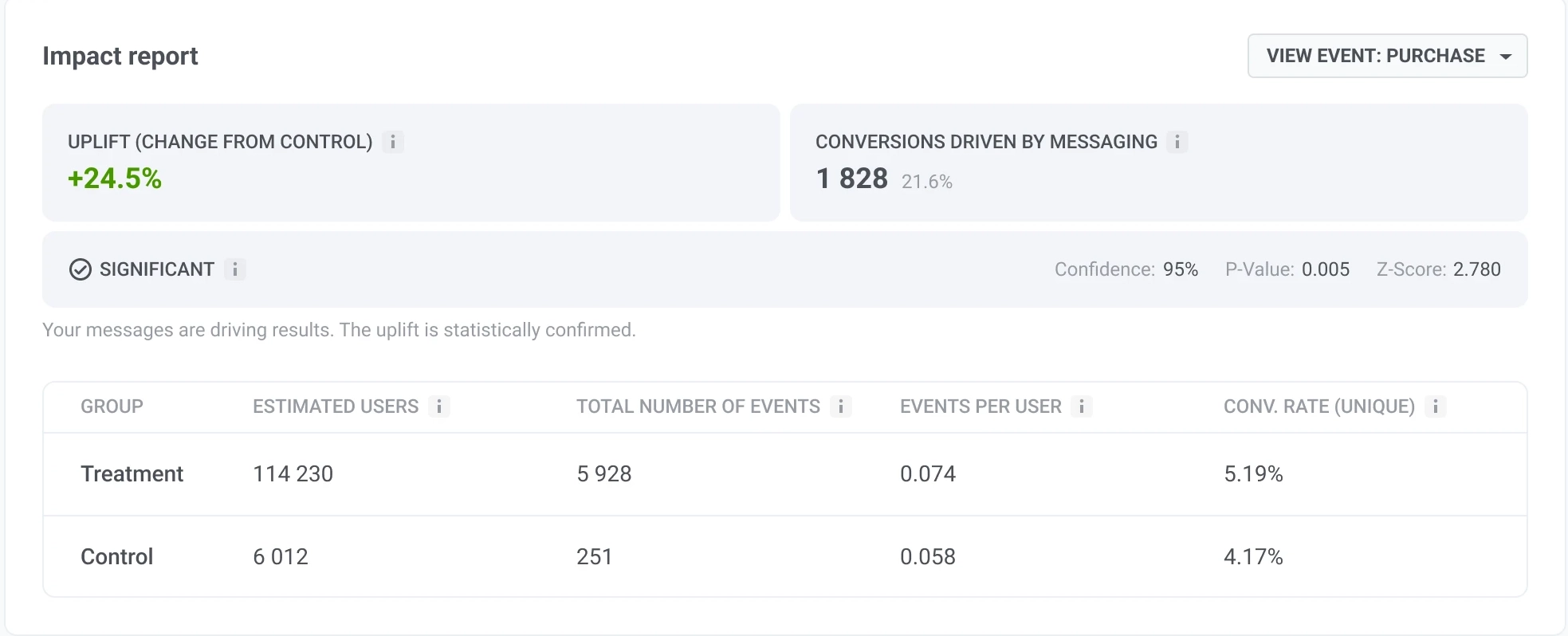
* **Uplift (change from control):** how much the treatment conversion rate differs from the control conversion rate. This is the same value shown in the events table.
* **Conversions driven by messaging:** the estimated number of additional events generated by your messages beyond the number expected without messaging. Calculated as `(events per user in treatment − events per user in control) × treatment group size`. The percentage shows these additional events as a share of all treatment events.
* **Significance:** indicates whether the measured difference is statistically reliable. The report shows **Significant**, **Not significant**, or **Not enough data**, based on:
* **Confidence:** how sure Pushwoosh is that the uplift reflects a real difference between treatment and control, rather than random chance, shown as a percentage. The higher the confidence, the stronger the evidence.
* **P-value:** shows how likely it is to observe this difference by chance if messaging has no real effect. A lower P-value provides stronger evidence that the difference is not random.
* **Z-score:** shows how far apart your two groups performed. A score close to 0 means the difference could be random. The further from 0, the more confident you can be that one group is genuinely better than the other.
* **Group breakdown:** compares the Treatment and Control groups by **Estimated users**, **Total number of events**, **Events per user**, and **Conv. rate (unique)**.
## Frequently asked questions
### What users are added to the control group?
Only users who sign up after you enable the control group can be added. When a new user registers, Pushwoosh randomly decides once whether they go into the control group, using the percentage you set (1% to 15%). Users who already existed in your application when you turned on the control group are never added to it.
### Do control group users receive transactional messages?
Yes. [Transactional messages](/product/messaging-channels/marketing-vs-transactional/) (e.g. password resets, order confirmations) are delivered to all users, including the control group. Only marketing messages are blocked for control group users.
### Where do I set the marketing or transactional message type?
You choose it wherever you send messages. For each channel, see [Where to set the message type](/product/messaging-channels/marketing-vs-transactional/#where-to-set-the-message-type).
### What happens to campaigns created before I enabled the control group?
They have no message type set and are treated as **transactional**, so they are delivered to everyone, including the control group. To exclude the control group from those campaigns, edit each campaign and set the message type to **Marketing**.
### Can I change the control group size after enabling it?
Yes. Go to **Settings > Global control group**, click **Edit group size**, choose a new percentage (1% to 15%), and click **Apply**. The new percentage applies only to users who register after the change. Users already in the control group stay in it. Users who were already in your app but not in the group are not added later. This can affect comparison with earlier campaigns, so change the size only when needed.
### What happens if I disable the control group?
All users stop being in the control group and start receiving marketing messages again. If you enable the control group again later, Pushwoosh creates a new group with a new random selection of users.
### How do I see which users are in the control group?
When the control group is enabled, Pushwoosh creates the system tag **PW_ControlGroup** with value `true` (user is in the group) or `false` (user is not). Use this tag to filter, segment, or export control group users.
### Why doesn't the control group count match my segment count?
The `PW_ControlGroup` tag stays on a user even after they opt out of push, uninstall the app, or their push token becomes invalid, so the total tagged count can be higher than expected. A segment or export built from this tag only includes [reachable](/product/pushwoosh-knowledge-hub/types-of-registered-devices/#push-enabled-devices) devices: those with a valid push token, verified email, or other active contact method. This is why the number of users tagged `PW_ControlGroup: true` can be larger than the number you see in a segment or CSV built from that tag.
### Why might a user in the control group still receive marketing messages?
Pushwoosh assigns the control group by **User ID**, not by device or contact method. If the same person has several contact methods (e.g. email, push device) that are not linked under one User ID, Pushwoosh treats them as different users. One of them may be in the control group while another is not, so the latter can still get marketing. To avoid this, [register all contact methods with the same User ID](/product/pushwoosh-knowledge-hub/omnichannel-campaigns/).
### What control group percentage should I choose?
The right percentage depends on your goals, app size, and how you plan to use the results. A smaller percentage (e.g. 3%) keeps more users in the audience and may suit teams that prioritize reach. A larger percentage (e.g. 10%) can give stronger statistical confidence when comparing groups. You can set a **Custom** value between 1% and 15% to match your needs.
### What does **Not enough data** mean in the events table?
**Not enough data** means that either the treatment or control group had fewer than 10 conversions or fewer than 10 non-conversions for that event during the selected time window. Pushwoosh cannot determine whether the difference between the groups is statistically significant until more data is available.
### How is **Uplift** calculated?
**Uplift** shows the percentage difference between the treatment and control conversion rates, relative to the control rate. A positive value means the treatment group converted better. Pushwoosh calculates it as `(conv. treatment − conv. control) / conv. control × 100%`.
### What does **Conversions driven by messaging** mean?
**Conversions driven by messaging** is the estimated number of additional events generated by your messages beyond the number expected without messaging. Pushwoosh calculates it as `(events per user in treatment − events per user in control) × treatment group size`. The percentage shows these additional events as a share of all treatment events.
### Which events can I compare and how many?
You can compare events configured as [Conversion Goals in Customer Journey](/product/customer-journey/journey-settings/#conversion-goals). You can add up to 10 events to the comparison table.