# Default events
## What are default events
Default Events are basic interactions that users perform in apps or websites regardless of their industry or functionality. These key user actions form the core of customer communication and can be leveraged for any product and customer at any stage of the customer lifecycle.
Default Events are available out of the box for up-to-date SDK versions. They don't need additional settings except for PW\_InAppPurchase (see the details below).
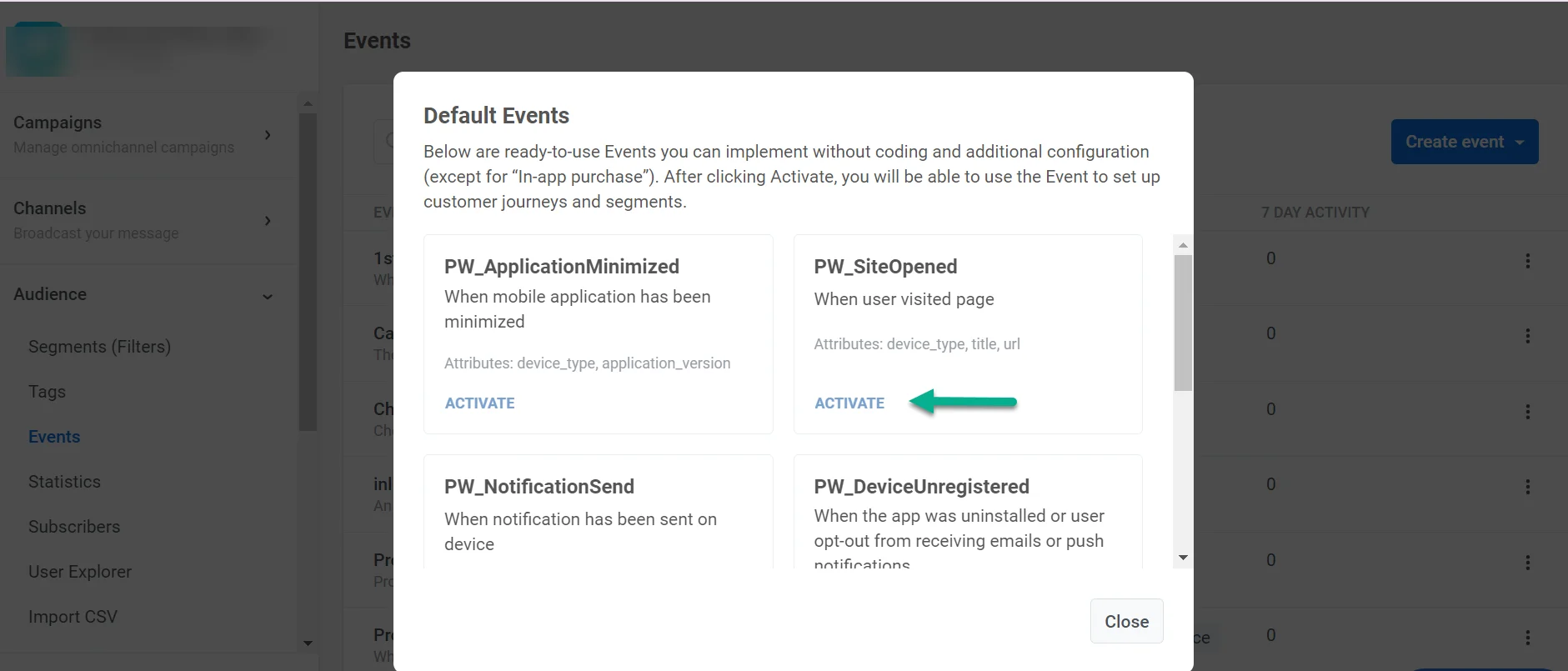
To find and activate the Default Events available in Pushwoosh, follow these steps:
1. Navigate to the **Events** tab within the **Audience** section.
2. Click **Create Event**.
3. Select **Default Event** from the drop-down menu.
4. In the pop-up window, choose the desired event and click **Activate**.
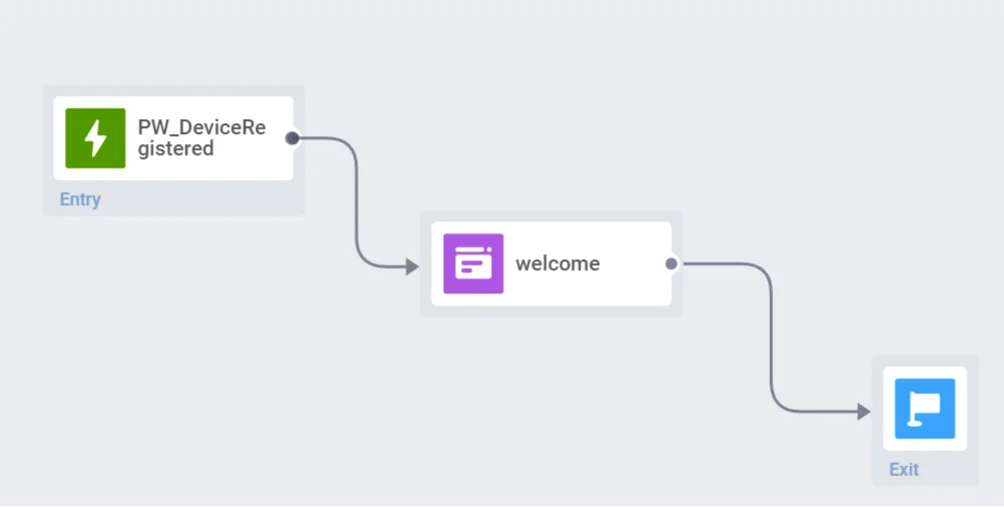
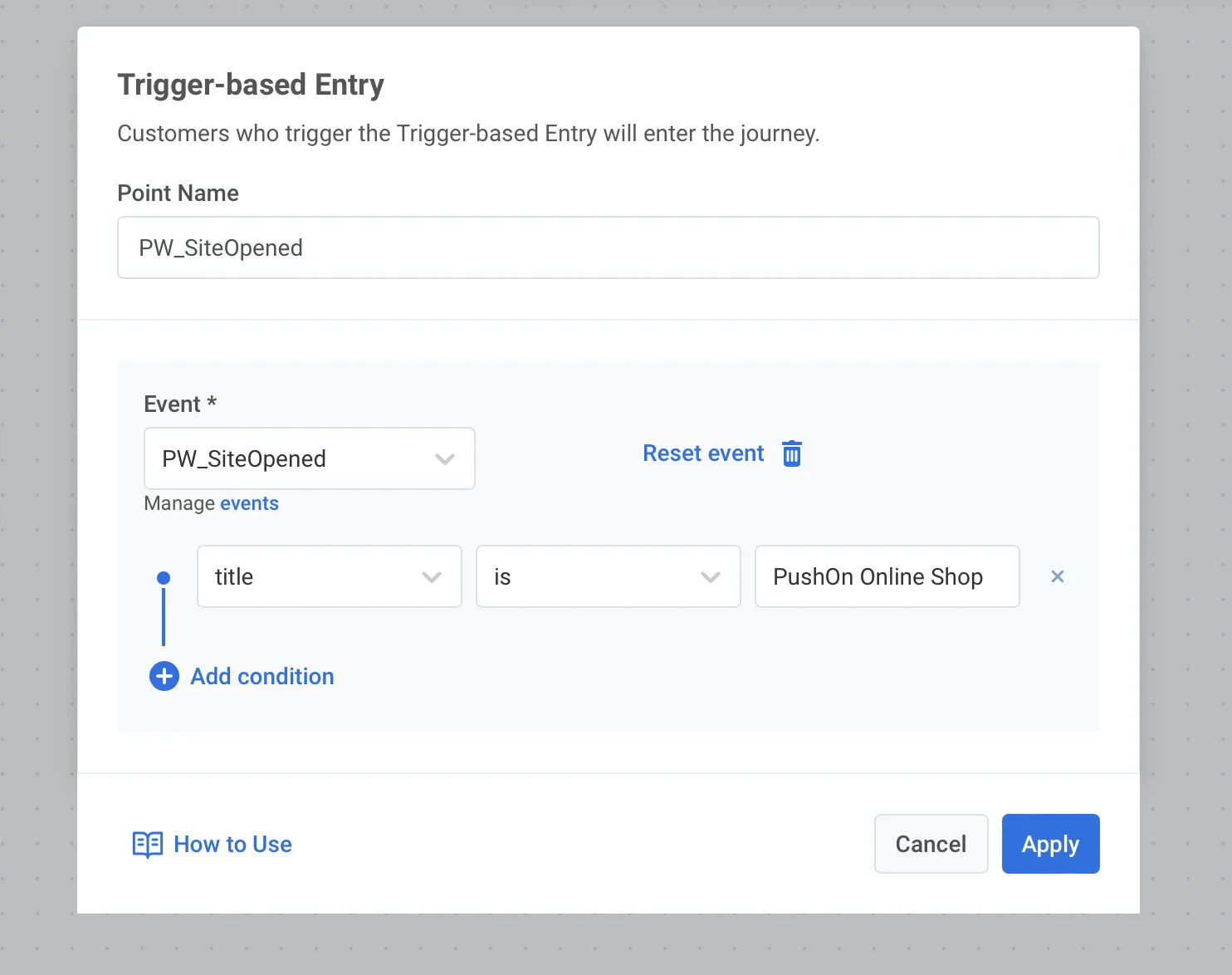
Once activated, Default Events can be used in behavior-based messaging. For example, use them as a [Trigger-based Entry](/product/customer-journey/journey-elements#trigger-based-entry) in Customer Journey or a trigger for In-App messages.
## Device and app usage
### PW\_DeviceRegistered
This event is fired only **once** for each device, upon the **first-time app launch** and the SDK initialization. As the name suggests, this event tracks device registration in your app.
**Use cases**
* Launch an onboarding campaign for newly registered users. Add the Trigger-based Entry using PW\_DeviceRegistered Event to an Onboarding [Customer Journey](/product/customer-journey/pushwoosh-journey-overview/).
* Identify acquisition activities that bring you more newcomers with the Event statistics.
* Engage users right at their first visit. Meet them with [In-Apps](/product/messaging-channels/in-apps/?utm\_source=docs\&utm\_medium=post\&utm\_campaign=default\_events) triggered by the DeviceRegistered Event.
### PW\_DeviceUnregistered
This event fires when the app is uninstalled, or a user opts out of emails or push notifications.
**Event attributes**
* **message_id** (string)
* **message_code** (string)
* **campaign_id** (string)
**Use cases**
* Retain users when they decide to stop using your app. For example, you can send an [email](/product/messaging-channels/emails/) with a special offer to every user who has uninstalled the app.
* Maintain communication with users who have unsubscribed from one of your channels. For example, if a user doesn't want to receive push notifications anymore, you can send an [email](/product/messaging-channels/emails/) or show an [in-app](/product/messaging-channels/in-apps/) encouraging them to use the app more often.
### PW\_ApplicationOpen
_For mobile apps only_
ApplicationOpen event is triggered **every time a user launches your mobile app** on their device.
**Event attributes**
* **device_type** (integer): device type code. Refer to [registerDevice](/developer/api-reference/device-api#registerdevice) for details.
* **application_version** (string): the app version.
**Use cases**
* Gather user retention stats based on the ApplicationOpen event statistics.
* Run in-app messaging campaigns for users who are active in the app.
### PW\_ScreenOpen
_For mobile apps only_
This event fires every time a user views a **specific screen in your mobile app**.
**Event attributes**
* **application_version** (string): the app version.
* **device_type** (integer): device type code. Refer to [registerDevice](/developer/api-reference/device-api#registerdevice) for details.
* **screen_name** (string): technical screen name obtained from your app.
**Use cases**
* Send perfectly relevant messages to users who showed their interest in specific app sections by starting Customer Journeys with the PW\_ScreenOpen event.
* Evaluate and improve effectiveness of your promotions. [A/B/n test](/product/customer-journey/journey-elements#abn-split) two or several versions of your offer, wait for the ScreenOpen event to take place, and then see which content has performed best.
* Get to know what app screens are visited the most. Filter the Event statistics by screen name.
### PW\_ApplicationMinimized
_For mobile apps only_
This event fires when a user minimizes (but not force stops) the app on their device.
**Event attributes**
* **device_type** (integer): device type code. Refer to [registerDevice](/developer/api-reference/device-api#registerdevice) for details.
* **application_version** (string): the app version.
**Use cases**
* Track the average session time between ApplicationOpen and ApplicationMinimized events.
* Send push notifications while the app runs in the background to grab users' attention and return them to the app.
### PW\_UserIdle
_For mobile apps only_
This event fires when a user is inside your app but has not interacted with the screen for a configurable period. Unlike PW\_ApplicationMinimized, which triggers after the user leaves the app, PW\_UserIdle fires while the user is still in the app. It captures the moment when attention drops, the user hesitates, or gets distracted. Use it as a server-side signal to show a timely In-App, offer assistance, or nudge the user toward the next step.
Idle detection is disabled by default on both platforms. When the timeout key is missing or set to `0`, no PW\_UserIdle events are sent. To enable it, set the timeout (minimum 30 seconds) in your app's platform configuration:
* **iOS:** add the `Pushwoosh_IDLE_TIMEOUT_SECONDS` key (Number, minimum 30) to your app's Info.plist.
* **Android:** add the `com.pushwoosh.idle_timeout_seconds` meta-data (integer, minimum 30) to your **AndroidManifest.xml**.
**Event attributes**
* **screen_name** (string): the screen where the user went idle. On Android, formatted as `ActivityName/FragmentName` when the current screen is nested. Otherwise, the activity name. On iOS, formatted as `ParentVC/ChildVC` when nested. Otherwise, the view controller name.
* **idle_seconds** (integer): the configured idle timeout that elapsed.
* **session_duration** (integer): seconds since the app was last brought to the foreground.
* **device_type** (integer): device type code. Refer to [registerDevice](/developer/api-reference/device-api#registerdevice) for details.
* **application_version** (string): the app version.
**Behavior**
* Fires at most **once per foreground session**. Returning to the background and back to the foreground starts a new session.
* The timer pauses automatically while the soft keyboard is open, while a modal dialog or system prompt is on screen, and while the app is in the background.
* Physical interaction with the screen (touches, scrolling, and typing) resets the timer.
**Use cases**
* Trigger an In-App offer or in-context assistant when users linger on a high-intent screen (cart, pricing, checkout) without taking action.
* Surface a hint or tutorial when users stall on an onboarding step.
* Identify where users lose momentum by filtering idle event statistics by `screen_name`.
### PW\_ApplicationExit
_For mobile apps only_
This event fires when a user backgrounds the app and does **not return within a configurable timeout**. Unlike PW\_ApplicationMinimized, which fires immediately when the user leaves, PW\_ApplicationExit fires only after the configured delay has elapsed. It confirms that the user has genuinely left the session rather than briefly switching apps. Use it to re-engage users who have abandoned a session mid-flow, or to trigger follow-up campaigns after a confirmed exit.
Exit intent detection is disabled by default. To enable it, set the timeout (10–30 seconds, values outside this range are clamped automatically) in your app's platform configuration:
* **Android:** add the `com.pushwoosh.exit_intent_timeout_seconds` meta-data (integer, 10–30) to your **AndroidManifest.xml**.
* **iOS:** add the `Pushwoosh_APPLICATION_EXIT_TIMEOUT_SECONDS` key (Number, 10–30) to your app's **Info.plist**.
**Event attributes**
* **screen_name** (string): the last screen active when the user backgrounded the app.
* **session_duration** (integer): seconds since the app was last brought to the foreground.
* **exit_intent_seconds** (integer): the effective timeout that elapsed before the event fired (10–30 s).
* **device_type** (integer): device type code. Refer to [registerDevice](/developer/api-reference/device-api#registerdevice) for details.
* **application_version** (string): the app version.
**Behavior**
* The timer starts when the app is backgrounded and is **cancelled** if the user returns before the timeout expires.
* Screen name and session duration are captured at the moment of backgrounding, not when the event fires.
* The event does not fire if exit intent detection is disabled (timeout key is `0` or not set).
**Use cases**
* Re-engage users who abandoned a purchase or sign-up flow. Trigger a push notification or email with a reminder or discount.
* Start a win-back Customer Journey for users who exit without completing a key action (e.g., leaving a cart or stopping mid-onboarding).
* Identify high-drop-off screens by filtering event statistics by `screen_name`.
## Web
### PW\_SiteOpened
_For web only_
The SiteOpened event fires every time a user opens any of your website pages.
**Event attributes**
* **device_type** (integer): device type code. Refer to [registerDevice](/developer/api-reference/device-api#registerdevice) for details.
* **title** (string): the title of the page visited.
* **url** (string): the URL of the page visited.
**Use cases**
* Analyze your site traffic distribution and compare the number of times users open specific site pages. For this, filter the Event stats by its attributes.
* Follow up on a user's website visit with a relevant communication. Build a journey starting with the SiteOpened event set up for a specific `title` or `url` attribute.
## Commerce
### PW\_InAppPurchase
_For mobile apps only_
The InAppPurchase event fires every time a user purchases an in-app item in your app. Examples include paid subscriptions, game mechanics elements, in-app currency, etc.
To implement the In-App Purchase event:
* **iOS:** activate the PW\_InAppPurchase event in your Control Panel. Set the `Pushwoosh_PURCHASE_TRACKING_ENABLED` param of the Pushwoosh iOS SDK to `yes`.
* **Android:** activate the PW\_InAppPurchase event in your Control Panel. Configure sending purchase information to Pushwoosh [using this guide](/developer/pushwoosh-sdk/android-sdk/customizing-android-sdk-50#in-app-purchase-tracking).
**Event attributes**
* **productIdentifier** (string): obtained from the App Store.
* **quantity** (integer): the number of items purchased.
* **transactionDate** (string): date of purchase.
* **status** (string): status of purchase.
**Use cases**
* Gather stats of in-app purchases.
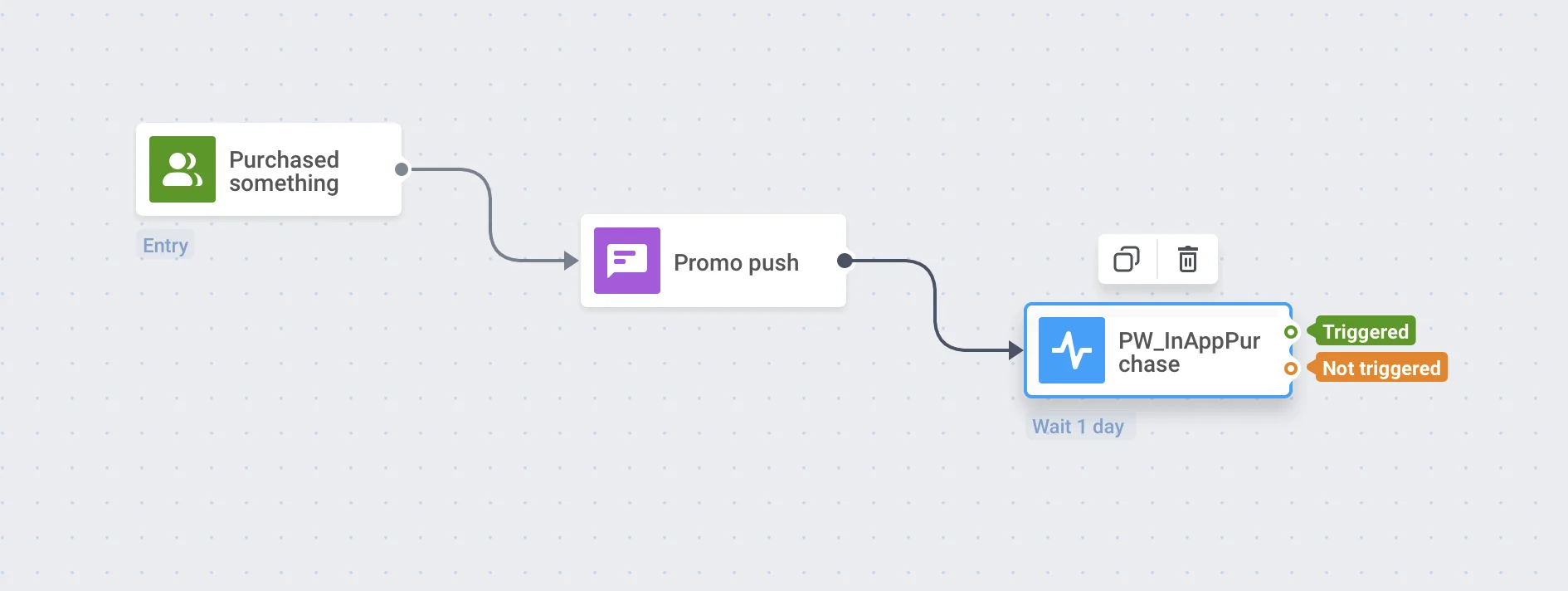
* Run promotions and keep track of their success. Set the Wait for Trigger event following the promo message.
## Push notifications
### PW\_NotificationSend
_For mobile and web only_
This event fires once a Pushwoosh message is sent to a user's device.
**Event attributes**
* **message_id** (string)
* **message_code** (string)
* **campaign_id** (string)
**Use cases**
* Track whether a message is sent, regardless of the channel used.
* Create user [Segments](/product/audience-data-and-segmentation/segmentation/create-segments/by-events) based on the number of messages sent.
* View all messages sent to a user in the [Events history](/product/audience-data-and-segmentation/user-explorer/#events-history) and analyze the user's further behavior.
### PW\_NotificationOpen
_For mobile and web only_
This event fires every time a user opens a push notification sent with Pushwoosh.
**Use cases**
* Configure the [optimal time to send a push](/product/messaging-channels/push-notifications/send-push-notifications/one-time-push#optimal-time-paid-subscription-required).
* Create [Segments](/product/audience-data-and-segmentation/segmentation/create-segments/by-events) based on notifications performance within a specific time period.
## Email
### PW\_EmailSent
_For email only_
This event fires once an email is dispatched to the email provider. Check **status_code** for the outcome.
**Event attributes**
* **message_id** (string): the ID of the message.
* **message_code** (string): the unique identifier of the specific email message.
* **status_code** (integer): the delivery status code returned by the email provider for this send attempt.
* **campaign_id** (string): the ID of the campaign. Included only if the email was sent as part of a campaign.
* **campaign_code** (string): the unique code of the campaign. Included when the send is part of a campaign and campaign lookup succeeds. **campaign_code** may be missing even when **campaign_id** is present.
**Use cases**
* Track dispatch outcomes using **status_code**, separately from whether the email was later opened or clicked.
* Create user [Segments](/product/audience-data-and-segmentation/segmentation/create-segments/by-events) based on the number of emails sent.
* View all emails sent to a user in the [Events history](/product/audience-data-and-segmentation/user-explorer/#events-history) and analyze the user's further behavior.
### PW\_EmailOpen
_For email only_
This event fires when a user opens an email sent via Pushwoosh.
**Event attributes**
* **campaign_code** (string): the unique code of the campaign associated with the email.
* **campaign_id** (string): the ID of the campaign.
* **message_code** (string): the unique identifier of the specific email message.
* **message_id** (string): the ID of the message.
* **opened_by** (string): who or what triggered the open: `user` for a genuine open by the recipient, or `ampp` for an automated open triggered by [Apple Mail Privacy Protection](/product/statistics-and-analytics/messaging-statistics/email-statistics#opened-unique) pre-fetching the tracking pixel.
**Use cases**
* Track email opens to identify users who actively engage with your emails. Use this data to create follow-up campaigns, such as sending discount codes to users who open promotional emails.
* If users open an email but don't complete the desired action (e.g., making a purchase), you can trigger follow-up emails with reminders or personalized offers.
* Analyze open rates across campaigns to refine your subject lines and email timing strategies for campaigns like product launches or seasonal promotions.
* Create a [segment](/product/audience-data-and-segmentation/segmentation/create-segments/by-events) based on **PW_EmailOpen** with **opened_by** equal to `user` to target recipients who opened the email, excluding AMPP-triggered opens.
### PW\_EmailLinkClicked
_For email only_
This event fires every time a user clicks a link in an email.
**Event attributes**
* **message_id** (string)
* **message_code** (string)
* **campaign_id** (string)
* **redirect_link** (string)
* **original_link** (string)
**Use cases**
* Run targeted campaigns for users who click on a specific link in an email.
* Send another message to users who ignored the link in the first email to encourage them to click on it (or take other action).
## In-app messages
### PW\_InAppShown
_For mobile apps only_
This event fires when an in-app message is displayed to the user.
**Event attributes**
* **message_code** (string): the unique identifier of the specific message associated with the in-app.
* **message_id** (integer): the ID of the message.
* **campaign_code** (string): the unique code of the campaign associated with the in-app.
* **campaign_id** (integer): the ID of the campaign that triggered the in-app.
* **rich_media_code** (string): the unique identifier of the rich media content displayed in the in-app.
* **inapp_code** (string): the unique code identifying the specific in-app message shown.
**Use cases**
* Track the frequency of in-app message views to adjust your messaging strategy, such as removing redundant messages that might annoy users.
* Use in-app impressions data to evaluate the reach of promotional campaigns like flash sales or subscription upgrades.
* If an in-app message is shown but not clicked, you can trigger a follow-up action, such as sending a push notification with similar content to reinforce the message.
### PW\_InAppClicked
_For mobile apps only_
This event fires when a user interacts with an in-app message by clicking on it.
**Event attributes**
* **message_code** (string): the unique identifier of the specific message associated with the in-app.
* **message_id** (integer): the ID of the message.
* **campaign_code** (string): the unique code of the campaign associated with the in-app.
* **campaign_id** (integer): the ID of the campaign that triggered the in-app.
* **rich_media_code** (string): the unique identifier of the rich media content displayed in the in-app (if applicable).
* **inapp_code** (string): the unique code identifying the specific in-app message clicked.
* **element_id** (string): the identifier of the specific element within the in-app message that was clicked (e.g., a button or link).
* **link** (string): the URL or deep link associated with the clicked element.
**Use cases**
* Analyze click behavior to identify which buttons or links users interact with most often and optimize future in-app message designs. For example, test different CTAs in subscription upgrade campaigns.
* Trigger automated actions based on user clicks, such as redirecting users to a specific product page or sending a push notification.
## SMS
### PW\_SMSSent
_For SMS only_
This event fires once an SMS is dispatched to the SMS provider. Check **status_code** for the outcome.
**Event attributes**
* **message_id** (string): the ID of the message.
* **message_code** (string): the unique identifier of the specific SMS message.
* **status_code** (integer): the delivery status code returned by the SMS provider for this send attempt. Use it to tell success from failure.
* **campaign_id** (string): the ID of the campaign. Included only if the SMS was sent as part of a campaign.
* **campaign_code** (string): the unique code of the campaign. Included when the send is part of a campaign and campaign lookup succeeds. **campaign_code** may be missing even when **campaign_id** is present.
**Use cases**
* Track dispatch outcomes using **status_code**, regardless of the channel used elsewhere in the same journey.
* Create user [Segments](/product/audience-data-and-segmentation/segmentation/create-segments/by-events) based on the number of SMS messages sent.
* View all SMS messages sent to a user in the [Events history](/product/audience-data-and-segmentation/user-explorer/#events-history) and analyze the user's further behavior.
## WhatsApp
### PW\_WhatsAppSent
_For WhatsApp only_
This event fires once a WhatsApp message is dispatched to the WhatsApp provider. Check **status_code** for the outcome.
**Event attributes**
* **message_id** (string): the ID of the message.
* **message_code** (string): the unique identifier of the specific WhatsApp message.
* **status_code** (integer): the delivery status code returned by the WhatsApp provider for this send attempt. Use it to tell success from failure.
* **campaign_id** (string): the ID of the campaign. Included only if the WhatsApp message was sent as part of a campaign.
* **campaign_code** (string): the unique code of the campaign. Included when the send is part of a campaign and campaign lookup succeeds. **campaign_code** may be missing even when **campaign_id** is present.
**Use cases**
* Track dispatch outcomes using **status_code**, separately from delivery or read status.
* Create user [Segments](/product/audience-data-and-segmentation/segmentation/create-segments/by-events) based on the number of WhatsApp messages sent.
* View all WhatsApp messages sent to a user in the [Events history](/product/audience-data-and-segmentation/user-explorer/#events-history) and analyze the user's further behavior.
### PW\_WhatsAppReceived
_For WhatsApp only_
This event fires when a WhatsApp message is received through the system.
**Event attributes**
* **message** (string): the content of the received message. For location messages, contains the coordinates in `"latitude,longitude"` format (e.g. `"55.751244,37.618423"`).
* **latitude** (number): the latitude of the shared location. Included only when the user shares their current location.
* **longitude** (number): the longitude of the shared location. Included only when the user shares their current location.
**Use cases**
* Automate follow-up actions in response to incoming WhatsApp messages (such as starting a Customer Journey or tracking user engagement events).
* Segment users based on their WhatsApp message interactions to enable targeted messaging or personalized campaigns.
* Use `latitude` and `longitude` attributes to trigger location-based journeys when a user shares their location.
 Once activated, Default Events can be used in behavior-based messaging. For example, use them as a [Trigger-based Entry](/product/customer-journey/journey-elements#trigger-based-entry) in Customer Journey or a trigger for In-App messages.
## Device and app usage
### PW\_DeviceRegistered
This event is fired only **once** for each device, upon the **first-time app launch** and the SDK initialization. As the name suggests, this event tracks device registration in your app.
**Use cases**
* Launch an onboarding campaign for newly registered users. Add the Trigger-based Entry using PW\_DeviceRegistered Event to an Onboarding [Customer Journey](/product/customer-journey/pushwoosh-journey-overview/).
* Identify acquisition activities that bring you more newcomers with the Event statistics.
* Engage users right at their first visit. Meet them with [In-Apps](/product/messaging-channels/in-apps/?utm\_source=docs\&utm\_medium=post\&utm\_campaign=default\_events) triggered by the DeviceRegistered Event.
Once activated, Default Events can be used in behavior-based messaging. For example, use them as a [Trigger-based Entry](/product/customer-journey/journey-elements#trigger-based-entry) in Customer Journey or a trigger for In-App messages.
## Device and app usage
### PW\_DeviceRegistered
This event is fired only **once** for each device, upon the **first-time app launch** and the SDK initialization. As the name suggests, this event tracks device registration in your app.
**Use cases**
* Launch an onboarding campaign for newly registered users. Add the Trigger-based Entry using PW\_DeviceRegistered Event to an Onboarding [Customer Journey](/product/customer-journey/pushwoosh-journey-overview/).
* Identify acquisition activities that bring you more newcomers with the Event statistics.
* Engage users right at their first visit. Meet them with [In-Apps](/product/messaging-channels/in-apps/?utm\_source=docs\&utm\_medium=post\&utm\_campaign=default\_events) triggered by the DeviceRegistered Event.
 ### PW\_DeviceUnregistered
This event fires when the app is uninstalled, or a user opts out of emails or push notifications.
**Event attributes**
* **message_id** (string)
* **message_code** (string)
* **campaign_id** (string)
**Use cases**
* Retain users when they decide to stop using your app. For example, you can send an [email](/product/messaging-channels/emails/) with a special offer to every user who has uninstalled the app.
* Maintain communication with users who have unsubscribed from one of your channels. For example, if a user doesn't want to receive push notifications anymore, you can send an [email](/product/messaging-channels/emails/) or show an [in-app](/product/messaging-channels/in-apps/) encouraging them to use the app more often.
### PW\_ApplicationOpen
_For mobile apps only_
ApplicationOpen event is triggered **every time a user launches your mobile app** on their device.
**Event attributes**
* **device_type** (integer): device type code. Refer to [registerDevice](/developer/api-reference/device-api#registerdevice) for details.
* **application_version** (string): the app version.
**Use cases**
* Gather user retention stats based on the ApplicationOpen event statistics.
* Run in-app messaging campaigns for users who are active in the app.
### PW\_ScreenOpen
_For mobile apps only_
This event fires every time a user views a **specific screen in your mobile app**.
**Event attributes**
* **application_version** (string): the app version.
* **device_type** (integer): device type code. Refer to [registerDevice](/developer/api-reference/device-api#registerdevice) for details.
* **screen_name** (string): technical screen name obtained from your app.
**Use cases**
* Send perfectly relevant messages to users who showed their interest in specific app sections by starting Customer Journeys with the PW\_ScreenOpen event.
* Evaluate and improve effectiveness of your promotions. [A/B/n test](/product/customer-journey/journey-elements#abn-split) two or several versions of your offer, wait for the ScreenOpen event to take place, and then see which content has performed best.
* Get to know what app screens are visited the most. Filter the Event statistics by screen name.
### PW\_ApplicationMinimized
_For mobile apps only_
This event fires when a user minimizes (but not force stops) the app on their device.
**Event attributes**
* **device_type** (integer): device type code. Refer to [registerDevice](/developer/api-reference/device-api#registerdevice) for details.
* **application_version** (string): the app version.
**Use cases**
* Track the average session time between ApplicationOpen and ApplicationMinimized events.
* Send push notifications while the app runs in the background to grab users' attention and return them to the app.
### PW\_UserIdle
_For mobile apps only_
This event fires when a user is inside your app but has not interacted with the screen for a configurable period. Unlike PW\_ApplicationMinimized, which triggers after the user leaves the app, PW\_UserIdle fires while the user is still in the app. It captures the moment when attention drops, the user hesitates, or gets distracted. Use it as a server-side signal to show a timely In-App, offer assistance, or nudge the user toward the next step.
Idle detection is disabled by default on both platforms. When the timeout key is missing or set to `0`, no PW\_UserIdle events are sent. To enable it, set the timeout (minimum 30 seconds) in your app's platform configuration:
* **iOS:** add the `Pushwoosh_IDLE_TIMEOUT_SECONDS` key (Number, minimum 30) to your app's Info.plist.
* **Android:** add the `com.pushwoosh.idle_timeout_seconds` meta-data (integer, minimum 30) to your **AndroidManifest.xml**.
**Event attributes**
* **screen_name** (string): the screen where the user went idle. On Android, formatted as `ActivityName/FragmentName` when the current screen is nested. Otherwise, the activity name. On iOS, formatted as `ParentVC/ChildVC` when nested. Otherwise, the view controller name.
* **idle_seconds** (integer): the configured idle timeout that elapsed.
* **session_duration** (integer): seconds since the app was last brought to the foreground.
* **device_type** (integer): device type code. Refer to [registerDevice](/developer/api-reference/device-api#registerdevice) for details.
* **application_version** (string): the app version.
**Behavior**
* Fires at most **once per foreground session**. Returning to the background and back to the foreground starts a new session.
* The timer pauses automatically while the soft keyboard is open, while a modal dialog or system prompt is on screen, and while the app is in the background.
* Physical interaction with the screen (touches, scrolling, and typing) resets the timer.
**Use cases**
* Trigger an In-App offer or in-context assistant when users linger on a high-intent screen (cart, pricing, checkout) without taking action.
* Surface a hint or tutorial when users stall on an onboarding step.
* Identify where users lose momentum by filtering idle event statistics by `screen_name`.
### PW\_ApplicationExit
_For mobile apps only_
This event fires when a user backgrounds the app and does **not return within a configurable timeout**. Unlike PW\_ApplicationMinimized, which fires immediately when the user leaves, PW\_ApplicationExit fires only after the configured delay has elapsed. It confirms that the user has genuinely left the session rather than briefly switching apps. Use it to re-engage users who have abandoned a session mid-flow, or to trigger follow-up campaigns after a confirmed exit.
Exit intent detection is disabled by default. To enable it, set the timeout (10–30 seconds, values outside this range are clamped automatically) in your app's platform configuration:
* **Android:** add the `com.pushwoosh.exit_intent_timeout_seconds` meta-data (integer, 10–30) to your **AndroidManifest.xml**.
* **iOS:** add the `Pushwoosh_APPLICATION_EXIT_TIMEOUT_SECONDS` key (Number, 10–30) to your app's **Info.plist**.
**Event attributes**
* **screen_name** (string): the last screen active when the user backgrounded the app.
* **session_duration** (integer): seconds since the app was last brought to the foreground.
* **exit_intent_seconds** (integer): the effective timeout that elapsed before the event fired (10–30 s).
* **device_type** (integer): device type code. Refer to [registerDevice](/developer/api-reference/device-api#registerdevice) for details.
* **application_version** (string): the app version.
**Behavior**
* The timer starts when the app is backgrounded and is **cancelled** if the user returns before the timeout expires.
* Screen name and session duration are captured at the moment of backgrounding, not when the event fires.
* The event does not fire if exit intent detection is disabled (timeout key is `0` or not set).
**Use cases**
* Re-engage users who abandoned a purchase or sign-up flow. Trigger a push notification or email with a reminder or discount.
* Start a win-back Customer Journey for users who exit without completing a key action (e.g., leaving a cart or stopping mid-onboarding).
* Identify high-drop-off screens by filtering event statistics by `screen_name`.
## Web
### PW\_SiteOpened
_For web only_
The SiteOpened event fires every time a user opens any of your website pages.
**Event attributes**
* **device_type** (integer): device type code. Refer to [registerDevice](/developer/api-reference/device-api#registerdevice) for details.
* **title** (string): the title of the page visited.
* **url** (string): the URL of the page visited.
**Use cases**
* Analyze your site traffic distribution and compare the number of times users open specific site pages. For this, filter the Event stats by its attributes.
* Follow up on a user's website visit with a relevant communication. Build a journey starting with the SiteOpened event set up for a specific `title` or `url` attribute.
### PW\_DeviceUnregistered
This event fires when the app is uninstalled, or a user opts out of emails or push notifications.
**Event attributes**
* **message_id** (string)
* **message_code** (string)
* **campaign_id** (string)
**Use cases**
* Retain users when they decide to stop using your app. For example, you can send an [email](/product/messaging-channels/emails/) with a special offer to every user who has uninstalled the app.
* Maintain communication with users who have unsubscribed from one of your channels. For example, if a user doesn't want to receive push notifications anymore, you can send an [email](/product/messaging-channels/emails/) or show an [in-app](/product/messaging-channels/in-apps/) encouraging them to use the app more often.
### PW\_ApplicationOpen
_For mobile apps only_
ApplicationOpen event is triggered **every time a user launches your mobile app** on their device.
**Event attributes**
* **device_type** (integer): device type code. Refer to [registerDevice](/developer/api-reference/device-api#registerdevice) for details.
* **application_version** (string): the app version.
**Use cases**
* Gather user retention stats based on the ApplicationOpen event statistics.
* Run in-app messaging campaigns for users who are active in the app.
### PW\_ScreenOpen
_For mobile apps only_
This event fires every time a user views a **specific screen in your mobile app**.
**Event attributes**
* **application_version** (string): the app version.
* **device_type** (integer): device type code. Refer to [registerDevice](/developer/api-reference/device-api#registerdevice) for details.
* **screen_name** (string): technical screen name obtained from your app.
**Use cases**
* Send perfectly relevant messages to users who showed their interest in specific app sections by starting Customer Journeys with the PW\_ScreenOpen event.
* Evaluate and improve effectiveness of your promotions. [A/B/n test](/product/customer-journey/journey-elements#abn-split) two or several versions of your offer, wait for the ScreenOpen event to take place, and then see which content has performed best.
* Get to know what app screens are visited the most. Filter the Event statistics by screen name.
### PW\_ApplicationMinimized
_For mobile apps only_
This event fires when a user minimizes (but not force stops) the app on their device.
**Event attributes**
* **device_type** (integer): device type code. Refer to [registerDevice](/developer/api-reference/device-api#registerdevice) for details.
* **application_version** (string): the app version.
**Use cases**
* Track the average session time between ApplicationOpen and ApplicationMinimized events.
* Send push notifications while the app runs in the background to grab users' attention and return them to the app.
### PW\_UserIdle
_For mobile apps only_
This event fires when a user is inside your app but has not interacted with the screen for a configurable period. Unlike PW\_ApplicationMinimized, which triggers after the user leaves the app, PW\_UserIdle fires while the user is still in the app. It captures the moment when attention drops, the user hesitates, or gets distracted. Use it as a server-side signal to show a timely In-App, offer assistance, or nudge the user toward the next step.
Idle detection is disabled by default on both platforms. When the timeout key is missing or set to `0`, no PW\_UserIdle events are sent. To enable it, set the timeout (minimum 30 seconds) in your app's platform configuration:
* **iOS:** add the `Pushwoosh_IDLE_TIMEOUT_SECONDS` key (Number, minimum 30) to your app's Info.plist.
* **Android:** add the `com.pushwoosh.idle_timeout_seconds` meta-data (integer, minimum 30) to your **AndroidManifest.xml**.
**Event attributes**
* **screen_name** (string): the screen where the user went idle. On Android, formatted as `ActivityName/FragmentName` when the current screen is nested. Otherwise, the activity name. On iOS, formatted as `ParentVC/ChildVC` when nested. Otherwise, the view controller name.
* **idle_seconds** (integer): the configured idle timeout that elapsed.
* **session_duration** (integer): seconds since the app was last brought to the foreground.
* **device_type** (integer): device type code. Refer to [registerDevice](/developer/api-reference/device-api#registerdevice) for details.
* **application_version** (string): the app version.
**Behavior**
* Fires at most **once per foreground session**. Returning to the background and back to the foreground starts a new session.
* The timer pauses automatically while the soft keyboard is open, while a modal dialog or system prompt is on screen, and while the app is in the background.
* Physical interaction with the screen (touches, scrolling, and typing) resets the timer.
**Use cases**
* Trigger an In-App offer or in-context assistant when users linger on a high-intent screen (cart, pricing, checkout) without taking action.
* Surface a hint or tutorial when users stall on an onboarding step.
* Identify where users lose momentum by filtering idle event statistics by `screen_name`.
### PW\_ApplicationExit
_For mobile apps only_
This event fires when a user backgrounds the app and does **not return within a configurable timeout**. Unlike PW\_ApplicationMinimized, which fires immediately when the user leaves, PW\_ApplicationExit fires only after the configured delay has elapsed. It confirms that the user has genuinely left the session rather than briefly switching apps. Use it to re-engage users who have abandoned a session mid-flow, or to trigger follow-up campaigns after a confirmed exit.
Exit intent detection is disabled by default. To enable it, set the timeout (10–30 seconds, values outside this range are clamped automatically) in your app's platform configuration:
* **Android:** add the `com.pushwoosh.exit_intent_timeout_seconds` meta-data (integer, 10–30) to your **AndroidManifest.xml**.
* **iOS:** add the `Pushwoosh_APPLICATION_EXIT_TIMEOUT_SECONDS` key (Number, 10–30) to your app's **Info.plist**.
**Event attributes**
* **screen_name** (string): the last screen active when the user backgrounded the app.
* **session_duration** (integer): seconds since the app was last brought to the foreground.
* **exit_intent_seconds** (integer): the effective timeout that elapsed before the event fired (10–30 s).
* **device_type** (integer): device type code. Refer to [registerDevice](/developer/api-reference/device-api#registerdevice) for details.
* **application_version** (string): the app version.
**Behavior**
* The timer starts when the app is backgrounded and is **cancelled** if the user returns before the timeout expires.
* Screen name and session duration are captured at the moment of backgrounding, not when the event fires.
* The event does not fire if exit intent detection is disabled (timeout key is `0` or not set).
**Use cases**
* Re-engage users who abandoned a purchase or sign-up flow. Trigger a push notification or email with a reminder or discount.
* Start a win-back Customer Journey for users who exit without completing a key action (e.g., leaving a cart or stopping mid-onboarding).
* Identify high-drop-off screens by filtering event statistics by `screen_name`.
## Web
### PW\_SiteOpened
_For web only_
The SiteOpened event fires every time a user opens any of your website pages.
**Event attributes**
* **device_type** (integer): device type code. Refer to [registerDevice](/developer/api-reference/device-api#registerdevice) for details.
* **title** (string): the title of the page visited.
* **url** (string): the URL of the page visited.
**Use cases**
* Analyze your site traffic distribution and compare the number of times users open specific site pages. For this, filter the Event stats by its attributes.
* Follow up on a user's website visit with a relevant communication. Build a journey starting with the SiteOpened event set up for a specific `title` or `url` attribute.
 ## Commerce
### PW\_InAppPurchase
_For mobile apps only_
The InAppPurchase event fires every time a user purchases an in-app item in your app. Examples include paid subscriptions, game mechanics elements, in-app currency, etc.
To implement the In-App Purchase event:
* **iOS:** activate the PW\_InAppPurchase event in your Control Panel. Set the `Pushwoosh_PURCHASE_TRACKING_ENABLED` param of the Pushwoosh iOS SDK to `yes`.
* **Android:** activate the PW\_InAppPurchase event in your Control Panel. Configure sending purchase information to Pushwoosh [using this guide](/developer/pushwoosh-sdk/android-sdk/customizing-android-sdk-50#in-app-purchase-tracking).
**Event attributes**
* **productIdentifier** (string): obtained from the App Store.
* **quantity** (integer): the number of items purchased.
* **transactionDate** (string): date of purchase.
* **status** (string): status of purchase.
**Use cases**
* Gather stats of in-app purchases.
* Run promotions and keep track of their success. Set the Wait for Trigger event following the promo message.
## Commerce
### PW\_InAppPurchase
_For mobile apps only_
The InAppPurchase event fires every time a user purchases an in-app item in your app. Examples include paid subscriptions, game mechanics elements, in-app currency, etc.
To implement the In-App Purchase event:
* **iOS:** activate the PW\_InAppPurchase event in your Control Panel. Set the `Pushwoosh_PURCHASE_TRACKING_ENABLED` param of the Pushwoosh iOS SDK to `yes`.
* **Android:** activate the PW\_InAppPurchase event in your Control Panel. Configure sending purchase information to Pushwoosh [using this guide](/developer/pushwoosh-sdk/android-sdk/customizing-android-sdk-50#in-app-purchase-tracking).
**Event attributes**
* **productIdentifier** (string): obtained from the App Store.
* **quantity** (integer): the number of items purchased.
* **transactionDate** (string): date of purchase.
* **status** (string): status of purchase.
**Use cases**
* Gather stats of in-app purchases.
* Run promotions and keep track of their success. Set the Wait for Trigger event following the promo message.
 ## Push notifications
### PW\_NotificationSend
_For mobile and web only_
This event fires once a Pushwoosh message is sent to a user's device.
**Event attributes**
* **message_id** (string)
* **message_code** (string)
* **campaign_id** (string)
**Use cases**
* Track whether a message is sent, regardless of the channel used.
* Create user [Segments](/product/audience-data-and-segmentation/segmentation/create-segments/by-events) based on the number of messages sent.
* View all messages sent to a user in the [Events history](/product/audience-data-and-segmentation/user-explorer/#events-history) and analyze the user's further behavior.
### PW\_NotificationOpen
_For mobile and web only_
This event fires every time a user opens a push notification sent with Pushwoosh.
**Use cases**
* Configure the [optimal time to send a push](/product/messaging-channels/push-notifications/send-push-notifications/one-time-push#optimal-time-paid-subscription-required).
* Create [Segments](/product/audience-data-and-segmentation/segmentation/create-segments/by-events) based on notifications performance within a specific time period.
## Email
### PW\_EmailSent
_For email only_
This event fires once an email is dispatched to the email provider. Check **status_code** for the outcome.
**Event attributes**
* **message_id** (string): the ID of the message.
* **message_code** (string): the unique identifier of the specific email message.
* **status_code** (integer): the delivery status code returned by the email provider for this send attempt.
* **campaign_id** (string): the ID of the campaign. Included only if the email was sent as part of a campaign.
* **campaign_code** (string): the unique code of the campaign. Included when the send is part of a campaign and campaign lookup succeeds. **campaign_code** may be missing even when **campaign_id** is present.
**Use cases**
* Track dispatch outcomes using **status_code**, separately from whether the email was later opened or clicked.
* Create user [Segments](/product/audience-data-and-segmentation/segmentation/create-segments/by-events) based on the number of emails sent.
* View all emails sent to a user in the [Events history](/product/audience-data-and-segmentation/user-explorer/#events-history) and analyze the user's further behavior.
### PW\_EmailOpen
_For email only_
This event fires when a user opens an email sent via Pushwoosh.
**Event attributes**
* **campaign_code** (string): the unique code of the campaign associated with the email.
* **campaign_id** (string): the ID of the campaign.
* **message_code** (string): the unique identifier of the specific email message.
* **message_id** (string): the ID of the message.
* **opened_by** (string): who or what triggered the open: `user` for a genuine open by the recipient, or `ampp` for an automated open triggered by [Apple Mail Privacy Protection](/product/statistics-and-analytics/messaging-statistics/email-statistics#opened-unique) pre-fetching the tracking pixel.
**Use cases**
* Track email opens to identify users who actively engage with your emails. Use this data to create follow-up campaigns, such as sending discount codes to users who open promotional emails.
* If users open an email but don't complete the desired action (e.g., making a purchase), you can trigger follow-up emails with reminders or personalized offers.
* Analyze open rates across campaigns to refine your subject lines and email timing strategies for campaigns like product launches or seasonal promotions.
* Create a [segment](/product/audience-data-and-segmentation/segmentation/create-segments/by-events) based on **PW_EmailOpen** with **opened_by** equal to `user` to target recipients who opened the email, excluding AMPP-triggered opens.
### PW\_EmailLinkClicked
_For email only_
This event fires every time a user clicks a link in an email.
**Event attributes**
* **message_id** (string)
* **message_code** (string)
* **campaign_id** (string)
* **redirect_link** (string)
* **original_link** (string)
**Use cases**
* Run targeted campaigns for users who click on a specific link in an email.
* Send another message to users who ignored the link in the first email to encourage them to click on it (or take other action).
## In-app messages
### PW\_InAppShown
_For mobile apps only_
This event fires when an in-app message is displayed to the user.
**Event attributes**
* **message_code** (string): the unique identifier of the specific message associated with the in-app.
* **message_id** (integer): the ID of the message.
* **campaign_code** (string): the unique code of the campaign associated with the in-app.
* **campaign_id** (integer): the ID of the campaign that triggered the in-app.
* **rich_media_code** (string): the unique identifier of the rich media content displayed in the in-app.
* **inapp_code** (string): the unique code identifying the specific in-app message shown.
**Use cases**
* Track the frequency of in-app message views to adjust your messaging strategy, such as removing redundant messages that might annoy users.
* Use in-app impressions data to evaluate the reach of promotional campaigns like flash sales or subscription upgrades.
* If an in-app message is shown but not clicked, you can trigger a follow-up action, such as sending a push notification with similar content to reinforce the message.
### PW\_InAppClicked
_For mobile apps only_
This event fires when a user interacts with an in-app message by clicking on it.
**Event attributes**
* **message_code** (string): the unique identifier of the specific message associated with the in-app.
* **message_id** (integer): the ID of the message.
* **campaign_code** (string): the unique code of the campaign associated with the in-app.
* **campaign_id** (integer): the ID of the campaign that triggered the in-app.
* **rich_media_code** (string): the unique identifier of the rich media content displayed in the in-app (if applicable).
* **inapp_code** (string): the unique code identifying the specific in-app message clicked.
* **element_id** (string): the identifier of the specific element within the in-app message that was clicked (e.g., a button or link).
* **link** (string): the URL or deep link associated with the clicked element.
**Use cases**
* Analyze click behavior to identify which buttons or links users interact with most often and optimize future in-app message designs. For example, test different CTAs in subscription upgrade campaigns.
* Trigger automated actions based on user clicks, such as redirecting users to a specific product page or sending a push notification.
## SMS
### PW\_SMSSent
_For SMS only_
This event fires once an SMS is dispatched to the SMS provider. Check **status_code** for the outcome.
**Event attributes**
* **message_id** (string): the ID of the message.
* **message_code** (string): the unique identifier of the specific SMS message.
* **status_code** (integer): the delivery status code returned by the SMS provider for this send attempt. Use it to tell success from failure.
* **campaign_id** (string): the ID of the campaign. Included only if the SMS was sent as part of a campaign.
* **campaign_code** (string): the unique code of the campaign. Included when the send is part of a campaign and campaign lookup succeeds. **campaign_code** may be missing even when **campaign_id** is present.
**Use cases**
* Track dispatch outcomes using **status_code**, regardless of the channel used elsewhere in the same journey.
* Create user [Segments](/product/audience-data-and-segmentation/segmentation/create-segments/by-events) based on the number of SMS messages sent.
* View all SMS messages sent to a user in the [Events history](/product/audience-data-and-segmentation/user-explorer/#events-history) and analyze the user's further behavior.
## WhatsApp
### PW\_WhatsAppSent
_For WhatsApp only_
This event fires once a WhatsApp message is dispatched to the WhatsApp provider. Check **status_code** for the outcome.
**Event attributes**
* **message_id** (string): the ID of the message.
* **message_code** (string): the unique identifier of the specific WhatsApp message.
* **status_code** (integer): the delivery status code returned by the WhatsApp provider for this send attempt. Use it to tell success from failure.
* **campaign_id** (string): the ID of the campaign. Included only if the WhatsApp message was sent as part of a campaign.
* **campaign_code** (string): the unique code of the campaign. Included when the send is part of a campaign and campaign lookup succeeds. **campaign_code** may be missing even when **campaign_id** is present.
**Use cases**
* Track dispatch outcomes using **status_code**, separately from delivery or read status.
* Create user [Segments](/product/audience-data-and-segmentation/segmentation/create-segments/by-events) based on the number of WhatsApp messages sent.
* View all WhatsApp messages sent to a user in the [Events history](/product/audience-data-and-segmentation/user-explorer/#events-history) and analyze the user's further behavior.
### PW\_WhatsAppReceived
_For WhatsApp only_
This event fires when a WhatsApp message is received through the system.
**Event attributes**
* **message** (string): the content of the received message. For location messages, contains the coordinates in `"latitude,longitude"` format (e.g. `"55.751244,37.618423"`).
* **latitude** (number): the latitude of the shared location. Included only when the user shares their current location.
* **longitude** (number): the longitude of the shared location. Included only when the user shares their current location.
**Use cases**
* Automate follow-up actions in response to incoming WhatsApp messages (such as starting a Customer Journey or tracking user engagement events).
* Segment users based on their WhatsApp message interactions to enable targeted messaging or personalized campaigns.
* Use `latitude` and `longitude` attributes to trigger location-based journeys when a user shares their location.
## Push notifications
### PW\_NotificationSend
_For mobile and web only_
This event fires once a Pushwoosh message is sent to a user's device.
**Event attributes**
* **message_id** (string)
* **message_code** (string)
* **campaign_id** (string)
**Use cases**
* Track whether a message is sent, regardless of the channel used.
* Create user [Segments](/product/audience-data-and-segmentation/segmentation/create-segments/by-events) based on the number of messages sent.
* View all messages sent to a user in the [Events history](/product/audience-data-and-segmentation/user-explorer/#events-history) and analyze the user's further behavior.
### PW\_NotificationOpen
_For mobile and web only_
This event fires every time a user opens a push notification sent with Pushwoosh.
**Use cases**
* Configure the [optimal time to send a push](/product/messaging-channels/push-notifications/send-push-notifications/one-time-push#optimal-time-paid-subscription-required).
* Create [Segments](/product/audience-data-and-segmentation/segmentation/create-segments/by-events) based on notifications performance within a specific time period.
## Email
### PW\_EmailSent
_For email only_
This event fires once an email is dispatched to the email provider. Check **status_code** for the outcome.
**Event attributes**
* **message_id** (string): the ID of the message.
* **message_code** (string): the unique identifier of the specific email message.
* **status_code** (integer): the delivery status code returned by the email provider for this send attempt.
* **campaign_id** (string): the ID of the campaign. Included only if the email was sent as part of a campaign.
* **campaign_code** (string): the unique code of the campaign. Included when the send is part of a campaign and campaign lookup succeeds. **campaign_code** may be missing even when **campaign_id** is present.
**Use cases**
* Track dispatch outcomes using **status_code**, separately from whether the email was later opened or clicked.
* Create user [Segments](/product/audience-data-and-segmentation/segmentation/create-segments/by-events) based on the number of emails sent.
* View all emails sent to a user in the [Events history](/product/audience-data-and-segmentation/user-explorer/#events-history) and analyze the user's further behavior.
### PW\_EmailOpen
_For email only_
This event fires when a user opens an email sent via Pushwoosh.
**Event attributes**
* **campaign_code** (string): the unique code of the campaign associated with the email.
* **campaign_id** (string): the ID of the campaign.
* **message_code** (string): the unique identifier of the specific email message.
* **message_id** (string): the ID of the message.
* **opened_by** (string): who or what triggered the open: `user` for a genuine open by the recipient, or `ampp` for an automated open triggered by [Apple Mail Privacy Protection](/product/statistics-and-analytics/messaging-statistics/email-statistics#opened-unique) pre-fetching the tracking pixel.
**Use cases**
* Track email opens to identify users who actively engage with your emails. Use this data to create follow-up campaigns, such as sending discount codes to users who open promotional emails.
* If users open an email but don't complete the desired action (e.g., making a purchase), you can trigger follow-up emails with reminders or personalized offers.
* Analyze open rates across campaigns to refine your subject lines and email timing strategies for campaigns like product launches or seasonal promotions.
* Create a [segment](/product/audience-data-and-segmentation/segmentation/create-segments/by-events) based on **PW_EmailOpen** with **opened_by** equal to `user` to target recipients who opened the email, excluding AMPP-triggered opens.
### PW\_EmailLinkClicked
_For email only_
This event fires every time a user clicks a link in an email.
**Event attributes**
* **message_id** (string)
* **message_code** (string)
* **campaign_id** (string)
* **redirect_link** (string)
* **original_link** (string)
**Use cases**
* Run targeted campaigns for users who click on a specific link in an email.
* Send another message to users who ignored the link in the first email to encourage them to click on it (or take other action).
## In-app messages
### PW\_InAppShown
_For mobile apps only_
This event fires when an in-app message is displayed to the user.
**Event attributes**
* **message_code** (string): the unique identifier of the specific message associated with the in-app.
* **message_id** (integer): the ID of the message.
* **campaign_code** (string): the unique code of the campaign associated with the in-app.
* **campaign_id** (integer): the ID of the campaign that triggered the in-app.
* **rich_media_code** (string): the unique identifier of the rich media content displayed in the in-app.
* **inapp_code** (string): the unique code identifying the specific in-app message shown.
**Use cases**
* Track the frequency of in-app message views to adjust your messaging strategy, such as removing redundant messages that might annoy users.
* Use in-app impressions data to evaluate the reach of promotional campaigns like flash sales or subscription upgrades.
* If an in-app message is shown but not clicked, you can trigger a follow-up action, such as sending a push notification with similar content to reinforce the message.
### PW\_InAppClicked
_For mobile apps only_
This event fires when a user interacts with an in-app message by clicking on it.
**Event attributes**
* **message_code** (string): the unique identifier of the specific message associated with the in-app.
* **message_id** (integer): the ID of the message.
* **campaign_code** (string): the unique code of the campaign associated with the in-app.
* **campaign_id** (integer): the ID of the campaign that triggered the in-app.
* **rich_media_code** (string): the unique identifier of the rich media content displayed in the in-app (if applicable).
* **inapp_code** (string): the unique code identifying the specific in-app message clicked.
* **element_id** (string): the identifier of the specific element within the in-app message that was clicked (e.g., a button or link).
* **link** (string): the URL or deep link associated with the clicked element.
**Use cases**
* Analyze click behavior to identify which buttons or links users interact with most often and optimize future in-app message designs. For example, test different CTAs in subscription upgrade campaigns.
* Trigger automated actions based on user clicks, such as redirecting users to a specific product page or sending a push notification.
## SMS
### PW\_SMSSent
_For SMS only_
This event fires once an SMS is dispatched to the SMS provider. Check **status_code** for the outcome.
**Event attributes**
* **message_id** (string): the ID of the message.
* **message_code** (string): the unique identifier of the specific SMS message.
* **status_code** (integer): the delivery status code returned by the SMS provider for this send attempt. Use it to tell success from failure.
* **campaign_id** (string): the ID of the campaign. Included only if the SMS was sent as part of a campaign.
* **campaign_code** (string): the unique code of the campaign. Included when the send is part of a campaign and campaign lookup succeeds. **campaign_code** may be missing even when **campaign_id** is present.
**Use cases**
* Track dispatch outcomes using **status_code**, regardless of the channel used elsewhere in the same journey.
* Create user [Segments](/product/audience-data-and-segmentation/segmentation/create-segments/by-events) based on the number of SMS messages sent.
* View all SMS messages sent to a user in the [Events history](/product/audience-data-and-segmentation/user-explorer/#events-history) and analyze the user's further behavior.
## WhatsApp
### PW\_WhatsAppSent
_For WhatsApp only_
This event fires once a WhatsApp message is dispatched to the WhatsApp provider. Check **status_code** for the outcome.
**Event attributes**
* **message_id** (string): the ID of the message.
* **message_code** (string): the unique identifier of the specific WhatsApp message.
* **status_code** (integer): the delivery status code returned by the WhatsApp provider for this send attempt. Use it to tell success from failure.
* **campaign_id** (string): the ID of the campaign. Included only if the WhatsApp message was sent as part of a campaign.
* **campaign_code** (string): the unique code of the campaign. Included when the send is part of a campaign and campaign lookup succeeds. **campaign_code** may be missing even when **campaign_id** is present.
**Use cases**
* Track dispatch outcomes using **status_code**, separately from delivery or read status.
* Create user [Segments](/product/audience-data-and-segmentation/segmentation/create-segments/by-events) based on the number of WhatsApp messages sent.
* View all WhatsApp messages sent to a user in the [Events history](/product/audience-data-and-segmentation/user-explorer/#events-history) and analyze the user's further behavior.
### PW\_WhatsAppReceived
_For WhatsApp only_
This event fires when a WhatsApp message is received through the system.
**Event attributes**
* **message** (string): the content of the received message. For location messages, contains the coordinates in `"latitude,longitude"` format (e.g. `"55.751244,37.618423"`).
* **latitude** (number): the latitude of the shared location. Included only when the user shares their current location.
* **longitude** (number): the longitude of the shared location. Included only when the user shares their current location.
**Use cases**
* Automate follow-up actions in response to incoming WhatsApp messages (such as starting a Customer Journey or tracking user engagement events).
* Segment users based on their WhatsApp message interactions to enable targeted messaging or personalized campaigns.
* Use `latitude` and `longitude` attributes to trigger location-based journeys when a user shares their location.