# Conversion events
Conversion events collect user revenue in one uniform format so you can use it for attribution, analytics, and segmentation.
## What are conversion events
Revenue events rarely come in one shape. Your SDK might fire `PW_InAppPurchase`, your backend might send a custom `OrderPlaced` event, and Stripe or Shopify deliver their own webhook events. Without a shared format, targeting or reporting on revenue means writing separate logic for every source.
Conversion events solve this by normalizing all of that into `PW_Conversion`, a built-in event with a fixed set of fields:
* `value`: the transaction amount
* `currency`: ISO 4217 currency code
* `transaction_id` and `product_id`: optional identifiers
`PW_Conversion` covers purchases, subscription renewals, and payments from third-party platforms, regardless of where the original money event comes from. Alongside [default](/product/audience-data-and-segmentation/events/default-events/) and [custom](/product/audience-data-and-segmentation/events/custom-events/) events, conversion events are the third event category in Pushwoosh.
Once revenue lands as `PW_Conversion`, RFM segmentation, Customer Journeys, dashboards, and ManyMoney AI all read the same normalized data, no matter which source produced it.
### How revenue reaches Pushwoosh
You get a `PW_Conversion` record in one of two ways:
* **Send it directly from your code:** your app or backend sends `PW_Conversion` after a purchase.
* **Map an existing event in the Control Panel:** point Pushwoosh at a purchase event you already send, and it generates `PW_Conversion` records without changing your code. You can map more than one source event per application.
## Use cases
Once conversion events are set up, that data becomes usable everywhere revenue matters in Pushwoosh:
* Build [RFM segments](/product/audience-data-and-segmentation/segmentation/rfm-segmentation/) for high-value users based on spend amount and recency, without custom revenue logic for each event.
* Set `PW_Conversion` as a [Conversion Goal](/product/customer-journey/journey-settings/#conversion-goals) in a [Customer Journey](/product/customer-journey/pushwoosh-journey-overview/) to see which flows actually drive purchases, not just clicks or opens.
* View revenue in dashboards and reporting without building custom logic for each purchase event.
* Combine revenue from SDK purchase events and payment webhooks (Stripe, Shopify) into one dataset instead of analyzing each source separately.
* Let [ManyMoney AI](/product/pushwoosh-ai/ai-assistant/) use real transaction data in its recommendations and campaign optimizations.
## How to set up conversion events
Conversion events are configured per application. You can set up conversion events in one of two ways. Follow the instructions for the path that fits your implementation.
### Send `PW_Conversion` from your code
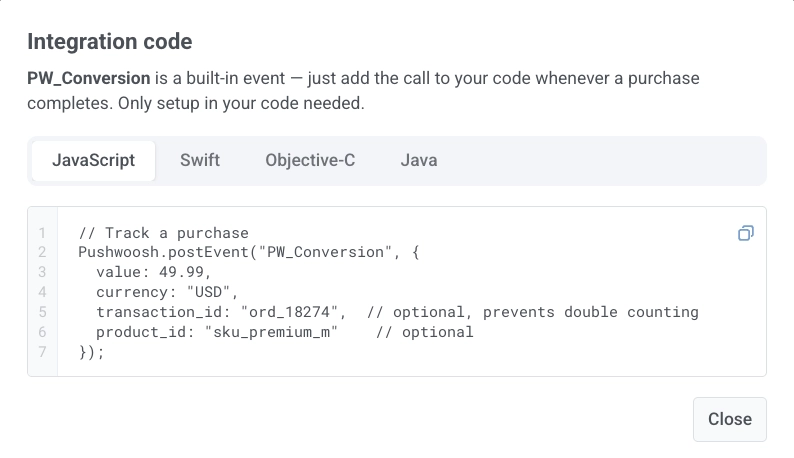
This path fits when you can add or change event code in your app or backend. After each purchase, send `PW_Conversion` through the [postEvent](/developer/api-reference/user-centric-api/#postevent) method.
1. Go to **Audience > Events**. Find the **Conversion events tracking** card.
2. Click **View code**.
3. Copy the sample and add the `postEvent` call wherever a purchase completes in your app or backend.
**Example for JavaScript:**
```javascript
Pushwoosh.postEvent("PW_Conversion", {
value: 49.99,
currency: "USD",
transaction_id: "ord_18274",
product_id: "sku_premium_m"
});
```
#### Attributes for the postEvent call
The following table lists the attributes you can pass when sending `PW_Conversion`.
| Field | Type | Required | Description |
| --- | --- | --- | --- |
| `value` | number | Yes | The monetary amount of the transaction. |
| `currency` | string (ISO 4217) | Yes | The transaction currency code, for example `USD` or `EUR`. |
| `transaction_id` | string | No | A unique identifier for the transaction. Recommended for your own record-keeping. Pushwoosh stores it as-is but does not use it to deduplicate revenue on its own. |
| `product_id` | string | No | The identifier of the purchased product or plan. |
### Map an existing event to track revenue
This path fits when purchase data already flows through another event and you do not want to change your code. When a mapped source event arrives, Pushwoosh fires and records it as a `PW_Conversion` event.
1. Go to **Audience > Events**. Find the **Conversion events tracking** card.
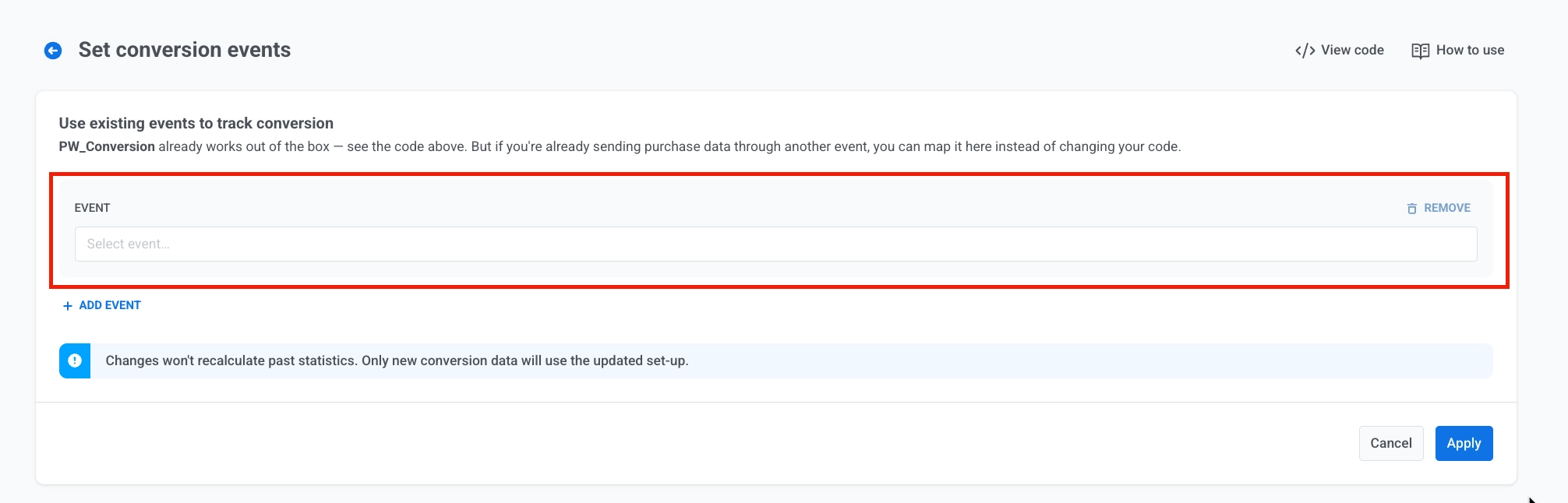
2. Click **Start collecting revenue** (or **Event mapping**, if you've already mapped an event). The **Set conversion events** page opens.
3. In **Use existing events to track conversion**, open the **EVENT** dropdown and select the event you already send. The list includes custom events, default events, and inbound-webhook events (such as Stripe or Shopify).
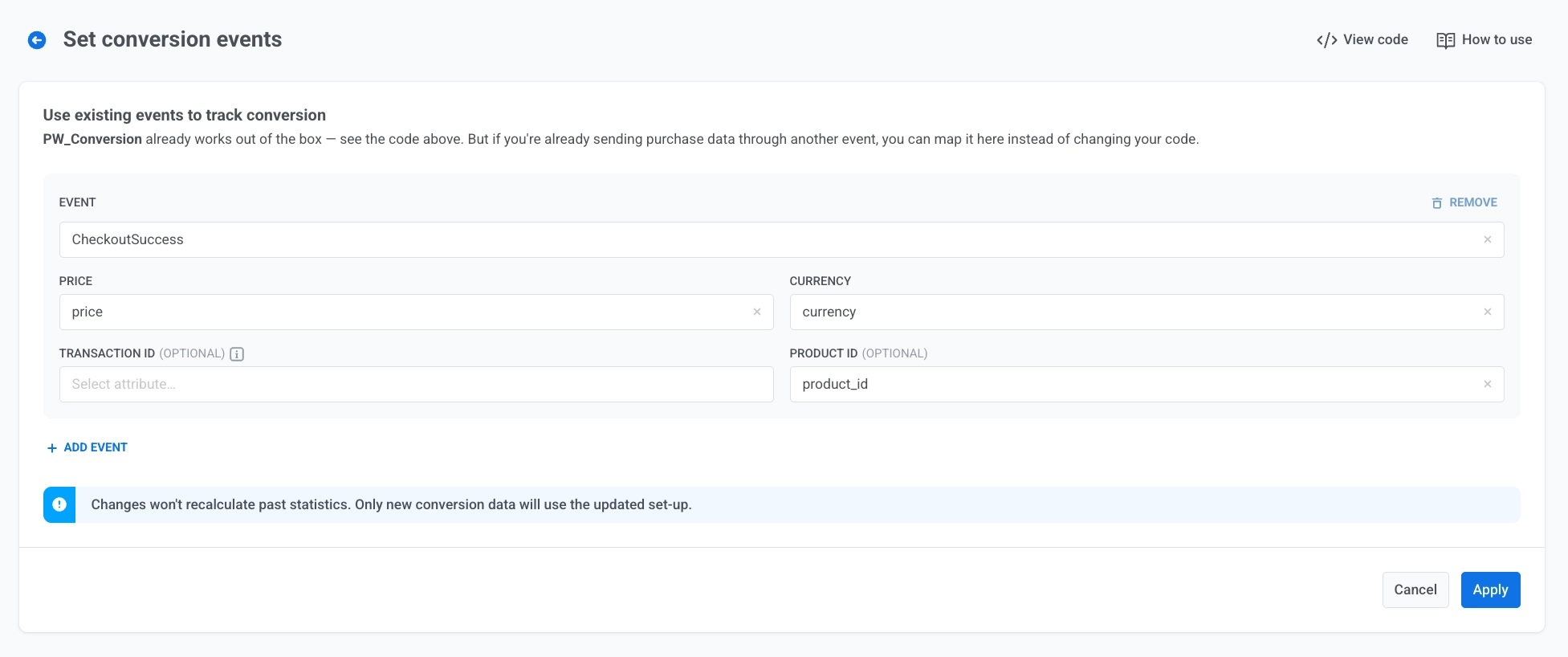
4. Map the remaining attributes:
* In **PRICE**, select the attribute that stores the transaction amount.
* In **CURRENCY**, select the attribute that stores the currency code.
* Optionally, map **TRANSACTION ID (OPTIONAL)** and **PRODUCT ID (OPTIONAL)**.
To map another source event, click **+ ADD EVENT**. To remove a mapping, click **REMOVE**.
5. Click **Apply**.
You can map multiple events as sources for the same application. For example, map a custom `purchase_completed` event alongside a Stripe webhook event.
## Monitor conversion events
The **Conversion events tracking** card on **Audience > Events** summarizes conversion activity for the selected application. It shows two numbers:
* **Mapped events:** how many source events currently feed into `PW_Conversion`.
* **Triggered last 7 days:** the total number of `PW_Conversion` events fired in that window, from any current or past mapping, or from direct `postEvent` calls.
Click **View code** to reopen the `PW_Conversion` integration sample.
 2. Click **View code**.
 3. Copy the sample and add the `postEvent` call wherever a purchase completes in your app or backend.
 **Example for JavaScript:**
```javascript
Pushwoosh.postEvent("PW_Conversion", {
value: 49.99,
currency: "USD",
transaction_id: "ord_18274",
product_id: "sku_premium_m"
});
```
#### Attributes for the postEvent call
The following table lists the attributes you can pass when sending `PW_Conversion`.
| Field | Type | Required | Description |
| --- | --- | --- | --- |
| `value` | number | Yes | The monetary amount of the transaction. |
| `currency` | string (ISO 4217) | Yes | The transaction currency code, for example `USD` or `EUR`. |
| `transaction_id` | string | No | A unique identifier for the transaction. Recommended for your own record-keeping. Pushwoosh stores it as-is but does not use it to deduplicate revenue on its own. |
| `product_id` | string | No | The identifier of the purchased product or plan. |
### Map an existing event to track revenue
This path fits when purchase data already flows through another event and you do not want to change your code. When a mapped source event arrives, Pushwoosh fires and records it as a `PW_Conversion` event.
1. Go to **Audience > Events**. Find the **Conversion events tracking** card.
2. Click **Start collecting revenue** (or **Event mapping**, if you've already mapped an event). The **Set conversion events** page opens.
**Example for JavaScript:**
```javascript
Pushwoosh.postEvent("PW_Conversion", {
value: 49.99,
currency: "USD",
transaction_id: "ord_18274",
product_id: "sku_premium_m"
});
```
#### Attributes for the postEvent call
The following table lists the attributes you can pass when sending `PW_Conversion`.
| Field | Type | Required | Description |
| --- | --- | --- | --- |
| `value` | number | Yes | The monetary amount of the transaction. |
| `currency` | string (ISO 4217) | Yes | The transaction currency code, for example `USD` or `EUR`. |
| `transaction_id` | string | No | A unique identifier for the transaction. Recommended for your own record-keeping. Pushwoosh stores it as-is but does not use it to deduplicate revenue on its own. |
| `product_id` | string | No | The identifier of the purchased product or plan. |
### Map an existing event to track revenue
This path fits when purchase data already flows through another event and you do not want to change your code. When a mapped source event arrives, Pushwoosh fires and records it as a `PW_Conversion` event.
1. Go to **Audience > Events**. Find the **Conversion events tracking** card.
2. Click **Start collecting revenue** (or **Event mapping**, if you've already mapped an event). The **Set conversion events** page opens.
 3. In **Use existing events to track conversion**, open the **EVENT** dropdown and select the event you already send. The list includes custom events, default events, and inbound-webhook events (such as Stripe or Shopify).
 4. Map the remaining attributes:
* In **PRICE**, select the attribute that stores the transaction amount.
* In **CURRENCY**, select the attribute that stores the currency code.
* Optionally, map **TRANSACTION ID (OPTIONAL)** and **PRODUCT ID (OPTIONAL)**.
4. Map the remaining attributes:
* In **PRICE**, select the attribute that stores the transaction amount.
* In **CURRENCY**, select the attribute that stores the currency code.
* Optionally, map **TRANSACTION ID (OPTIONAL)** and **PRODUCT ID (OPTIONAL)**.
 To map another source event, click **+ ADD EVENT**. To remove a mapping, click **REMOVE**.
5. Click **Apply**.
You can map multiple events as sources for the same application. For example, map a custom `purchase_completed` event alongside a Stripe webhook event.
## Monitor conversion events
The **Conversion events tracking** card on **Audience > Events** summarizes conversion activity for the selected application. It shows two numbers:
* **Mapped events:** how many source events currently feed into `PW_Conversion`.
* **Triggered last 7 days:** the total number of `PW_Conversion` events fired in that window, from any current or past mapping, or from direct `postEvent` calls.
Click **View code** to reopen the `PW_Conversion` integration sample.
To map another source event, click **+ ADD EVENT**. To remove a mapping, click **REMOVE**.
5. Click **Apply**.
You can map multiple events as sources for the same application. For example, map a custom `purchase_completed` event alongside a Stripe webhook event.
## Monitor conversion events
The **Conversion events tracking** card on **Audience > Events** summarizes conversion activity for the selected application. It shows two numbers:
* **Mapped events:** how many source events currently feed into `PW_Conversion`.
* **Triggered last 7 days:** the total number of `PW_Conversion` events fired in that window, from any current or past mapping, or from direct `postEvent` calls.
Click **View code** to reopen the `PW_Conversion` integration sample.
