# Control groups
A control group excludes a fixed share of your users from [marketing messages](/product/messaging-channels/marketing-vs-transactional/) on Push, Email, In-App, SMS, and WhatsApp. Pushwoosh compares those users to everyone else in your app who keeps receiving campaigns, so you can measure whether your messaging drives results.
Control group users still receive [transactional messages](/product/messaging-channels/marketing-vs-transactional/) on those channels when you set the message type accordingly.
Each application can have more than one control group:
* **Default control group:** used automatically by any send that doesn't choose a specific group. Every application has at most one.
* **Additional control groups:** named holdouts you [create](#create-a-control-group) for a specific campaign or test. A send only measures against an additional group if you [choose it explicitly](#choose-a-control-group-for-a-specific-message) in that send's settings.
## How control group membership works
Pushwoosh doesn't keep a list of who's in the control group. Instead, on every check it combines your app, the current group version number, and the user ID, runs them through a hash formula to produce a number, and checks whether that number falls within the percentage you set (for example, 5%). If yes, the user is in the control group. If no, they aren't. Because it's a formula rather than a saved list, turning the group on applies to your entire existing user base right away, not just to people who sign up afterward.
Each user's result stays the same over time: once assigned, a user stays in or out of the control group until you [reshuffle](#reshuffle-the-control-group) the group, change its size, or the user's ID changes. So if you disable the group and re-enable it later without reshuffling, you'll get back exactly the same group as before, since the formula itself hasn't changed.
## How the control group affects message delivery
Control group membership blocks or allows messages based on the message type you set for each send.
- **Marketing message:** blocked for control group users on Push, Email, In-App, SMS, and WhatsApp.
- **Transactional message:** still delivered on those channels. Select **Transactional message** when creating a customer journey or sending a one-time message.
Choose **Marketing message** or **Transactional message** for every send on those channels. See [where to set the message type](/product/messaging-channels/marketing-vs-transactional/#where-to-set-the-message-type).
[Learn more about marketing and transactional messages](/product/messaging-channels/marketing-vs-transactional/).
## Create a control group
Create a control group to start holding out a share of your users from marketing messages.
1. Navigate to **Settings > Control groups**.
2. Click **New group**.

3. Choose the group's type:
* **Default control group:** used automatically by any send that doesn't choose a specific group. An application can only have one; if it already has a default, this option is labeled **This application already has one** and can't be selected.
* **Additional control group:** used only by sends that explicitly choose it. Give it a **Name** (up to 64 characters, no colon) so you can recognize it when selecting it later.
4. Set the **Control group size**: the share of users held back from marketing messages, from 1% to 20%.
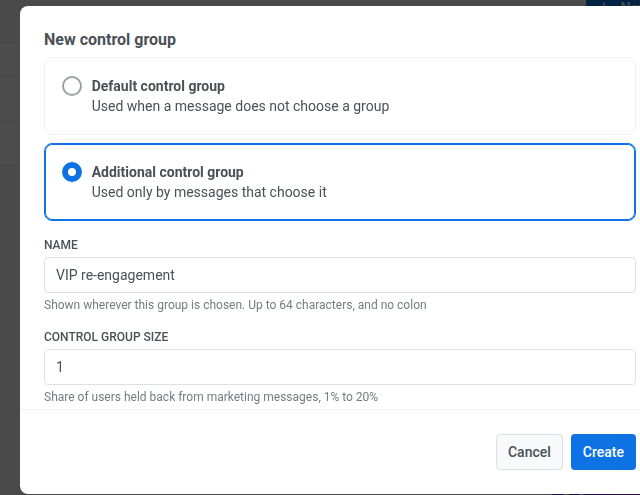
5. Click **Create**. The group starts excluding its members from marketing messages right away.
## Choose a control group for a specific message
Customer Journey Push and Email points have a **Control group** section: on Push it's inside **Delivery settings**, before **Flow options**; on Email it's between **Content** and **Delivery settings**. The section always shows at least one option, **Application default**, so a message never ends up without a control group even if the application has none configured yet. If you created one or more Additional control groups, they appear in the same list, and choosing one measures that message against it instead of the Default control group.
## Manage a control group
Open **Settings > Control groups** and click a group's row to reach its own page, where the sections below apply.
### Edit the control group size
You can adjust the size of a control group at any time from its page.
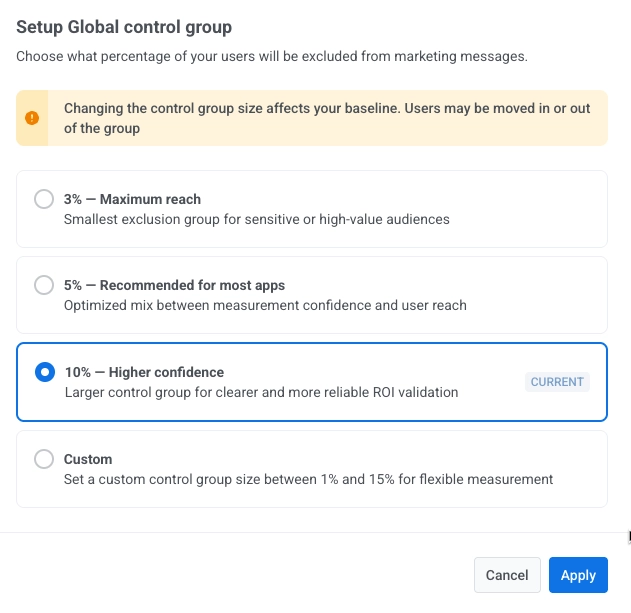
1. Click **Edit group size**.
2. Choose a new percentage:
* **3% (Maximum reach):** smallest exclusion group for sensitive or high-value audiences.
* **5% (Recommended for most apps):** optimized mix between measurement confidence and user reach.
* **10% (Higher confidence):** larger control group for clearer and more reliable ROI validation.
* **Custom (1%–20%):** set a custom control group size for flexible measurement.
3. Click **Apply** to confirm changes.
### Recalculate the group size
The group size shown on the page is cached and refreshes about once a day, so it can lag behind a resize or new users joining your app.
Click **Recalculate** next to the group size.
The page keeps showing the previous count with a loading indicator while the new one is calculated.
### Reshuffle the control group
**Reshuffle control group** draws a brand-new random sample at the same percentage, replacing every current member with a fresh, independently computed group. Use it when the same users have been excluded from marketing for a long time and you want different users to make up the holdout going forward.
1. Click the **three-dot menu** in the top right.
2. Select **Reshuffle control group**.
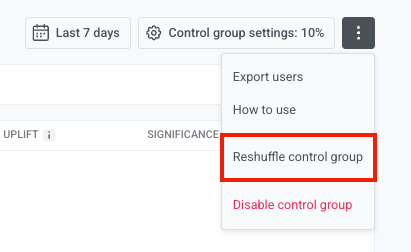
3. Confirm in the dialog that appears.
### Export control group users
Pushwoosh doesn't tag control group users, so exporting from this page is the only way to get a list of current members.
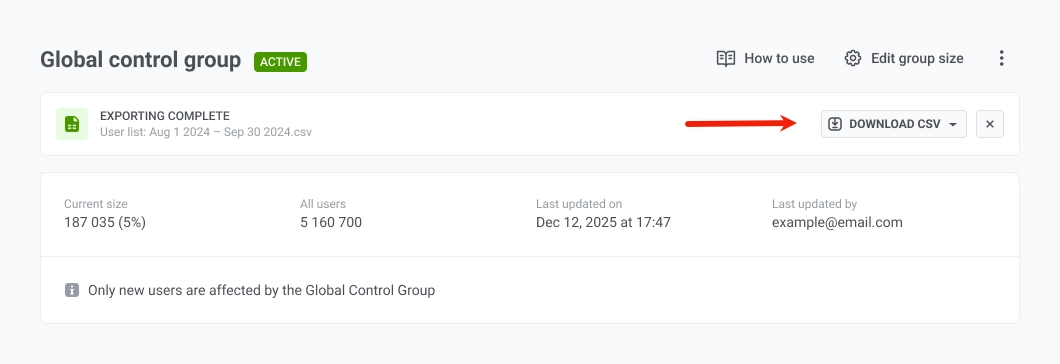
1. Click the **three-dot menu** in the top right.
2. Select **Export users**.
3. When the export finishes, click **Download CSV** to save the file.
### Disable a control group
1. Click the **three-dot menu** in the top right.
2. Select **Disable control group**.
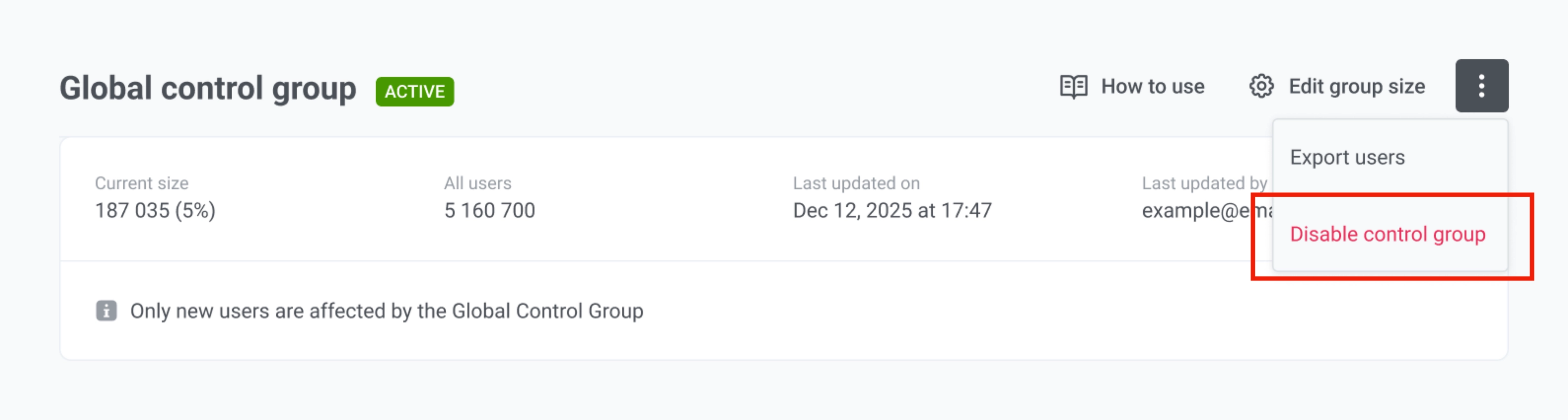
Disabling stops that group from holding out any users immediately, and they start receiving [marketing messages](/product/messaging-channels/marketing-vs-transactional/) again. If you re-enable it later without reshuffling, Pushwoosh reproduces the exact same group, since membership is computed by the same formula. To get a different group after re-enabling, [reshuffle it](#reshuffle-the-control-group).
### Delete a control group
Deleting a control group removes it and its configuration permanently.
1. Click the **three-dot menu** in the top right.
2. Select **Delete group**.
3. Confirm in the dialog that appears. It reads: *"Messages that name this group stop holding anyone back, and its measurements are lost. This cannot be undone."*
## Analyze control group impact
Each control group's page shows how your messaging performs against that group. The page has two blocks: an events comparison table at the top and an **Impact report** below it. Both compare two groups of users on any event you choose:
* **Treatment group:** all users who are not in the control group. They keep receiving your marketing messages (Push, Email, In-App, SMS, WhatsApp) as usual.
* **Control group:** the holdout you configured above. These users are excluded from marketing messages, so any difference in their behavior isn't influenced by your campaigns.
### Compare events
1. Select a time window: **Last 3 days**, **Last 7 days**, or **Last 30 days**.
2. Review the events comparison table. It only shows events automatically if you've set [Conversion Goals in Customer Journey](/product/customer-journey/journey-settings/#conversion-goals). Otherwise, the table starts empty.
3. Click **Add events to compare** to add any event you want to measure. You can add up to 10 events in total.
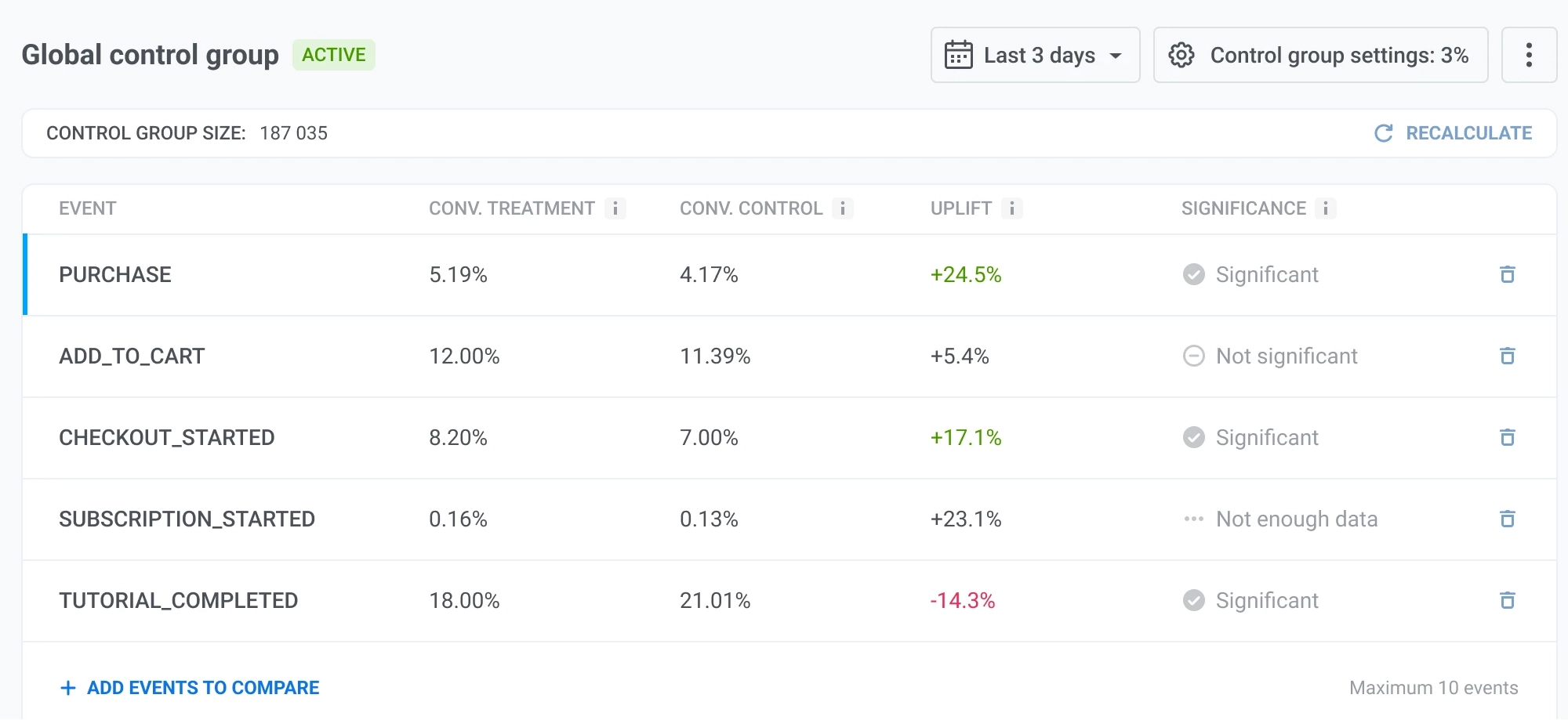
The table shows these metrics for each event:
* **Conv. Treatment:** the conversion rate in the treatment group. This is the share of unique users who received your marketing messages (Push, Email, In-App, SMS, WhatsApp) and triggered the event at least once.
* **Conv. Control:** the conversion rate in the control group. This is the share of unique users who were held out from marketing messages and triggered the event at least once anyway, without any messaging influence.
* **Uplift:** the percentage difference between the treatment and control conversion rates, relative to the control rate. A positive value means the treatment group converted better. Calculated as `(conv. treatment − conv. control) / conv. control × 100%`.
* **Significance:** whether the difference is statistically reliable:
* **Significant:** the uplift is unlikely to be due to chance.
* **Not significant:** the difference isn't statistically reliable yet.
* **Not enough data:** either group has fewer than 10 conversions or fewer than 10 non-conversions for this event, so significance can't be calculated.
### View the Impact report
Use the **View event** dropdown to select an event from the table. The **Impact report** below shows a deeper breakdown for that event.
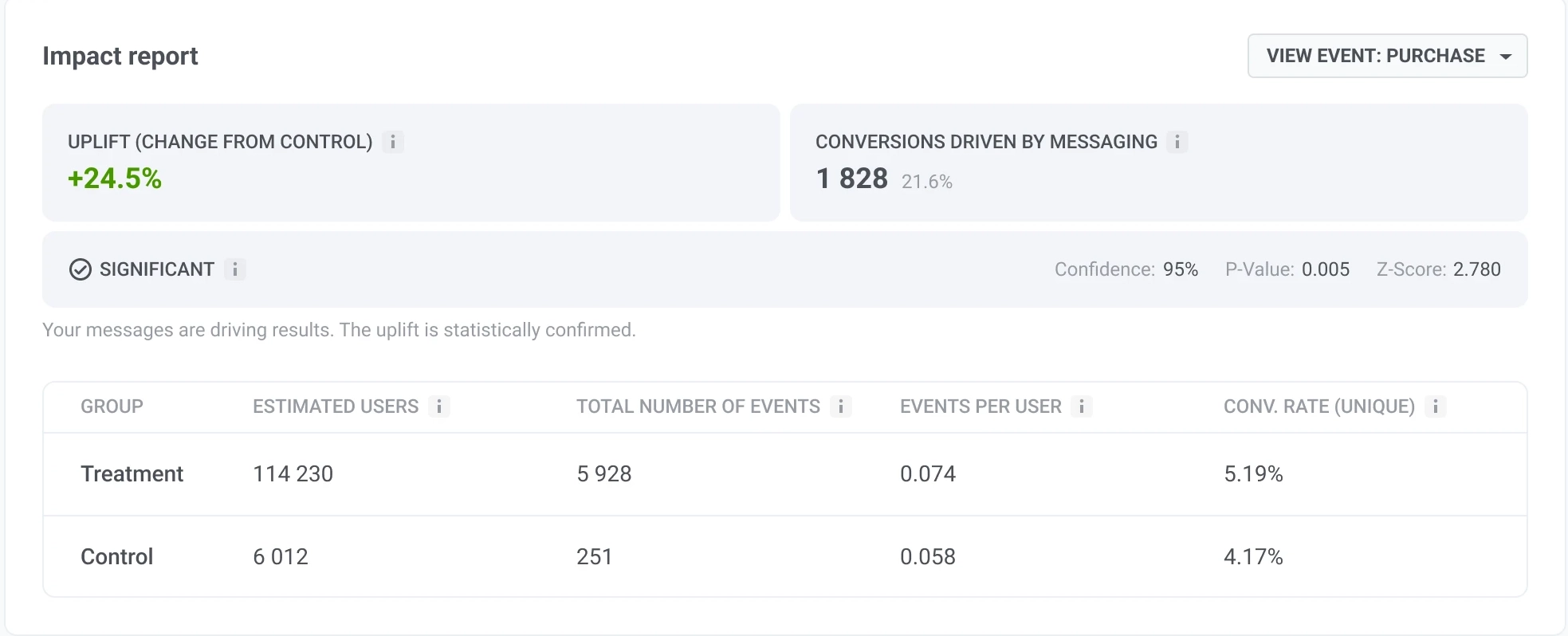
* **Uplift (change from control):** how much the treatment conversion rate differs from the control conversion rate. This is the same value shown in the events table.
* **Conversions driven by messaging:** the estimated number of additional events generated by your messages beyond the number expected without messaging. Calculated as `(events per user in treatment − events per user in control) × treatment group size`. The percentage shows these additional events as a share of all treatment events.
* **Significance:** indicates whether the measured difference is statistically reliable. The report shows **Significant**, **Not significant**, or **Not enough data**, based on:
* **Confidence:** how sure Pushwoosh is that the uplift reflects a real difference between treatment and control, rather than random chance, shown as a percentage. The higher the confidence, the stronger the evidence.
* **P-value:** shows how likely it is to observe this difference by chance if messaging has no real effect. A lower P-value provides stronger evidence that the difference is not random.
* **Z-score:** shows how far apart your two groups performed. A score close to 0 means the difference could be random. The further from 0, the more confident you can be that one group is genuinely better than the other.
* **Group breakdown:** compares the Treatment and Control groups by **Estimated users**, **Total number of events**, **Events per user**, and **Conv. rate (unique)**.
## Frequently asked questions
### Can an application have more than one control group?
Yes. Each application can have one Default control group plus any number of Additional control groups. The default group is used automatically by any send that doesn't choose a specific group. An additional group is used only by the sends you explicitly point at it.
### How do I choose which control group a message is measured against?
In Customer Journey, Push and Email points have a **Control group** section (**Application default** plus any Additional groups you created) in their point settings. One-time messages (Push, Email, SMS, WhatsApp) don't offer this picker yet: they're always measured against the Default control group.
### Can I delete a control group?
Yes, from the three-dot menu on the group's page. Deleting the Default control group leaves the application without a fallback: sends that don't choose a specific group stop holding anyone out until you create a new default. To pause a group without losing it, [disable it](#disable-a-control-group) instead of deleting it.
### What users are in the control group?
Pushwoosh doesn't keep a stored list of control group members. It uses a formula, a calculation that always gives the same answer for the same inputs, based on your app, the user's ID, and the group's current settings. This applies to your entire existing user base the moment you enable the group, not only to new sign-ups, and the result stays the same for a given user every time, until you [reshuffle](#reshuffle-the-control-group) the group or change its size.
### Do control group users receive transactional messages?
Yes. [Transactional messages](/product/messaging-channels/marketing-vs-transactional/) (e.g. password resets, order confirmations) are delivered to all users, including the control group. Only marketing messages are blocked for control group users.
### Where do I set the marketing or transactional message type?
You choose it wherever you send messages. For each channel, see [Where to set the message type](/product/messaging-channels/marketing-vs-transactional/#where-to-set-the-message-type).
### What happens to campaigns created before I enabled the control group?
Campaigns created before you enabled the control group work exactly like new ones: Pushwoosh checks a campaign's message type at send time, not at creation time.
- **Marketing message** (or no message type at all, which can happen for campaigns created [via the API](/product/messaging-channels/marketing-vs-transactional/#api-requests-and-message-type)): the control group excludes those users starting immediately.
- **Transactional message**: control group users keep receiving it as before.
Edit the campaign and set the message type to **Transactional message** if you want it to reach everyone, including the control group.
### Can I change the control group size after enabling it?
Yes. Open the group's page from **Settings > Control groups**, click **Edit group size**, choose a new percentage (1% to 20%), and click **Apply**. Pushwoosh recomputes membership for your whole user base against the new percentage: growing the group adds users without removing anyone already in it, and shrinking it releases some existing members. This can affect comparison with earlier campaigns, so change the size only when needed.
### What happens if I disable the control group?
Pushwoosh stops holding out any users and everyone starts receiving marketing messages again. If you enable the control group again later without reshuffling, you get back the exact same group, because membership is computed by the same formula. To get a different group after re-enabling, [reshuffle it](#reshuffle-the-control-group).
### What does Reshuffle do?
**Reshuffle control group** draws a brand-new random sample at the same percentage, replacing the current control group with a different set of users. It's available from the **three-dot menu** on the group's page. Use it when the same users have been excluded from marketing for a long time and you want fresh holdout coverage. Reshuffling also restarts the [measurement window](#analyze-control-group-impact) for control group analytics.
### How do I see which users are in the control group?
Pushwoosh doesn't tag control group users. Open the group's page from **Settings > Control groups**, click the **three-dot menu**, and select **Export users** to download a CSV of current members.
### Why might a user in the control group still receive marketing messages?
Pushwoosh computes control group membership by **User ID**. If the same person has several contact methods (e.g. email, push device) that are not linked under one User ID, Pushwoosh treats them as different users and computes membership for each separately: one may land in the control group while another does not. A contact method with no User ID at all is never held out, since Pushwoosh needs a User ID to compute membership. To avoid this, [register all contact methods with the same User ID](/product/pushwoosh-knowledge-hub/omnichannel-campaigns/).
### What control group percentage should I choose?
The right percentage depends on your goals, app size, and how you plan to use the results. A smaller percentage (e.g. 3%) keeps more users in the audience and may suit teams that prioritize reach. A larger percentage (e.g. 10%) can give stronger statistical confidence when comparing groups. You can set a **Custom** value between 1% and 20% to match your needs.
### Why isn't my control group exactly the percentage I set?
The group size shown on the page is the actual number of users the hash formula assigned to the group, not the percentage multiplied by your user count. On smaller apps this count can visibly differ from the percentage, since the formula distributes users individually rather than sampling an exact share. The count is cached and refreshed about once a day; you can trigger an immediate recalculation from the page, which shows the previous count with a loading indicator while it runs.
### What does **Not enough data** mean in the events table?
**Not enough data** means that either the treatment or control group had fewer than 10 conversions or fewer than 10 non-conversions for that event during the selected time window. Pushwoosh cannot determine whether the difference between the groups is statistically significant until more data is available.
### How is **Uplift** calculated?
**Uplift** shows the percentage difference between the treatment and control conversion rates, relative to the control rate. A positive value means the treatment group converted better. Pushwoosh calculates it as `(conv. treatment − conv. control) / conv. control × 100%`.
### What does **Conversions driven by messaging** mean?
**Conversions driven by messaging** is the estimated number of additional events generated by your messages beyond the number expected without messaging. Pushwoosh calculates it as `(events per user in treatment − events per user in control) × treatment group size`. The percentage shows these additional events as a share of all treatment events.
### Which events can I compare and how many?
You can compare events configured as [Conversion Goals in Customer Journey](/product/customer-journey/journey-settings/#conversion-goals). You can add up to 10 events to the comparison table. Message-engagement events (e.g. opens, clicks, sends, bounces) are excluded even if set as a goal, since control group users never receive marketing messages to react to.