# Create and manage a control group
Create a control group for your app, then change its settings or remove it later from the group's page.
## Create a control group
Create a control group to start holding out a share of your users from marketing messages. The Control Panel creates one per application. **New group** stops appearing once you have it.
### Open the New group dialog
1. Navigate to **Settings > Control groups**.
2. Click **New group**.

### Set the group size
Set the **Group size**: the share of users held back from marketing messages, from 1% to 20%.

### Choose a mode
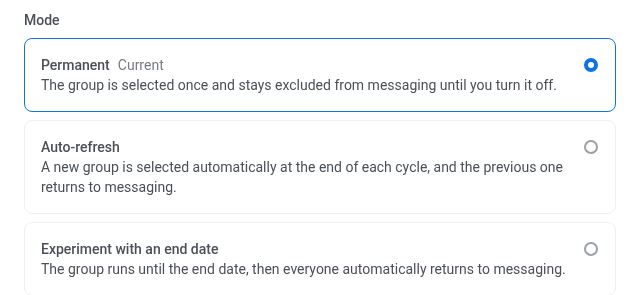
Mode sets how long the same users stay in the group, and what happens after that.
* **Permanent:** the group is selected once and stays excluded from messaging until you turn it off.
* **Auto-refresh:** a new group is selected automatically at the end of each cycle, and the previous one returns to messaging. Set **Refresh every** to **1 month**, **2 months**, or **3 months**.
* **Experiment with an end date:** the group runs until the **From**–**To** dates you set, then everyone automatically returns to messaging. **To** must be at least 30 days after **From**.
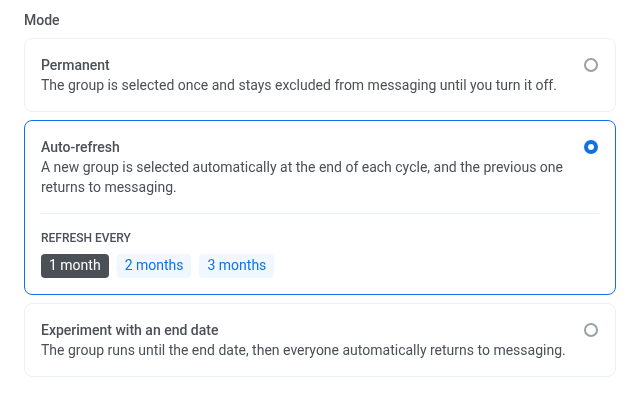
To see how each mode appears on the group's page, see [Analyze control group impact](/product/audience-data-and-segmentation/control-groups/analyze-control-group-impact/).
### Scope the control group by country
Optional. Country scope limits which devices are held out. Pushwoosh first selects users by the group size, then holds out only those of their devices that are in the countries you choose. In **Countries**, select the countries, or leave it empty:
* **Empty Countries:** every user the percentage formula selects is held out, regardless of location.
* **Non-empty Countries:** only devices whose system **Country** tag matches one of the selected countries are held out. A device outside the selected countries keeps receiving marketing messages, even if its user is one the percentage formula selected.

### Scope the control group by tag
Optional. Tag scope works like [country scope](#scope-the-control-group-by-country) above, but by tag value: of the users selected by the group size, only devices with the tag values you choose are held out. If you set both, Pushwoosh applies **Countries** and **Tag** together.
1. In **Tag**, select a string or boolean tag. **Country** doesn't appear in this list. Scope by country uses **Countries** above instead.
2. Choose one or more values that put a user in scope. A boolean tag offers **true** and **false**. A string tag suggests existing values and also accepts your own.

* **Empty scope tag:** every user the percentage formula selects is held out, regardless of the tag.
* **Non-empty scope tag:** only devices whose value of that tag is one of the values you chose are held out. A device with a different value, or no value at all for that tag, keeps receiving marketing messages, even if its user is one the percentage formula selected.
### Review and create the group
Check the settings and click **Apply**. If you selected a tag in **Scope the control group by tag**, **Apply** stays disabled until you choose at least one value. The group starts excluding its members from marketing messages right away, following the mode you chose.
You can change the size, mode, countries, and tag later from the group's page. See [Manage the control group](#manage-the-control-group).
## Manage the control group
Open **Settings > Control groups** and click the group's row to reach its own page, where the sections below apply.
### Edit the control group size and countries
You can adjust the size of a control group, and the countries it holds out, at any time from its page.
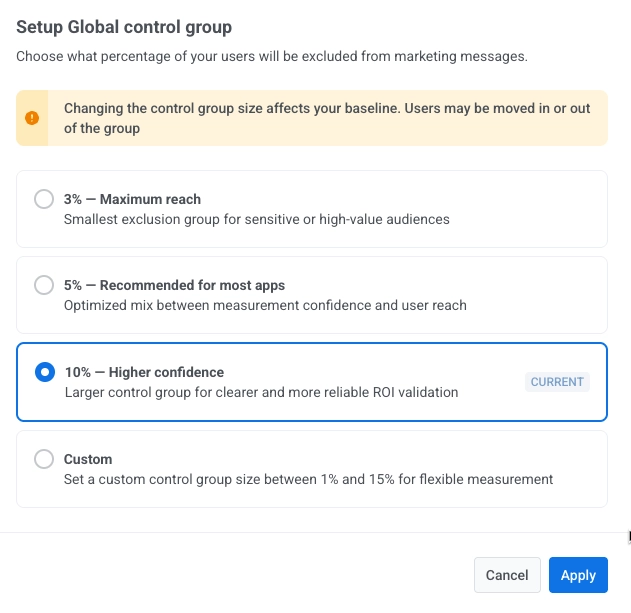
1. Click **Control group settings** in the top right. The button also shows the group's current percentage, for example **Control group settings: 10%**.
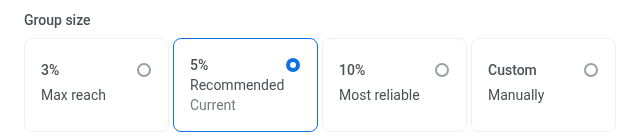
2. Choose a new percentage:
* **3% (Maximum reach):** smallest exclusion group for sensitive or high-value audiences.
* **5% (Recommended for most apps):** optimized mix between measurement confidence and user reach.
* **10% (Higher confidence):** larger control group for clearer and more reliable ROI validation.
* **Custom (1%–20%):** set a custom control group size for flexible measurement.
3. Optional: change the [mode](#choose-a-mode).
4. In **Countries**, select one or more countries to limit the control group to, or leave it empty to hold out users across your whole audience.
5. Optional: change the [tag scope](#scope-the-control-group-by-tag). If you select a tag, **Apply** stays disabled until you choose at least one value.
6. Click **Apply** to confirm changes.
### What changes when you edit the group
Each setting affects the group and its results differently.
#### Group size
Membership is recalculated for your whole user base, not only for new users:
* Growing the group adds users until it reaches the new percentage. No one already in it is removed.
* Shrinking the group removes just enough members to reach the new percentage.
This makes results harder to compare with earlier campaigns, so change the size only when necessary.
#### Other settings
* **Mode:** the group's current cycle closes and a new one starts. The users held out stay the same until the next reshuffle, resize, or Auto-refresh rollover.
* **Countries:** the [uplift measurement](/product/audience-data-and-segmentation/control-groups/analyze-control-group-impact/) restarts, because a different audience is now compared. The users in the group stay the same. Only which of their devices are held out from marketing changes.
* **Tag scope:** the uplift measurement restarts, the same as when you change **Countries**.
### Recalculate the group size
**Group size** shows a saved number that Pushwoosh updates about once a day. Right after you change the group size, or when a lot of new users join your app, this number can be out of date.
To update it right away, click **Recalculate** next to the group size.
### Reshuffle the control group
**Reshuffle control group** picks a new random set of users, keeping the same percentage. Everyone currently in the group leaves it, and a different set of users takes their place. Use it when the same people have been left out of your marketing messages for a long time.
1. Click the **three-dot menu** in the top right.
2. Select **Reshuffle control group**.
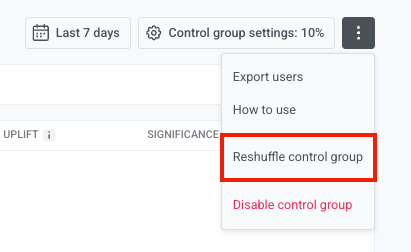
3. Confirm in the dialog that appears.
### Export control group users
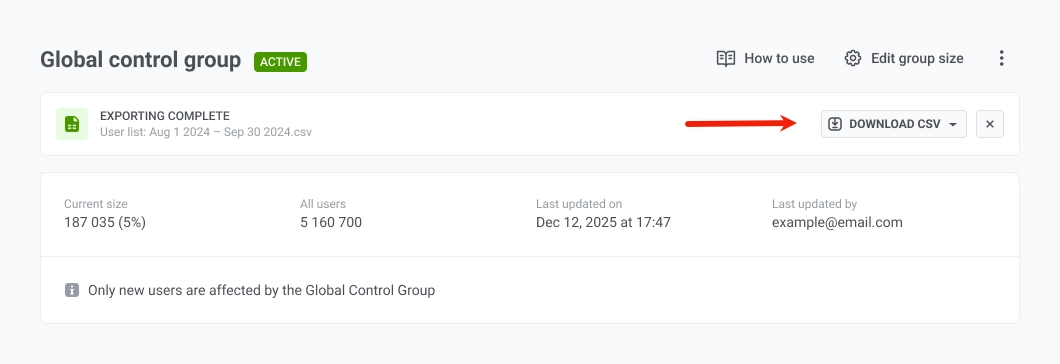
Pushwoosh doesn't tag control group users. Export from this page for a one-off list, or call [`CheckControlGroupMembership`](/developer/api-reference/control-groups-api/#checkcontrolgroupmembership) to check a batch of user IDs programmatically.
1. Click the **three-dot menu** in the top right.
2. Select **Export users**.
3. When the export finishes, click **Download CSV** to save the file.
### Disable a control group
1. Click the **three-dot menu** in the top right.
2. Select **Disable control group**.
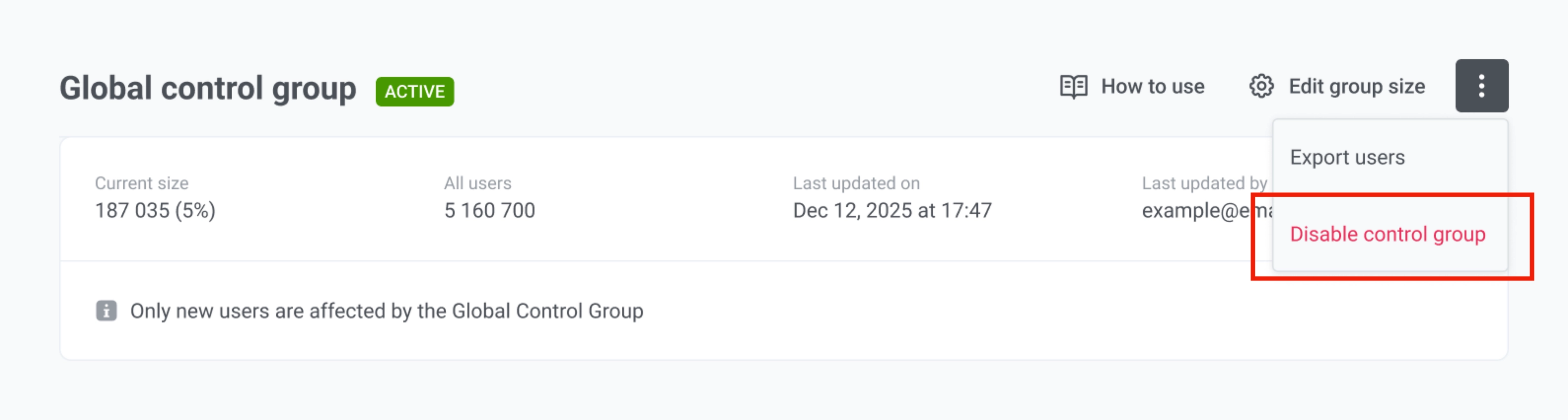
Disabling stops that group from holding out any users immediately, and they start receiving [marketing messages](/product/messaging-channels/marketing-vs-transactional/) again. If you re-enable it later without reshuffling, Pushwoosh reproduces the exact same group, since membership is computed by the same formula. To get a different group after re-enabling, [reshuffle it](#reshuffle-the-control-group).
### Delete the control group
Deleting the control group removes it and its configuration permanently.
1. Click the **three-dot menu** in the top right.
2. Select **Delete group**.
3. Confirm in the dialog that appears. This cannot be undone.