# Set up passkeys
[**Passkeys**](https://www.passkeycentral.org/introduction-to-passkeys/) let you sign in to Pushwoosh without a password. Instead of typing a password or waiting for an SMS code, you confirm access with Touch ID, Face ID, Windows Hello, or a device PIN.
## What are the benefits of passkeys?
- **Phishing-resistant sign-in:** passkeys work only on the correct domain, so they cannot be used on a fake login page.
- **No shared secret on the server:** Pushwoosh stores only a public key, which cannot be used to sign in on its own.
- **Faster login flow:** for passkey sign-ins, confirm access with Touch ID, Face ID, Windows Hello, or a device PIN instead of entering a password and SMS code.
- **Better protection than SMS codes:** passkeys are not tied to your phone number, which reduces SIM-swap risks.
## Enable passkeys in Pushwoosh
To add a passkey:
1. Go to **My Account** > **Account settings**.
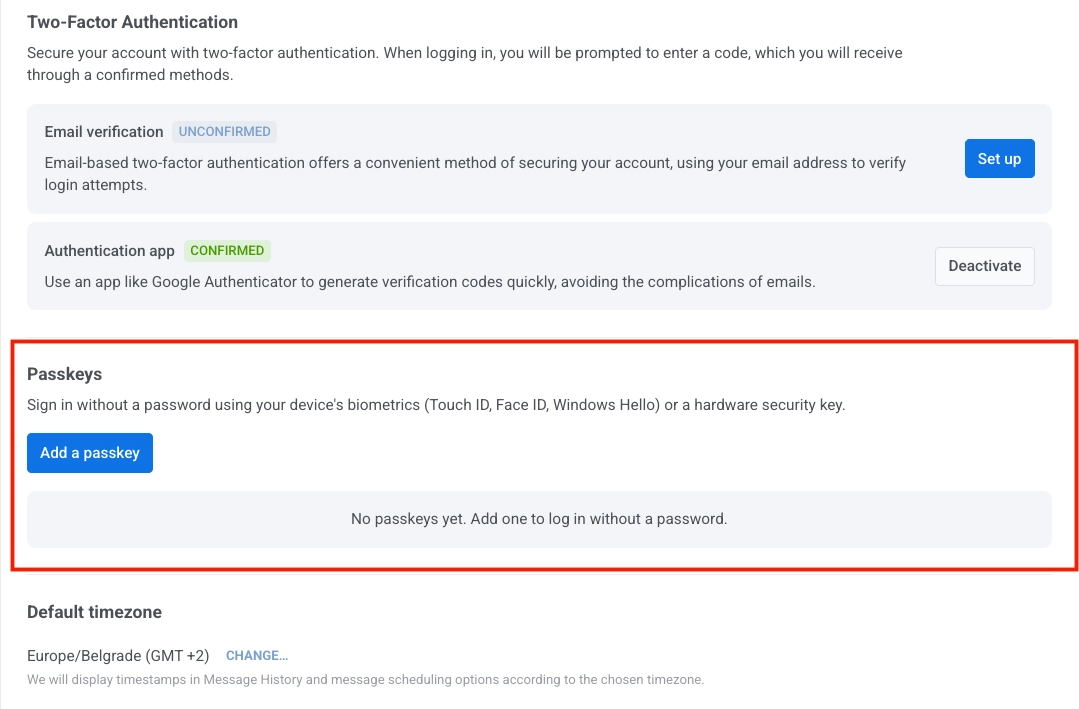
2. In the **Passkeys** section, click **Add a passkey**.
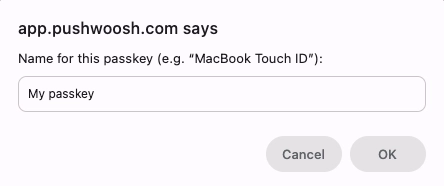
3. Enter a name for the passkey, then click **OK**.
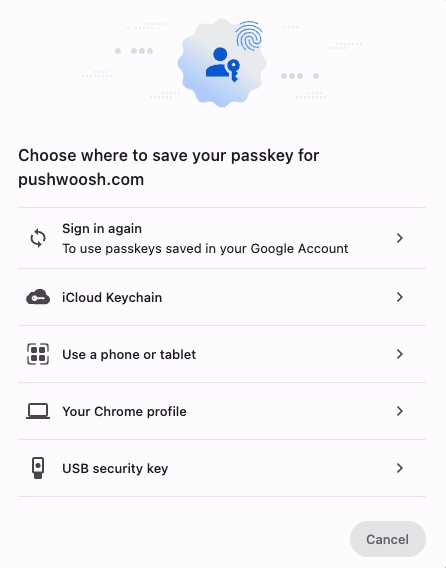
4. Select where to save the passkey.
### Passkey storage options
When you save a passkey, you can choose from several storage options.
- **Sign in again (Google Account):** saves and syncs the passkey across devices linked to your Google Account. Availability on other devices depends on your Google Account and Chrome sync settings. Typically used when you sign in with Chrome and use Google Password Manager.
- **iCloud Keychain:** saves and syncs the passkey across your Apple devices, including Mac, iPhone, and iPad. Typically used when your main devices are in the Apple ecosystem.
- **Use a phone or tablet:** lets you scan a QR code and use a nearby mobile device as the passkey provider. Use this when you need to sign in from a desktop without saving a passkey on that desktop.
- **Your Chrome profile:** saves the passkey in the current Chrome profile on this device. Availability on other devices depends on your Chrome and Google Password Manager sync settings.
- **USB security key:** saves the passkey on a physical FIDO security key such as YubiKey. Typically used in high-security environments or where hardware-based authentication is required.
Passkey availability depends on your browser, operating system, and selected passkey provider settings.
5. Complete the confirmation step shown for your selected storage option. For example, if you choose **iCloud Keychain**, confirm with Touch ID.
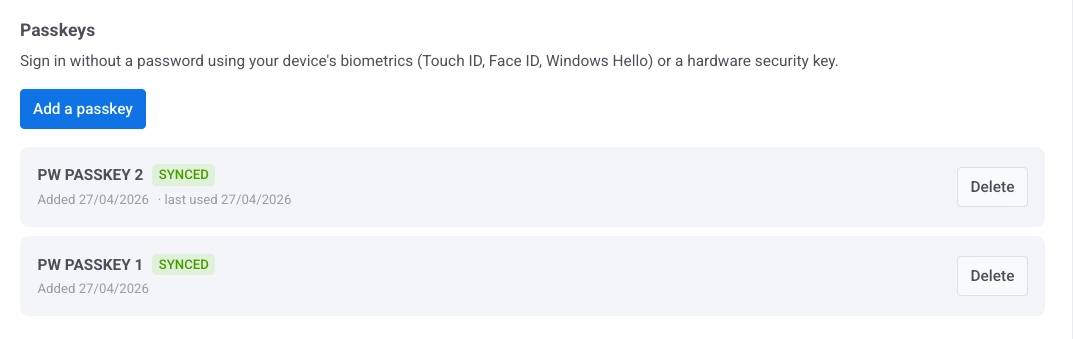
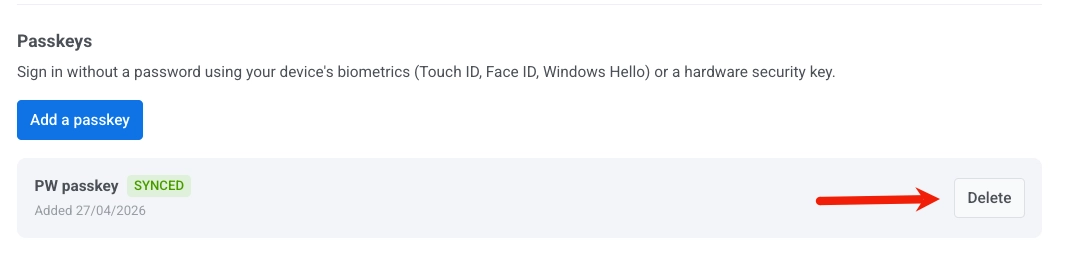
6. Return to **Account settings** and verify that the new passkey appears in the **Passkeys** list with a **Synced** status.
If the passkey shows an error status, the save step did not complete successfully. Click **Add a passkey** and try again.
## Delete a passkey
1. Go to **My Account** > **Account settings**.
2. In the **Passkeys** section, find the passkey you want to remove.
3. Click **Delete** next to it.
## Sign in with a passkey
When signing in to Pushwoosh, a passkey can be used in two ways:
- If a passkey is available, your browser may suggest it automatically when you enter your username or email.
- If no suggestion appears, enter your username or email, click **Sign in**, and then click **Sign In With Passkey**.
Confirm sign-in on your device with biometrics or a device PIN.
 3. Enter a name for the passkey, then click **OK**.
 4. Select where to save the passkey.
### Passkey storage options
When you save a passkey, you can choose from several storage options.
- **Sign in again (Google Account):** saves and syncs the passkey across devices linked to your Google Account. Availability on other devices depends on your Google Account and Chrome sync settings. Typically used when you sign in with Chrome and use Google Password Manager.
- **iCloud Keychain:** saves and syncs the passkey across your Apple devices, including Mac, iPhone, and iPad. Typically used when your main devices are in the Apple ecosystem.
- **Use a phone or tablet:** lets you scan a QR code and use a nearby mobile device as the passkey provider. Use this when you need to sign in from a desktop without saving a passkey on that desktop.
- **Your Chrome profile:** saves the passkey in the current Chrome profile on this device. Availability on other devices depends on your Chrome and Google Password Manager sync settings.
- **USB security key:** saves the passkey on a physical FIDO security key such as YubiKey. Typically used in high-security environments or where hardware-based authentication is required.
Passkey availability depends on your browser, operating system, and selected passkey provider settings.
4. Select where to save the passkey.
### Passkey storage options
When you save a passkey, you can choose from several storage options.
- **Sign in again (Google Account):** saves and syncs the passkey across devices linked to your Google Account. Availability on other devices depends on your Google Account and Chrome sync settings. Typically used when you sign in with Chrome and use Google Password Manager.
- **iCloud Keychain:** saves and syncs the passkey across your Apple devices, including Mac, iPhone, and iPad. Typically used when your main devices are in the Apple ecosystem.
- **Use a phone or tablet:** lets you scan a QR code and use a nearby mobile device as the passkey provider. Use this when you need to sign in from a desktop without saving a passkey on that desktop.
- **Your Chrome profile:** saves the passkey in the current Chrome profile on this device. Availability on other devices depends on your Chrome and Google Password Manager sync settings.
- **USB security key:** saves the passkey on a physical FIDO security key such as YubiKey. Typically used in high-security environments or where hardware-based authentication is required.
Passkey availability depends on your browser, operating system, and selected passkey provider settings.
 5. Complete the confirmation step shown for your selected storage option. For example, if you choose **iCloud Keychain**, confirm with Touch ID.
6. Return to **Account settings** and verify that the new passkey appears in the **Passkeys** list with a **Synced** status.
5. Complete the confirmation step shown for your selected storage option. For example, if you choose **iCloud Keychain**, confirm with Touch ID.
6. Return to **Account settings** and verify that the new passkey appears in the **Passkeys** list with a **Synced** status.
 If the passkey shows an error status, the save step did not complete successfully. Click **Add a passkey** and try again.
## Delete a passkey
1. Go to **My Account** > **Account settings**.
2. In the **Passkeys** section, find the passkey you want to remove.
3. Click **Delete** next to it.
If the passkey shows an error status, the save step did not complete successfully. Click **Add a passkey** and try again.
## Delete a passkey
1. Go to **My Account** > **Account settings**.
2. In the **Passkeys** section, find the passkey you want to remove.
3. Click **Delete** next to it.
 ## Sign in with a passkey
When signing in to Pushwoosh, a passkey can be used in two ways:
- If a passkey is available, your browser may suggest it automatically when you enter your username or email.
- If no suggestion appears, enter your username or email, click **Sign in**, and then click **Sign In With Passkey**.
Confirm sign-in on your device with biometrics or a device PIN.
## Sign in with a passkey
When signing in to Pushwoosh, a passkey can be used in two ways:
- If a passkey is available, your browser may suggest it automatically when you enter your username or email.
- If no suggestion appears, enter your username or email, click **Sign in**, and then click **Sign In With Passkey**.
Confirm sign-in on your device with biometrics or a device PIN.