# Data requests
Use **Data requests** to permanently erase personal data from Pushwoosh for people you identify by **User ID**, **HWID**, or **Email**, and to review past erasures on this account.
To open it, click **My account** in the top bar or sidebar, then select **Data requests**.
Any team member can open the page, but running **Erase from a file** requires modify rights on the selected application.
## Erase from a file
Click **Erase from a file** to bulk-erase personal data by a list of identifiers.
The subject list is a CSV with one identifier per row, up to 5 MB. The first row may name the column.
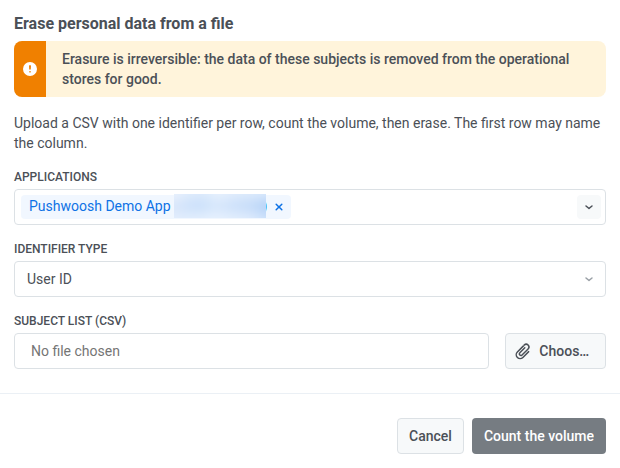
1. In **Applications**, select which applications to search for the identifiers.
2. In **Identifier type**, choose **User ID**, **HWID**, or **Email**, matching what the CSV column contains.
3. Under **Subject list (CSV)**, click **Choose a file**.
4. Select the CSV to upload.
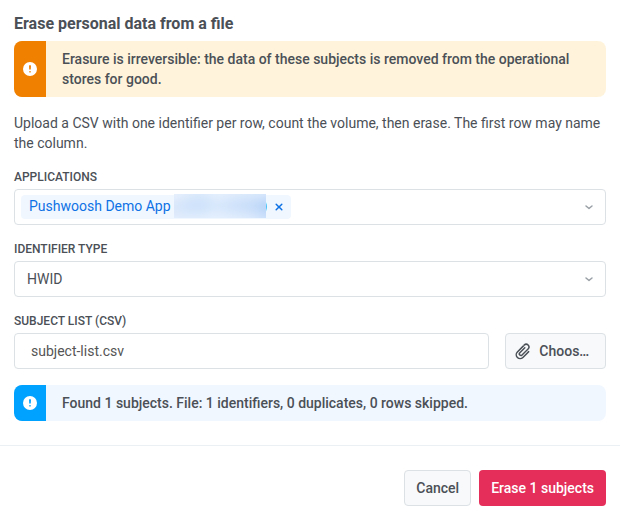
5. Click **Count the volume** to see how many records match, plus duplicate and skipped-row counts from the file, before erasing anything. You can stop after this step without erasing. To see those count-only runs in the table later, turn on **Show volume counts**.
6. Click **Erase N subjects** once the count looks right, where N is the number of matched records. This step cannot be undone.
## Review past erasures
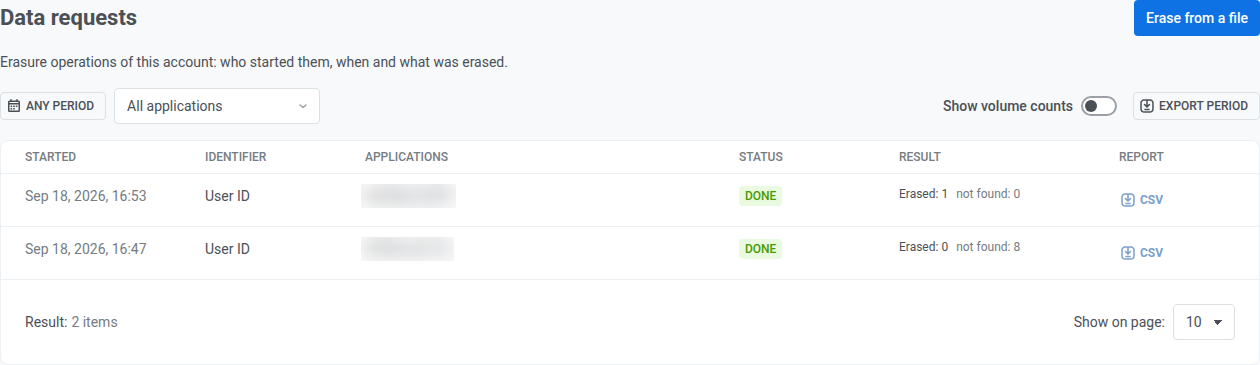
The table lists erasure operations on this account. Each row is one run.
* **Status:** for example **Done**.
* **Result:** how many identifiers were **Erased** and how many were **not found**.
* **Report:** click **CSV** to download the per-identifier outcome for that operation.
### Show volume counts
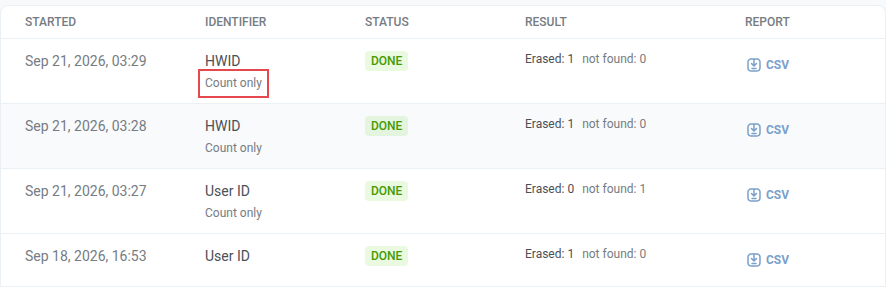
By default, the table shows only completed erasures. Runs where you clicked **Count the volume** and did not erase anyone stay hidden.
Turn on **Show volume counts** to see those runs too. They show **Count only** in the **Identifier** column, under the identifier type (**HWID**, **User ID**, or **Email**).
To narrow or export the list:
1. Set **ANY PERIOD**.
2. Choose an application in **All applications**, or leave **All applications** selected.
3. Click **Export period** to download a CSV of the operations shown for the selected period.
 Any team member can open the page, but running **Erase from a file** requires modify rights on the selected application.
## Erase from a file
Click **Erase from a file** to bulk-erase personal data by a list of identifiers.
The subject list is a CSV with one identifier per row, up to 5 MB. The first row may name the column.
1. In **Applications**, select which applications to search for the identifiers.
2. In **Identifier type**, choose **User ID**, **HWID**, or **Email**, matching what the CSV column contains.
3. Under **Subject list (CSV)**, click **Choose a file**.
4. Select the CSV to upload.
Any team member can open the page, but running **Erase from a file** requires modify rights on the selected application.
## Erase from a file
Click **Erase from a file** to bulk-erase personal data by a list of identifiers.
The subject list is a CSV with one identifier per row, up to 5 MB. The first row may name the column.
1. In **Applications**, select which applications to search for the identifiers.
2. In **Identifier type**, choose **User ID**, **HWID**, or **Email**, matching what the CSV column contains.
3. Under **Subject list (CSV)**, click **Choose a file**.
4. Select the CSV to upload.
 5. Click **Count the volume** to see how many records match, plus duplicate and skipped-row counts from the file, before erasing anything. You can stop after this step without erasing. To see those count-only runs in the table later, turn on **Show volume counts**.
6. Click **Erase N subjects** once the count looks right, where N is the number of matched records. This step cannot be undone.
5. Click **Count the volume** to see how many records match, plus duplicate and skipped-row counts from the file, before erasing anything. You can stop after this step without erasing. To see those count-only runs in the table later, turn on **Show volume counts**.
6. Click **Erase N subjects** once the count looks right, where N is the number of matched records. This step cannot be undone.
 ## Review past erasures
The table lists erasure operations on this account. Each row is one run.
* **Status:** for example **Done**.
* **Result:** how many identifiers were **Erased** and how many were **not found**.
* **Report:** click **CSV** to download the per-identifier outcome for that operation.
### Show volume counts
By default, the table shows only completed erasures. Runs where you clicked **Count the volume** and did not erase anyone stay hidden.
Turn on **Show volume counts** to see those runs too. They show **Count only** in the **Identifier** column, under the identifier type (**HWID**, **User ID**, or **Email**).
## Review past erasures
The table lists erasure operations on this account. Each row is one run.
* **Status:** for example **Done**.
* **Result:** how many identifiers were **Erased** and how many were **not found**.
* **Report:** click **CSV** to download the per-identifier outcome for that operation.
### Show volume counts
By default, the table shows only completed erasures. Runs where you clicked **Count the volume** and did not erase anyone stay hidden.
Turn on **Show volume counts** to see those runs too. They show **Count only** in the **Identifier** column, under the identifier type (**HWID**, **User ID**, or **Email**).
 To narrow or export the list:
1. Set **ANY PERIOD**.
2. Choose an application in **All applications**, or leave **All applications** selected.
3. Click **Export period** to download a CSV of the operations shown for the selected period.
To narrow or export the list:
1. Set **ANY PERIOD**.
2. Choose an application in **All applications**, or leave **All applications** selected.
3. Click **Export period** to download a CSV of the operations shown for the selected period.