# Billing page
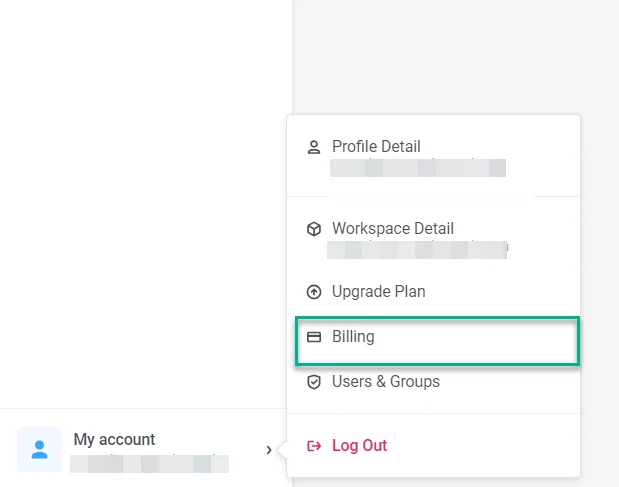
To access your financial information and payment methods, navigate to **My account** > **Billing**. In the same menu, click **Upgrade Plan** to change your subscription.
To compare plans and pricing, see the [Pushwoosh pricing page](https://www.pushwoosh.com/pricing/).
The Billing page gives you a full picture of your account finances and payment setup:
- **Overview:** Your plan, estimated charges, billing contact, and usage.
- **Invoices:** Billing history with PDF downloads.
- **Payment methods:** Saved cards and the default payment method.
## Overview
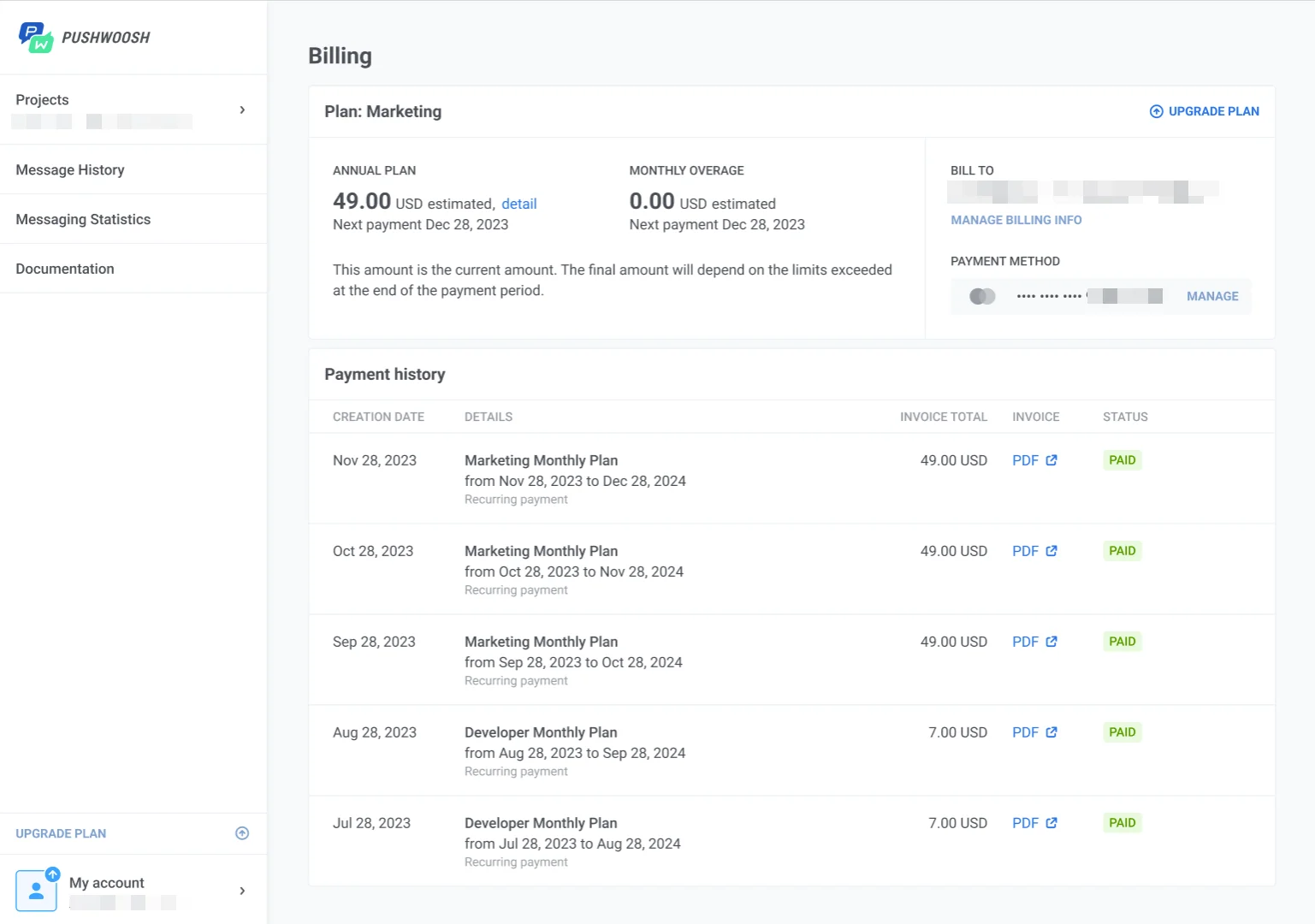
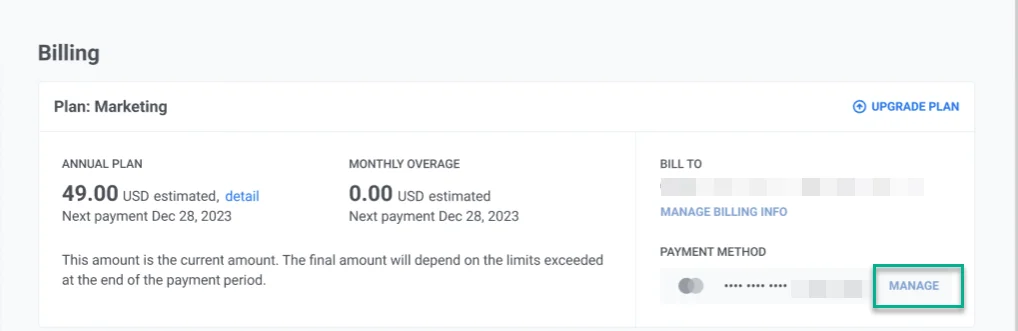
In **Overview**, you can review your plan charges, billing details, usage, and ManyMoney AI daily request usage.
- **Plan:** shows your plan name, billing cycle, and next payment date. You can also see how charges are calculated and the estimated total for the current period.
- **Payment information:** shows who receives invoices and which card is charged by default.
- **Usage:** shows how much of your plan you have used in the current billing period, including monthly active users and email sends against your plan limit.
- **ManyMoney AI:** shows your daily request usage and when the limit resets.
### How to manage your billing information
If billing is not yet configured, click **Add billing info** in the **Payment information** section.
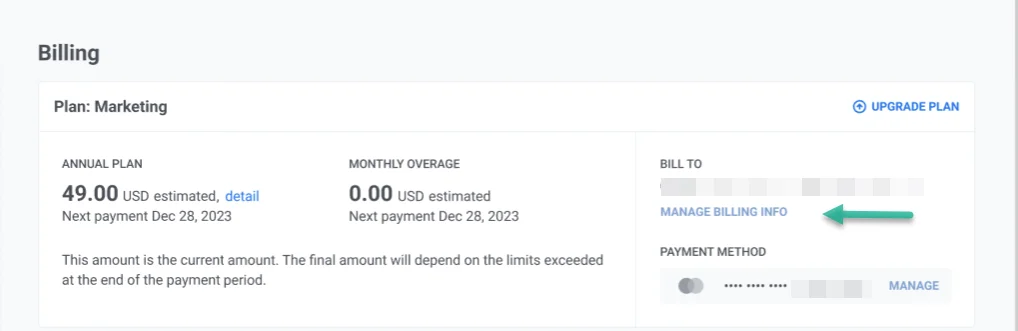
To update existing billing details, click **Manage Billing Info**.
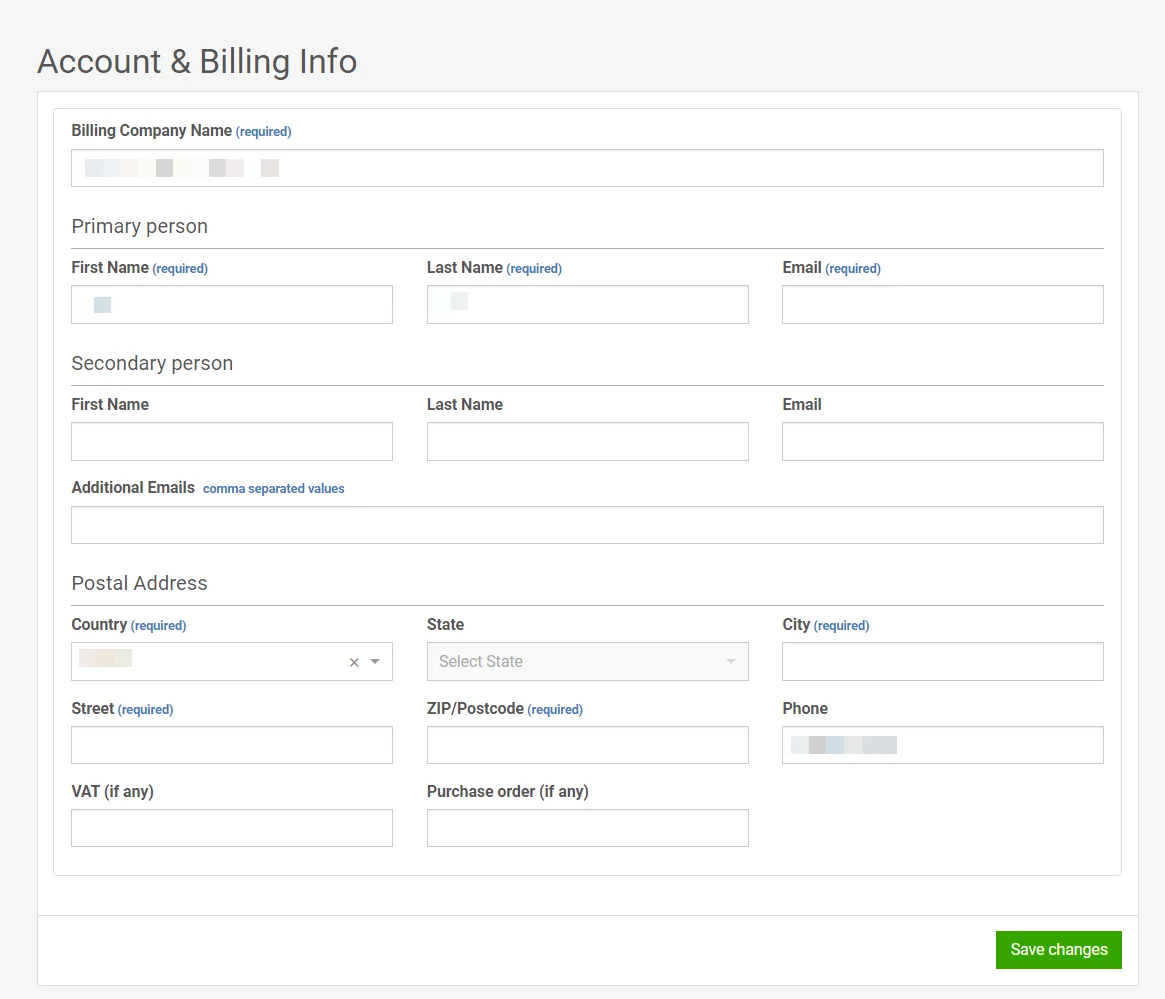
In the billing information window, enter your billing company name, primary and secondary contact details, and postal address, then click **Save**.
## Invoices
In the **Invoices** tab, you can review your billing history and download invoice files for each billed period.
Each row shows the invoice creation date, plan name, billing period, charged amount, payment status, and a **PDF** link to open or download the invoice.
## Payment methods
To manage billing cards and accounts, open the **Payment methods** tab.
Click **Add method** and select **Debit/Credit Card** or **PayPal**. For PayPal, complete the authorization in the window that opens. For a card, fill in the card number, expiration date, cardholder name, and CVV/CVC, then click **Save**.
After you add a method, it appears in the payment methods list.
To delete a method, click the three-dot menu next to it and select **Remove method**.
 The Billing page gives you a full picture of your account finances and payment setup:
- **Overview:** Your plan, estimated charges, billing contact, and usage.
- **Invoices:** Billing history with PDF downloads.
- **Payment methods:** Saved cards and the default payment method.
## Overview
In **Overview**, you can review your plan charges, billing details, usage, and ManyMoney AI daily request usage.
- **Plan:** shows your plan name, billing cycle, and next payment date. You can also see how charges are calculated and the estimated total for the current period.
- **Payment information:** shows who receives invoices and which card is charged by default.
- **Usage:** shows how much of your plan you have used in the current billing period, including monthly active users and email sends against your plan limit.
- **ManyMoney AI:** shows your daily request usage and when the limit resets.
The Billing page gives you a full picture of your account finances and payment setup:
- **Overview:** Your plan, estimated charges, billing contact, and usage.
- **Invoices:** Billing history with PDF downloads.
- **Payment methods:** Saved cards and the default payment method.
## Overview
In **Overview**, you can review your plan charges, billing details, usage, and ManyMoney AI daily request usage.
- **Plan:** shows your plan name, billing cycle, and next payment date. You can also see how charges are calculated and the estimated total for the current period.
- **Payment information:** shows who receives invoices and which card is charged by default.
- **Usage:** shows how much of your plan you have used in the current billing period, including monthly active users and email sends against your plan limit.
- **ManyMoney AI:** shows your daily request usage and when the limit resets.
 ### How to manage your billing information
If billing is not yet configured, click **Add billing info** in the **Payment information** section.
To update existing billing details, click **Manage Billing Info**.
In the billing information window, enter your billing company name, primary and secondary contact details, and postal address, then click **Save**.
### How to manage your billing information
If billing is not yet configured, click **Add billing info** in the **Payment information** section.
To update existing billing details, click **Manage Billing Info**.
In the billing information window, enter your billing company name, primary and secondary contact details, and postal address, then click **Save**.
 ## Invoices
In the **Invoices** tab, you can review your billing history and download invoice files for each billed period.
Each row shows the invoice creation date, plan name, billing period, charged amount, payment status, and a **PDF** link to open or download the invoice.
## Invoices
In the **Invoices** tab, you can review your billing history and download invoice files for each billed period.
Each row shows the invoice creation date, plan name, billing period, charged amount, payment status, and a **PDF** link to open or download the invoice.
 ## Payment methods
To manage billing cards and accounts, open the **Payment methods** tab.
Click **Add method** and select **Debit/Credit Card** or **PayPal**. For PayPal, complete the authorization in the window that opens. For a card, fill in the card number, expiration date, cardholder name, and CVV/CVC, then click **Save**.
## Payment methods
To manage billing cards and accounts, open the **Payment methods** tab.
Click **Add method** and select **Debit/Credit Card** or **PayPal**. For PayPal, complete the authorization in the window that opens. For a card, fill in the card number, expiration date, cardholder name, and CVV/CVC, then click **Save**.
 After you add a method, it appears in the payment methods list.
 To delete a method, click the three-dot menu next to it and select **Remove method**.