Liquid templates
Liquid templates significantly broaden Pushwoosh’s personalization capabilities by implementing sophisticated logic in addition to regular Dynamic Content usage.
Message personalization in Pushwoosh is based on Tags (user data). Pushwoosh offers a variety of default Tags and custom Tags. Using them, you can specify a user’s first name, city, purchase history, etc. to send a more personalized message. For example: Hi {{First_name}}, thanks for ordering {{item}}.
Liquid templates add more logic to dynamic content. For instance, if a user’s subscription tag contains “free,” you can send them a message: “Grab your 10% discount.”
Modifying the message content according to users’ IDs, behaviors, and preferences is the most efficient way to increase relevance and get more impressive results from your marketing campaigns.
Syntax
Anchor link toContent templates based on Liquid by Shopify use a combination of tags, objects, and filters to load dynamic content. Content templates allow you to access certain variables from within a template and output their data without having to know anything about the data itself.
Objects
Anchor link toobjects define the content that will be displayed to a user. objects should be enclosed in double curly braces: {{ }}
For example, when personalizing a message, send {{Name}} in its body to add the users’ names to the message’s content. The user’s name (Name tag value) will replace the Liquid object in a message the user will see.
Hi {{Name}}! We're glad you're back!Hi Anna! We’re glad you’re back!
To insert the recipient’s User ID, write {{userid}} in lowercase. Variable names are case-sensitive, so {{user_id}} and {{UserId}} are unknown names and render as empty text.
If a recipient has no User ID, {{userid}} also renders as empty text and the message is still sent. To show a fallback instead, add the default filter: {{userid | default: "friend"}}.
Tags
Anchor link totags create the logic and control flow for templates. The curly brace percentage delimiters {% and %} and the text that they surround do not produce any visible output when the template is rendered. This lets you assign variables and create conditions or loops without showing any of the Liquid logic to a user.
For example, using the if tag, you can vary the message’s language based on what language is set on user’s device:
{% if Language == 'fr' %}Salut!{% else %}Hello!{% endif %}Salut!
Hello!
Tags operators
Anchor link to| Operator | Description |
|---|---|
== | equals |
!= | does not equal |
> | greater than |
< | less than |
>= | greater than or equal to |
<= | less than or equal to |
or | logical or |
and | logical and |
contains | checks for the presence of a substring inside a string or array of strings |
Filters
Anchor link tofilters modify the output of a Liquid object or variable. They are used within double curly braces {{ }} and variable assignment, and are separated by a pipe character |. Multiple filters can be used on one output, and are applied from left to right.
{{ Name | capitalize | prepend:"Hello " }}Hello Anna
Liquid templates usage
Anchor link toLiquid templates are available for both messages sent from Control Panel and API requests.
In Pushwoosh, Liquid templates are applicable to all content fields of any channel message:
- Push notifications
- Emails
- In-app rich media shown by a journey, once Liquid in in-apps is enabled for your account. See Liquid in in-app rich media
To add a Liquid Template to your message, insert it into the message’s body. You can do it when working with push or email elements, directly from the Customer Journey Builder interface. For in-apps, write Liquid in the in-app content itself, see Liquid in in-app rich media.
Go to Customer Journey Builder > Create Campaign > drag and drop the following elements to your canvas: Audience-based Entry, Push (or Email), and Exit. Connect the elements. Then click the Push icon, choose Custom content, and insert your copy.
To add Liquid logic, use tag values with the following syntax:
{% if TagName == 'value' %} Content to send in this scenario{% else %} Content to send otherwise{% endif %}Then click Apply.
Template variables (Pushwoosh Tags) should not contain any spaces and have only alphanumeric values and underscores, e.g., my_tag or myTag instead of My Tag.
Learn more about Liquid templates in journeys
Liquid in in-app rich media
Anchor link toWrite Liquid in an in-app rich media to show each user their own data: their Tag values, the attributes of the event that triggered the in-app, and their User ID. For example, greet the user by name and show the promo code passed in the event.
Where Liquid works in in-apps
Anchor link toLiquid is applied only when all of the following are true:
- Liquid in in-apps is enabled for your account.
- The in-app is shown by the In-App element of a journey, in either Show in-app mode.
- The Liquid is in the content of the rich media: in the text of built-in editor blocks, such as an HTML block or a Text block, in any language of the in-app, or in
index.htmlof an uploaded HTML archive.
In-apps that the app downloads in advance, for example those from Content > In-Apps, don’t get Liquid replaced. The user sees the code as written. Use Dynamic content placeholders there instead.
Add Liquid to an in-app
Anchor link to- Open the in-app in the built-in editor.
- Add an HTML block, or select an existing one. Liquid also works in the text of other blocks, such as Text.
- In the HTML field, type the Liquid code by hand. The Merge tag button inserts a Dynamic content placeholder such as
{firstName|regular|}, not Liquid. - Click Save.
- In the In-App element of your journey, select the in-app in Media Source.
- In Show in-app, choose On event and select the event if the in-app uses event attributes.
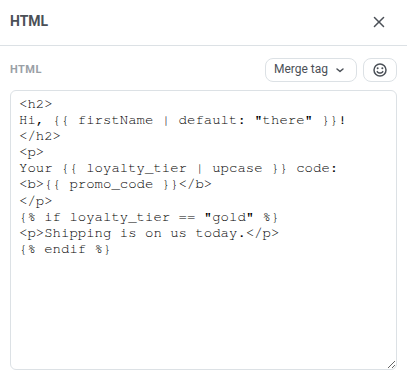
The editor preview shows the Liquid code as written. Pushwoosh fills in the values for each user when the app requests the in-app, and the device gets the finished content.
In this example, firstName and loyalty_tier are Tags, and promo_code is an attribute of the event that shows the in-app:
<h2>Hi, {{ firstName | default: "there" }}!</h2><p>Your {{ loyalty_tier | upcase }} code:<b>{{ promo_code }}</b></p>{% if loyalty_tier == "gold" %}<p>Shipping is on us today.</p>{% endif %}Hi, Anna!
Your GOLD code: AUTUMN-42
Shipping is on us today.
Data you can use
Anchor link to- Tags: the user’s Tag values at the moment the in-app is shown.
- Event attributes: the attributes of the event selected in On event mode of the In-App element. If an attribute has the same name as a Tag, the attribute value is used.
- User ID and HWID:
{{ userid }}and{{ hwid }}, in lowercase.
Write Tag and attribute names without spaces: {{ LoyaltyTier }} for a Tag named Loyalty Tier.
Variable names are case-sensitive, and an unknown name renders as empty text. Add the default filter to show a fallback, as in {{ firstName | default: "there" }}.
All standard Liquid filters work, such as upcase, capitalize, default, date, and truncate, as well as the Pushwoosh timezone filter.
Limitations
Anchor link to{% include %}isn’t supported.- Connected content isn’t supported.
- If the in-app archive is larger than 1 MB, Liquid isn’t applied and the user sees the code as written.
- If the Liquid code has an error, for example an unclosed
{% if %}, the user sees the in-app with the code as written.
Dynamic content placeholders such as {firstName|regular|} keep working in the same in-app, because the SDK fills them on the device.
Connected content
Anchor link toConnected content is a feature in Liquid templates that allows you to dynamically retrieve and use data from an external source, such as a web service, directly within your email or push notification messages. This feature enables real-time personalization by fetching JSON data from a specified URL and saving it to a variable that can be utilized in your content.
Key use cases
Anchor link to-
Product recommendations: Display personalized product lists tailored to each user.
-
Promo codes: Insert unique promo codes generated by a backend service.
Prerequisites
Anchor link to- To use Connected Content, you must have your own backend service that generates and provides the required data (e.g., promo codes, product recommendations) based on User ID, HWID, or custom tags. Pushwoosh then fetches this data before sending a message.
Step-by-step implementation guide
Anchor link toStep 1. Set up backend service
Anchor link toThe backend service should:
- Accept a request containing user-specific parameters (e.g.,
userId). Connected Content supportsUserID,HWID, or any custom tags you’ve set up in your project. - Return a JSON response with the required data. This content can then be inserted dynamically into messages
Step 2. Create a preset with Сonnected content in Pushwoosh
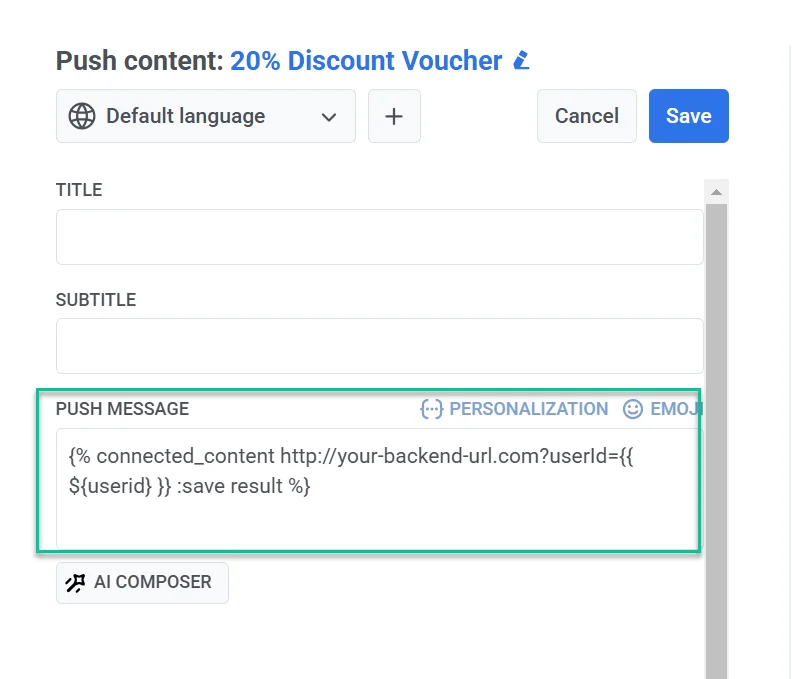
Anchor link to- In the Push or Email content editor, insert the Connected Content syntax into the message field.
Example
{% connected_content http://your-backend-url.com?userId={{ ${userid} }} :save result %}Syntax breakdown
connected_content | Fetches JSON data from the specified backend URL. |
http://your-backend-url.com | The backend endpoint that returns required data in JSON format. |
userId={{ ${userid} }} | A dynamic query parameter that passes the user ID to the backend. Inside connected_content, wrap a variable in ${}. In the message text, write {{userid}} without it. |
:save result | Stores the fetched JSON response in the result variable for use in Liquid templates |
Authentication (optional)
If your backend service requires authentication, you can include an API key or token in the Connected Content request to ensure secure access.
{% connected_content http://your-backend-url.com?userId={{ ${userid} }}&auth=YOUR_API_KEY :save result %}You can also send authentication (or any other) data as HTTP headers using the optional :headers parameter — a JSON object of header names and values.
{% connected_content http://your-backend-url.com?userId={{ ${userid} }} :headers {"Authorization": "Bearer YOUR_TOKEN", "X-Api-Key": "YOUR_API_KEY"} :save result %}:headers {...} | A JSON object of HTTP headers sent with the request, e.g. Authorization: Bearer <token>. |
Using tags in Connected content
To include a tag value, add it to the URL as a query parameter in the same {{ ${tag_name} }} form. Written as {{ tag_name }} inside the connected_content tag, the value is sent empty.
{% connected_content http://your-backend-url.com?userId={{ ${userid} }}&lang={{ ${Language} }} :save result %}- Next, add the message text incorporating the retrieved data, like this:
Hey, {{userid}}, grab your personal promo code - {{result.code}}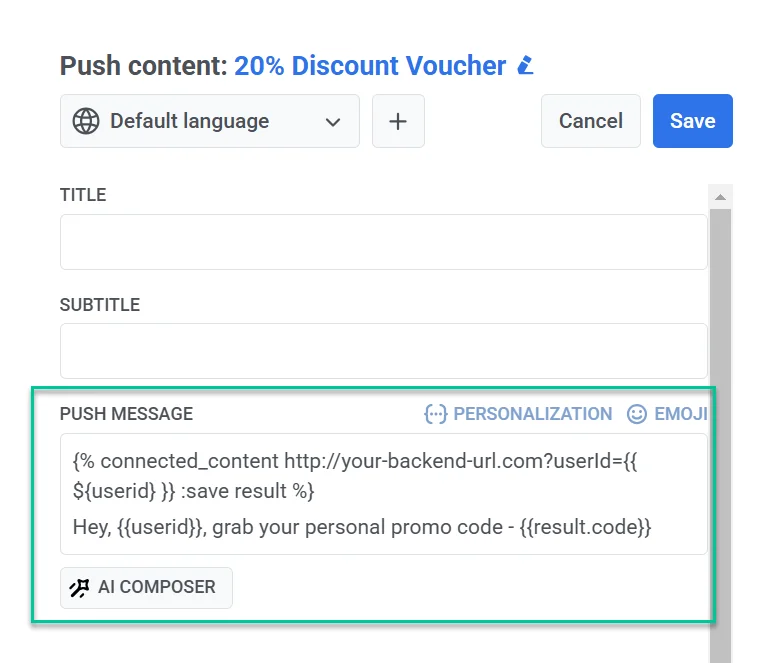
- After finalizing the message content and configuring the preset settings, save it for reuse in campaigns.
Step 3. Send a message using the configured preset
Anchor link toSend a message with this preset using the one-time push or email form or customer journey.