# Swift Package Manager로 InboxUI 설정하기
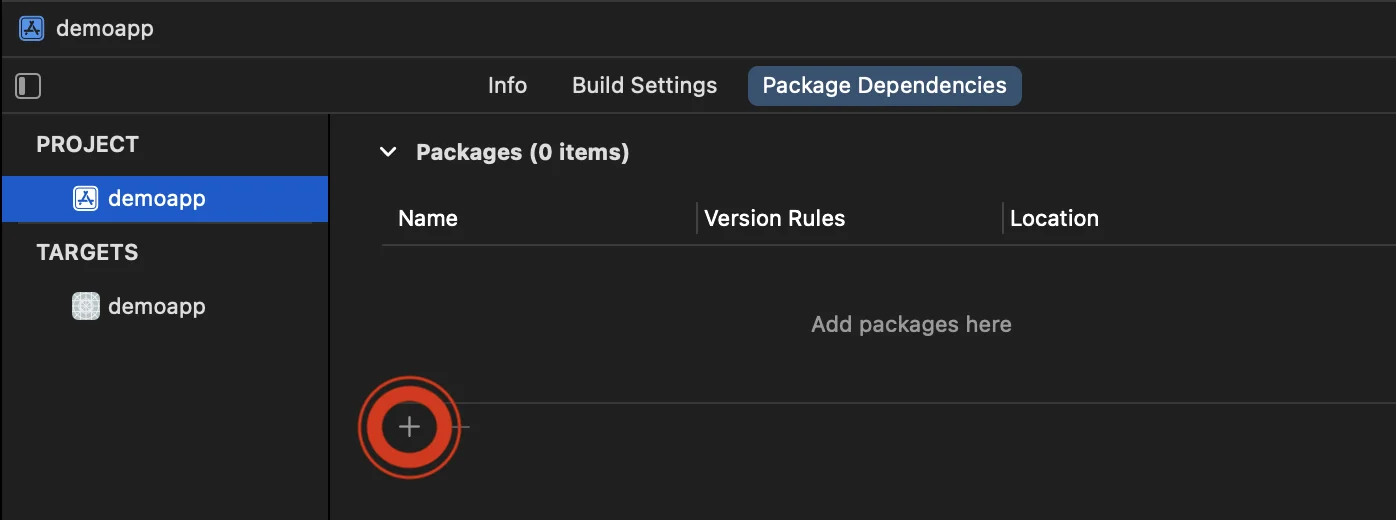
1\. Xcode에서 프로젝트를 열고 프로젝트 설정 -> Package Dependencies로 이동한 다음 '+' 버튼을 누릅니다.
 2\. 다음 패키지 URL을 입력합니다:
```bash
https://github.com/Pushwoosh/PushwooshInboxUI-XCFramework
```
3\. 'Dependency Rule'을 **Branch** 및 **main**으로 설정합니다. 그런 다음 '**Add Package**' 버튼을 클릭합니다.
2\. 다음 패키지 URL을 입력합니다:
```bash
https://github.com/Pushwoosh/PushwooshInboxUI-XCFramework
```
3\. 'Dependency Rule'을 **Branch** 및 **main**으로 설정합니다. 그런 다음 '**Add Package**' 버튼을 클릭합니다.
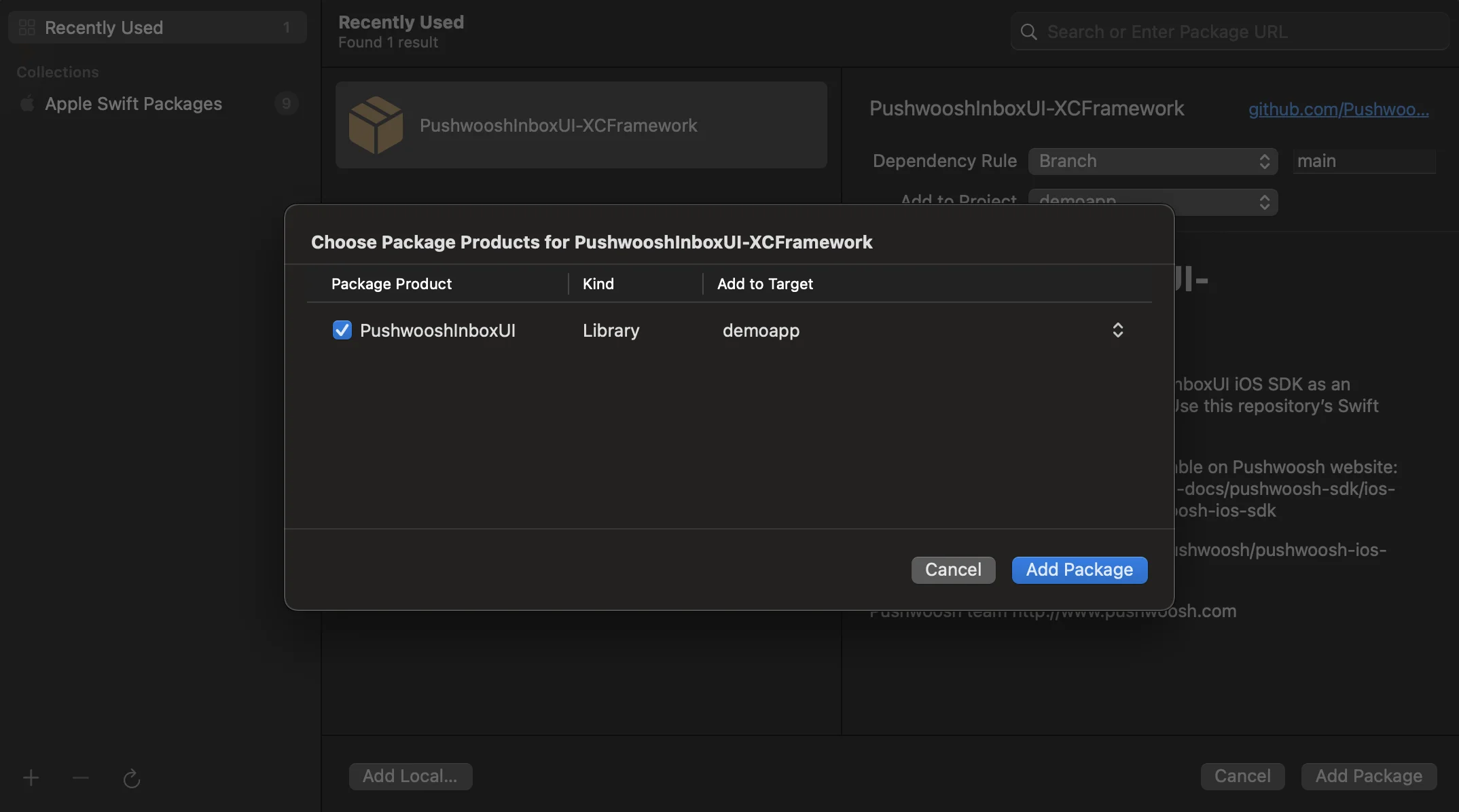
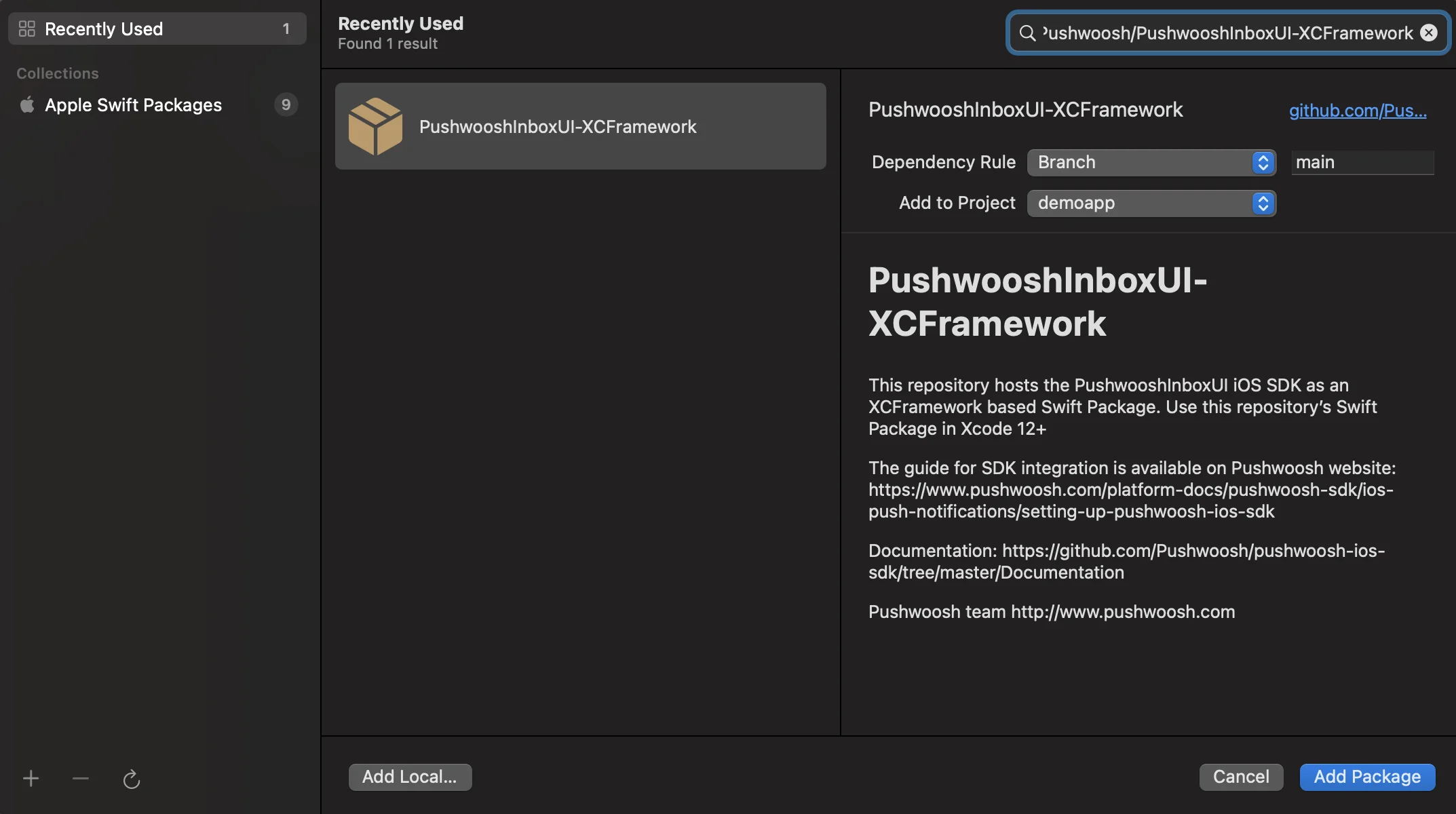 4\. 다음 화면에서 패키지를 선택하고, Pushwoosh 패키지를 선택한 후 메인 앱 타겟에 **Add Package**를 클릭합니다.
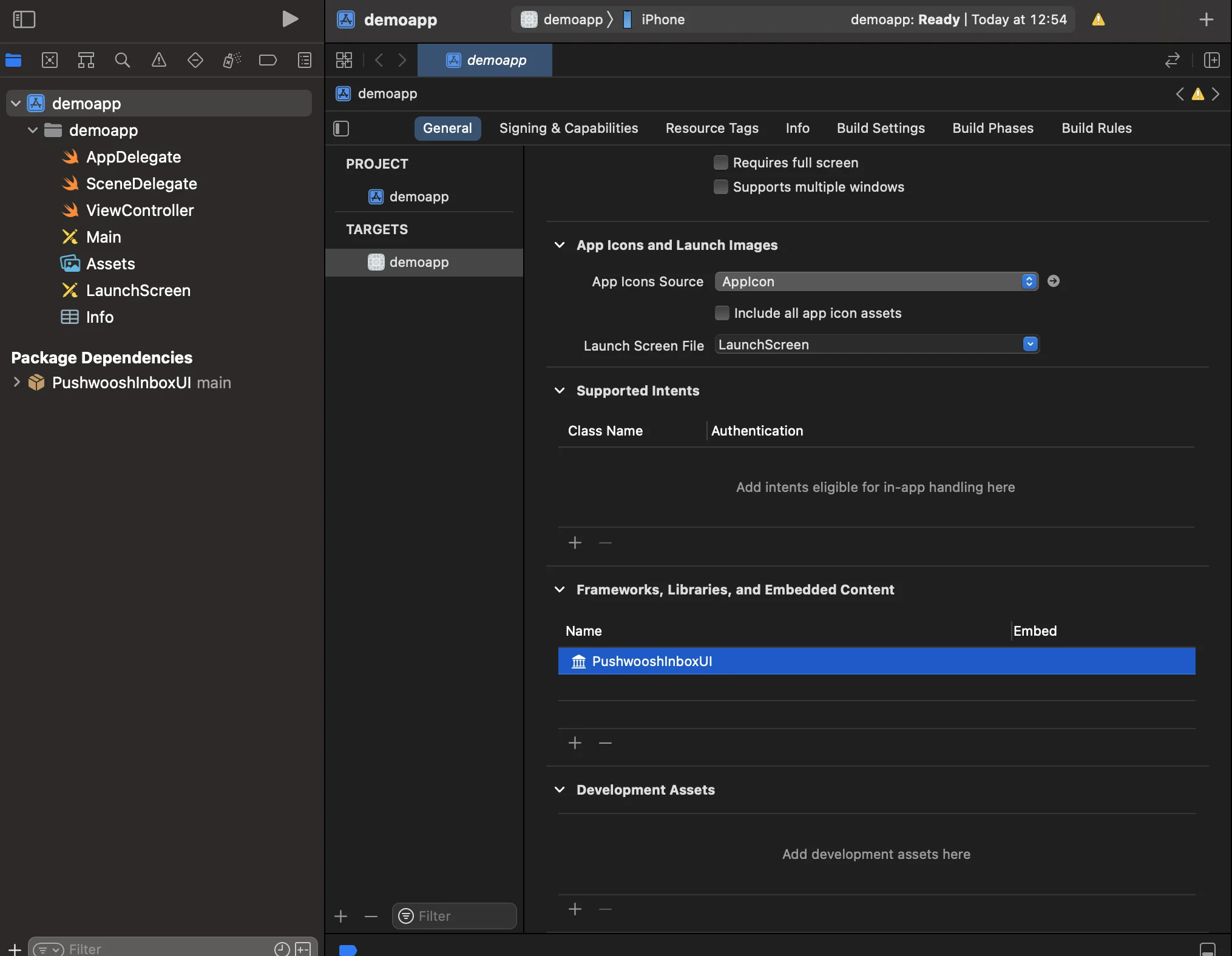
 5\. 메인 앱 타겟을 열고 "Frameworks, Libraries, and Embedded Content" 아래에 PushwooshInboxUI가 추가되었는지 확인합니다.
 6\. 이제 끝났습니다! 프로젝트에 Pushwoosh InboxUI SDK를 성공적으로 통합했습니다.
## Pushwoosh InboxUI 코드 추가하기
앱에 Inbox UI를 표시하려면 Inbox 뷰 컨트롤러를 추가합니다:
```swift
self.navigationController?.pushViewController(PWIInboxUI.createInboxController(with: PWIInboxStyle.default()), animated: true)
```
```objective-c
[self.navigationController pushViewController:[PWIInboxUI createInboxControllerWithStyle:[PWIInboxStyle defaultStyle]] animated:YES];
```
Inbox가 앱의 모양과 일치하도록 하려면 `PWIInboxStyle`의 파라미터를 변경하세요. 글꼴, 배경색 등과 같은 파라미터를 사용자 정의할 수 있습니다.
```swift
//creating a new Inbox style
let inboxStyle = PWIInboxStyle.customStyle(withDefaultImageIcon: UIImage.init(named: "custom_image"),
textColor: UIColor.darkText,
accentColor: UIColor.blue,
font: UIFont.systemFont(ofSize: 17))
inboxStyle?.backgroundColor = UIColor.init(white: 1, alpha: 1)
inboxStyle?.listErrorMessage = NSLocalizedString("Custom error message", comment: "Custom error message")
inboxStyle?.listEmptyMessage = NSLocalizedString("Custom empty message", comment: "Custom empty message")
PWIInboxStyle.setupDefaultStyle(inboxStyle)
```
```objective-c
//creating a new Inbox style
PWIInboxStyle *inboxStyle = [PWIInboxStyle customStyleWithDefaultImageIcon:[UIImage imageNamed:@"custom_image"]
textColor:UIColor.darkTextColor
accentColor:UIColor.blueColor
font:[UIFont systemFontOfSize:17]];
inboxStyle.backgroundColor = [UIColor colorWithWhite:1 alpha:1];
inboxStyle.listErrorMessage = NSLocalizedString(@"Custom error message", @"Custom error message");
inboxStyle.listEmptyMessage = NSLocalizedString(@"Custom empty message", @"Custom empty message");
[PWIInboxStyle setupDefaultStyle:inboxStyle];
```
## 사용자 정의
Inbox UI 스타일을 사용자 정의하려면 다음을 참조하세요:
자세한 내용은 [Inbox 샘플](https://github.com/Pushwoosh/pushwoosh-quickstart-ios/tree/main/inbox)을 참조하세요.
6\. 이제 끝났습니다! 프로젝트에 Pushwoosh InboxUI SDK를 성공적으로 통합했습니다.
## Pushwoosh InboxUI 코드 추가하기
앱에 Inbox UI를 표시하려면 Inbox 뷰 컨트롤러를 추가합니다:
```swift
self.navigationController?.pushViewController(PWIInboxUI.createInboxController(with: PWIInboxStyle.default()), animated: true)
```
```objective-c
[self.navigationController pushViewController:[PWIInboxUI createInboxControllerWithStyle:[PWIInboxStyle defaultStyle]] animated:YES];
```
Inbox가 앱의 모양과 일치하도록 하려면 `PWIInboxStyle`의 파라미터를 변경하세요. 글꼴, 배경색 등과 같은 파라미터를 사용자 정의할 수 있습니다.
```swift
//creating a new Inbox style
let inboxStyle = PWIInboxStyle.customStyle(withDefaultImageIcon: UIImage.init(named: "custom_image"),
textColor: UIColor.darkText,
accentColor: UIColor.blue,
font: UIFont.systemFont(ofSize: 17))
inboxStyle?.backgroundColor = UIColor.init(white: 1, alpha: 1)
inboxStyle?.listErrorMessage = NSLocalizedString("Custom error message", comment: "Custom error message")
inboxStyle?.listEmptyMessage = NSLocalizedString("Custom empty message", comment: "Custom empty message")
PWIInboxStyle.setupDefaultStyle(inboxStyle)
```
```objective-c
//creating a new Inbox style
PWIInboxStyle *inboxStyle = [PWIInboxStyle customStyleWithDefaultImageIcon:[UIImage imageNamed:@"custom_image"]
textColor:UIColor.darkTextColor
accentColor:UIColor.blueColor
font:[UIFont systemFontOfSize:17]];
inboxStyle.backgroundColor = [UIColor colorWithWhite:1 alpha:1];
inboxStyle.listErrorMessage = NSLocalizedString(@"Custom error message", @"Custom error message");
inboxStyle.listEmptyMessage = NSLocalizedString(@"Custom empty message", @"Custom empty message");
[PWIInboxStyle setupDefaultStyle:inboxStyle];
```
## 사용자 정의
Inbox UI 스타일을 사용자 정의하려면 다음을 참조하세요:
자세한 내용은 [Inbox 샘플](https://github.com/Pushwoosh/pushwoosh-quickstart-ios/tree/main/inbox)을 참조하세요.