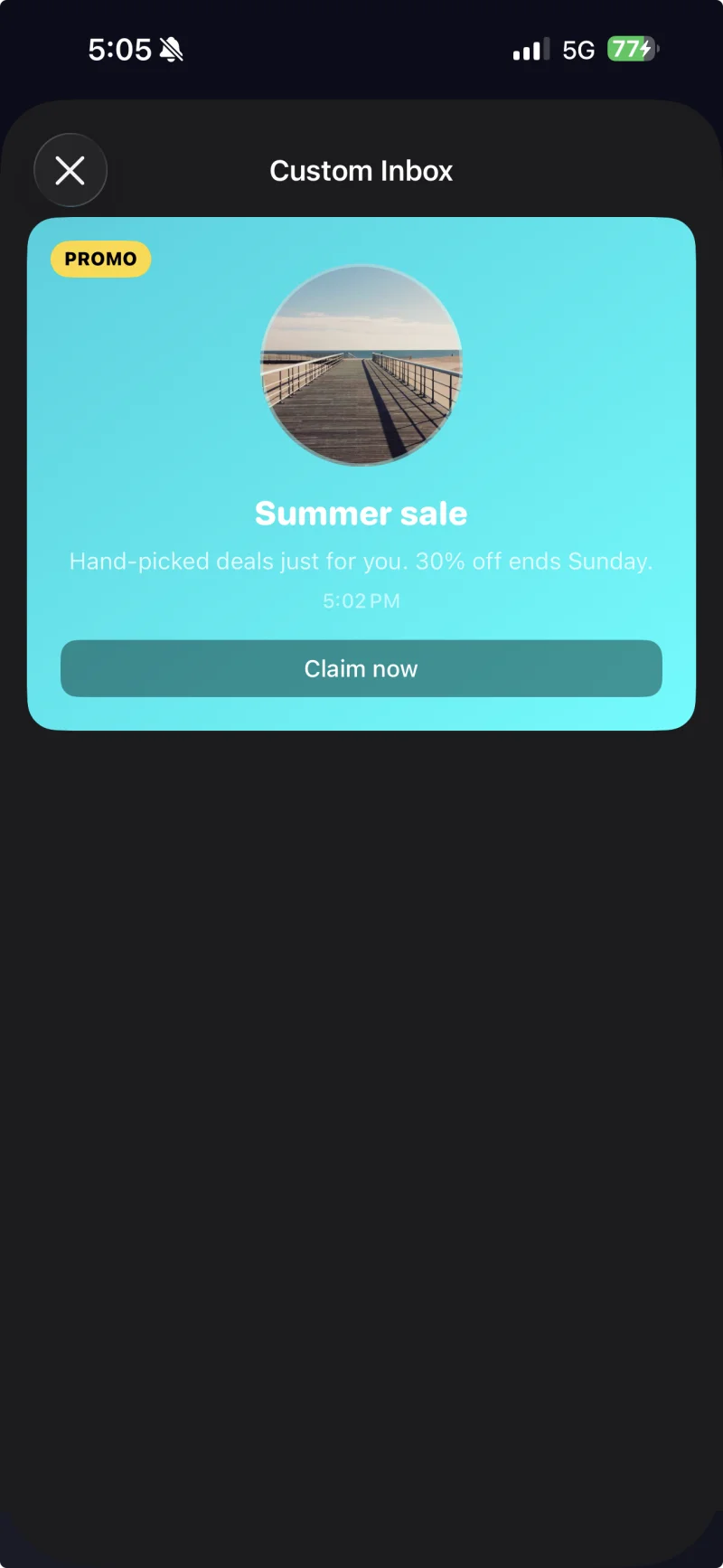
# CocoaPods로 InboxKit 설정하기
*iOS SDK [7.0.40](https://github.com/Pushwoosh/pushwoosh-ios-sdk/releases/tag/7.0.40)부터 사용 가능합니다.*
InboxKit은 포괄적인 `PushwooshXCFramework` pod의 선택적 하위 사양(subspec)으로 제공됩니다. 메인 SDK가 이미 통합되어 있어야 합니다. 처음부터 시작하는 경우, 먼저 [기본 통합 가이드](/ko/developer/pushwoosh-sdk/ios-sdk/setting-up-pushwoosh-ios-sdk-7-0/basic-integration-guide/)를 따르세요.
## InboxKit pod 추가하기
1. `Podfile`을 열고 앱 타겟에 InboxKit 하위 사양을 추가합니다:
```ruby
target 'MyApp' do
use_frameworks!
pod 'PushwooshXCFramework'
pod 'PushwooshXCFramework/PushwooshInboxKit'
end
```
2. 프로젝트 디렉토리에서 `pod install`을 실행합니다:
```bash
pod install
```
3. 생성된 `.xcworkspace` 파일을 엽니다. 이제 InboxKit이 메인 SDK와 함께 연결됩니다.
## 받은 편지함 표시하기
받은 편지함 컨트롤러를 모든 네비게이션 플로우에 추가합니다. 기본 설정만으로도 세 가지 표준 셀 유형을 갖춘 작동하는 받은 편지함을 만들 수 있습니다:
```swift
import PushwooshInboxKit
let inboxVC = PushwooshInboxKitViewController()
navigationController?.pushViewController(inboxVC, animated: true)
```
```objective-c
@import PushwooshInboxKit;
PushwooshInboxKitViewController *inboxVC = [PushwooshInboxKitViewController new];
[self.navigationController pushViewController:inboxVC animated:YES];
```
## 받은 편지함 사용자 정의하기
Swift에서는 `PushwooshInboxKitAttributes` 값 타입을 통해 컨트롤러를 설정합니다. Objective-C에서는 컨트롤러의 `@objc` 친화적인 세터(setter)를 사용합니다. `PushwooshInboxKitAttributes`는 Swift 구조체이며 브릿지되지 않습니다.
```swift
var attributes = PushwooshInboxKitAttributes()
attributes.pullToRefreshEnabled = true
attributes.swipeToDeleteEnabled = true
attributes.pinningEnabled = true
attributes.style.unreadBadgeColor = .systemBlue
attributes.style.titleFont = .systemFont(ofSize: 17, weight: .semibold)
let inboxVC = PushwooshInboxKitViewController(attributes: attributes)
```
```objective-c
PushwooshInboxKitViewController *inboxVC = [PushwooshInboxKitViewController new];
[inboxVC setBackgroundColor:[UIColor systemBackgroundColor]];
[inboxVC setEmptyMessage:@"You have no messages yet"];
```
`Style` 구조체는 기본 셀에서 사용하는 모든 색상, 글꼴, 모서리 반경 및 날짜 포맷터를 노출합니다. 모든 값은 기본적으로 Apple 시맨틱 색상이므로 받은 편지함은 시스템 다크 모드에 자동으로 반응합니다.
PushwooshInboxKitAttributes.Style을 통해 사용자 정의 테마가 적용된 캡션 셀입니다.
## 탭 및 새로고침 처리하기
사용자 액션 및 새로고침 이벤트에 반응하려면 `PushwooshInboxKitDelegate`를 준수합니다. 모든 메서드에는 기본 구현이 있으므로 필요한 것만 재정의하면 됩니다:
```swift
final class InboxCoordinator: NSObject, PushwooshInboxKitDelegate {
func inboxKit(_ vc: PushwooshInboxKitViewController,
didSelect message: PWInboxMessageProtocol) -> Bool {
// SDK가 메시지 URL이나 리치미디어를 열도록 하려면 true를 반환합니다.
// 탭을 완전히 처리한 경우(예: 사용자 정의 화면으로 라우팅) false를 반환합니다.
return true
}
func inboxKit(_ vc: PushwooshInboxKitViewController,
didRefreshWith messages: [PWInboxMessageProtocol],
error: Error?) {
// 필요한 경우 여기에 자신만의 비어 있거나 오류 상태를 표시합니다.
}
}
inboxVC.delegate = inboxCoordinator
```
SDK는 컨트롤러에서 `@objc` 메서드로 대량 작업을 제공하므로, 이를 `UIBarButtonItem`에 직접 연결할 수 있습니다:
```swift
let markAll = UIBarButtonItem(
image: UIImage(systemName: "checkmark.circle"),
style: .plain,
target: inboxVC,
action: #selector(PushwooshInboxKitViewController.markAllAsRead)
)
let clearRead = UIBarButtonItem(
image: UIImage(systemName: "trash"),
style: .plain,
target: inboxVC,
action: #selector(PushwooshInboxKitViewController.clearReadMessages)
)
inboxVC.navigationItem.rightBarButtonItems = [clearRead, markAll]
```
## 다음 단계