# iOS 이미지 캐러셀 푸시 알림
`UNNotificationContentExtension` 프로토콜은 알림 콘텐츠 앱 확장의 진입점을 제공하며, 앱 알림을 위한 사용자 지정 인터페이스를 표시합니다.
## 1. 알림 콘텐츠 확장(Notification Content Extension) 추가
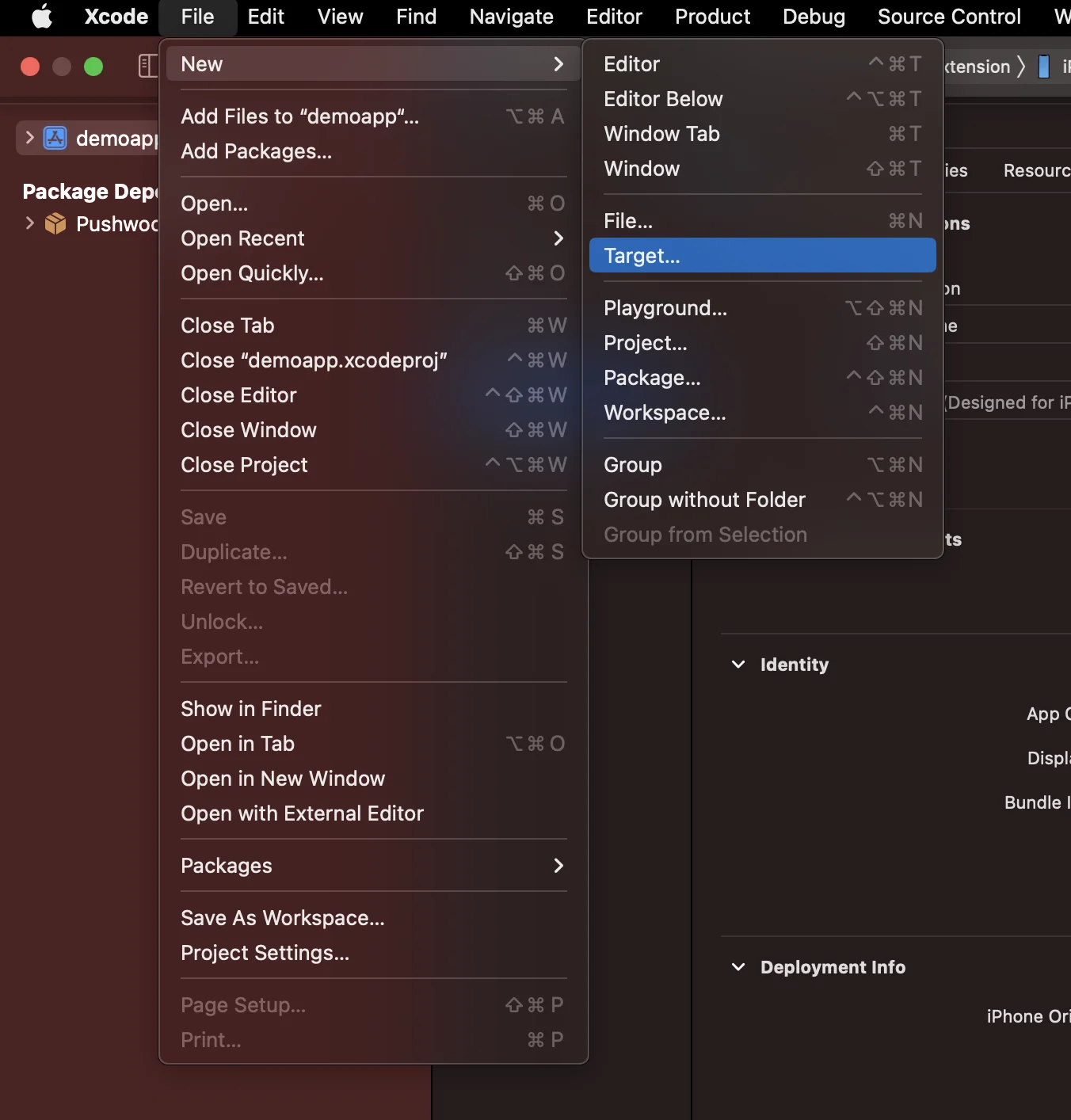
Xcode에서 File > New > Target...을 선택합니다.
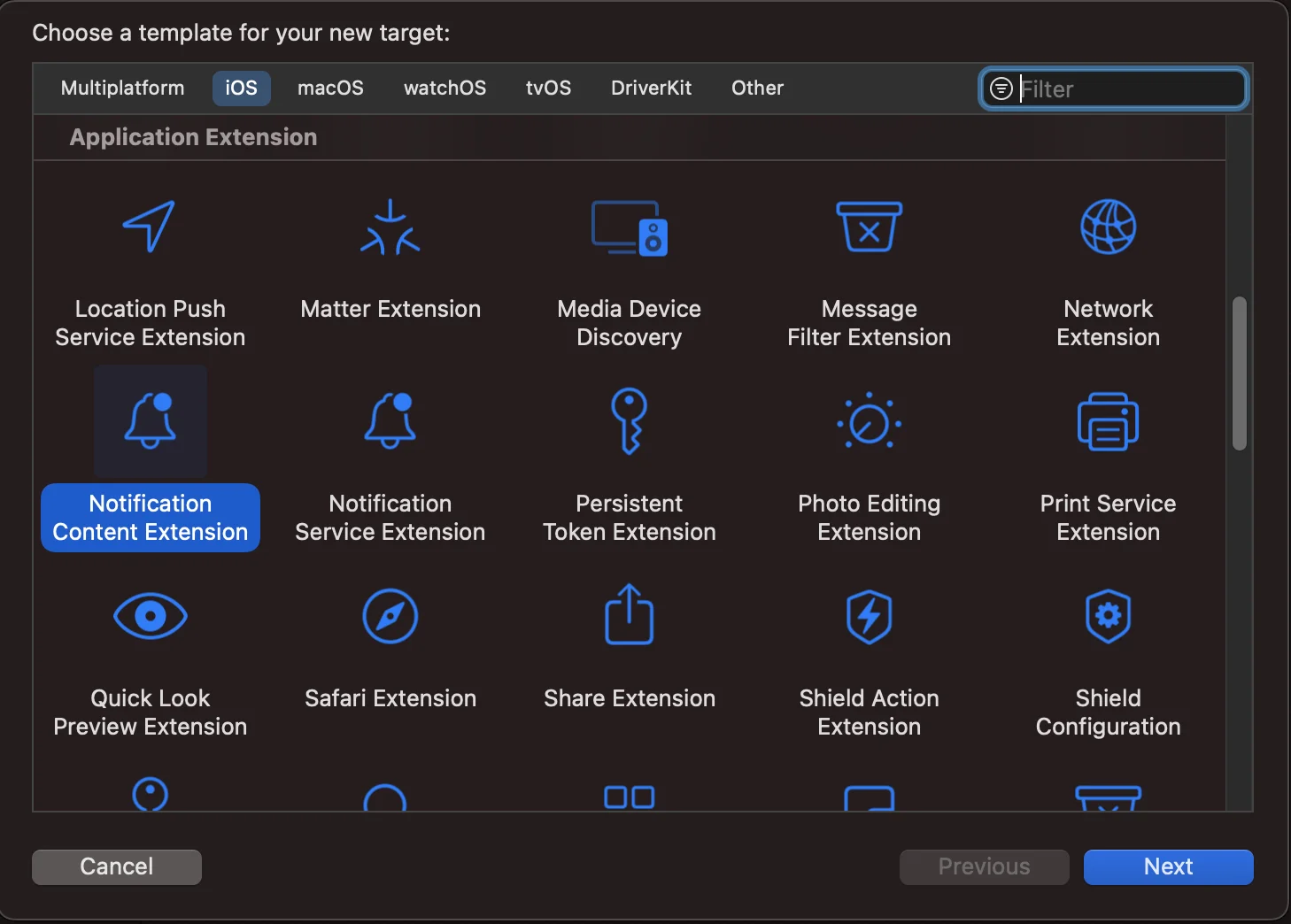
 Notification Content Extension을 선택합니다.
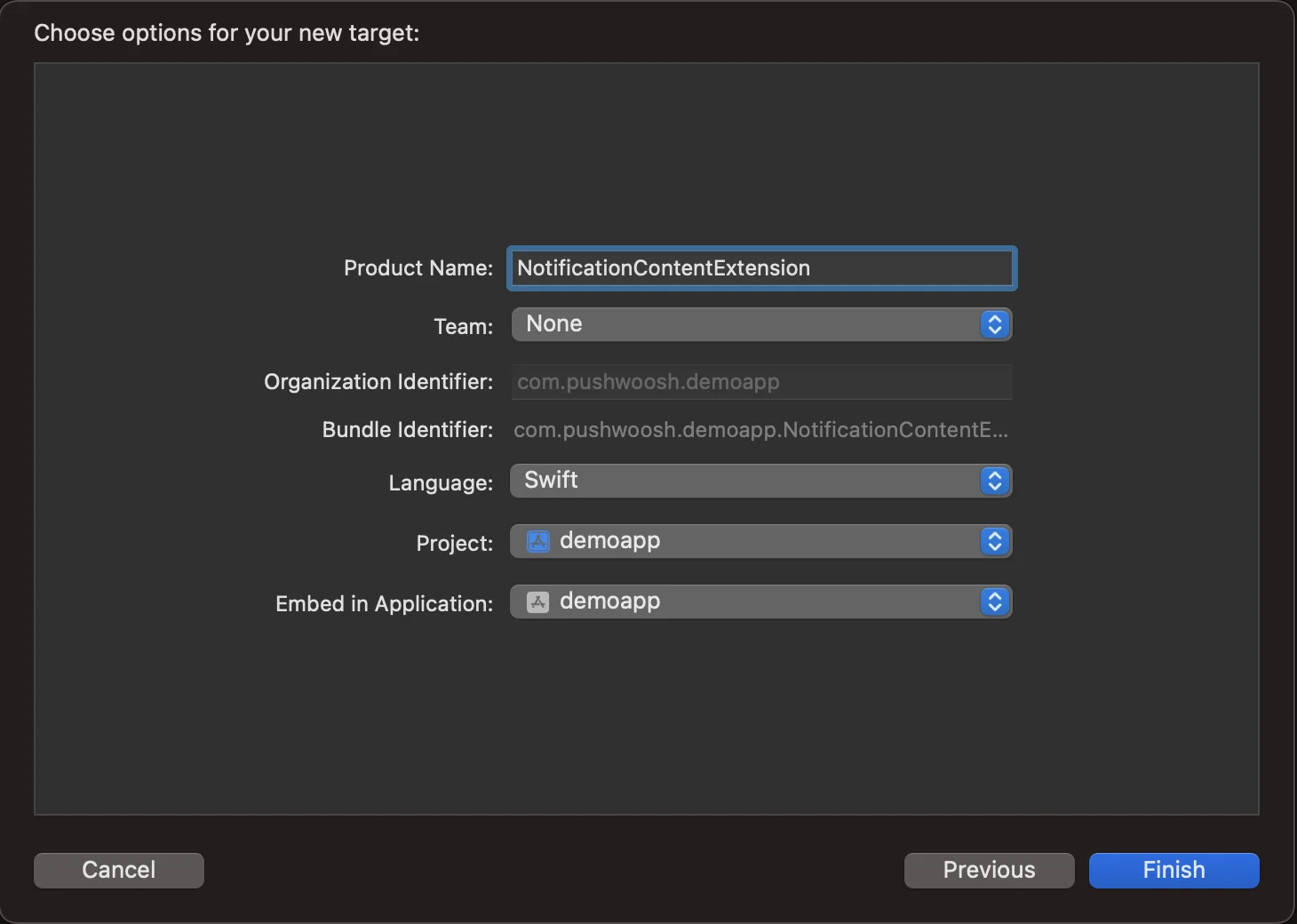
 이름을 **NotificationContentExtension**으로 지정합니다.
 ## 2. 앱에 코드 추가
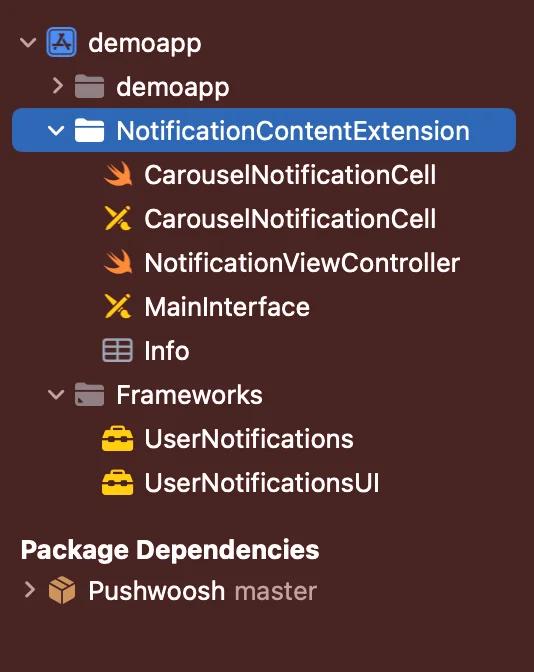
[Github에서 PWNotificationExtension 다운로드](https://github.com/Pushwoosh/PWNotificationContentExtension)하고 Xcode 프로젝트의 **`PWNotificationContentExtension`**을 Github에서 받은 동일한 파일로 교체합니다.
## 2. 앱에 코드 추가
[Github에서 PWNotificationExtension 다운로드](https://github.com/Pushwoosh/PWNotificationContentExtension)하고 Xcode 프로젝트의 **`PWNotificationContentExtension`**을 Github에서 받은 동일한 파일로 교체합니다.
 ## 3. 알림 카테고리
**AppDelegate.swift** 파일에 아래 코드를 추가합니다.
```swift
func application(_ application: UIApplication, didFinishLaunchingWithOptions launchOptions: [UIApplication.LaunchOptionsKey: Any]?) -> Bool {
if #available(iOS 10.0, *) {
let options: UNAuthorizationOptions = [.alert]
UNUserNotificationCenter.current().requestAuthorization(options: options) { (authorized, error) in
if authorized {
let categoryIdentifier = "PWNotificationCarousel"
let carouselNext = UNNotificationAction(identifier: "PWNotificationCarousel.next", title: "➡️ RIGHT", options: [])
let carouselPrevious = UNNotificationAction(identifier: "PWNotificationCarousel.previous", title: "⬅️ LEFT", options: [])
let carouselCategory = UNNotificationCategory(identifier: categoryIdentifier, actions: [carouselNext, carouselPrevious], intentIdentifiers: [], options: [])
UNUserNotificationCenter.current().setNotificationCategories([carouselCategory])
}
}
}
return true
}
```
## 4. 푸시 알림 보내기
**iOS 카테고리:**
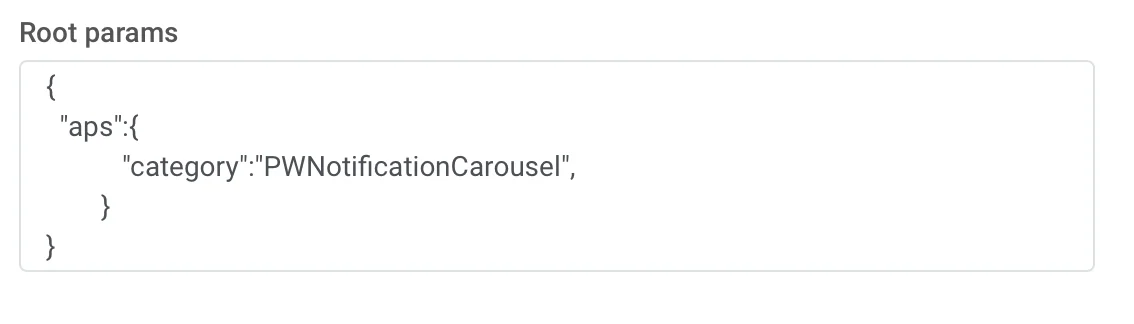
APS json으로 푸시 알림을 보냅니다:
## 3. 알림 카테고리
**AppDelegate.swift** 파일에 아래 코드를 추가합니다.
```swift
func application(_ application: UIApplication, didFinishLaunchingWithOptions launchOptions: [UIApplication.LaunchOptionsKey: Any]?) -> Bool {
if #available(iOS 10.0, *) {
let options: UNAuthorizationOptions = [.alert]
UNUserNotificationCenter.current().requestAuthorization(options: options) { (authorized, error) in
if authorized {
let categoryIdentifier = "PWNotificationCarousel"
let carouselNext = UNNotificationAction(identifier: "PWNotificationCarousel.next", title: "➡️ RIGHT", options: [])
let carouselPrevious = UNNotificationAction(identifier: "PWNotificationCarousel.previous", title: "⬅️ LEFT", options: [])
let carouselCategory = UNNotificationCategory(identifier: categoryIdentifier, actions: [carouselNext, carouselPrevious], intentIdentifiers: [], options: [])
UNUserNotificationCenter.current().setNotificationCategories([carouselCategory])
}
}
}
return true
}
```
## 4. 푸시 알림 보내기
**iOS 카테고리:**
APS json으로 푸시 알림을 보냅니다:
 ```json
{
"aps":{
"category":"PWNotificationCarousel"
}
}
```
**사용자 지정 데이터(Custom Data)**
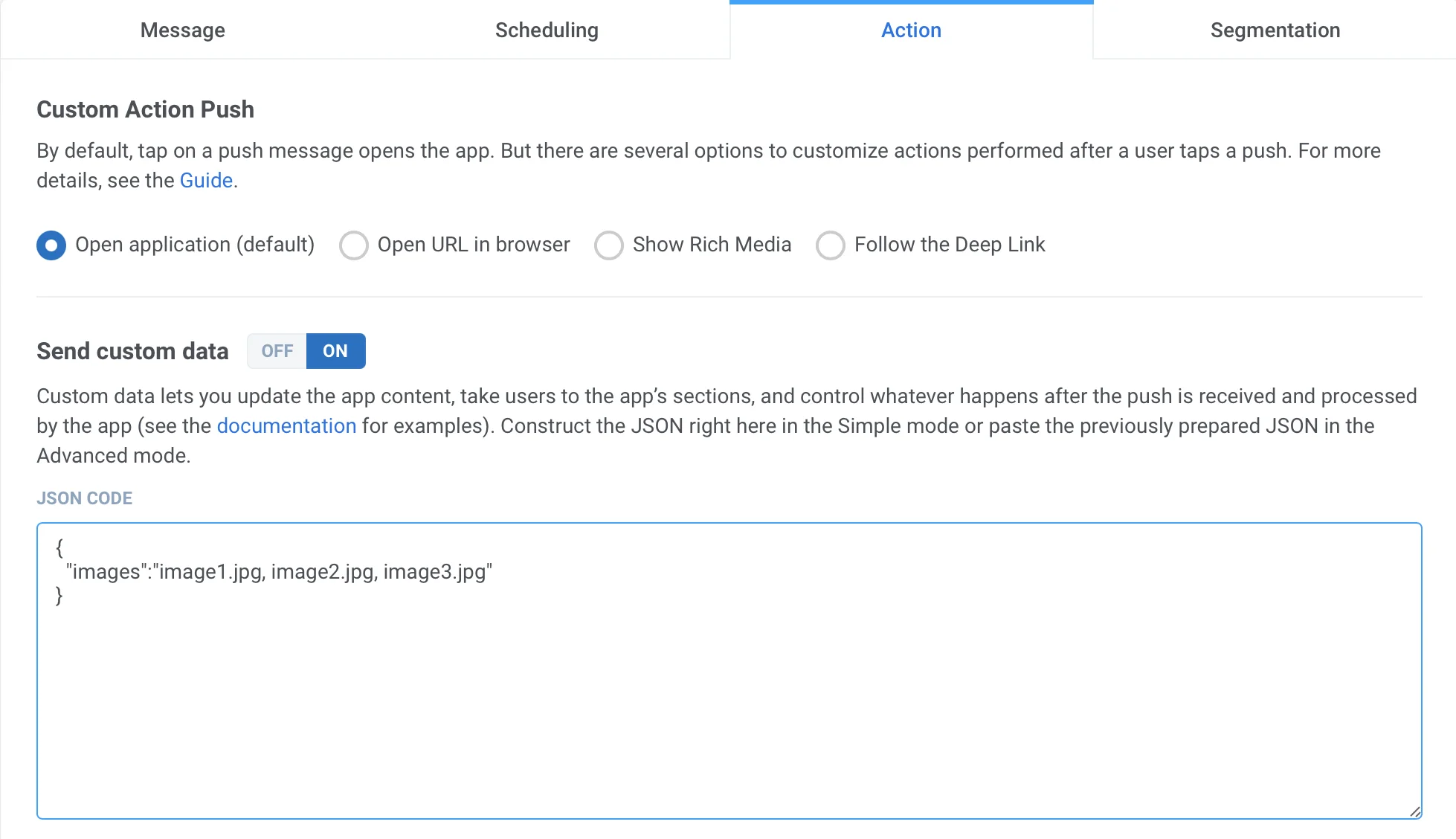
이미지 URL을 쉼표(`,`)로 구분하여 나열해야 합니다.
```json
{
"aps":{
"category":"PWNotificationCarousel"
}
}
```
**사용자 지정 데이터(Custom Data)**
이미지 URL을 쉼표(`,`)로 구분하여 나열해야 합니다.
 ```json
{
"images":"image1.jpg, image2.jpg, image3.jpg"
}
```
푸시를 받으면 iOS 버전에 따라 알림을 길게 누르거나 왼쪽으로 스와이프한 후 "보기"를 클릭하여 알림을 확장해야 합니다.
```json
{
"images":"image1.jpg, image2.jpg, image3.jpg"
}
```
푸시를 받으면 iOS 버전에 따라 알림을 길게 누르거나 왼쪽으로 스와이프한 후 "보기"를 클릭하여 알림을 확장해야 합니다.