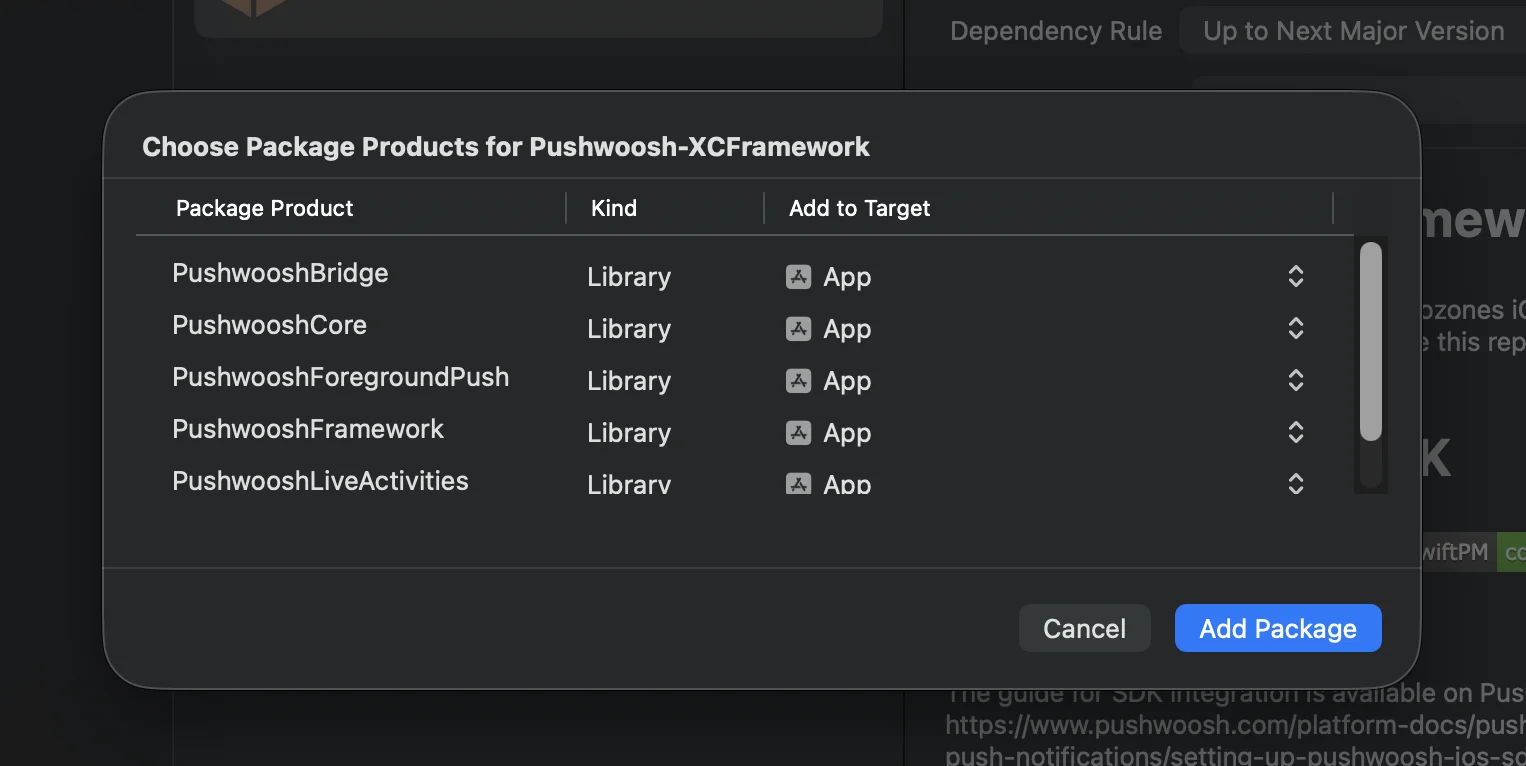
 **Cocoapods**
```bash
# Uncomment the next line to define a global platform for your project
# platform :ios, '13.0'
target 'MyApp' do
# Comment the next line if you don't want to use dynamic frameworks
use_frameworks!
pod 'PushwooshXCFramework'
pod 'PushwooshFramework/PushwooshForegroundPush'
end
```
### 3. AppDelegate에 `PushwooshForegroundPush` 구성 추가하기
```swift
import UIKit
import PushwooshFramework
import PushwooshForegroundPush
@main
class AppDelegate: UIResponder, UIApplicationDelegate, PWMessagingDelegate, PWForegroundPushDelegate {
func application(_ application: UIApplication, didFinishLaunchingWithOptions launchOptions: [UIApplication.LaunchOptionsKey: Any]?) -> Bool {
Pushwoosh.ForegroundPush.foregroundNotificationWith(style: .style1,
duration: 5,
vibration: .notification,
disappearedPushAnimation: .balls)
Pushwoosh.ForegroundPush.delegate = self
return true
}
func pushwoosh(_ pushwoosh: Pushwoosh, onMessageReceived message: PWMessage) {
if let payload = message.payload {
// Pushwoosh method
Pushwoosh.ForegroundPush.showForegroundPush(userInfo: payload)
}
}
}
```
`foregroundNotificationWith` 메서드 사용하기
`foregroundNotificationWith` 메서드를 사용하면 구성 가능한 스타일, 지속 시간 및 햅틱 피드백으로 사용자 지정 포그라운드 푸시 알림을 표시할 수 있습니다.
메서드 시그니처 (Swift / Objective-C):
```swift
@objc
static func foregroundNotificationWith(
style: PWForegroundPushStyle,
duration: Int,
vibration: PWForegroundPushHapticFeedback,
disappearedPushAnimation: PWForegroundPushDisappearedAnimation
)
```
`매개변수:`
1. `style` (`PWForegroundPushStyle`)
* 현재 `style1`만 사용할 수 있습니다.
2. `duration` (`Int`)
* 알림이 사라지기 전에 표시될 시간을 초 단위로 지정합니다.
3. `vibration` (`PWForegroundPushHapticFeedback`)
* 알림이 표시될 때의 햅틱 피드백을 제어합니다. 사용 가능한 옵션:
```swift
case none // 진동 없음
case light // 가벼운 진동
case medium // 중간 진동
case heavy // 강한 진동
case soft // 부드러운 진동
case rigid // 단단한 진동
case notification // 표준 알림 진동
```
4. `disappearedPushAnimation` (`PWForegroundPushDisappearedAnimation`)
* 푸시 사라짐 애니메이션
```swift
case balls = 0
case regularPush
```
### 4. `didTapForegroundPush` 델리게이트 메서드 구현하기
사용자 지정 포그라운드 푸시 알림에 대한 사용자 탭을 처리하려면 `PWForegroundPushDelegate` 프로토콜 메서드를 구현합니다:
```swift
// 포그라운드 푸시 탭 처리
func didTapForegroundPush(_ userInfo: [AnyHashable : Any]) {
print("Foreground custom push: \(userInfo)")
// 특정 화면으로 이동하는 등의 작업 수행
// navigateToScreen(for: userInfo)
}
```
참고:
* 이 메서드는 사용자가 사용자 지정 포그라운드 푸시를 탭할 때 호출됩니다.
* `userInfo`에는 알림의 페이로드가 포함됩니다.
* 구성 후 `Pushwoosh.ForegroundPush.delegate = self`를 설정해야 합니다.
### 5. 포그라운드 푸시 알림 사용자 지정을 위한 선택적 매개변수
`PushwooshForegroundPush` 모듈은 포그라운드 푸시 알림의 모양과 동작을 사용자 지정하기 위한 여러 선택적 매개변수를 제공합니다. 이러한 매개변수는 정적 속성을 통해 전역적으로 설정할 수 있습니다.
**Cocoapods**
```bash
# Uncomment the next line to define a global platform for your project
# platform :ios, '13.0'
target 'MyApp' do
# Comment the next line if you don't want to use dynamic frameworks
use_frameworks!
pod 'PushwooshXCFramework'
pod 'PushwooshFramework/PushwooshForegroundPush'
end
```
### 3. AppDelegate에 `PushwooshForegroundPush` 구성 추가하기
```swift
import UIKit
import PushwooshFramework
import PushwooshForegroundPush
@main
class AppDelegate: UIResponder, UIApplicationDelegate, PWMessagingDelegate, PWForegroundPushDelegate {
func application(_ application: UIApplication, didFinishLaunchingWithOptions launchOptions: [UIApplication.LaunchOptionsKey: Any]?) -> Bool {
Pushwoosh.ForegroundPush.foregroundNotificationWith(style: .style1,
duration: 5,
vibration: .notification,
disappearedPushAnimation: .balls)
Pushwoosh.ForegroundPush.delegate = self
return true
}
func pushwoosh(_ pushwoosh: Pushwoosh, onMessageReceived message: PWMessage) {
if let payload = message.payload {
// Pushwoosh method
Pushwoosh.ForegroundPush.showForegroundPush(userInfo: payload)
}
}
}
```
`foregroundNotificationWith` 메서드 사용하기
`foregroundNotificationWith` 메서드를 사용하면 구성 가능한 스타일, 지속 시간 및 햅틱 피드백으로 사용자 지정 포그라운드 푸시 알림을 표시할 수 있습니다.
메서드 시그니처 (Swift / Objective-C):
```swift
@objc
static func foregroundNotificationWith(
style: PWForegroundPushStyle,
duration: Int,
vibration: PWForegroundPushHapticFeedback,
disappearedPushAnimation: PWForegroundPushDisappearedAnimation
)
```
`매개변수:`
1. `style` (`PWForegroundPushStyle`)
* 현재 `style1`만 사용할 수 있습니다.
2. `duration` (`Int`)
* 알림이 사라지기 전에 표시될 시간을 초 단위로 지정합니다.
3. `vibration` (`PWForegroundPushHapticFeedback`)
* 알림이 표시될 때의 햅틱 피드백을 제어합니다. 사용 가능한 옵션:
```swift
case none // 진동 없음
case light // 가벼운 진동
case medium // 중간 진동
case heavy // 강한 진동
case soft // 부드러운 진동
case rigid // 단단한 진동
case notification // 표준 알림 진동
```
4. `disappearedPushAnimation` (`PWForegroundPushDisappearedAnimation`)
* 푸시 사라짐 애니메이션
```swift
case balls = 0
case regularPush
```
### 4. `didTapForegroundPush` 델리게이트 메서드 구현하기
사용자 지정 포그라운드 푸시 알림에 대한 사용자 탭을 처리하려면 `PWForegroundPushDelegate` 프로토콜 메서드를 구현합니다:
```swift
// 포그라운드 푸시 탭 처리
func didTapForegroundPush(_ userInfo: [AnyHashable : Any]) {
print("Foreground custom push: \(userInfo)")
// 특정 화면으로 이동하는 등의 작업 수행
// navigateToScreen(for: userInfo)
}
```
참고:
* 이 메서드는 사용자가 사용자 지정 포그라운드 푸시를 탭할 때 호출됩니다.
* `userInfo`에는 알림의 페이로드가 포함됩니다.
* 구성 후 `Pushwoosh.ForegroundPush.delegate = self`를 설정해야 합니다.
### 5. 포그라운드 푸시 알림 사용자 지정을 위한 선택적 매개변수
`PushwooshForegroundPush` 모듈은 포그라운드 푸시 알림의 모양과 동작을 사용자 지정하기 위한 여러 선택적 매개변수를 제공합니다. 이러한 매개변수는 정적 속성을 통해 전역적으로 설정할 수 있습니다.
| 속성 | 타입 | 설명 | 기본값 |
|---|---|---|---|
| useLiquidView | Bool | iOS 26에서 Liquid Glass 뷰를 사용합니다. | false |
| gradientColors | [UIColor]? | 그라데이션 배경을 위한 색상 배열(선택 사항). | nil |
| backgroundColor | UIColor? | 푸시의 배경색입니다. nil이고 gradientColors가 설정되지 않은 경우 기본 그라데이션이 사용됩니다. | 기본 시스템 그라데이션 |
| usePushAnimation | Bool | 푸시가 표시될 때 애니메이션을 적용할지 여부입니다. | true |
| titlePushColor | UIColor? | 알림 제목 텍스트의 색상입니다. nil인 경우 시스템 흰색이 기본값입니다. | white |
| messagePushColor | UIColor? | 알림 메시지 텍스트의 색상입니다. nil인 경우 시스템 흰색이 기본값입니다. | white |
| titlePushFont | UIFont? | 알림 제목 텍스트의 글꼴입니다. nil인 경우 시스템 글꼴이 기본값입니다. | 기본 시스템 글꼴 |
| messagePushFont | UIFont? | 알림 메시지 텍스트의 글꼴입니다. nil인 경우 시스템 글꼴이 기본값입니다. | 기본 시스템 글꼴 |