# MAUI Dotnet Geozones 연동
Pushwoosh를 사용하면 MAUI .NET 애플리케이션에 Geozones 기능을 간단하게 연동할 수 있습니다. 시작하려면 다음 단계를 따르세요:
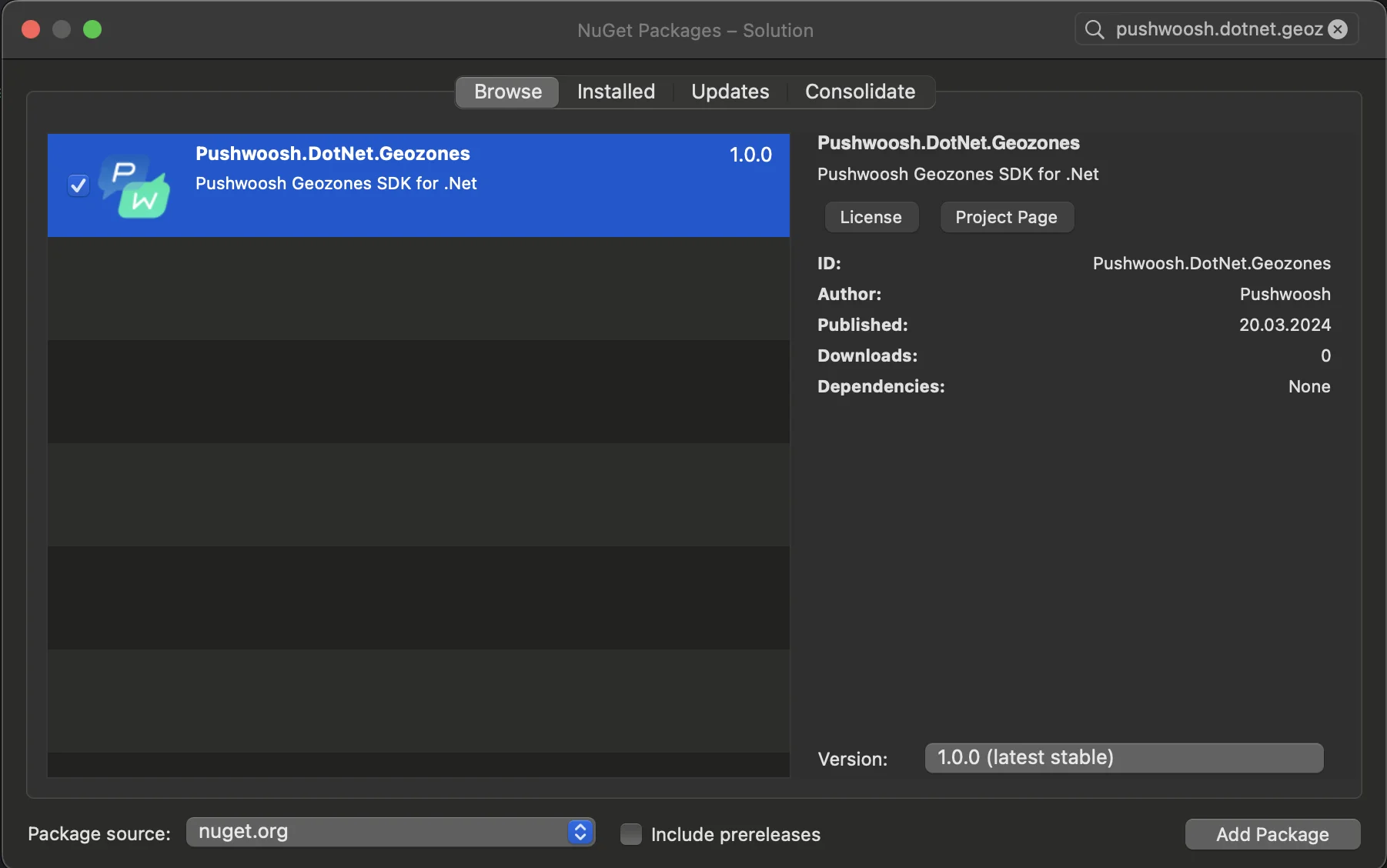
1. 솔루션에 Pushwoosh.DotNet.Geozones NuGet 패키지를 추가합니다
2. Android 연동
Android 프로젝트에서 MainActivity.cs 파일을 찾아 `OnCreate()` 메서드에서 `LocationManager.Init()`를 호출합니다:
```csharp
using PushwooshSDK.DotNet.Geozones.Android;
...
[Activity(Theme = "@style/Maui.SplashTheme", MainLauncher = true, ConfigurationChanges = ConfigChanges.ScreenSize | ConfigChanges.Orientation | ConfigChanges.UiMode | ConfigChanges.ScreenLayout | ConfigChanges.SmallestScreenSize | ConfigChanges.Density)]
public class MainActivity : MauiAppCompatActivity
{
protected override void OnCreate(Bundle savedInstanceState)
{
base.OnCreate(savedInstanceState);
PushManager.Init();
LocationManager.Init();
}
}
```
3. iOS 연동
iOS 프로젝트의 경우, AppDelegate.cs 파일을 열고 `FinishedLaunching()` 메서드에서 `LocationManager.Init()`를 호출합니다:
```csharp
using Pushwoosh.iOS;
using PushwooshSDK.DotNet.Geozones.iOS;
using UIKit;
...
[Register("AppDelegate")]
public class AppDelegate : MauiUIApplicationDelegate
{
public override bool FinishedLaunching(UIApplication application, NSDictionary launchOptions)
{
PushManager.Init();
LocationManager.Init();
return base.FinishedLaunching(application, launchOptions);
}
protected override MauiApp CreateMauiApp() => MauiProgram.CreateMauiApp();
}
```
4. 앱의 요구 사항에 따라 위치 권한을 추가합니다.
**Privacy - Location When In Use Usage Description** 권한은 항상 추가해야 합니다.
5\. 그런 다음 `StartLocationTracking()` 메서드를 호출하여 위치 추적을 시작합니다.
```csharp
using PushwooshSDK.DotNet.Geozones;
...
LocationManager.Instance.StartLocationTracking();
```
 2. Android 연동
Android 프로젝트에서 MainActivity.cs 파일을 찾아 `OnCreate()` 메서드에서 `LocationManager.Init()`를 호출합니다:
```csharp
using PushwooshSDK.DotNet.Geozones.Android;
...
[Activity(Theme = "@style/Maui.SplashTheme", MainLauncher = true, ConfigurationChanges = ConfigChanges.ScreenSize | ConfigChanges.Orientation | ConfigChanges.UiMode | ConfigChanges.ScreenLayout | ConfigChanges.SmallestScreenSize | ConfigChanges.Density)]
public class MainActivity : MauiAppCompatActivity
{
protected override void OnCreate(Bundle savedInstanceState)
{
base.OnCreate(savedInstanceState);
PushManager.Init();
LocationManager.Init();
}
}
```
3. iOS 연동
iOS 프로젝트의 경우, AppDelegate.cs 파일을 열고 `FinishedLaunching()` 메서드에서 `LocationManager.Init()`를 호출합니다:
```csharp
using Pushwoosh.iOS;
using PushwooshSDK.DotNet.Geozones.iOS;
using UIKit;
...
[Register("AppDelegate")]
public class AppDelegate : MauiUIApplicationDelegate
{
public override bool FinishedLaunching(UIApplication application, NSDictionary launchOptions)
{
PushManager.Init();
LocationManager.Init();
return base.FinishedLaunching(application, launchOptions);
}
protected override MauiApp CreateMauiApp() => MauiProgram.CreateMauiApp();
}
```
4. 앱의 요구 사항에 따라 위치 권한을 추가합니다.
**Privacy - Location When In Use Usage Description** 권한은 항상 추가해야 합니다.
2. Android 연동
Android 프로젝트에서 MainActivity.cs 파일을 찾아 `OnCreate()` 메서드에서 `LocationManager.Init()`를 호출합니다:
```csharp
using PushwooshSDK.DotNet.Geozones.Android;
...
[Activity(Theme = "@style/Maui.SplashTheme", MainLauncher = true, ConfigurationChanges = ConfigChanges.ScreenSize | ConfigChanges.Orientation | ConfigChanges.UiMode | ConfigChanges.ScreenLayout | ConfigChanges.SmallestScreenSize | ConfigChanges.Density)]
public class MainActivity : MauiAppCompatActivity
{
protected override void OnCreate(Bundle savedInstanceState)
{
base.OnCreate(savedInstanceState);
PushManager.Init();
LocationManager.Init();
}
}
```
3. iOS 연동
iOS 프로젝트의 경우, AppDelegate.cs 파일을 열고 `FinishedLaunching()` 메서드에서 `LocationManager.Init()`를 호출합니다:
```csharp
using Pushwoosh.iOS;
using PushwooshSDK.DotNet.Geozones.iOS;
using UIKit;
...
[Register("AppDelegate")]
public class AppDelegate : MauiUIApplicationDelegate
{
public override bool FinishedLaunching(UIApplication application, NSDictionary launchOptions)
{
PushManager.Init();
LocationManager.Init();
return base.FinishedLaunching(application, launchOptions);
}
protected override MauiApp CreateMauiApp() => MauiProgram.CreateMauiApp();
}
```
4. 앱의 요구 사항에 따라 위치 권한을 추가합니다.
**Privacy - Location When In Use Usage Description** 권한은 항상 추가해야 합니다.
 5\. 그런 다음 `StartLocationTracking()` 메서드를 호출하여 위치 추적을 시작합니다.
```csharp
using PushwooshSDK.DotNet.Geozones;
...
LocationManager.Instance.StartLocationTracking();
```
5\. 그런 다음 `StartLocationTracking()` 메서드를 호출하여 위치 추적을 시작합니다.
```csharp
using PushwooshSDK.DotNet.Geozones;
...
LocationManager.Instance.StartLocationTracking();
```