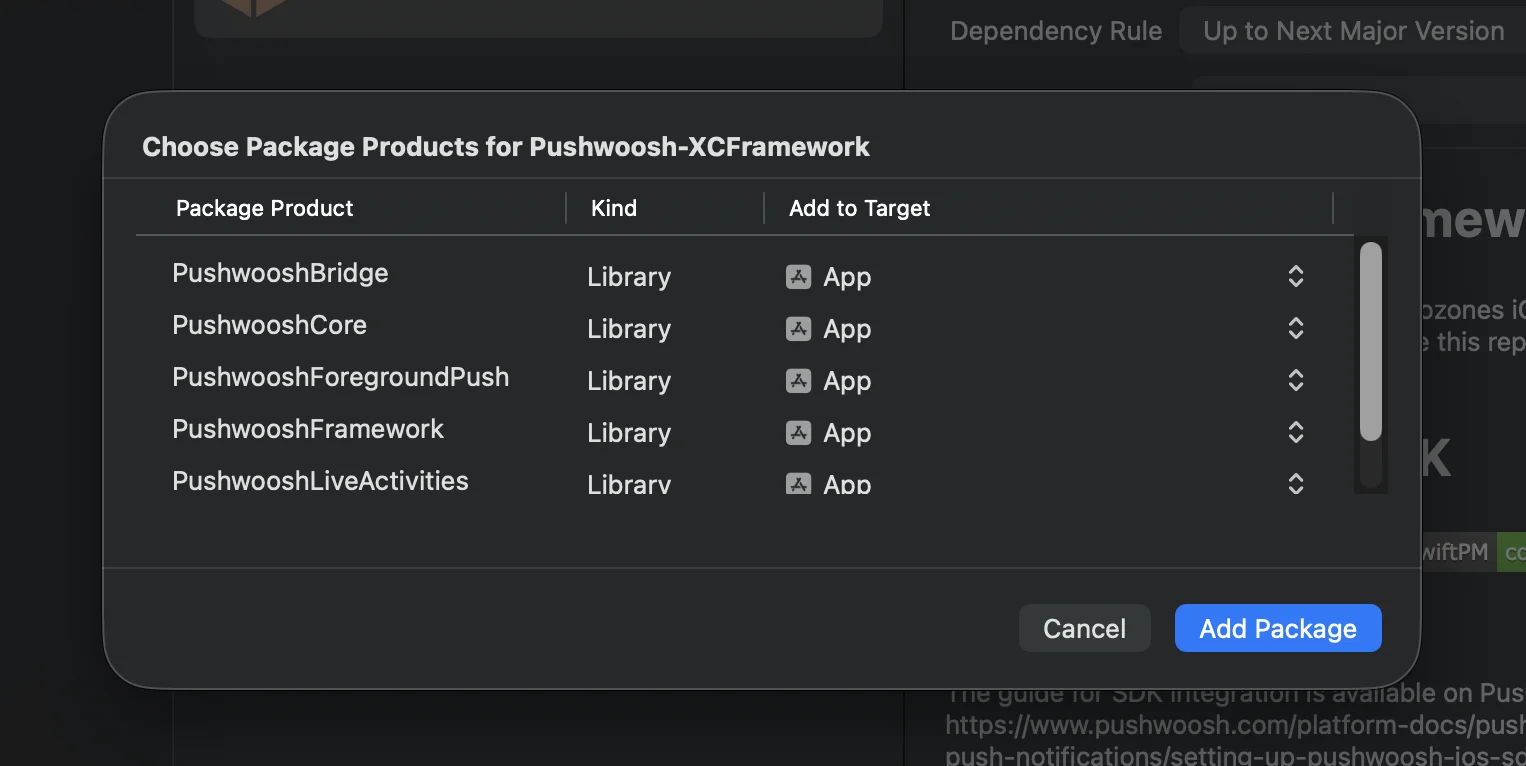
 **कोकोपोड्स**
```bash
# Uncomment the next line to define a global platform for your project
# platform :ios, '13.0'
target 'MyApp' do
# Comment the next line if you don't want to use dynamic frameworks
use_frameworks!
pod 'PushwooshXCFramework'
pod 'PushwooshFramework/PushwooshForegroundPush'
end
```
### 3. AppDelegate में `PushwooshForegroundPush` कॉन्फ़िगरेशन जोड़ें
```swift
import UIKit
import PushwooshFramework
import PushwooshForegroundPush
@main
class AppDelegate: UIResponder, UIApplicationDelegate, PWMessagingDelegate, PWForegroundPushDelegate {
func application(_ application: UIApplication, didFinishLaunchingWithOptions launchOptions: [UIApplication.LaunchOptionsKey: Any]?) -> Bool {
Pushwoosh.ForegroundPush.foregroundNotificationWith(style: .style1,
duration: 5,
vibration: .notification,
disappearedPushAnimation: .balls)
Pushwoosh.ForegroundPush.delegate = self
return true
}
func pushwoosh(_ pushwoosh: Pushwoosh, onMessageReceived message: PWMessage) {
if let payload = message.payload {
// Pushwoosh method
Pushwoosh.ForegroundPush.showForegroundPush(userInfo: payload)
}
}
}
```
`foregroundNotificationWith` मेथड का उपयोग करना
`foregroundNotificationWith` मेथड आपको कॉन्फ़िगर करने योग्य स्टाइल, अवधि और हैप्टिक फीडबैक के साथ एक कस्टम फोरग्राउंड पुश नोटिफिकेशन प्रदर्शित करने की अनुमति देता है।
मेथड सिग्नेचर (स्विफ्ट / ऑब्जेक्टिव-सी):
```swift
@objc
static func foregroundNotificationWith(
style: PWForegroundPushStyle,
duration: Int,
vibration: PWForegroundPushHapticFeedback,
disappearedPushAnimation: PWForegroundPushDisappearedAnimation
)
```
`पैरामीटर्स:`
1. `style` (`PWForegroundPushStyle`)
* वर्तमान में, केवल style1 उपलब्ध है।
2. `duration` (`Int`)
* यह निर्दिष्ट करता है कि नोटिफिकेशन गायब होने से पहले कितने समय तक (सेकंड में) प्रदर्शित किया जाएगा।
3. `vibration` (`PWForegroundPushHapticFeedback`)
* जब नोटिफिकेशन दिखाया जाता है तो यह हैप्टिक फीडबैक को नियंत्रित करता है। उपलब्ध विकल्प:
```swift
case none // कोई वाइब्रेशन नहीं
case light // हल्का वाइब्रेशन
case medium // मध्यम वाइब्रेशन
case heavy // भारी वाइब्रेशन
case soft // नरम वाइब्रेशन
case rigid // कठोर वाइब्रेशन
case notification // मानक नोटिफिकेशन वाइब्रेशन
```
4. `disappearedPushAnimation` (`PWForegroundPushDisappearedAnimation`)
* पुश गायब होने का एनिमेशन
```swift
case balls = 0
case regularPush
```
### 4. `didTapForegroundPush` डेलीगेट मेथड को लागू करना
कस्टम फोरग्राउंड पुश नोटिफिकेशन पर उपयोगकर्ता के टैप को संभालने के लिए, `PWForegroundPushDelegate` प्रोटोकॉल मेथड को लागू करें:
```swift
// Handle tap on foreground push
func didTapForegroundPush(_ userInfo: [AnyHashable : Any]) {
print("Foreground custom push: \(userInfo)")
// Perform any action, e.g., navigate to a specific screen
// navigateToScreen(for: userInfo)
}
```
नोट्स:
* यह मेथड तब कॉल किया जाता है जब उपयोगकर्ता कस्टम फोरग्राउंड पुश पर टैप करता है।
* `userInfo` में नोटिफिकेशन का पेलोड होता है।
* कॉन्फ़िगरेशन के बाद `Pushwoosh.ForegroundPush.delegate = self` सेट करना सुनिश्चित करें।
### 5. फोरग्राउंड पुश नोटिफिकेशन को कस्टमाइज़ करने के लिए वैकल्पिक पैरामीटर्स
`PushwooshForegroundPush` मॉड्यूल आपके फोरग्राउंड पुश नोटिफिकेशन की उपस्थिति और व्यवहार को कस्टमाइज़ करने के लिए कई वैकल्पिक पैरामीटर प्रदान करता है। इन्हें स्टैटिक प्रॉपर्टीज के माध्यम से विश्व स्तर पर सेट किया जा सकता है।
**कोकोपोड्स**
```bash
# Uncomment the next line to define a global platform for your project
# platform :ios, '13.0'
target 'MyApp' do
# Comment the next line if you don't want to use dynamic frameworks
use_frameworks!
pod 'PushwooshXCFramework'
pod 'PushwooshFramework/PushwooshForegroundPush'
end
```
### 3. AppDelegate में `PushwooshForegroundPush` कॉन्फ़िगरेशन जोड़ें
```swift
import UIKit
import PushwooshFramework
import PushwooshForegroundPush
@main
class AppDelegate: UIResponder, UIApplicationDelegate, PWMessagingDelegate, PWForegroundPushDelegate {
func application(_ application: UIApplication, didFinishLaunchingWithOptions launchOptions: [UIApplication.LaunchOptionsKey: Any]?) -> Bool {
Pushwoosh.ForegroundPush.foregroundNotificationWith(style: .style1,
duration: 5,
vibration: .notification,
disappearedPushAnimation: .balls)
Pushwoosh.ForegroundPush.delegate = self
return true
}
func pushwoosh(_ pushwoosh: Pushwoosh, onMessageReceived message: PWMessage) {
if let payload = message.payload {
// Pushwoosh method
Pushwoosh.ForegroundPush.showForegroundPush(userInfo: payload)
}
}
}
```
`foregroundNotificationWith` मेथड का उपयोग करना
`foregroundNotificationWith` मेथड आपको कॉन्फ़िगर करने योग्य स्टाइल, अवधि और हैप्टिक फीडबैक के साथ एक कस्टम फोरग्राउंड पुश नोटिफिकेशन प्रदर्शित करने की अनुमति देता है।
मेथड सिग्नेचर (स्विफ्ट / ऑब्जेक्टिव-सी):
```swift
@objc
static func foregroundNotificationWith(
style: PWForegroundPushStyle,
duration: Int,
vibration: PWForegroundPushHapticFeedback,
disappearedPushAnimation: PWForegroundPushDisappearedAnimation
)
```
`पैरामीटर्स:`
1. `style` (`PWForegroundPushStyle`)
* वर्तमान में, केवल style1 उपलब्ध है।
2. `duration` (`Int`)
* यह निर्दिष्ट करता है कि नोटिफिकेशन गायब होने से पहले कितने समय तक (सेकंड में) प्रदर्शित किया जाएगा।
3. `vibration` (`PWForegroundPushHapticFeedback`)
* जब नोटिफिकेशन दिखाया जाता है तो यह हैप्टिक फीडबैक को नियंत्रित करता है। उपलब्ध विकल्प:
```swift
case none // कोई वाइब्रेशन नहीं
case light // हल्का वाइब्रेशन
case medium // मध्यम वाइब्रेशन
case heavy // भारी वाइब्रेशन
case soft // नरम वाइब्रेशन
case rigid // कठोर वाइब्रेशन
case notification // मानक नोटिफिकेशन वाइब्रेशन
```
4. `disappearedPushAnimation` (`PWForegroundPushDisappearedAnimation`)
* पुश गायब होने का एनिमेशन
```swift
case balls = 0
case regularPush
```
### 4. `didTapForegroundPush` डेलीगेट मेथड को लागू करना
कस्टम फोरग्राउंड पुश नोटिफिकेशन पर उपयोगकर्ता के टैप को संभालने के लिए, `PWForegroundPushDelegate` प्रोटोकॉल मेथड को लागू करें:
```swift
// Handle tap on foreground push
func didTapForegroundPush(_ userInfo: [AnyHashable : Any]) {
print("Foreground custom push: \(userInfo)")
// Perform any action, e.g., navigate to a specific screen
// navigateToScreen(for: userInfo)
}
```
नोट्स:
* यह मेथड तब कॉल किया जाता है जब उपयोगकर्ता कस्टम फोरग्राउंड पुश पर टैप करता है।
* `userInfo` में नोटिफिकेशन का पेलोड होता है।
* कॉन्फ़िगरेशन के बाद `Pushwoosh.ForegroundPush.delegate = self` सेट करना सुनिश्चित करें।
### 5. फोरग्राउंड पुश नोटिफिकेशन को कस्टमाइज़ करने के लिए वैकल्पिक पैरामीटर्स
`PushwooshForegroundPush` मॉड्यूल आपके फोरग्राउंड पुश नोटिफिकेशन की उपस्थिति और व्यवहार को कस्टमाइज़ करने के लिए कई वैकल्पिक पैरामीटर प्रदान करता है। इन्हें स्टैटिक प्रॉपर्टीज के माध्यम से विश्व स्तर पर सेट किया जा सकता है।
| प्रॉपर्टी | टाइप | विवरण | डिफ़ॉल्ट |
|---|---|---|---|
| useLiquidView | Bool | iOS 26 पर लिक्विड ग्लास व्यू का उपयोग करें। | false |
| gradientColors | [UIColor]? | ग्रेडिएंट बैकग्राउंड के लिए रंगों का वैकल्पिक ऐरे। | nil |
| backgroundColor | UIColor? | पुश के लिए बैकग्राउंड का रंग। यदि nil है और `gradientColors` सेट नहीं है, तो डिफ़ॉल्ट ग्रेडिएंट का उपयोग किया जाता है। | डिफ़ॉल्ट सिस्टम ग्रेडिएंट |
| usePushAnimation | Bool | क्या पुश दिखाए जाने पर उसे एनिमेट करना है। | true |
| titlePushColor | UIColor? | नोटिफिकेशन शीर्षक टेक्स्ट का रंग। यदि nil है तो सिस्टम व्हाइट पर डिफ़ॉल्ट होता है। | white |
| messagePushColor | UIColor? | नोटिफिकेशन संदेश टेक्स्ट का रंग। यदि nil है तो सिस्टम व्हाइट पर डिफ़ॉल्ट होता है। | white |
| titlePushFont | UIFont? | नोटिफिकेशन शीर्षक टेक्स्ट का फ़ॉन्ट। यदि nil है तो सिस्टम फ़ॉन्ट पर डिफ़ॉल्ट होता है। | डिफ़ॉल्ट सिस्टम फ़ॉन्ट |
| messagePushFont | UIFont? | नोटिफिकेशन संदेश टेक्स्ट का फ़ॉन्ट। यदि nil है तो सिस्टम फ़ॉन्ट पर डिफ़ॉल्ट होता है। | डिफ़ॉल्ट सिस्टम फ़ॉन्ट |