Personnalisation de l'apparence des rich media
Aperçu
Anchor link toPersonnalisez l’apparence des pages rich media pour qu’elles correspondent parfaitement au style de votre application. Modifiez la couleur de fond de vos messages in-app, ajoutez une animation ou ajustez la vue de chargement à la mise en page de l’application. Améliorez l’expérience utilisateur avec des in-apps qui ressemblent à un composant natif de l’application.
Implémentation
Anchor link toTout d’abord, obtenez une instance de la classe RichMediaStyle :
PWRichMediaStyle *style = [PWRichMediaManager sharedManager].richMediaStyle;Android
Anchor link toRichMediaStyle style = RichMediaManager.getRichMediaStyle();Couleur de fond
Anchor link toFaites en sorte que les messages in-app ressemblent à une partie intégrante de votre application en changeant la couleur de fond des pages rich media affichées aux utilisateurs de l’application.
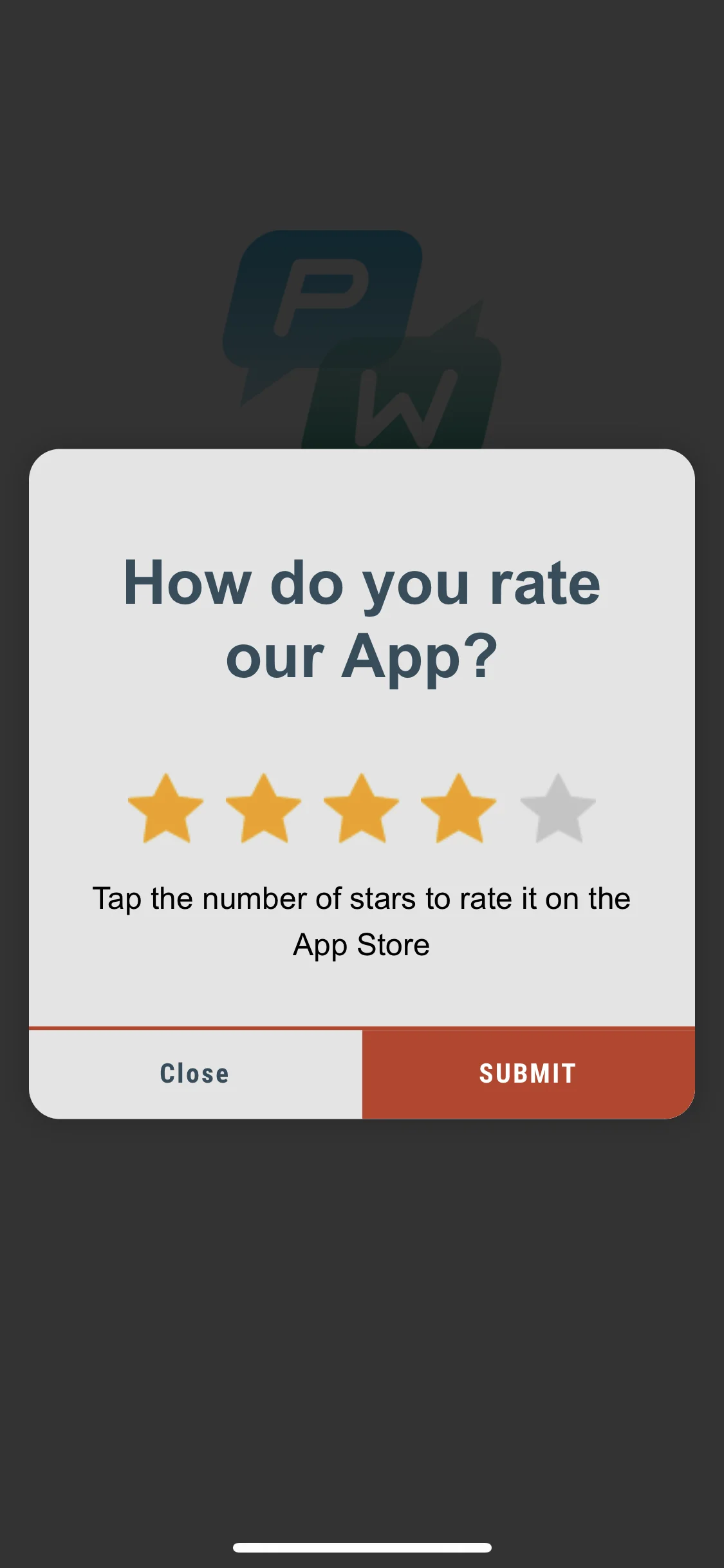
style.backgroundColor = [[UIColor blackColor] colorWithAlphaComponent:0.2f];Android
Anchor link tostyle.setBackgroundColor(ContextCompat.getColor(getApplication(), R.color.black));C’est tout !
Animation
Anchor link toAméliorez l’effet de vos messages in-app en animant l’apparition des rich media.
Définissez le délégué d’animation sur l’une des classes par défaut :
PWRichMediaStyleSlideLeftAnimation,PWRichMediaStyleSlideRightAnimation,PWRichMediaStyleSlideTopAnimation,PWRichMediaStyleSlideBottomAnimation,PWRichMediaStyleCrossFadeAnimation.
style.animationDelegate = [PWRichMediaStyleCrossFadeAnimation new];Android
Anchor link toDéfinissez le délégué d’animation sur l’une des classes par défaut :
RichMediaAnimationSlideTop,RichMediaAnimationSlideBottom,RichMediaAnimationSlideRight,RichMediaAnimationSlideLeft,RichMediaAnimationCrossFade.
richMediaStyle.setRichMediaAnimationType(new RichMediaAnimationSlideTop());Pour définir une animation personnalisée, implémentez la méthode PWRichMediaStyleAnimationDelegate pour iOS ou RichMediaAnimation pour Android comme suit :
- Définissez le délégué d’animation :
style.animationDelegate = self;- Implémentez les méthodes
PWRichMediaStyleAnimationDelegate(n’oubliez pas d’appeler un bloc de complétion) :
- (void)runPresentingAnimationWithContentView:(UIView *)contentView parentView:(UIView *)parentView completion:(dispatch_block_t)completion {    contentView.transform = CGAffineTransformMakeTranslation(0, parentView.bounds.size.height);
    [UIView animateWithDuration:0.6                          delay:0         usingSpringWithDamping:0.4          initialSpringVelocity:0                        options:0                     animations:^{                         contentView.transform = CGAffineTransformIdentity;                     } completion:^(BOOL finished) {                         completion();                     }];}
- (void)runDismissingAnimationWithContentView:(UIView *)contentView parentView:(UIView *)parentView completion:(dispatch_block_t)completion {    [UIView animateWithDuration:0.3                     animations:^{                         contentView.alpha = 0.0f;                         contentView.transform = CGAffineTransformMakeScale(2, 2);                     } completion:^(BOOL finished) {                         completion();                     }];}
Android
Anchor link toImplémentez l’interface RichMediaAnimation et définissez-la pour l’animation personnalisée d’ouverture et de fermeture des Rich Media :
richMediaStyle.setRichMediaAnimation(new RichMediaAnimation() {    //Allows to set rules and behavior for custom Rich Media open animation    @Override    public void openAnimation(View contentView, View parentView) {        AnimationSet fadeInAnimation = new AnimationSet(true);        fadeInAnimation.addAnimation(new TranslateAnimation(0.15f * parentView.getWidth(), 0, parentView.getHeight() / 2.5f, 0));        fadeInAnimation.addAnimation(new AlphaAnimation(0, 1));        fadeInAnimation.addAnimation(new ScaleAnimation(0.7f, 1.0f, 0.7f, 1.0f));        fadeInAnimation.setDuration(2000);        fadeInAnimation.setInterpolator(new DecelerateInterpolator(1f));
        contentView.startAnimation(fadeInAnimation);    }
    //Allows to set rules and behavior for custom Rich Media close animation    @Override    public void closeAnimation(View contentView, View parentView, Animation.AnimationListener endAnimationListener) {        // !IMPORTANT!        // endAnimationListener has to be added to your custom animation to let Pushwoosh SDK handle animation end event        AlphaAnimation alphaAnimation = new AlphaAnimation(1, 0);        alphaAnimation.setDuration(2000);        alphaAnimation.setAnimationListener(endAnimationListener);        alphaAnimation.setFillEnabled(true);        alphaAnimation.setFillAfter(true);
        contentView.animate().translationY(parentView.getHeight() / 5).setDuration(250).start();
        parentView.startAnimation(alphaAnimation);    }});
Vue de chargement personnalisée
Anchor link toCaptez l’attention de l’utilisateur dès les premières secondes avec une vue de chargement personnalisée de vos messages in-app.
- Utilisez
loadingViewBlockcomme suit :
style.loadingViewBlock = ^PWLoadingView *{ return [[[NSBundle mainBundle] loadNibNamed:@"LoadingView" owner:self options:nil] lastObject];};- “LoadingView” ici doit hériter de PWLoadingView (défini dans PWRichMediaStyle.h) :
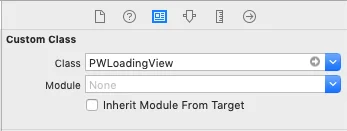
- Définissez les outlets :
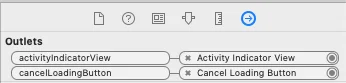
Android
Anchor link toRichMediaStyle.LoadingViewCreatorInterface implémente une méthode qui renvoie une vue à utiliser comme écran de chargement pour les Rich Media :
richMediaStyle.setLoadingViewCreator(() -> { View screenView = createYourScreenView(); return screenView;});Délai d’activation du bouton de fermeture
Anchor link toAssurez-vous que le message in-app est montré aux utilisateurs en désactivant le bouton de fermeture jusqu’à ce que le Rich Media soit chargé.
style.closeButtonPresentingDelay = 3;Android
Anchor link to// définissez une valeur en millisecondesrichMediaStyle.setTimeOutBackButtonEnable(3000);